Device Links
The Twitch platform has the option to protect you from seeing harmful, offensive, and abusive language in chat. For younger users, it’s advisable to have the “Chat Filter” option enabled, but some want to see everything on chat. This is why knowing how to adjust this setting is helpful.

Turning the “Chat Filter” option on and off is straightforward if you’re just watching somebody’s stream. However, this option is unavailable on your channel or if you’re a moderator.
Read on to learn everything you need to know about adjusting the “Chat Filter” option on Twitch.
Disabling the Chat Filter on Twitch
You can turn off the “Chat Filter,” including the “Discrimination,” “Sexually Explicit Language,” “Hostility,” and “Profanity” options for every stream on Twitch. When you access this option, you will see a note saying you will use the block filters across the platform’s channels.
How to Disable Filters on Mobile Devices
If you have a Twitch app on your Android or iOS device, this is how you can disable the feature and see every insult and bad word in chat:
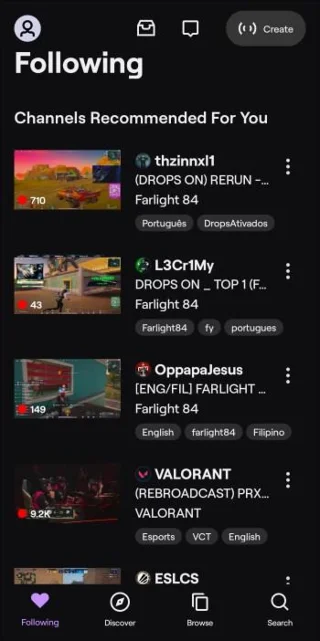
- Open the Twitch app and log in.
- Click on the stream where you want to disable this option.

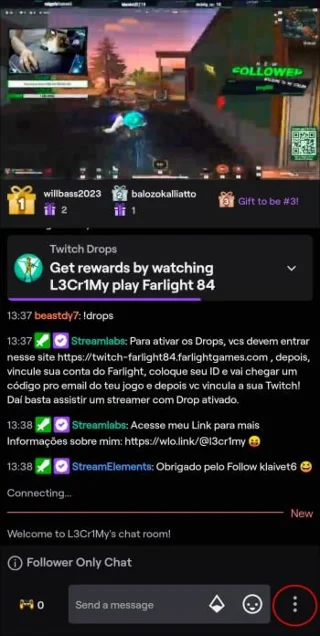
- Select the three vertical dots at the bottom of the chat window.

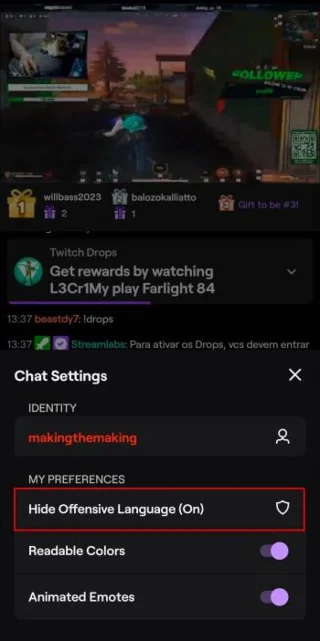
- In “Chat Settings,” tap “Hide Offensive Language.”

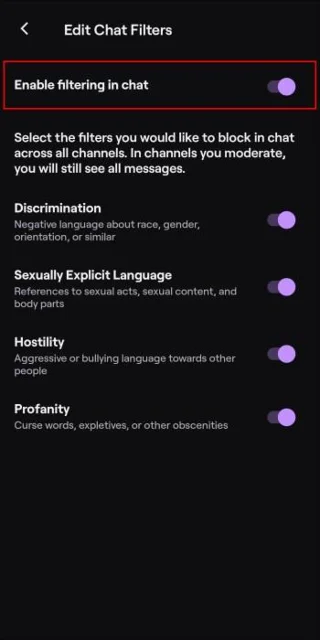
- Move the toggle to turn the filter off in the “Enable filtering in chat” option.

When you turn off the “Enable filtering in chat” option, all sub-options in this setting are turned off automatically. You can’t turn them on separately unless you enable filtering again.
How to Disable Filters on a PC
If you prefer watching Twitch streams on your computer, this is how you can turn off the “Chat Filter” option:
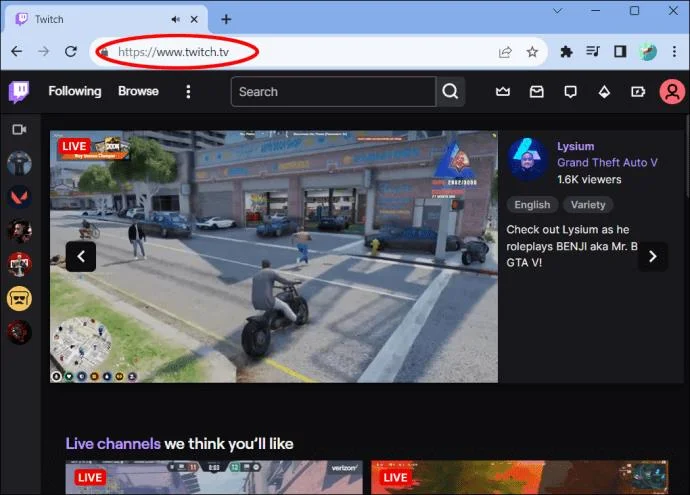
- Open Twitch on any browser.

- Click on the stream you want to watch.
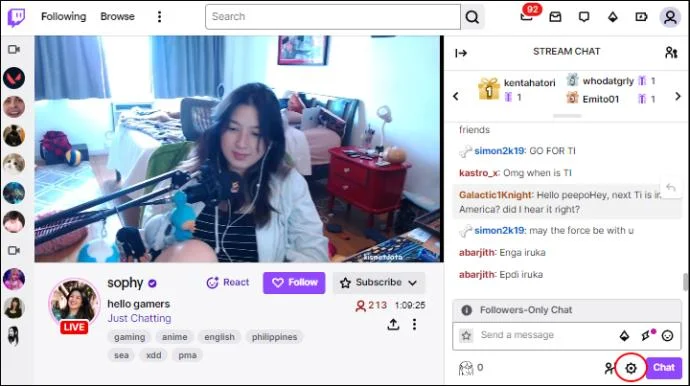
- Tap the settings icon under a chat box.

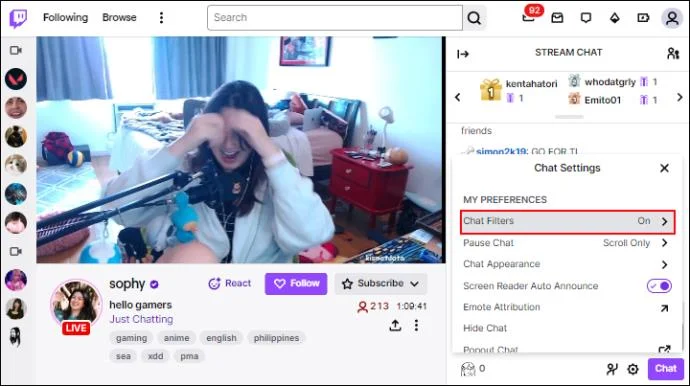
- In “Chat Settings,” you can see “My Preferences.” Find the option “Chat Filters” and click on it.

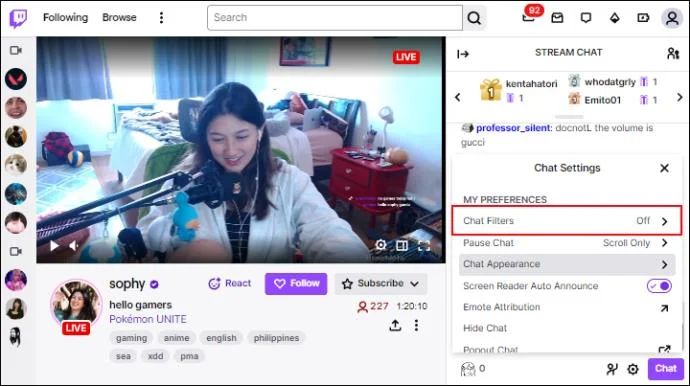
- Move the toggle in the “Enable filtering in chat” to turn it off.

Doing this turns off all other options in this category. You can turn off a particular one if you don’t want to disable all options. For this to work, you need to have your “Enable filtering in chat” option on. Then you can turn off the “Profanity” or “Discrimination” filters without turning off “Hostility,” for example.
How to Hide or Expand Chat
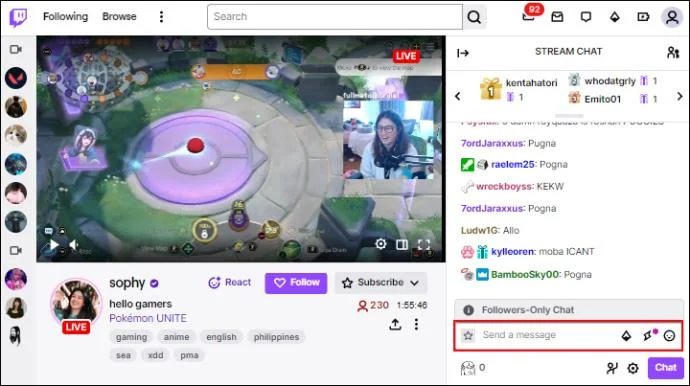
If you turn off chat on a stream, you won’t be able to find the chat settings until you turn it back on. This is how you can make the chat appear again:
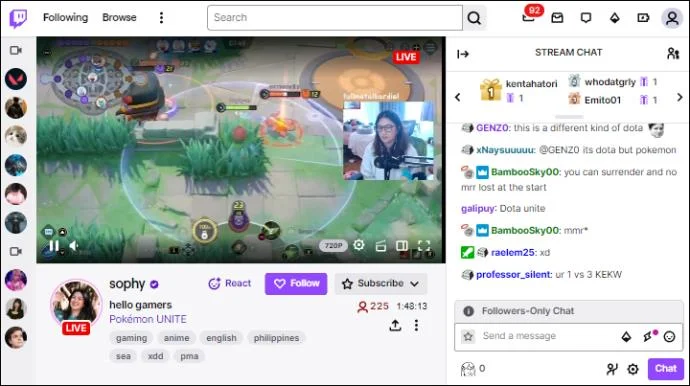
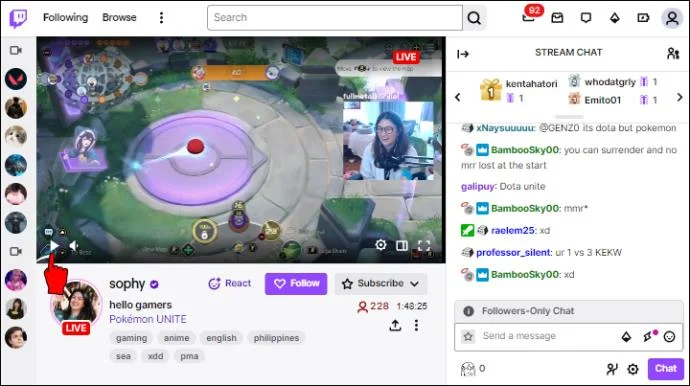
- Open any stream on Twitch.

- Click on the screen, pause it, or hover with your mouse.

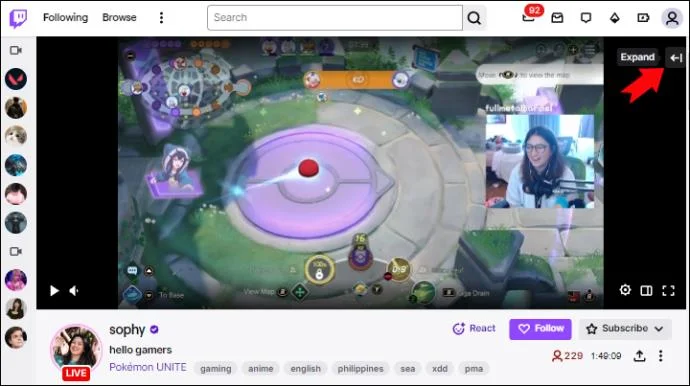
- Tap the “Expand” option in the top right corner of the screen (arrow icon) to reveal the chat.

- You can hide the chat by clicking the arrow (facing the opposite direction) again.

Explaining Chat Filter Options
Each filtering option on Twitch will block different things when enabled. You can adjust your settings depending on what you want to block.
- Discrimination – Disabling Twitch filters allow you to see negative comments about someone’s gender or race.
- Sexually Explicit Language – If you turn off this filter, you can see sexual messages, context, and comments about someone’s body parts.
- Hostility – Bullying someone in chat would fit this category.
- Profanity – Curses, obscenities, and similar content is visible with disabled filters.
Dealing With Harassment on Chat
If you decide to turn off the “Chat Filter” option, you will be exposed to bullying and abusive language. The simple solution for this is to enable the filters. However, other measurements can be taken when someone is harassing you on Twitch.
Ignore Option
When someone is harassing or abusing you in chat or spamming you with messages in “Whispers,” you can use the “Ignore” feature. You won’t receive any more notifications, and they won’t be visible to you. Using the “Ignore” option in chat will also work for “Whispers,” so you don’t have to do it twice.
To ignore someone, follow these quick steps:
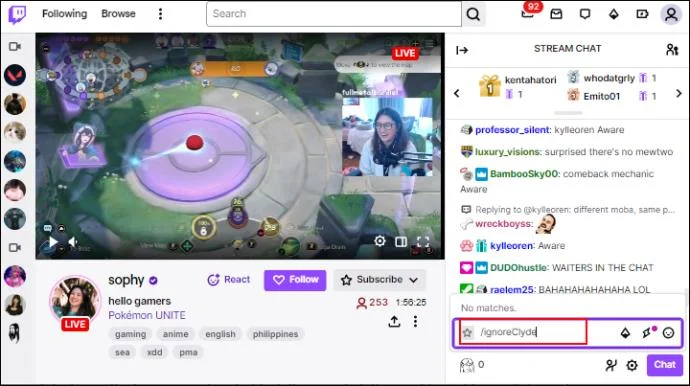
- Click on the chat box.

- Type in “/ignore (username)” without the parentheses.

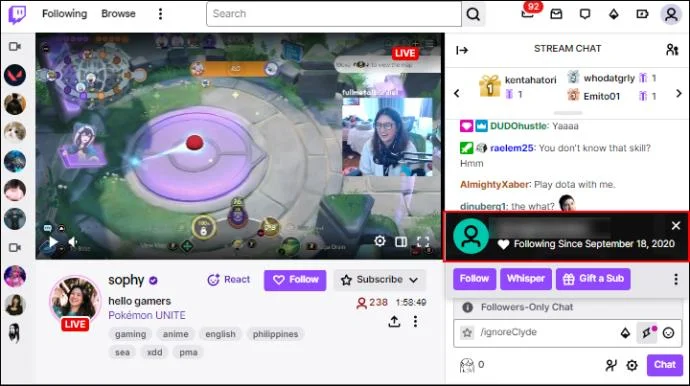
You’ll know if another person is ignored because a notification will appear on the screen. Furthermore, this option works if you’re chatting on someone else’s channel. But you can’t use “Ignore” if you’re a moderator.
Block Option
Another way of dealing with abusive people is to block them in chat. You might need to scroll if people are spamming the chat and messages are going by quickly, but this is how you can block someone:
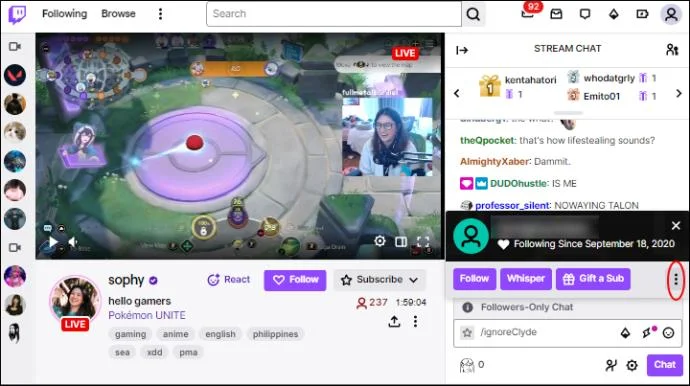
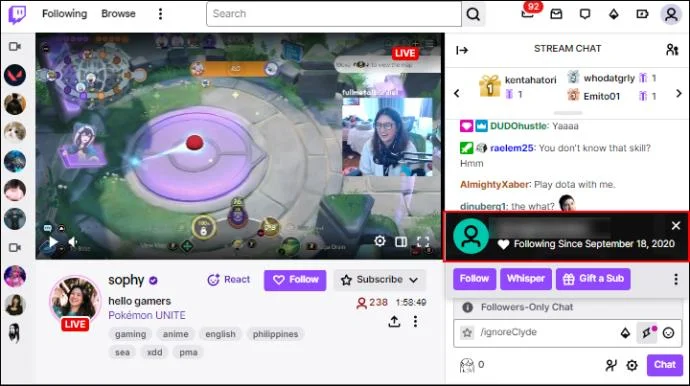
- Tap the username of an abusive person in chat.

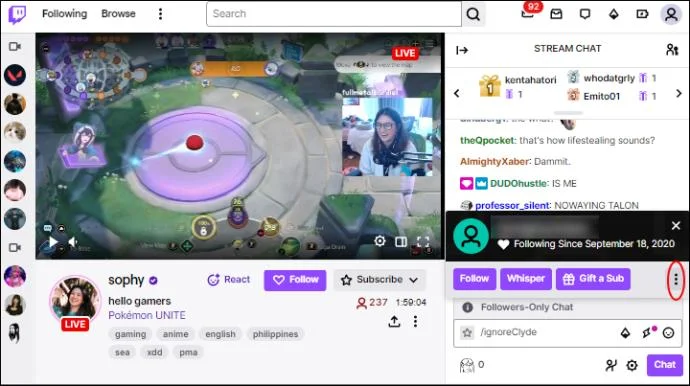
- Click on the three vertical dots.

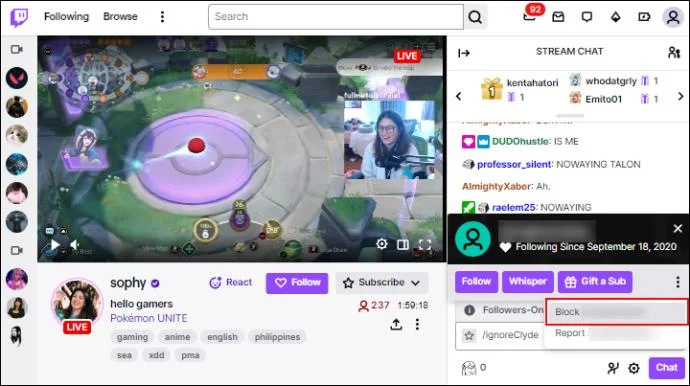
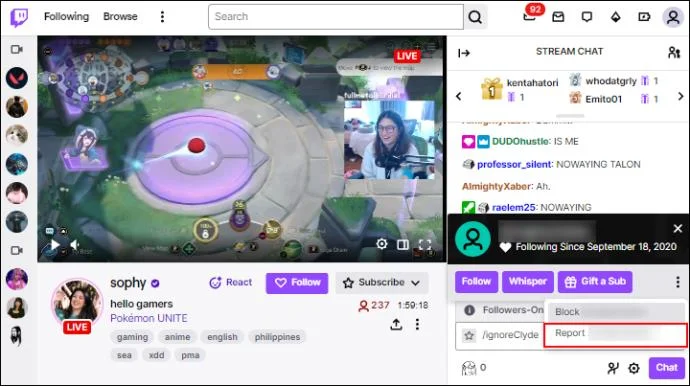
- Press “Block (username).”

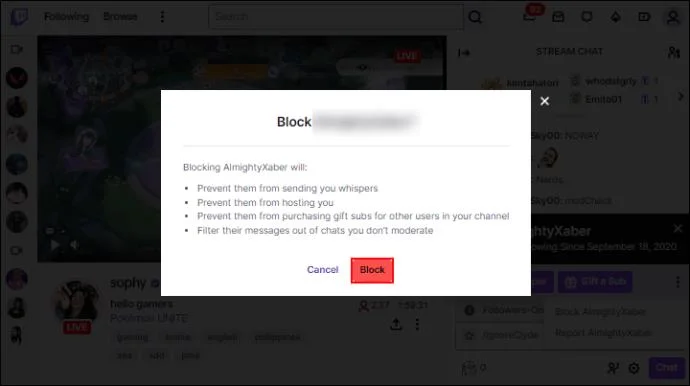
- Confirm by tapping “Block” again in a pop-up window.

After you block someone, that person can’t message you anymore in chat, “Whisper” to you, send you gifts, follow you, subscribe to your channel, and filter their messages.
Reporting Abuse
If someone has been breaking Twitch rules and the Terms of Service, you can file a report and get the person banned. You can report someone for harassment in two ways: via chat or the channel. If you want to report someone on chat:
- Click on the username of an abusive person.

- Tap the three vertical dots.

- Select the option “Report.”

- Choose the issue and follow the on-screen instructions.
If you choose this option, you report a person for abusing chat and sending insulting messages. When you click the “Report” option, you can select the reason (violence, gore, bullying, spam, bots, nudity, terrorism) or search for one if none of the categories explain the issue.
You can also send a report from the channel itself:
- Open the stream.

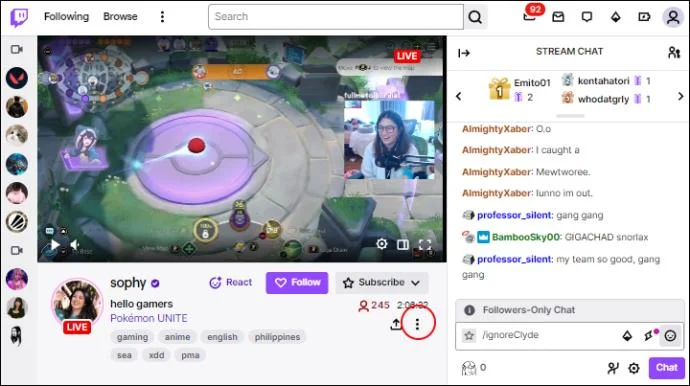
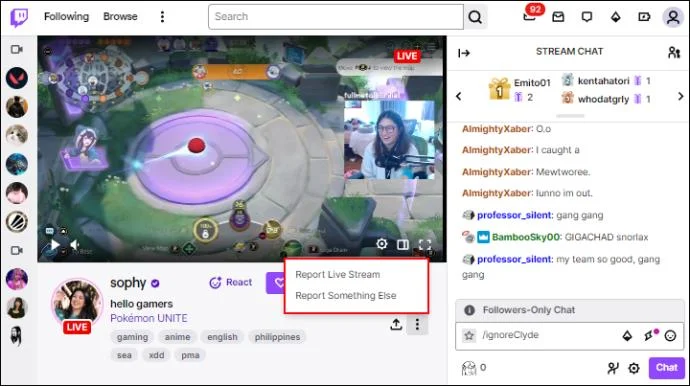
- Click the three vertical dots below the “Subscribe” button.

- Select “Report Live Stream” or “Report Something Else.”

If you report the stream, you must select the reason for reporting and follow further instructions to determine the problem in detail. However, if you choose “Report Something Else” in the pop-up window, you must select which aspect of the streaming channel is causing the problem. These can include categories like the stream, highlights, VODs, chat, “Whispers,” and username.
Furthermore, reporting users abusing chat via the actual discussion is advisable since it’s easier to recognize the type of problem than using the “Report Something Else” option. The “Report Something Else” choice has an extra step and should be used for different issues people experience on Twitch.
Adjusting Your Chat Settings
Twitch is an excellent platform for watching people play games and communicate with others on chat. However, sometimes things can get heated. Many toxic and abusive people are in video games and streaming platforms like Twitch. While the “Chat Filter” option is an excellent solution to avoid harassment, sometimes you just want to see what other users have been messaging.
How often do you see abusive messages on Twitch chat? Do you have the “Chat Filter” option turned on or off? Let us know in the comments section below.