If you want to create a presentation for mobile phones, you’ll need to change the layout to vertical in Google Slides. Google Slides are intended for horizontal landscape displays. If you don’t change the ratio, large bars will appear at the top and bottom of the slides on your display screen. A vertical slideshow, however, optimizes the screen size.

Fortunately, Google Slides allows users to customize the slideshow dimensions. Read on to learn more.
How to Make Vertical Slides in Google Slides
Google Slides can’t switch the setting from the default horizontal landscape to a vertical portrait view. But fortunately, you can customize the slides to change it to a portrait presentation by following these simple steps:
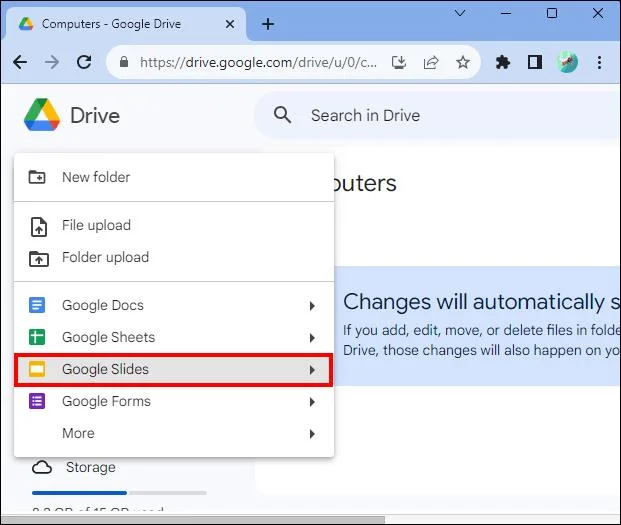
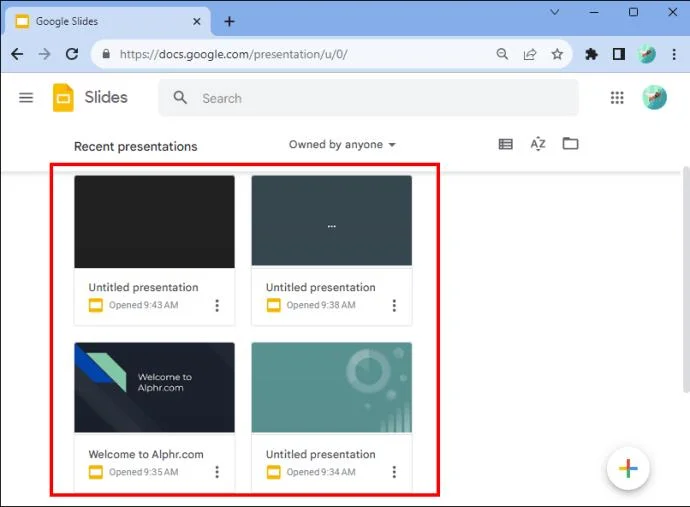
- Open Google Chrome and go to Google Slides.

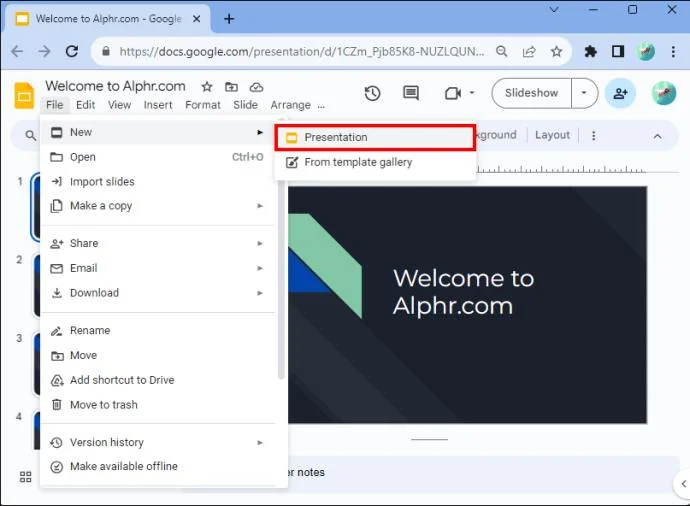
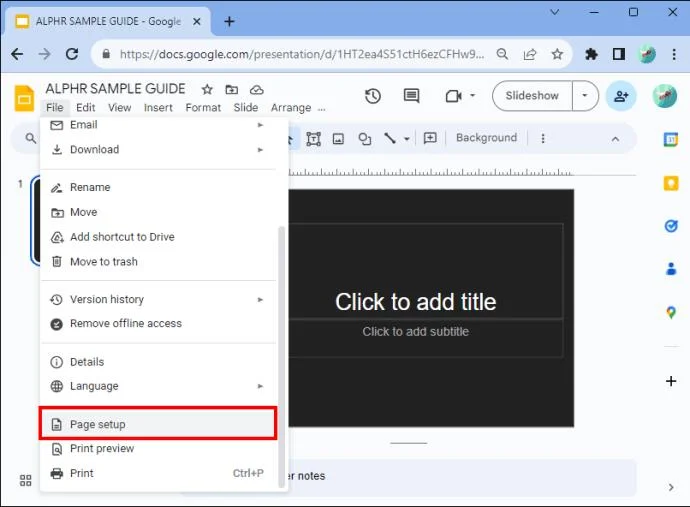
- Select a new presentation. Tap the “File” menu after opening the app.

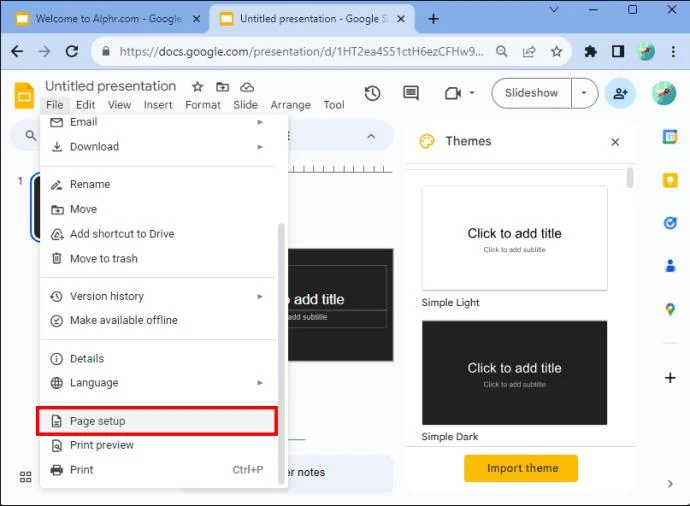
- Tap on “Page Setup” at the bottom of the drop-down menu.

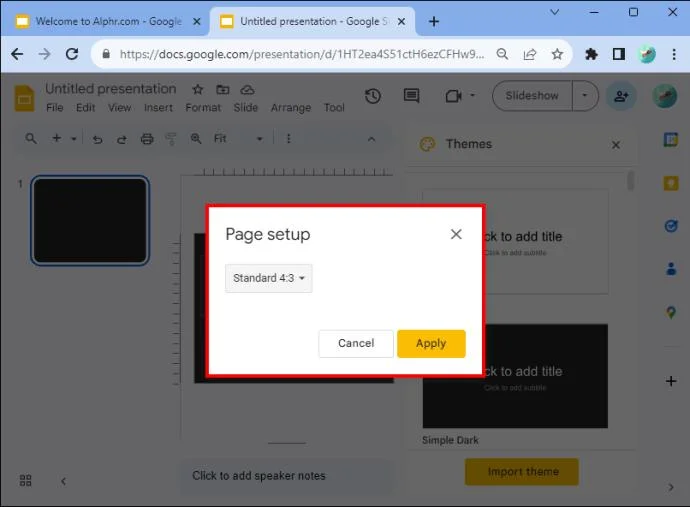
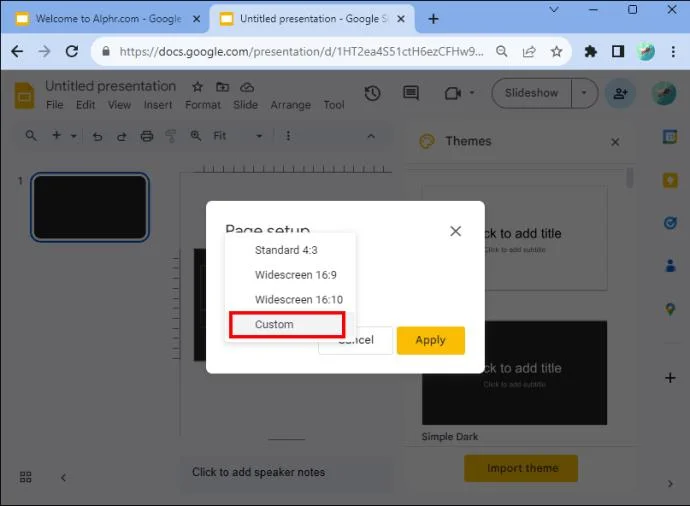
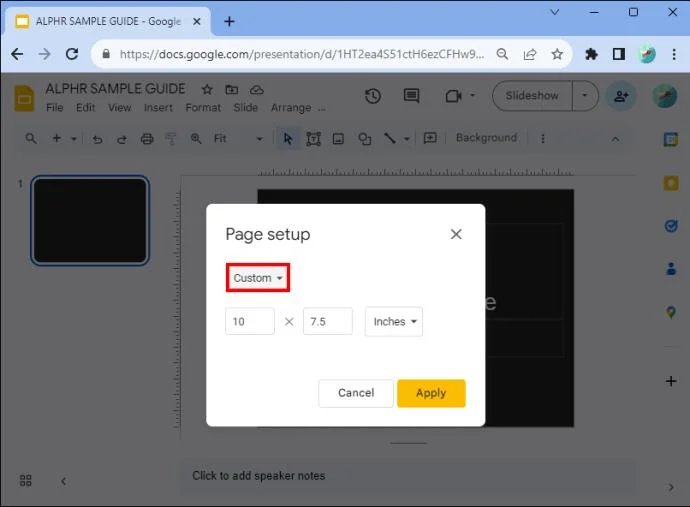
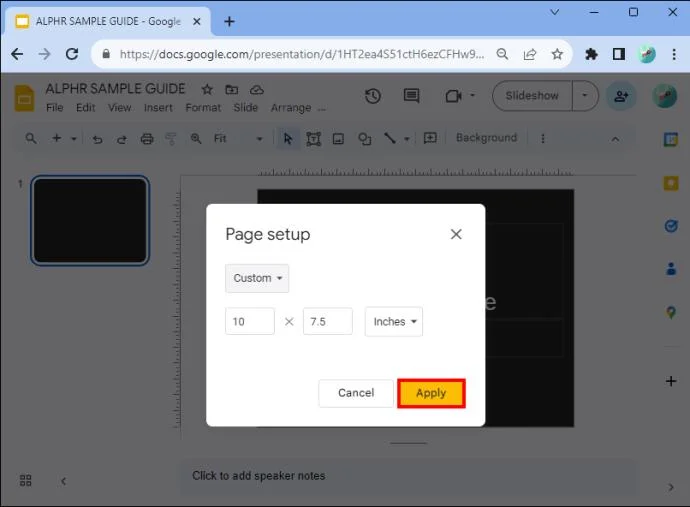
- A dialog box will appear. It will allow you to choose between four options. These are Standard 4:3, Widescreen (layout) 16:9, Widescreen (layout) 16:10, and Custom Orientation.

- You’ll need to select “Custom Orientation.”

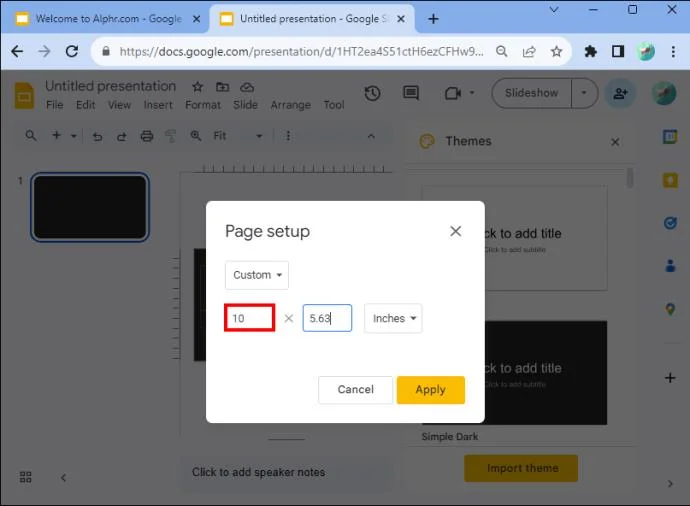
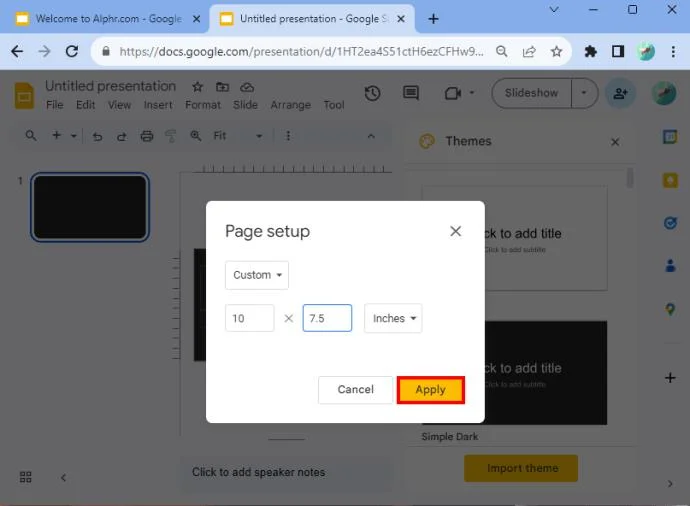
- Notice a drop-down menu appears. In the first text box, enter the width of the page.

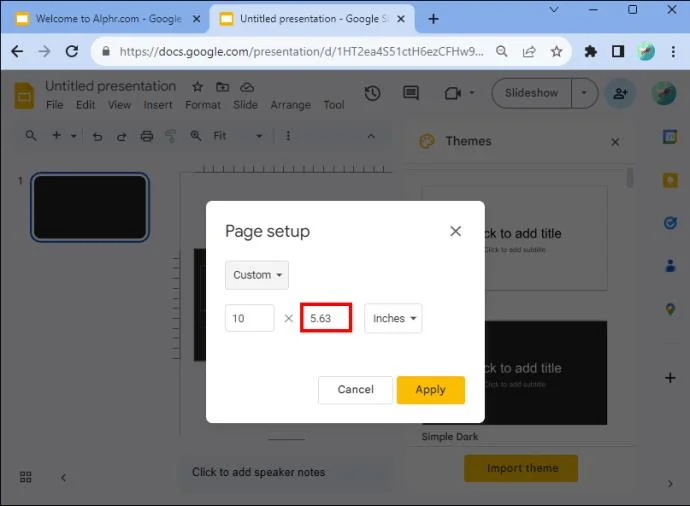
- Enter the height in the second text box.

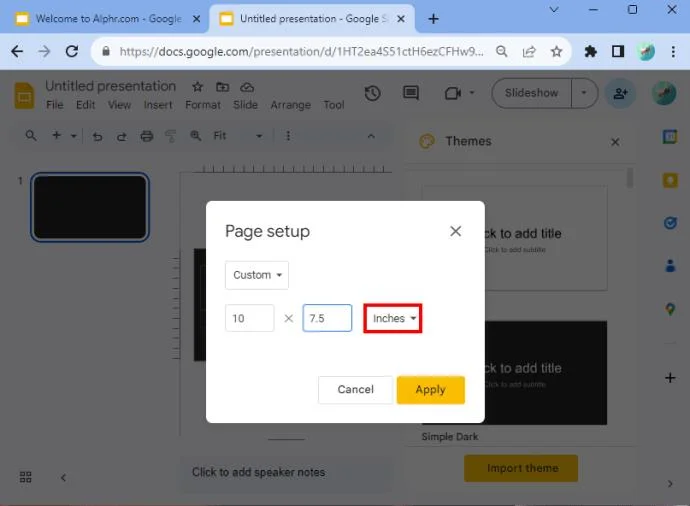
- Note that the drop-down box allows you to enter other measurements if you need them, such as centimeters, pixels, and points.

- When you’ve finished, tap “Apply.”

If you’ve followed these steps correctly, your slides will be vertical.
Choosing Dimensions
If you need help determining what dimensions to enter, the default would be 10 x 5.62. But some other vertical sizes you can apply include A4 (8.27 x 11.69 in), Ledger (17 x 11 inch), Tabloid (11×7 in), Letter (8.5 x 11 in), and Legal (8.5 x 14 in). You can enter these values after selecting the “custom orientation” option.
You might also find the table helpful below as it details the dimensions most suitable for the type of media the slideshow might be viewed on.
| Type |
Aspect Ratio |
Pixels |
Centimeters |
Inches |
Print |
| Projector, screen |
16:9 |
1900×1080 |
25.4×14.9 |
10 x 5.63 |
|
| Projector, screen |
9:16 |
1080 x 1920 |
14.29 x 25.4 |
5.63 x 10 |
|
| Projector, screen |
16:10 |
1920 x 1200 |
25.4 x 15.88 |
10 x 6.25 |
|
| Projector, screen |
10:16 |
1200 x 1920 |
15.88 x 25.4 |
6.25 x 10 |
|
| Old projectors |
4:3 |
1024 x 768 |
25.4 x 19.5 |
10 x 7.5 |
Yes |
| Old projectors |
3:4 |
768 x 1024 |
19.05 x 25.4 |
7.5 x 10 |
Yes |
| For printing |
A4 |
1920 x 1357 |
29.7 x 21.0 |
11.69 x 8.27 |
Yes |
| For printing |
A4 |
1357 x 1920 |
21.0 x 29.7 |
8.27 x 11.69 |
Yes |
The variables in the table and the letter formats should help you make an optimal choice.
Use the “Present” Option to See the Experience
Remember that there are some cases when you might not be completely happy with the result, even after using the dimensions in the table above. For instance, the sizes you applied might make the presentation appear thin. If you don’t like it, you can return to the page set up and enter new dimensions. That will enable you to tinker around until you find something you’re happy with.
You can also take advantage of the presentation option that Google offers users. It can be found in the menu section of Google Slides. That will open a drop-down menu. At the top is an option that says “Present.” If you click on that, you’ll see what your audience members would do during the slide show. By presenting the slideshow, you should better understand what dimensions you should use to create the presentation.
How to Change Google Slides Screen Back to Horizontal
If you need to switch Google Slides back to horizontal, you can do that, too.
- You’ll need to go to your Google Slides document.

- Go to “File” and click “Page Setup.” You’ll find that at the bottom of the drop-down menu.

- Choose “Custom Orientation.” The standard setting for Google Slides is “Widescreen 16:9.”

- Click on the “Apply” button.

And that’s it! You’ve successfully switched the setting back to horizontal.
Benefits of Changing Slides to Vertical
There are several reasons why you should make your slides vertical. The first is that many people view presentations on their phone, which is held in a vertical format. Plus, it allows you to be more creative. And it’s a convenient option if you want to print your presentation, add tables, charts, or info graphs. Text-heavy results, on the other hand, are more suitable for portrait.
Another reason you should switch to vertical is that creating a newsletter is more appropriate for reading than landscape. It not only looks better, but it’s easier to hold if you’re printing it out. Posters sometimes look better in vertical format though. Try it and see if that works for you. Take into consideration what you’re making and determine from there whether vertical is right for your presentation design.
FAQS
Can you change individual slide orientation?
You can’t have some of the slides horizontal and others vertical in your presentation. Individual slide orientation changes aren’t currently available with the program. However, you can change the orientation of a photo or other object you may add to the slideshow.
What are the benefits of Google Slides?
Google Slides is quick and easy to access (and free) if you have a Google account. If you don’t have an account, you can sign up in no time at all. But let’s say your presentation is in PowerPoint, and you want to use Google Slides. Don’t worry. You can do that in just a few quick steps. Simply convert the PowerPoint to Google Slides and you’re good to go.
Google Slide Layout
While there isn’t a button that allows you to change the landscape automatically, by following a few steps you can easily switch between horizontal and vertical. You should choose vertical layout if you’re printing your presentation or need to have the display viewable on mobile devices. Newsletters and posters may require the use of a vertical layout as well. Now you understand how to adjust to vertical on Google Slides to change the orientation of your presentation, they’ll be no stopping you.
Have you ever changed the layout in Google Slides? Did the tips and tricks in this article help you? Let us know in the comments section below.