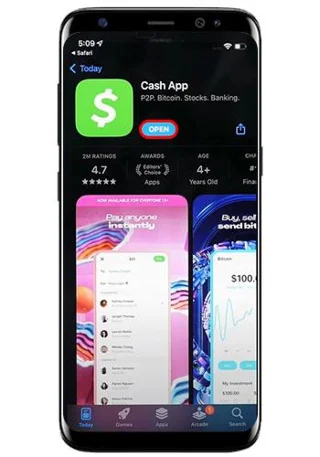
While Cash App primarily connects with your bank account and a debit card to provide seamless transactions, it also supports credit cards. Adding your credit card to your Cash App account allows you to pay your bills and send money, but you can’t withdraw funds to the card. This article breaks down how to link your credit card and gives you other helpful information.
How to Link a Credit Card to Cash App
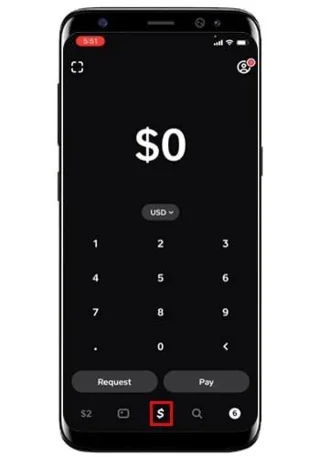
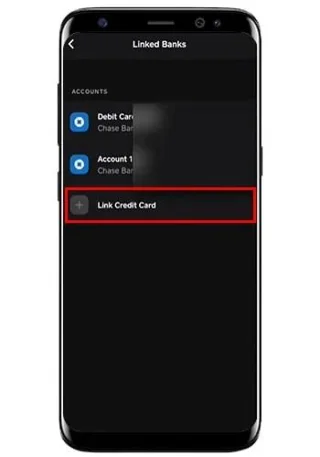
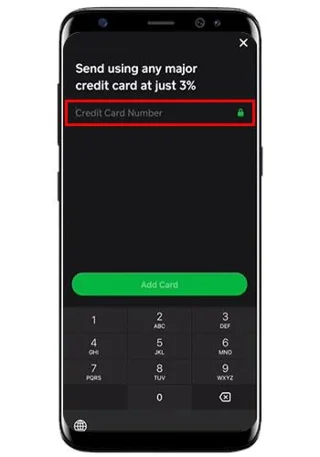
To link your credit card to your Cash App account, ensure you are logged in and have your physical credit card nearby, as you’ll need to input the card’s details. Here are quick, easy steps to add your credit card to Cash App:
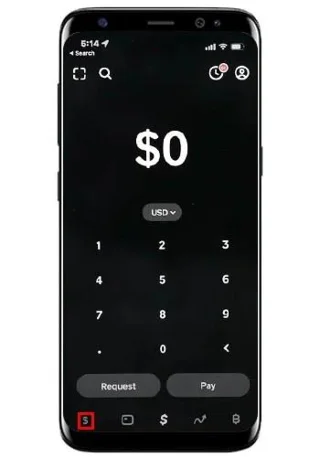
- Go to “My Cash” or click on the banking button ($) in your Cash App account.

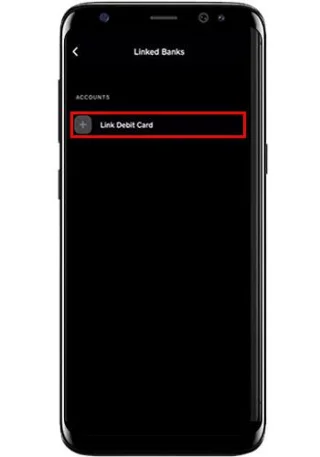
- Underneath the “Cash and Bitcoin” tab, select “Link Credit Card.”

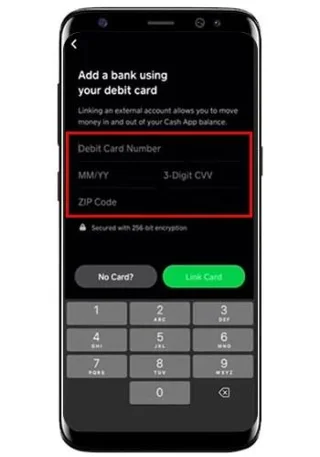
- Enter your credit card details.

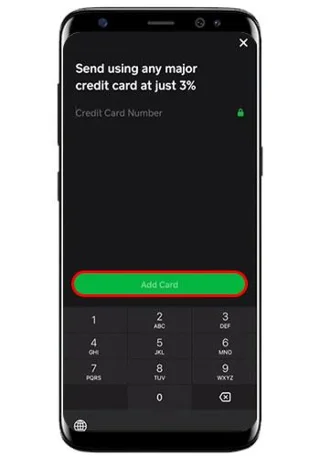
- Tap on “Add card.”

Your credit card is now added to your Cash App account, and you can easily send people money or make any payments.
Having Trouble Adding Your Credit Card to Your Cash App Account?
If you’re trying to link your credit card to your Cash App account, but you’re failing, it could be due to these reasons:
- You may have made a mistake when inputting the credit card details (card number, expiration date, and CVV).
- You’re trying to add a card that’s expired or deactivated.
- Cash App might not support the card you’re trying to link to your account. Gift cards or prepaid cards are currently not available for Cash App integration.
- Your internet connection is unstable.
- There could be an issue with the Cash App server.
- You’re using an outdated version of Cash App.
Why Is My Payment by Credit Card on Cash App Declined?
If you added a credit card to your Cash App account, but your payments are being declined, the reason could be one of the following:
- You added a credit card that belongs to someone else.
- The payment recipient is not reputable or verified.
- The contact details for your recipient are incorrect.
- You hadn’t used your Cash App account for some time.
Can You Use a Credit Card on Cash App as a Cash Advance?
When a credit card is used to transfer money from Cash App and similar apps, your credit card issuer could consider this as a cash advance. As a result, you might overdraw your credit card and the bank will essentially tack on their cash advance interest rates to the payment.
Interest rates on cash advances are high and accruing begins from the onset of the advance. It would help if you spoke to your card issuer about their cash advance rules before sending money using your credit card via Cash App.
If you’re in a hurry, you can make a small transfer and check if it was categorized as a cash advance on your credit card statement. If your card issuer does consider your cash transfer on Cash App as an advance, it’s best not to use it for sending money.
How to Link a Bank Account to Your Cash App Account
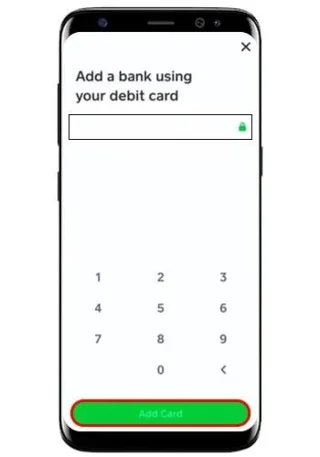
To send money or make payments with a linked credit card on Cash App, you must first add your bank account. Here are steps for how to do this:
- Launch Cash App on your mobile.

- Go to your “My Cash” tab.

- Select “+Add Bank” under “Cash and Bitcoin.”

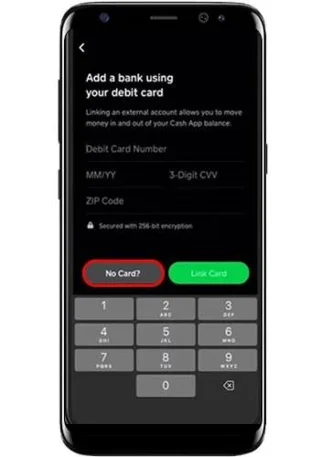
- Add your debit card details to the screen that pops up.

- Click on “Add Card,” and your bank account will be automatically added.

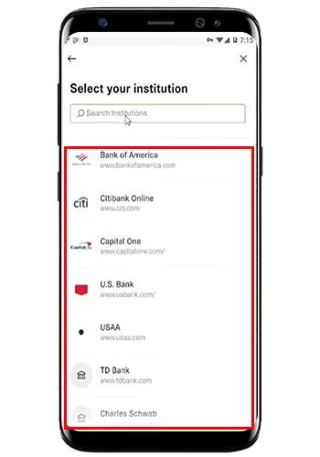
- If you have no debit card, select “No Card?” and then add a bank account.

- Select your bank name from the provided list.

- Input your online banking details following the instructions to link your bank account.

You can add your credit card once you’ve successfully linked your debit card or bank account.
Will Cash App Refund You for Payments Made With Your Credit Card?
Getting a refund from Cash App for a transaction made with your credit card is possible, but there’s no guarantee that your request will be approved. Cash App has stated in its terms of service that it won’t accept responsibility for issues with successful transfers.
If the Cash App platform was working normally, and you successfully transferred money but to the wrong recipient, or you were scammed, you won’t be able to request an immediate refund. In these cases, you’d need to claim a Cash App refund from your recipient.
Contact Cash App’s customer service representatives to help decipher what is possible and what steps to take to get your money back. Because the money transfer was successful, Cash App is not legally responsible for compensating you for any lost money.
These are the most likely situations in which Cash App will give you a refund for money transfers:
- Your recipient has agreed to return your payment.
- You were able to cancel the payment before it was finalized.
- You contacted Cash App customer support and successfully disputed the payment.
Using any of the above steps in the Cash App interface is straightforward. If you got scammed, though, this is the most challenging situation from which you could get a Cash App refund. If a scam included you being charged an incorrect amount or a double payment, there’s a chance that your refund dispute will be successful. Outside of such situations that can easily be proved, successful money refund disputes on Cash App are rare.
How to Receive a Refund From Cash App
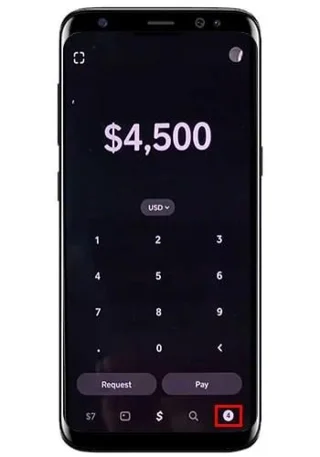
Bearing the above information in mind, if you want to get a refund for a payment made with your credit card from whom you sent the payment, click on the Refund Button from your Home Screen. Or you can contact the recipient and ask them to follow the steps below to refund you:
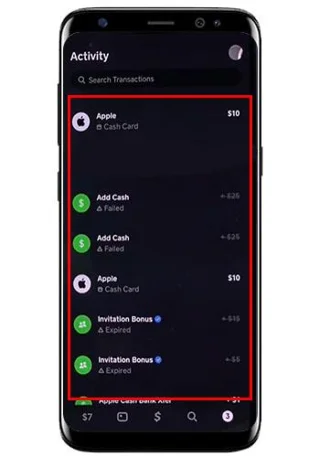
- Go to the “Activity Tab” from their Cash App home screen.

- Select the payment you want to try and refund.

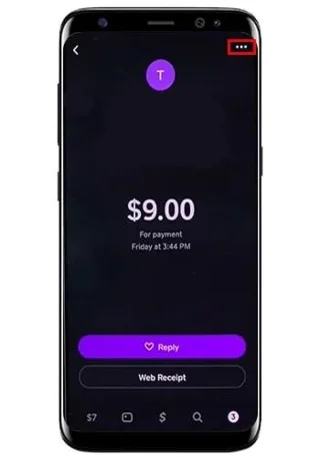
- Tap on the three dots icon.

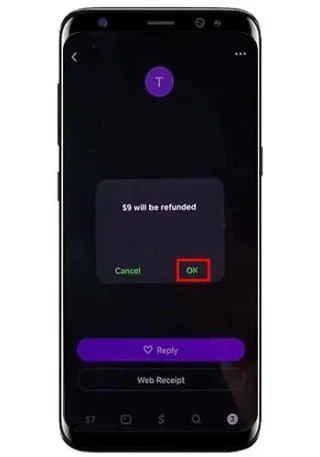
- Choose “Refund.”
- Press “OK.”

FAQs
Can you use a linked credit card to add money to your Cash App card?
No, using a credit card, you can’t add funds to your Cash App card. To add money to your Cash App card, use a linked bank account, or debit card or ask friends or family on Cash App to send you funds. If you can’t do any of these, go to a store and physically reload your Cash App card.
Can you use Cash App with only a credit card?
Cash App requires a bank account and debit card to verify your account, so you’ll need to connect those first. A credit card can also be used to pay for payments directly and can’t fund your Cash App balance.
Can I have two credit cards on my Cash App account?
Only one credit can be added to your Cash App account. If you need to use a different card than the one currently linked, you’d need to remove the original card.
Does Cash App charge for using my credit card?
Yes, Cash App will charge a 3% fee when you send money or make payments with your credit card.
Make Sending Money Smoother With Your Credit Card on Cash App
Cash App is a great way to make payments or send money to family and friends on the platform. Even if you use a credit card, you need to link a debit card and your bank account to your Cash App account to use this feature.
How have you benefited from using your credit card in Cash App? Let us know in the comments below.