Once a Google Form is completed, it’s time to share it with your target audience. Forms can help you engage with potential customers and learn more about your users. You can even take customer surveys and feedback with forms.
Fortunately, sharing Google Forms is an easy process. If you’re not sure how to share a Google Form, this article will explain how it’s done.
Share a Google Form by Email
Email is a straightforward way to reach a specific target audience. You can ensure that no one sees the form but your intended audience if you send it directly to them.
To share a Google Form by email, follow the steps below:
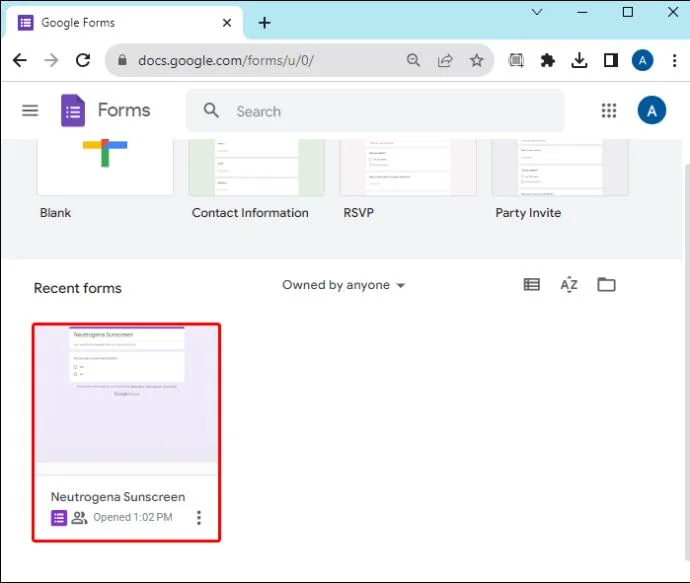
- Launch Google Forms and open your finished form.

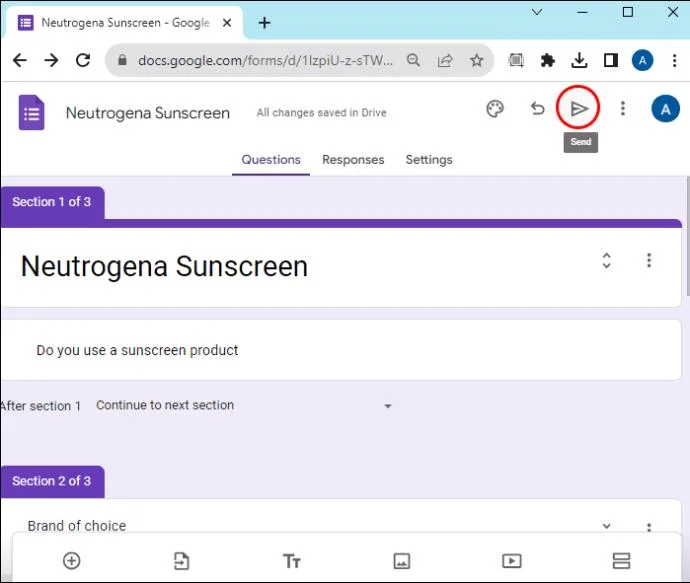
- Locate the “Send” button in the top right of the screen and click it.

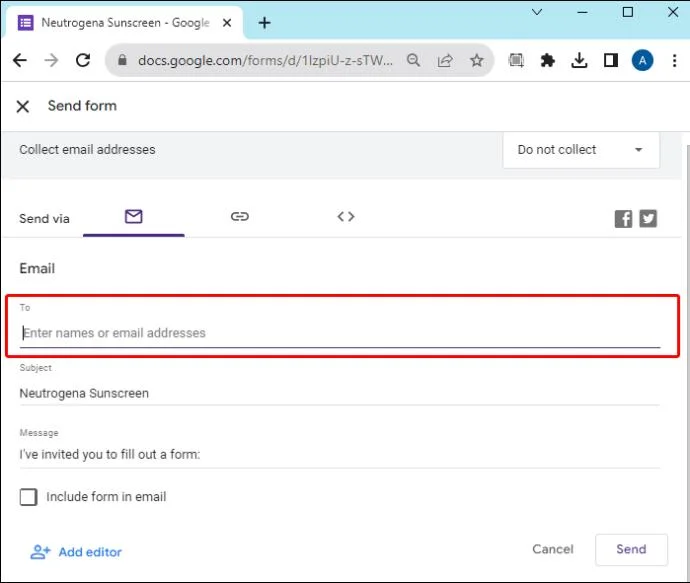
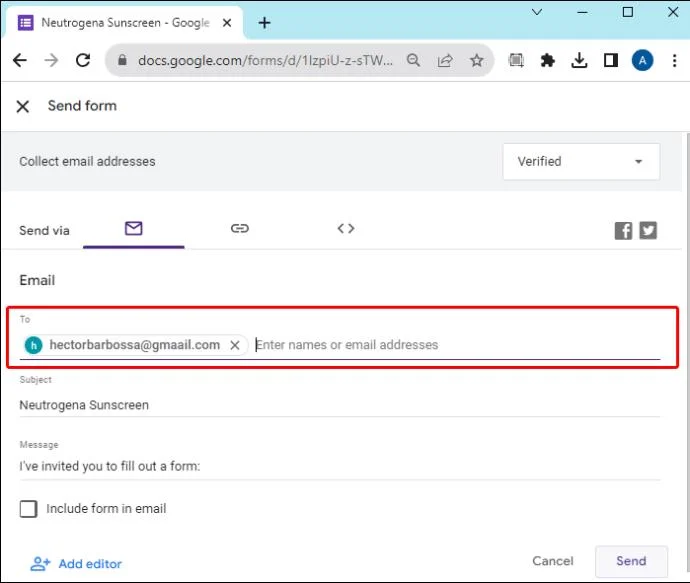
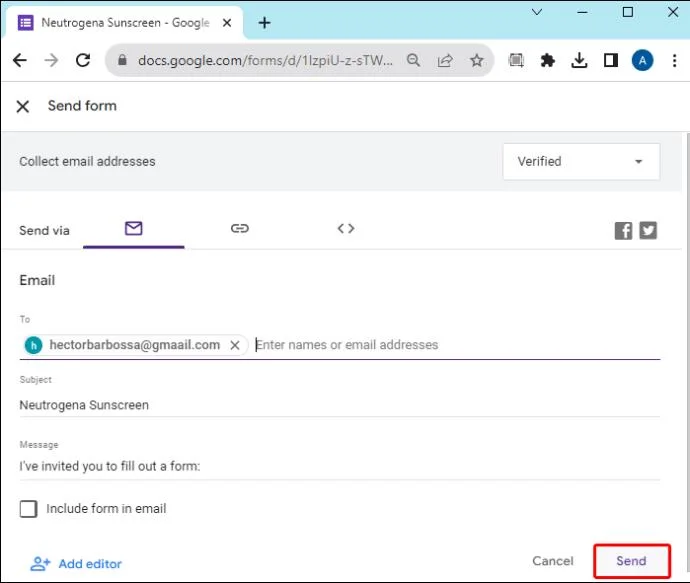
- Enter the email addresses to which your form will be sent.

- Add an email subject and message if you desire.

- Click “Send” to complete the process.

The form will be shared with the email addresses you included. Recipients will be able to access and respond to the Google Form.
Use Social Media to Share a Google Form
If your target recipients aren’t a list of specific people, social media provides exposure to a wide audience. To share a Google Form on social media outlets Twitter and Facebook, follow these steps:
- Open your form in Google Forms.

- Click “Send” in the top right corner.

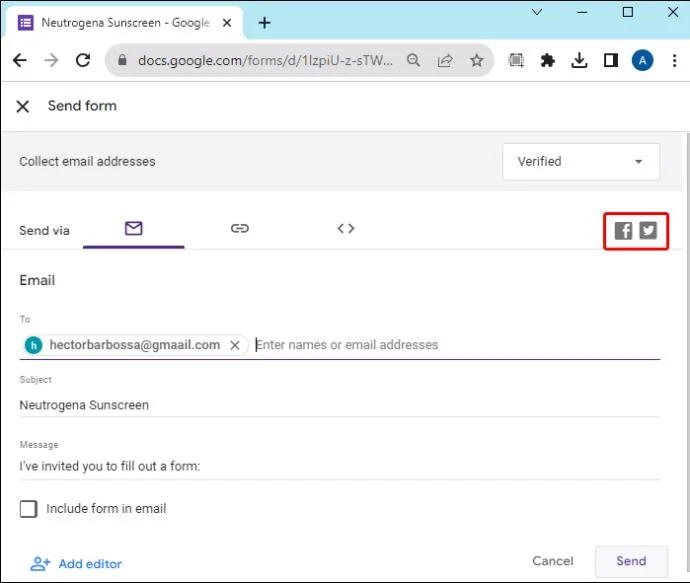
- At the top right, you will see options to choose Twitter or Facebook. Choose your preferred social media platform.

- Follow the on-screen instructions to complete the sharing process.
Anyone who accesses the form will be able to answer it, but by default won’t be able to see others’ responses or edit the form.
Embed a Google Form on a Blog or Website
You can set up a blog post or website to host your form for an extra level of professionalism. To use the form in this way, follow these steps:
- Launch Google Forms and open your form.

- In the top right corner, click “Send.”

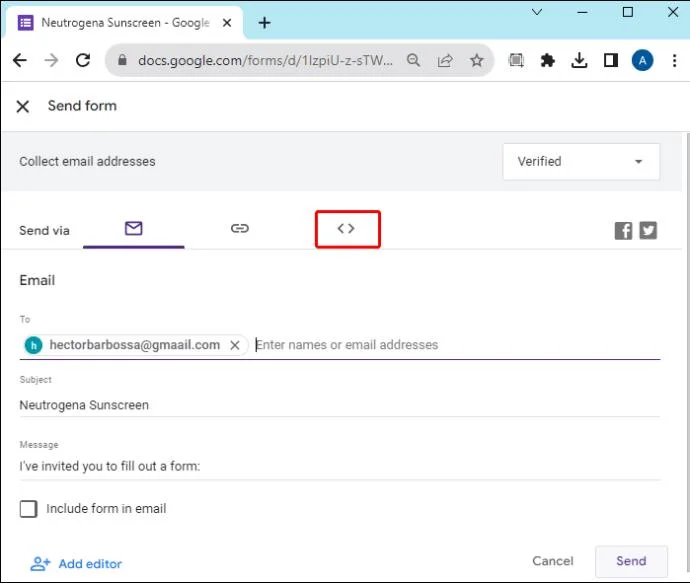
- Click “Embed <>” at the top of the screen.

- The HTML code will appear for an embedded form. Copy the HTML code.
- Ctrl + c for Windows

- Cmd + c for Mac

- Paste the HTML into your blog or website code.
- Ctrl + v for Windows

- Cmd + v for Mac

Once the form is on your blog or website, anyone who visits has access to it.
Share a Google Form by Link
A form link may be the best way to share a Google Form if you need to communicate it through a third-party platform. If you want to send the form using a messaging app for instance, having a link will allow you to share the form easily through any platform.
- Open the form in Google Forms.

- Click “Send” at the top right.

- Select “Link” next to the chain link icon. It will be at the top of the page.
- Copy the link with:
- Ctrl + c for Windows

- Cmd + c for Mac

- Paste the link into your messaging app or communication platform. You can also paste the link into email, text, social media platforms, etc.
Even if you’re communicating through an internal tool specific to your organization, you can share a Google Form with a link.
Things to Do Before You Share a Google Form
Before you share a Google Form, there are a few important options to customize. These help you gather the correct responses and help guide your audience to answer correctly.
Limit Each User to One Response
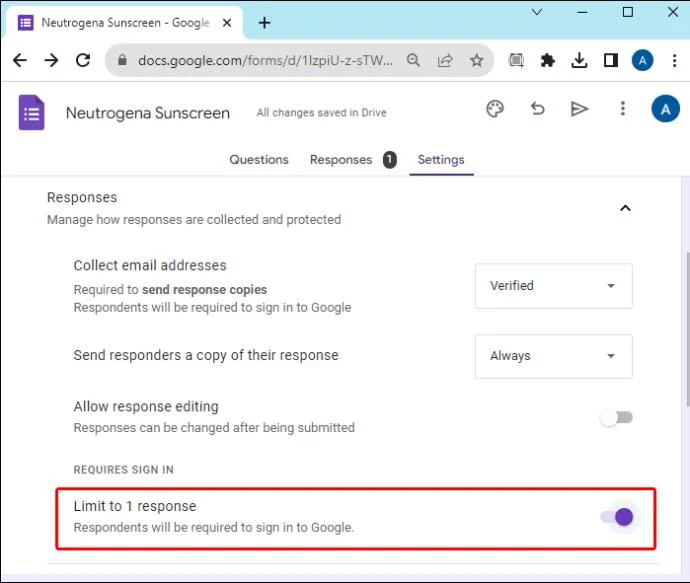
If you’re worried that people will respond multiple times, this option prevents that from happening. To ensure that each form viewer responds with a single unique answer, enable the “Limit to 1 response” option. This makes each user sign in to their Google account before they respond, keeping them from responding to the same form multiple times.
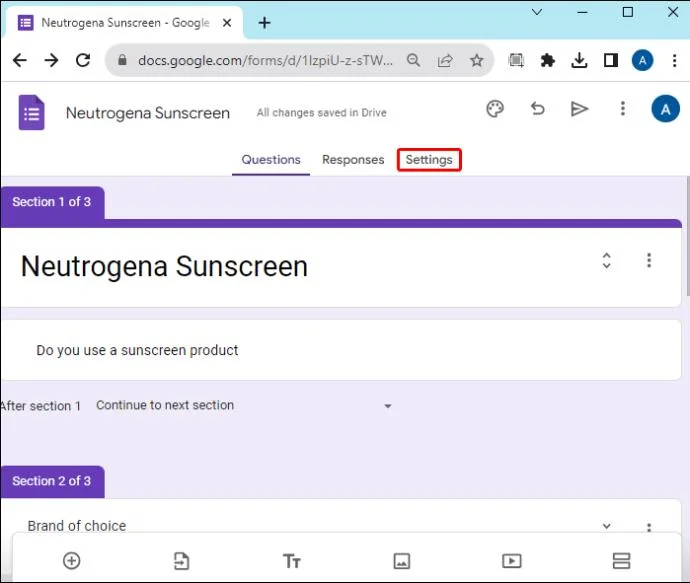
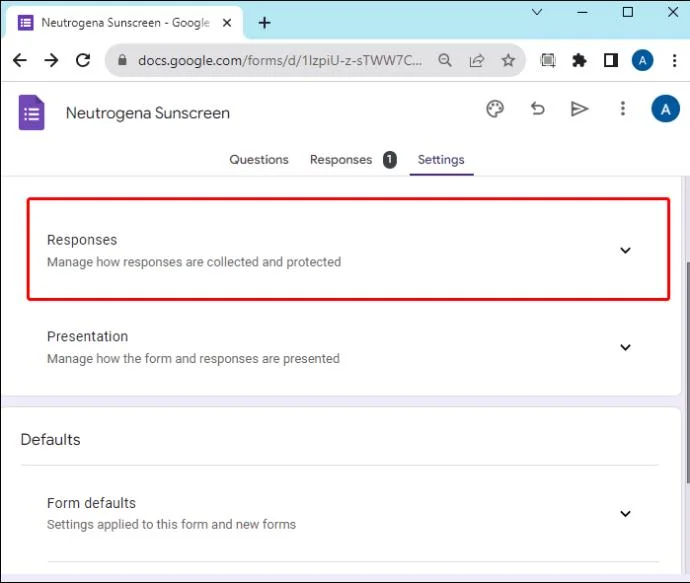
- With your form open in Google Forms, click “Settings.”

- Click the drop-down arrow next to “Responses.”

- Enable “Limit to 1 response.”

- If you enable the “Responses” setting, their unique usernames will be recorded as well.
Show Response Summary
If you want to allow people who respond to your form to view the statistics of other people’s responses, this option will set that up. A link to the current results of the form will be available to anyone who completes the response process. The response summary will show charts or full-text responses to all form users.
- Launch Google Forms and open your form.

- Click “Settings.”

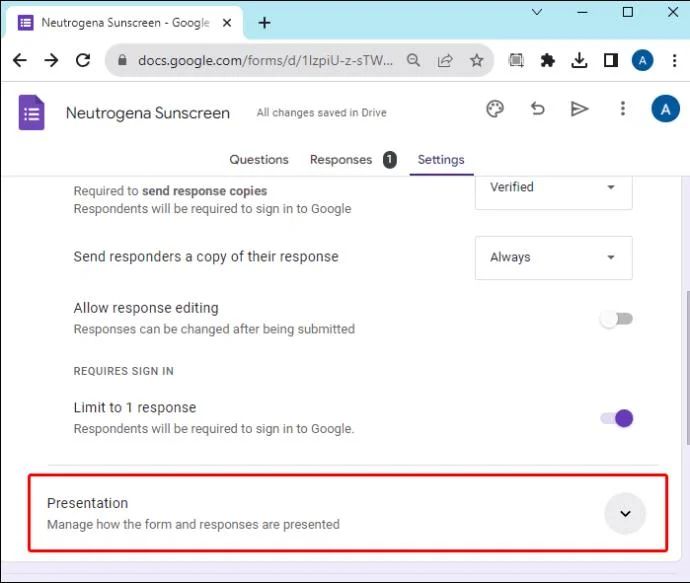
- Select the drop-down arrow next to “Presentation.”

- Enable the “View results summary” option.

Just remember, this will make the responses available to all users. Use this option with caution.
Allow Editing of Responses
When you aren’t concerned with first impressions but would like a thoughtful answer to your form, you can enable the option to allow people to edit their responses after they’ve been submitted.
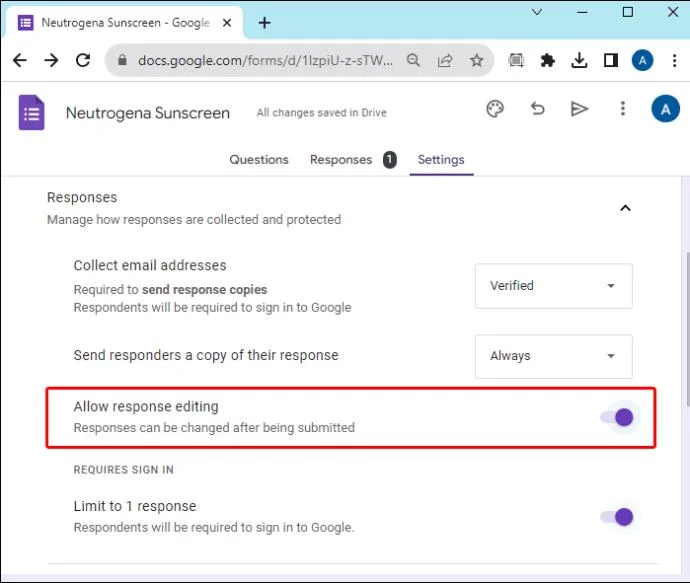
- With your form open in Google Forms, select “Settings.”

- Click the arrow next to “Responses.”

- Toggle on “Allow response editing.”

Users will be able to open the Google Form and click a button to edit their response.
Customize Confirmation Message to Users
When people finish with your form, they receive a confirmation message that the process is complete. Customize this response to add a little flair to your survey or to give users further instructions.
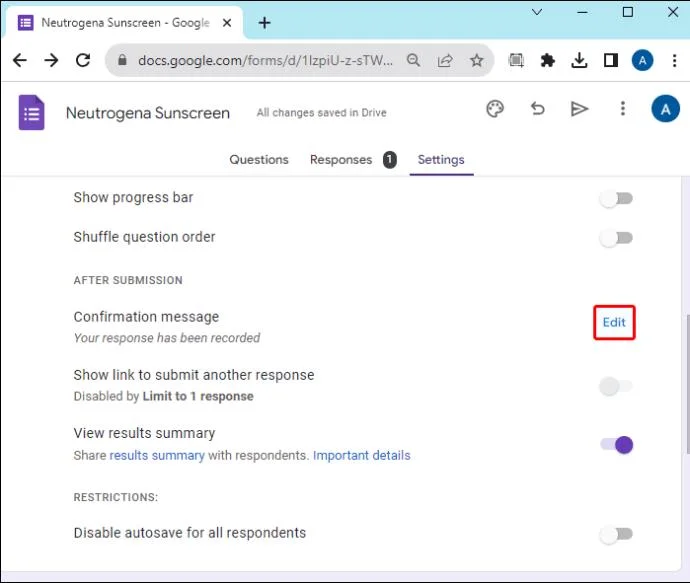
- With your form open, click “Settings.”

- Select the “Presentation” drop-down menu.

- Click “Edit” next to “Confirmation message.”

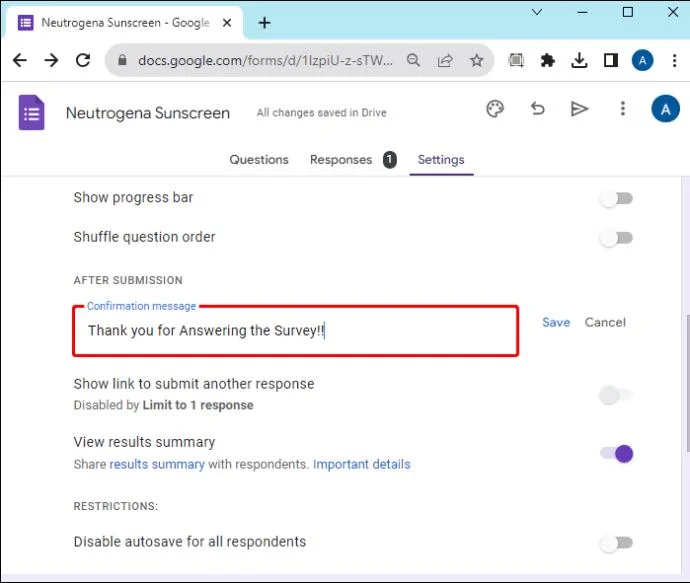
- Enter the message you want users to see when they complete the shared form.

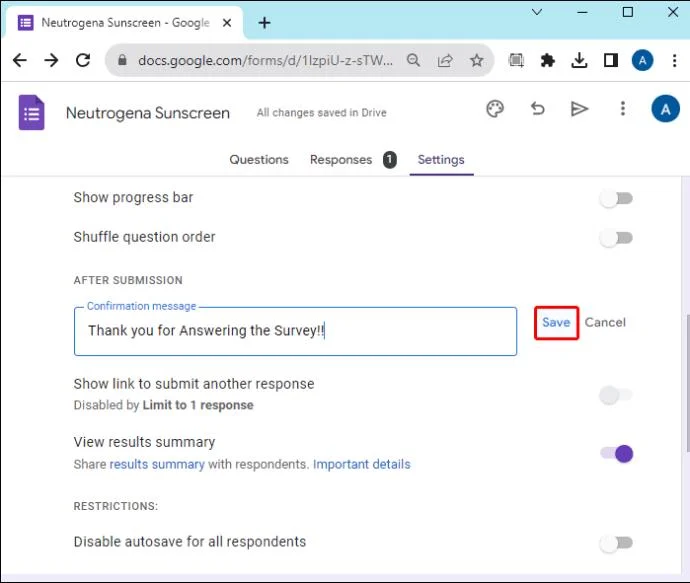
- Choose “Save” to save your outgoing message.

Share a Form With Pre-Filled Answers
If you want to share a form with some of the answers already prepared, you can do that with Google Forms.
- Open the form in Google Forms.

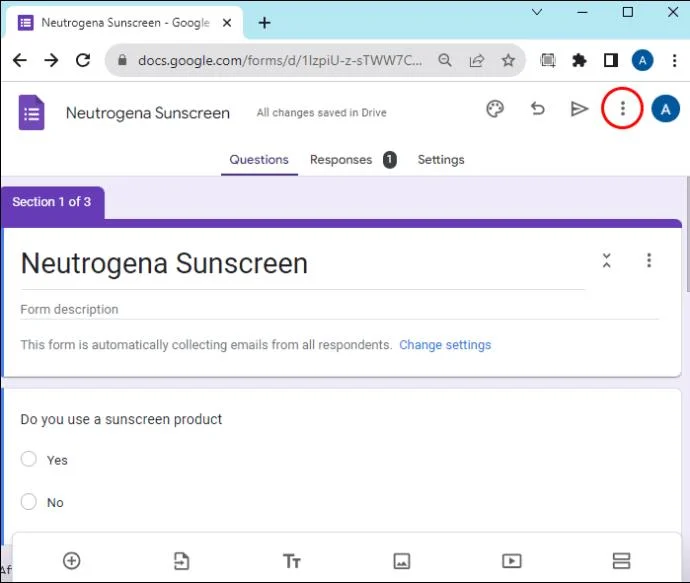
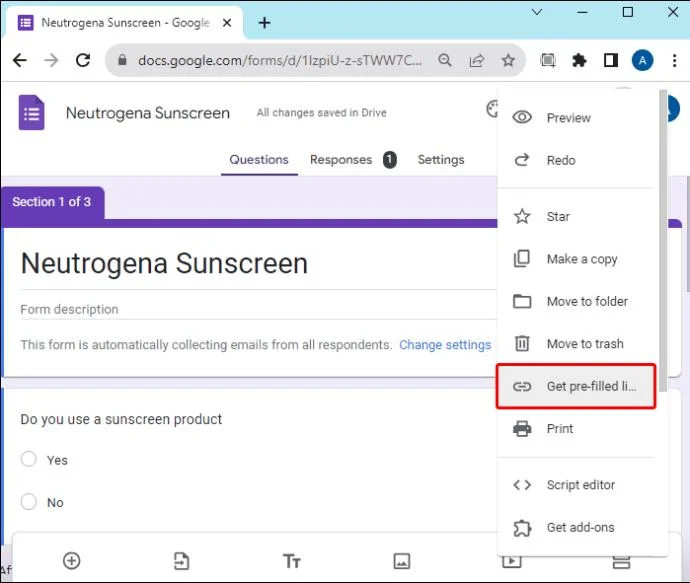
- Click the vertical dot “More” icon at the top right.

- Select “Get pre-filled link.”

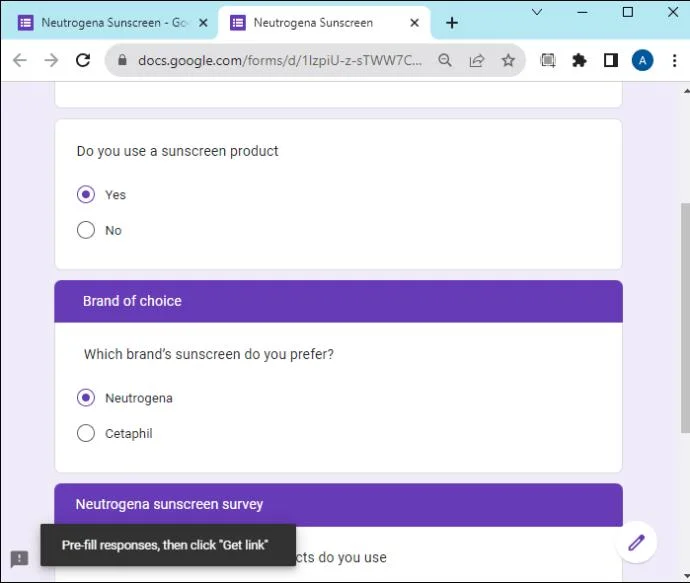
- Enter in any information that you want the fields to show as a default. They will be pre-populated in the shared form.

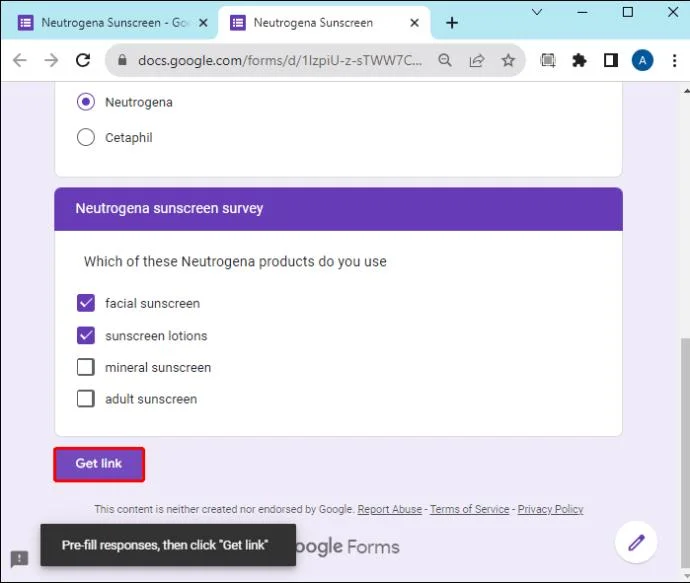
- Click “Get link.”

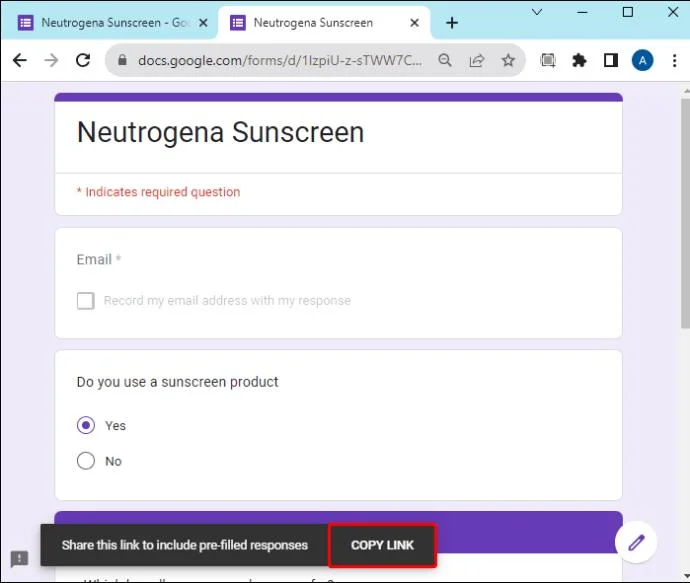
- Copy the provided link to send a prepared form to any audience.

This tool is helpful if there’s some information you don’t want the target audience to fill in. It’s also helpful if you want to communicate some of the field information to your audience. When sending the form to multiple groups of people, you can fill in specific information to designate the group. This way, you can readily identify which group has responded to the form. Note that you can create unique links for different audiences.
FAQ
Can I set it up so form responses are shared with a designated group, but not necessarily all users?
Yes. You can add collaborators to your form and set permissions to allow them to view the responses, while not making responses available to everyone.
What differs between sharing forms with a Personal account and a Workspace account?
When you share a Google Form with a Personal account, anyone who receives the link to the form can open it. With a Workspace account, you can choose to make the form accessible to everyone or limit your target audience to a specific group.
Sharing Google Forms
Google Forms makes sharing forms an easy, straightforward process. Customize your form with the correct settings and choose the best mode for sharing the form with your target audience. Google Forms can help make your data-gathering process hassle-free.
What is your favorite way to share Google Forms? Did you use any of the methods featured in this article? Let us know in the comments section below.