Hisense TVs are rated one of the best ROKU TVs on the market. But, you may sometimes come across an error code 014.50 notification on your TV when trying to run a software update on your TV. This error typically points to the failure of your TV to connect to your network and, as a result, limits your ability to enjoy live-streamed content.
This can be quite frustrating, but there are some relatively simple solutions. In this article, you will learn more about this error code and how to fix it.
Troubleshooting Error Code 014.50
Several factors can trigger the error code 014.50 on your Hisense TV. Incorrect Wi-Fi credentials, mangled internet cables, and unstable network connections are just a few. The good news is there are ways to fix the issue, with the simplest one being to restart your router.
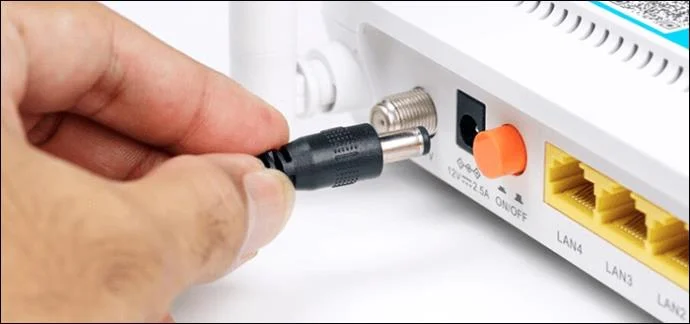
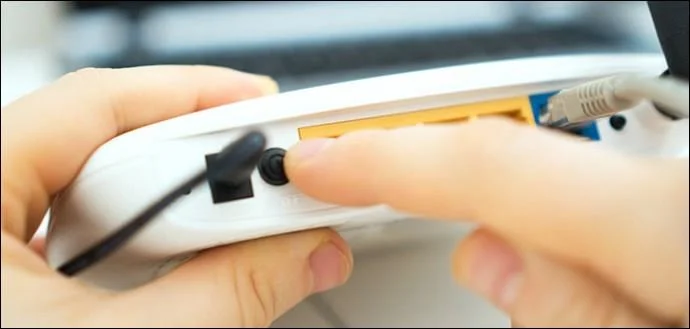
- Disconnect your router power cable to switch off the device.
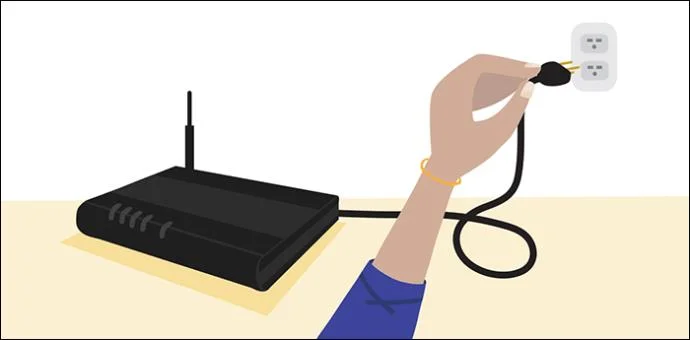
- Pause for at least 15 seconds before re-connecting the power cable.
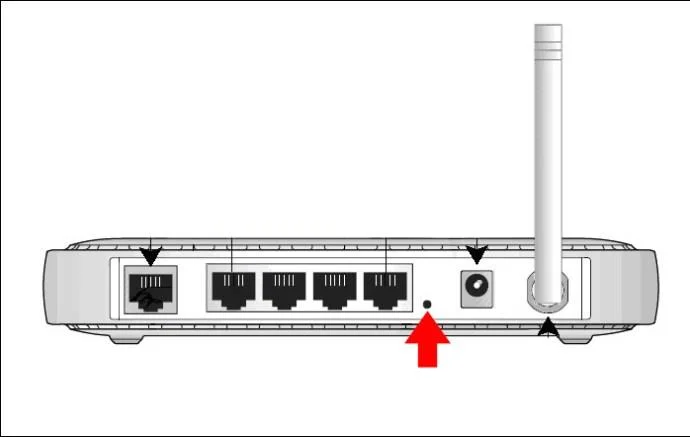
- Press the “Restart” button on your router and stay on stand by for the process to be complete.

- Retry streaming live content on your Hisense TV to check whether the issue is resolved.
Restarting your router will help to restore your internet connection and fix the issue.
Re-Check Your Wi-Fi Credentials
As pointed out earlier, you’re most likely to see the Roku error code 014.50 when something is wrong with your password configuration. You can try to fix this is to double-check your Wi-Fi login credentials. Entering the right password will ensure that the problem is solved and your TV can easily connect to the network, ultimately clearing the error.
Set Up a Stronger Network Connection
The error code 014.50 can still occur even after entering the correct password. If this is the case, the likely culprit is an unstable network connection. This can be caused by radio signal interference or a generally weak signal. You can try placing your router closer to the Hisense TV to try and establish a stronger network connection.
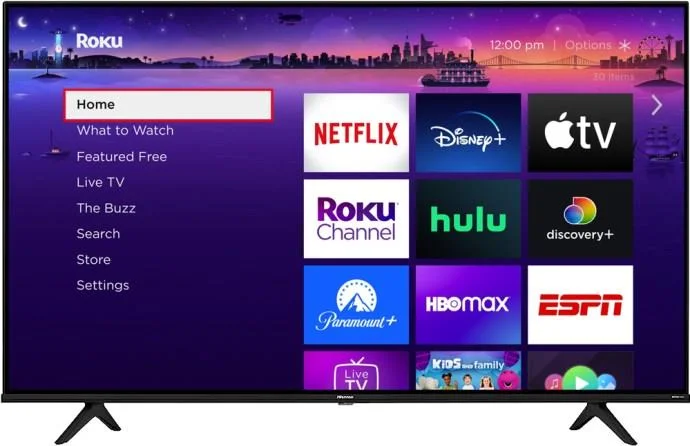
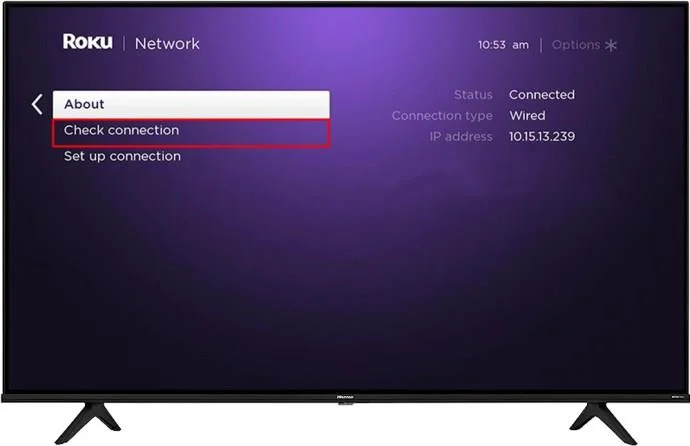
Here’s how you can check your internet connection status using your Roku remote:
- Select “Home”.

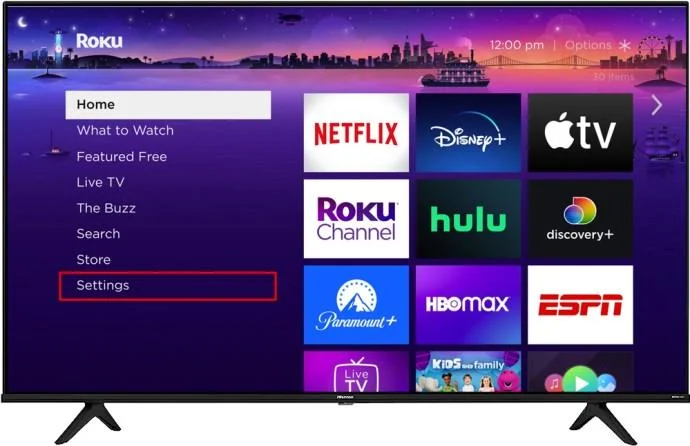
- Scroll down the menu by pressing the down arrow key and choose “Setting.”

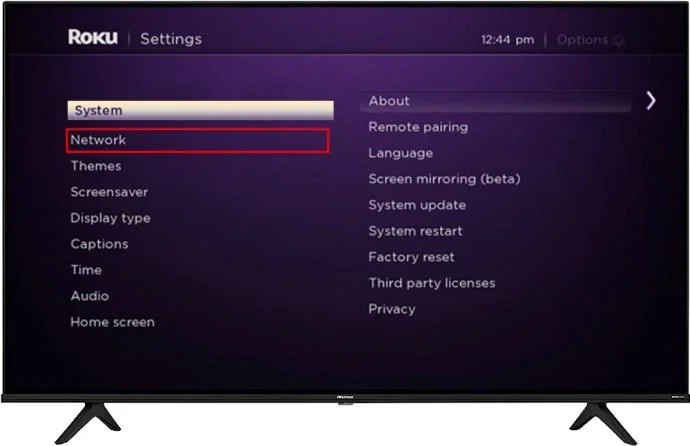
- Select “Network.”

- Click on “Check connection” to view your internet connection status.

Also, be aware that Ethernet cables provide a much stronger network connection than wireless options. So, if you’re using a wireless connection and, after the check, you realize that your connection is poor, it is recommended that you switch to Ethernet cables. A poor wireless connection is the most likely culprit for your Hisense TV error code 014.50.
Reboot Your Hisense TV
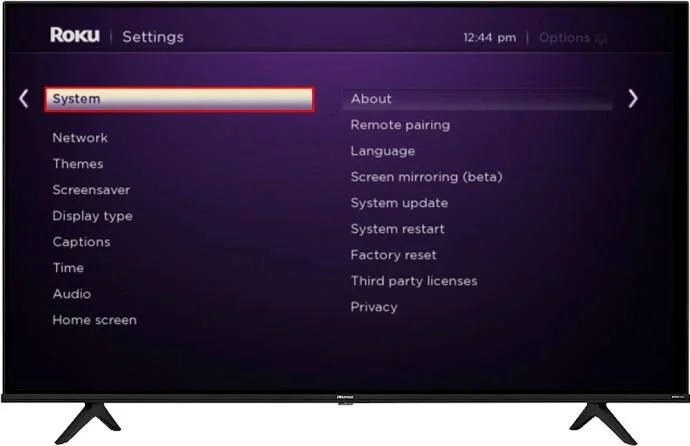
Rebooting your ROKU device is another way to resolve your TV’s connectivity issues because it helps to refresh all your system memory. This is essential in ensuring that your TV runs optimally. You can do this through your ROKU player or directly on your TV. Follow the steps below to execute this task successfully.
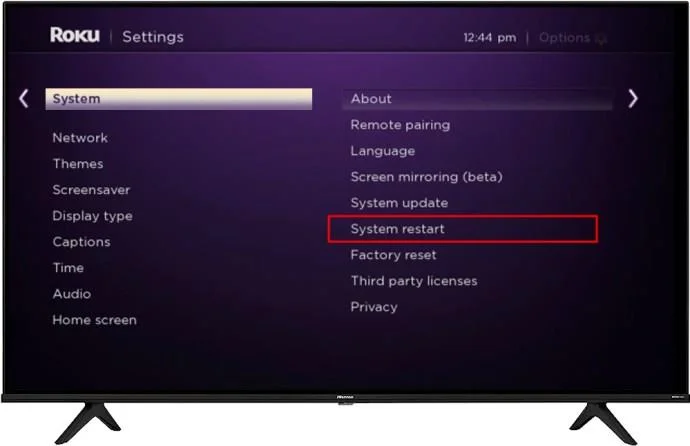
Using Your Roku Player
- Navigate to “Settings.”

- Select “System.”

- Go to the “System Restart” option and wait for your device to reboot.

This is considered a very effective solution in resolving the Roku TV error code 014.50.
Double-Check Your Ethernet Cable Connections
A wired connection offers a stronger network connection. But, its functions can be limited if the wire is damaged or when you’re using an after-market cable. If this is the case, you can try purchasing a certified cable or get a new one. This can help to fix your error code issue.
Be aware that it’s always important to use certified cables on your devices because counterfeit cables can easily cause damage to your TV.
Reset Your Router
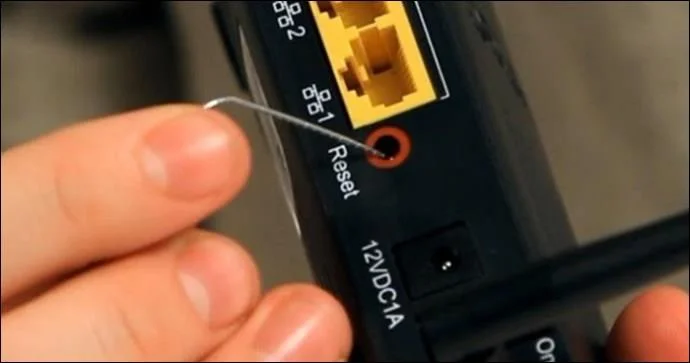
If none of the troubleshooting options listed have helped resolve the issue, the problem might likely stem from corrupted router firmware. Resetting your router can help fix this issue. But doing this will erase all your custom settings, so be sure to save a copy of the settings.
- Ensure that your router is not connected to any other device and that only power cables are attached.

- Long press the “Reset Button” on your router for at least 30 seconds.

- Wait at least three minutes before re-attaching all router cables.
- Press the “Power” button to turn on your router.

- Check your Hisense TV to see whether the issue is resolved.
Contacting Customer Support
You should reach out to Roku customer support if the error persists after trying all the troubleshooting options. The technical team will guide you until the issue is resolved.
FAQs
What does the Hisense TV error code 14.50 signify?
This error signifies the lack of a stable network connection between your router and the TV.
How can you easily identify that your Roku TV network connection is poor?
A constantly blinking light on your Roku device provides a reliable clue confirming your network connection’s poor status.
Why does my internal signal strength show up as “Strong,” and I can’t stream content?
The best solution is to restart and reset all your Roku TV and internet settings. It is also recommended that you enable both bands on your router.
Enjoy Prime Live Streamed Content on Your Hisense TV
Experiencing the TV error code 014.50 can be exasperating because you cannot stream your favorite content. But, it’s the issue can quickly be resolved by employing the troubleshooting options listed in this article.
So, have you tried any of the options listed in this article? Did you find it easy to get rid of the error code? Share your Hisense TV error code 014.50 experiences with us in the comments below.