
Apply the SLES 15 STIG Safely with OpenSCAP

Use SUSE’s supported STIG profile to scan SLES 15, test remediation, review remaining findings, and retain assessment evidence.
Encountering the dreaded Microsoft Edge "Can't Read and Write to Data Directory" error? 😩 You're not alone—this frustrating issue blocks your browsing, crashes tabs, and disrupts your workflow. But don't worry! This guide delivers proven, up-to-date solutions to get Microsoft Edge running smoothly again. We'll cover causes, quick wins, and advanced fixes, keeping everything straightforward so you can fix it in minutes. Let's dive in and reclaim your browser! 🚀
This error typically pops up when Microsoft Edge can't access its user data folder (usually at %LocalAppData%\Microsoft\Edge\User Data). Common triggers include:
Spot it? Error messages appear on launch, or Edge freezes with a popup. Fixing it restores full speed and stability—your tabs, bookmarks, and extensions will thank you! Ready for solutions? 👇
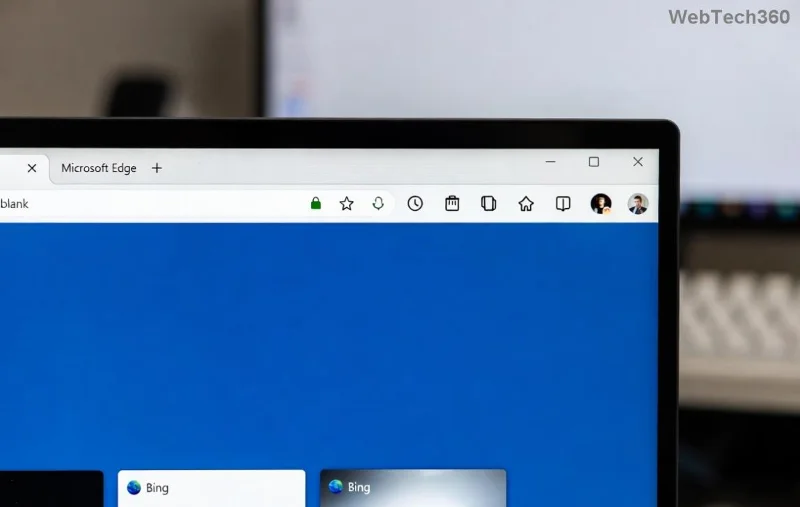
Most users resolve this with these simple steps. Follow in order—no tech expertise needed!
"C:\Program Files (x86)\Microsoft\Edge\Application\msedge.exe" --clear-data. Relaunch!These handle 90% of permission glitches. Still stuck? Move to advanced troubleshooting. Pro tip: Create a system restore point first via Windows Search > Create a restore point. 👍
If quick fixes fail, target the data directory directly. Close Edge completely (Task Manager > End msedge.exe processes).
| Step | Action | Expected Outcome |
|---|---|---|
| 1. Check Folder Permissions | Navigate to %LocalAppData%\Microsoft\Edge\User Data > Right-click Default folder > Properties > Security > Edit > Ensure your user has Full control. Apply to subfolders. | Restores read/write access. |
| 2. Rename Data Folder | Rename "User Data" to "User Data_old". Relaunch Edge—it creates a fresh one. Import bookmarks if needed. | Eliminates corruption. |
| 3. Repair Edge Installation | Settings > Apps > Microsoft Edge > Modify > Repair. Or PowerShell: Get-AppXPackage *edge* | Reset-AppXPackage. | Fixes core files without reinstall. |
| 4. Disable Antivirus Temporarily | Pause real-time protection (e.g., Windows Defender or third-party). Test Edge, then add exclusions for Edge folders. | Bypasses false positives. |
💡 Bonus: For profile-specific issues, create a new profile via Edge Settings > Profiles > Add. Migrate data gradually.
For deeper resets:
msedge.exe --safe-mode (disables extensions).msedge.exe --disable-gpu if hardware acceleration conflicts.These flags shine for edge cases like startup crashes. Test one at a time!
Stay error-free with these habits:
Bonus: Sync data to Microsoft account for easy backups. Your browser will hum like new! 🎉
If issues persist, scan for malware with Windows Security or check Event Viewer for logs (Search > Event Viewer > Windows Logs > Application). For pros, SFU via Microsoft Community.
Congrats—you've conquered the Microsoft Edge "Can't Read and Write to Data Directory" error! Your browsing is now lightning-fast and reliable. Share your success in comments below—what fixed it for you? Stay tuned for more tips. Happy surfing! 🌊
Use SUSE’s supported STIG profile to scan SLES 15, test remediation, review remaining findings, and retain assessment evidence.
Trace a failed Cockpit connection through DNS, port 9090, the systemd socket, firewalld, TLS, and login settings using current SUSE guidance.
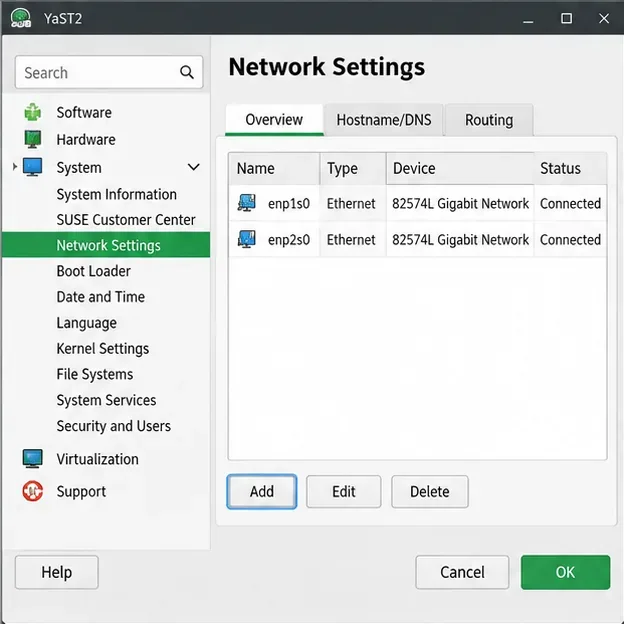
Create a redundant Ethernet connection on SLES 15 with YaST and Wicked, configure active-backup bonding, and verify both ports and failover.
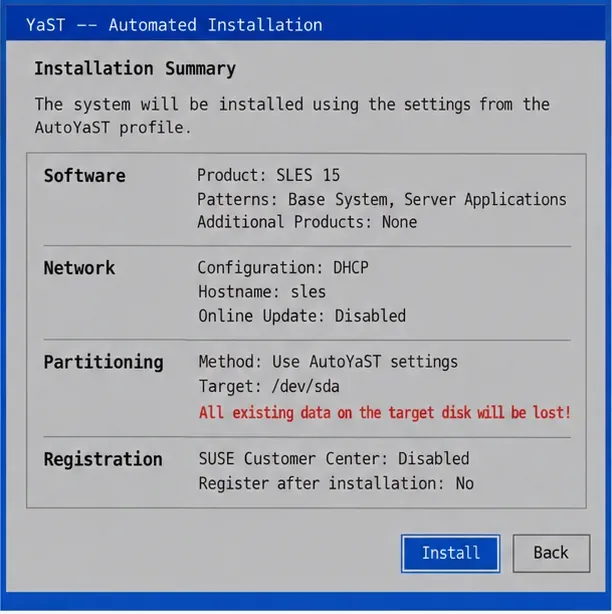
Turn an existing SLES 15 system into a reviewed AutoYaST profile, validate it, and use it to deploy a test server with fewer manual steps.
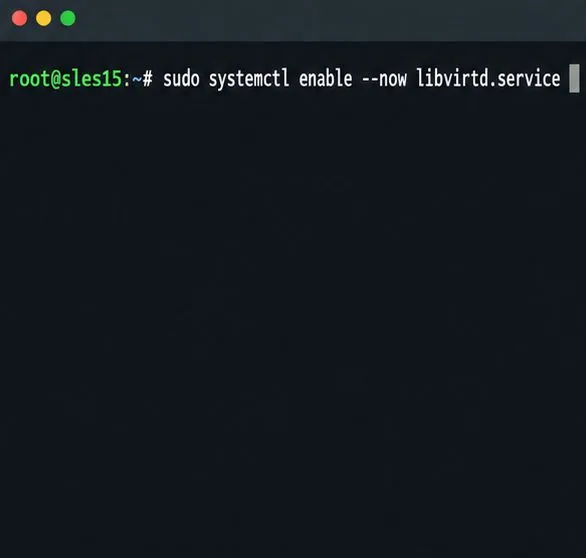
Install the SLES 15 KVM and libvirt tools, enable the right host service, and configure selected virtual machines to start after a reboot.
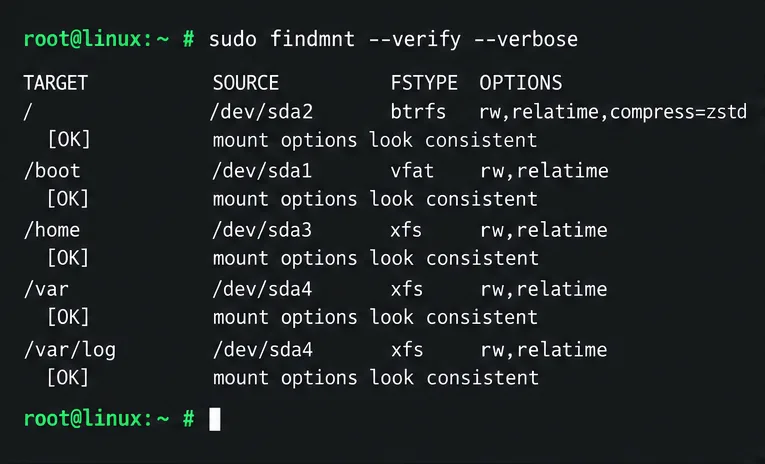
Use systemd jobs and the previous boot journal to locate a slow service, mount, or storage dependency, then correct it without masking the cause.
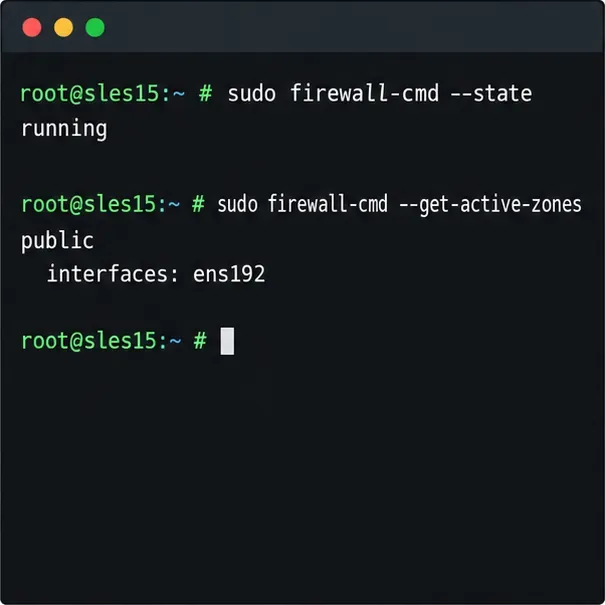
Use firewall-cmd to inspect the active zone, allow HTTP safely, preserve SSH access, and verify that the rule survives a reload on SLES 15.
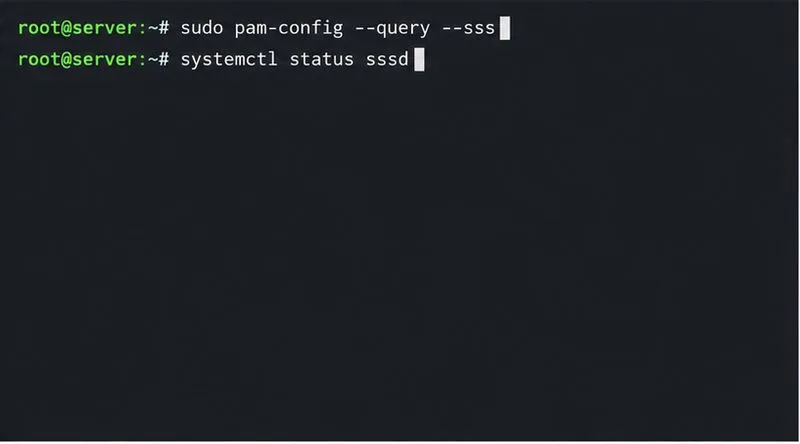
Trace a PAM failure to its service, account policy, or identity provider, then repair the right SLES configuration while preserving a working admin session.
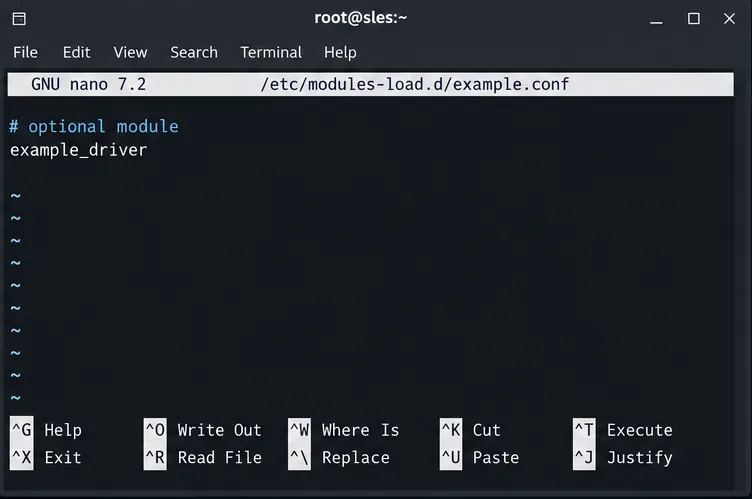
Trace a failed kernel module at SLES startup, correct an obsolete boot entry or repair the required driver, and verify the next boot.
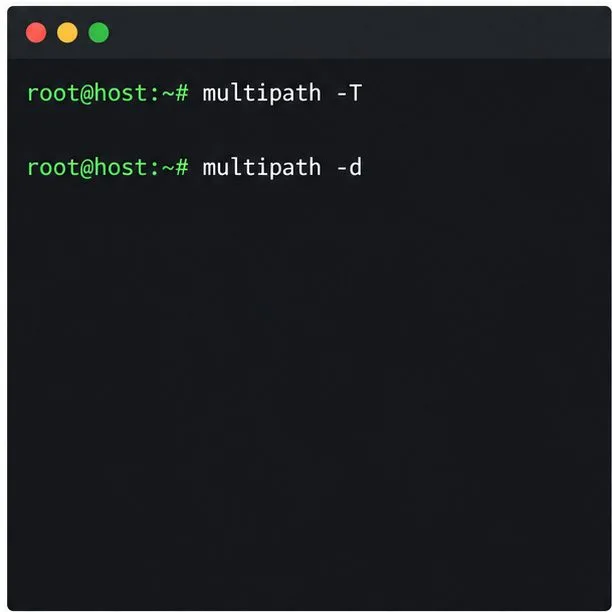
Prepare SCSI SAN paths, enable multipathd, inspect SUSE’s hardware defaults, and verify stable device maps without guessing array settings.