Configure Reliable Ethernet Failover with SLES 15 Bonding
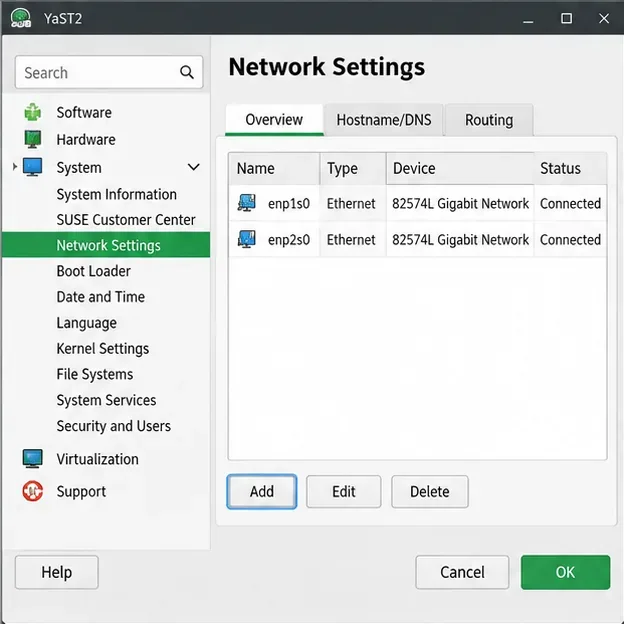
Create a redundant Ethernet connection on SLES 15 with YaST and Wicked, configure active-backup bonding, and verify both ports and failover.
On SUSE Linux Enterprise Server 16.0, Cockpit’s current setup guide, published October 8, 2026, confirms the cockpit pattern, the cockpit.socket systemd unit, and the default HTTPS port 9090. To fix a console that will not connect, check DNS and reachability first, then the socket, firewall, certificate, and account. Those installation commands are specific to SLES 16; on an older SLES release, confirm the package and firewall instructions for that version before installing or changing rules.
Use this explicitly hypothetical example throughout: Maya, a system administrator, opens https://cockpit-srv.example.net:9090 from her workstation and the browser times out. The example host and any displayed address or status are illustrative, not a report of a real server test.
Start from Maya’s workstation. Confirm the name resolves, then test the HTTPS endpoint with a short timeout:
getent ahosts cockpit-srv.example.net
curl -vI --connect-timeout 5 https://cockpit-srv.example.net:9090/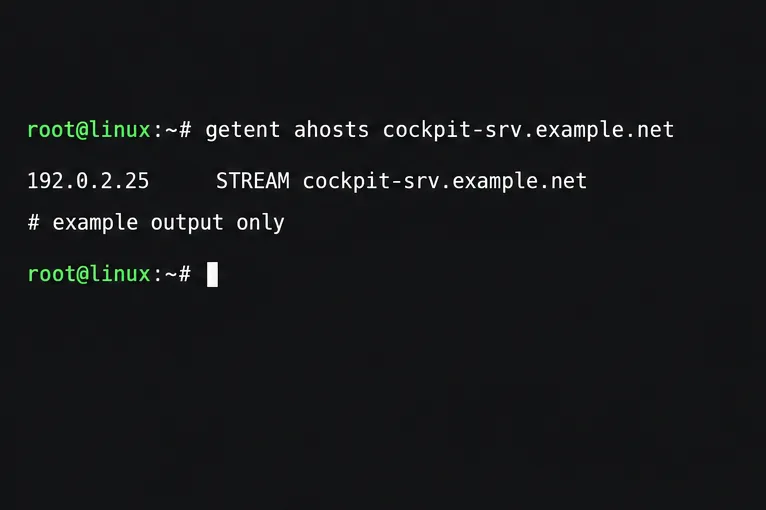
If name lookup fails or returns an old address, correct the DNS record or the client’s resolver before touching Cockpit. If curl reports “connection refused,” the host answered but nothing accepted the connection on that port, or a firewall actively rejected it. A timeout usually points to dropped traffic, a routing problem, or an upstream firewall. If curl reaches TLS and reports a certificate warning, network traffic reached Cockpit; investigate the certificate rather than opening more ports.
Confirm Maya is using the intended hostname and management network. TCP 9090 is the default but can be customized. If direct access is restricted, use an approved Cockpit primary server to reach the secondary host over SSH rather than exposing the port broadly.
Use SSH or a local console to check the installed Cockpit package, the systemd socket, and whether anything listens on 9090:
sudo zypper se -i cockpit
sudo systemctl status cockpit.socket
sudo ss -ltnp 'sport = :9090'
cockpit.socket is expected even when the on-demand Cockpit service is idle between browser sessions.Cockpit uses systemd socket activation: cockpit.socket accepts the browser connection and starts the web service when needed. Therefore, an idle cockpit.service does not by itself indicate a failure. If Cockpit is installed but the socket is inactive, start and enable it:
sudo systemctl enable --now cockpit.socketIf the package is missing on SLES 16, SUSE documents installation with sudo zypper in -t pattern cockpit. Do not assume that pattern is available from the repositories configured for SLES 15 or another release. Review socket and service messages with:
sudo journalctl -u cockpit.socket -u cockpit.service -b --no-pagerIf the socket listens locally but Maya still times out, check the firewall and route. If it does not listen, fix the package or socket error in the journal.
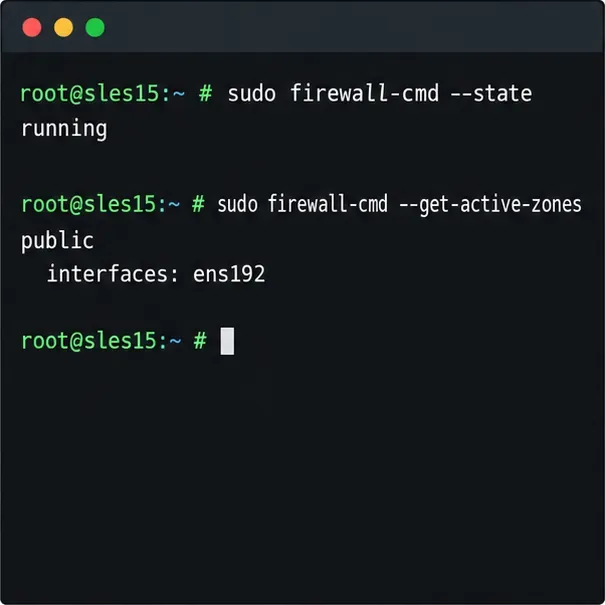
On SLES 16 with firewalld enabled, first identify the active zone and inspect its allowed services:
sudo firewall-cmd --get-active-zones
sudo firewall-cmd --zone=ZONE --list-services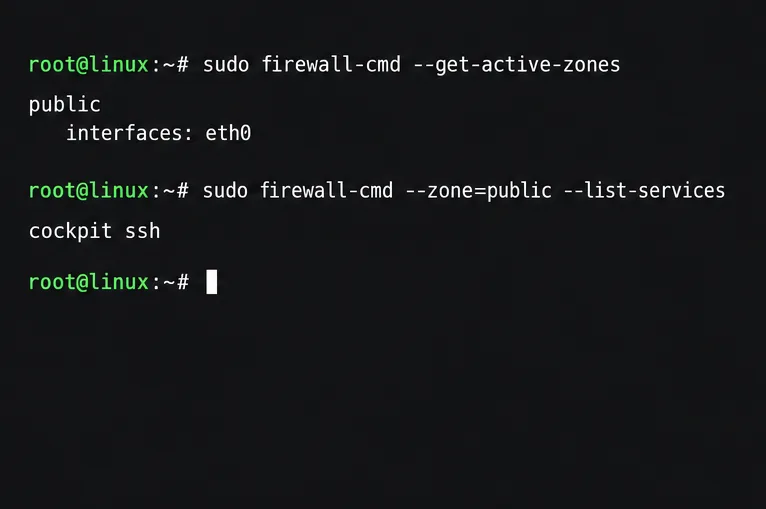
Replace ZONE with the zone attached to the management interface. If Cockpit is missing and that zone is intended for trusted administration access, add the Cockpit service and reload the rules:
sudo firewall-cmd --zone=ZONE --add-service=cockpit --permanent
sudo firewall-cmd --reload
sudo firewall-cmd --zone=ZONE --query-service=cockpit
The rule affects every source allowed by that zone, so keep the management zone limited to the administrator network. Check cloud security groups, network ACLs, VPN policy, and upstream firewalls for TCP 9090 as well.
SUSE’s SLES 16 Cockpit guide also documents refreshing cockpit-selinux-policies and restarting cockpit.socket as part of its firewall setup. If you are on SLES 16 and the package/socket or SELinux policy appears inconsistent after following the firewall steps, use the commands from the matching SUSE guide:
sudo zypper in -f cockpit-selinux-policies
sudo systemctl restart cockpit.socket
Do not apply this package step to another SLES release without checking its package guidance. If direct port access is intentionally restricted, use an approved Cockpit primary host and connect to the target as a secondary server over SSH rather than broadening the target’s firewall.
Open Cockpit over HTTPS: https://cockpit-srv.example.net:9090. On SLES 16, Cockpit generates a self-signed certificate if none is installed. A browser warning about an unknown issuer or a name mismatch is evidence of a TLS trust or identity issue, not proof that the TCP connection failed. Do not disable browser certificate checks as the permanent fix.
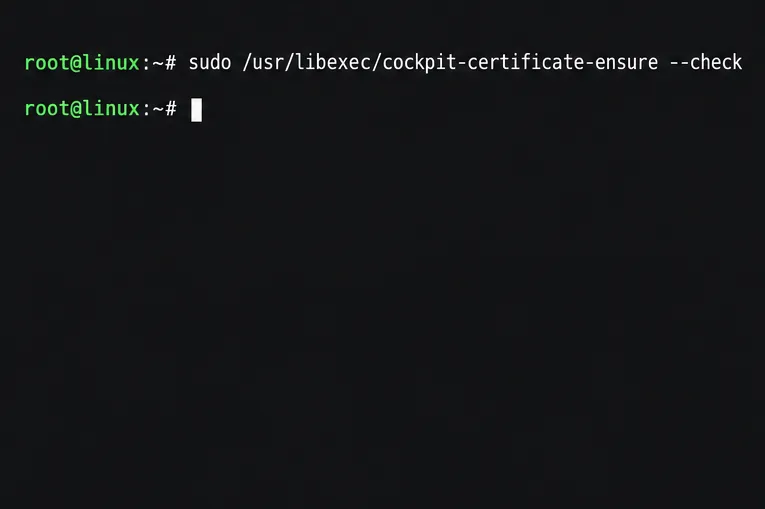
Inspect the certificate selected by Cockpit with the SUSE-documented command:
sudo /usr/libexec/cockpit-certificate-ensure --checkSLES 16 loads certificates from /etc/cockpit/ws-certs.d; a matching private key uses the same base filename with a .key suffix. For managed servers, install a certificate whose subject alternative name matches the hostname Maya enters, include its intermediate chain, and make the issuing CA trusted by the workstation. If curl reaches the service but reports a self-signed certificate, correct trust or deploy a suitable certificate rather than changing the firewall.
Cockpit uses the server’s normal account credentials; it does not require a separate Cockpit password. On new SLES installations, password-based root login is disabled by default. If Maya reaches the login page but cannot sign in as root, use an authorized regular account instead of enabling root password login solely to troubleshoot Cockpit. Administrative actions can then use the account’s permitted privilege path.
Reload the HTTPS URL from Maya’s workstation. Verify that DNS returns the intended server, TCP 9090 is reachable, the certificate matches and is trusted, and an authorized account can sign in. If local listening works but the remote request times out, give the network team both addresses, port, and test time.
The latest SUSE reference for the installation, firewall, certificate, and authentication details is the SLES 16.0 Cockpit administration guide, published October 8, 2026. For general HTTPS and certificate behavior across Cockpit versions, consult the Cockpit SSL/TLS guide. Exact package availability and firewall integration remain release-specific.
Create a redundant Ethernet connection on SLES 15 with YaST and Wicked, configure active-backup bonding, and verify both ports and failover.
Turn an existing SLES 15 system into a reviewed AutoYaST profile, validate it, and use it to deploy a test server with fewer manual steps.
Install the SLES 15 KVM and libvirt tools, enable the right host service, and configure selected virtual machines to start after a reboot.
Use systemd jobs and the previous boot journal to locate a slow service, mount, or storage dependency, then correct it without masking the cause.
Use firewall-cmd to inspect the active zone, allow HTTP safely, preserve SSH access, and verify that the rule survives a reload on SLES 15.
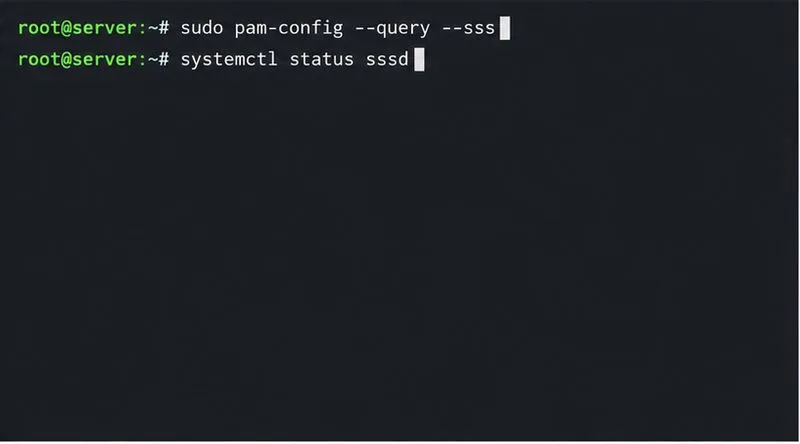
Trace a PAM failure to its service, account policy, or identity provider, then repair the right SLES configuration while preserving a working admin session.
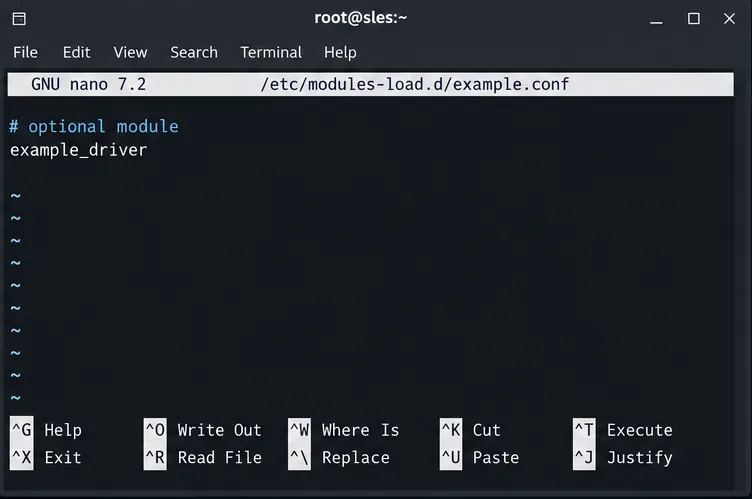
Trace a failed kernel module at SLES startup, correct an obsolete boot entry or repair the required driver, and verify the next boot.
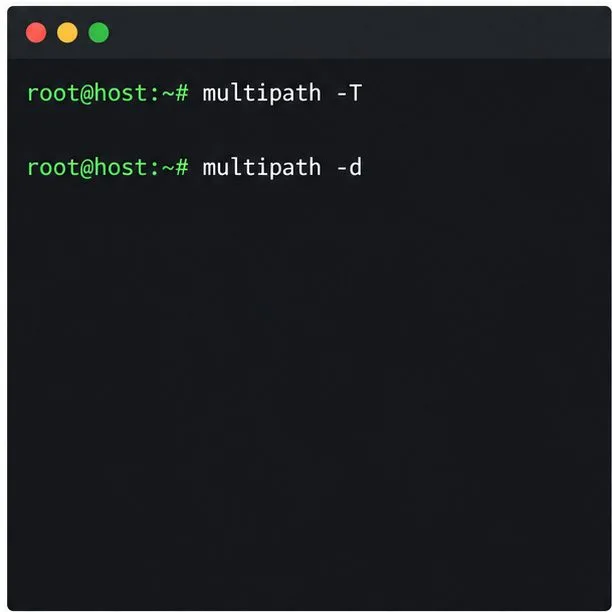
Prepare SCSI SAN paths, enable multipathd, inspect SUSE’s hardware defaults, and verify stable device maps without guessing array settings.
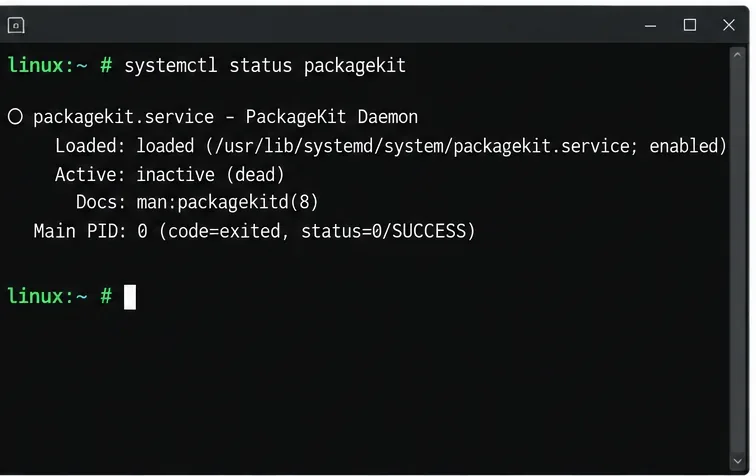
Find the process holding Zypper’s package lock, distinguish process conflicts from package locks, and retry updates without deleting lock files blindly.
Register SLE HA, bootstrap SLES 15 nodes, then add fencing, quorum, and tested service resources before relying on failover.