SLES 15 KVM Setup: Make Selected VMs Start at Boot
Install the SLES 15 KVM and libvirt tools, enable the right host service, and configure selected virtual machines to start after a reboot.
To make a SLES 15 KVM virtual machine start after a host reboot, install the KVM and libvirt management components, mark that guest for autostart with virsh autostart VM_NAME, and ensure the host’s active libvirt daemon starts during boot. Autostart is a per-VM setting; installing KVM or starting libvirt alone does not automatically start every guest.
The commands below follow SUSE’s SLES 15 SP7 Virtualization Guide. Earlier service packs can differ, so check the matching guide and installed systemd units before applying service commands.
For a host that will run and manage guests through libvirt, install both KVM server and KVM tools. SUSE defines KVM server as the minimal QEMU/KVM environment and KVM tools as the libvirt-based management stack, which includes the virsh workflow used here.
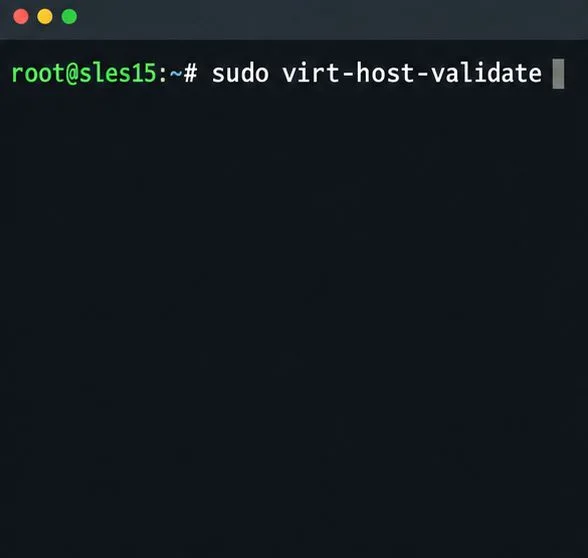
Before you install, confirm that the machine’s processor and firmware expose hardware virtualization. SUSE documents CPU support and required software in its SLES 15 SP7 Virtualization Guide. If validation reports a hardware or configuration issue, resolve it in firmware or the host configuration before trying to define a VM; the autostart flag cannot compensate for a host that cannot run KVM.
On an already-installed server, open YaST and choose Virtualization > Install Hypervisor and Tools. If the YaST Virtualization module is missing, SUSE says it is provided by the yast2-vm package.
Select KVM server and KVM tools, then accept the package changes. YaST can offer to configure a network bridge. Choose that option only if it fits the host’s network design. Changing a production host’s network can interrupt remote access, so plan and schedule bridge changes before applying them.
After the setup completes, create or import a guest and make sure it is defined as a persistent libvirt domain. SUSE’s guide states that the KVM setup through YaST does not require a host reboot.
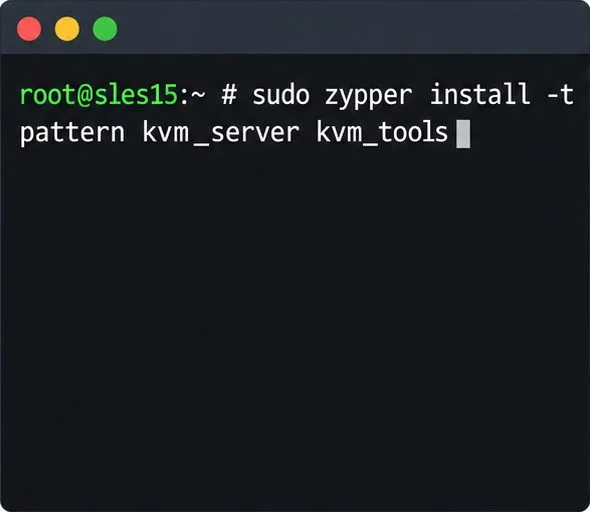
Alternatively, SUSE documents installing the patterns with Zypper: sudo zypper install -t pattern kvm_server kvm_tools. Choose one installation route and review the package transaction before confirming it. If the host is being installed from scratch, the KVM Virtualization Host system role installs and configures the appropriate selection during SLES installation.
First, list domains through the system libvirt connection so you can use the exact guest name:
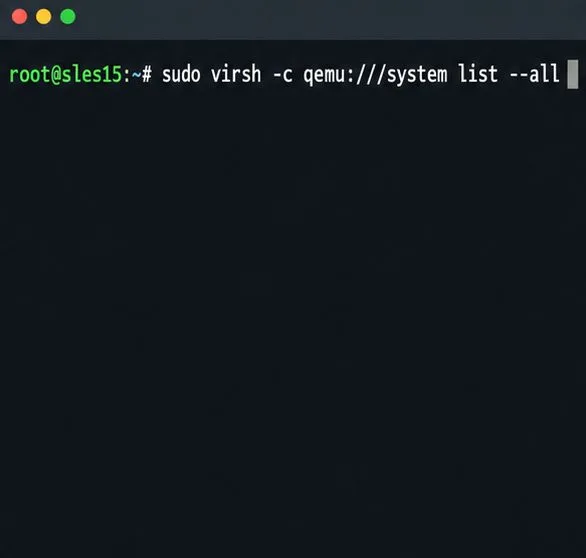
sudo virsh -c qemu:///system list --allThe --all option includes guests that are currently shut off. Select the intended persistent VM from the output. Then enable autostart for that domain:
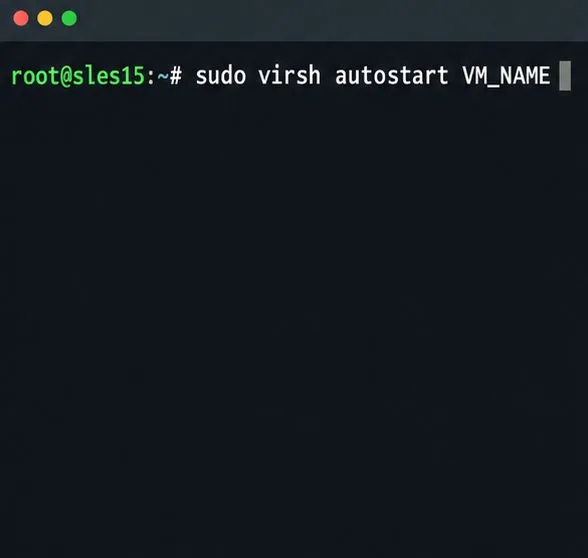
sudo virsh autostart VM_NAMETo undo the setting later, run sudo virsh autostart --disable VM_NAME. This is not a saved-memory restore: the guest boots normally from its configured disks after the host starts. It also does not select every VM automatically. Apply the command only to the guests that should run on this host.
It depends on whether this SLES host uses libvirt’s modular daemons or the traditional monolithic libvirtd. SUSE documents modular daemons as enabled by default in SLES 15 SP7 and recommends starting the relevant driver service at boot when guests are configured to autostart. The QEMU driver service is virtqemud.service. On a monolithic setup, SUSE recommends libvirtd.service instead. Do not enable both deployment modes just because both unit names exist.
Check the units on your host before changing them:
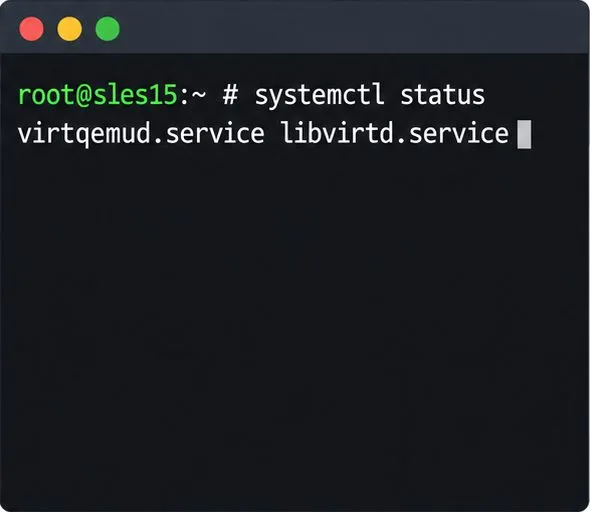
systemctl status virtqemud.service libvirtd.serviceIf the host uses modular libvirt and the QEMU unit is installed, enable it with:
sudo systemctl enable --now virtqemud.serviceIf the host is deliberately configured for the monolithic daemon, use this command instead:
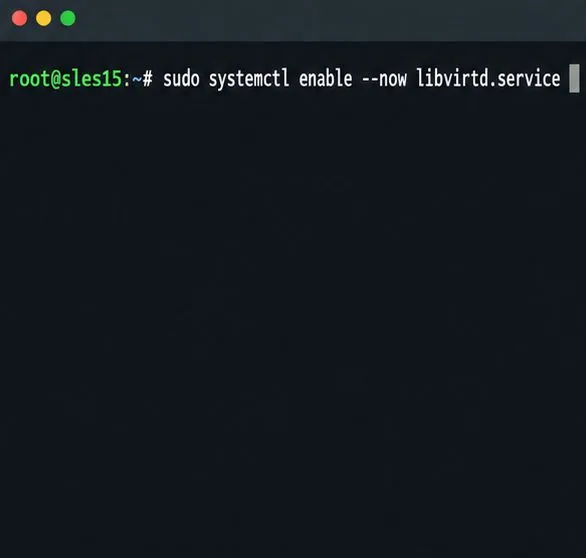
sudo systemctl enable --now libvirtd.service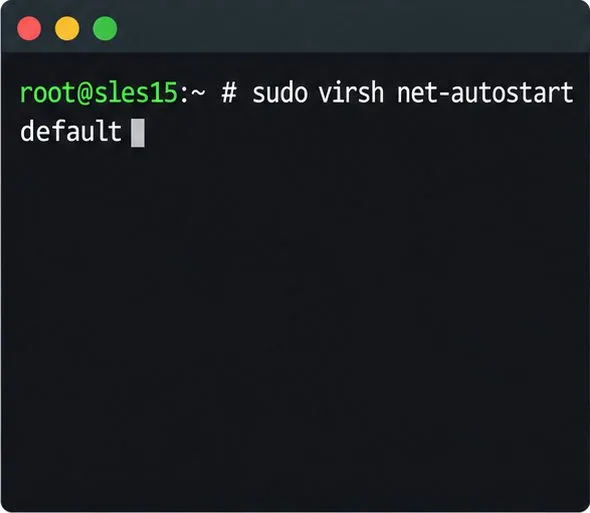
With modular libvirt, virtual networking and storage management can use separate driver daemons or sockets. If the guest depends on a libvirt-managed network, make that network start automatically too; for example, SUSE documents sudo virsh net-autostart default for the predefined default network. Do this only when the guest actually uses that network. A bridge configured at the host level does not use this libvirt network setting. Verify the actual network attached to the guest rather than assuming the name default.
If a guest uses an external or network-mounted disk, ensure its backing storage is available at boot. SUSE notes that a libvirt storage pool’s active state does not change the availability of volumes already attached to guests, but enabling pool autostart is useful when the pool must be active for host-side pool management or later volume operations: sudo virsh pool-autostart POOL. Replace POOL with the actual pool name; do not create a new pool merely to set VM autostart.
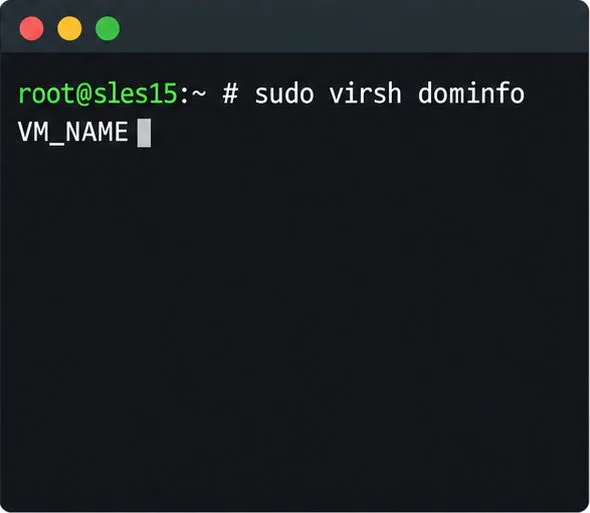
Before a planned maintenance reboot, inspect the domain configuration and daemon state. Use sudo virsh dominfo VM_NAME to confirm that autostart is enabled, and systemctl is-enabled virtqemud.service or systemctl is-enabled libvirtd.service for the daemon mode you chose. If the first command fails because the guest is not found, make sure you are querying the same libvirt connection on which it was created.
Then test during an approved maintenance window. After the host returns, run sudo virsh -c qemu:///system list --all. The selected guest should show as running; confirm its network and guest services separately. If it remains shut off, inspect the active daemon’s boot logs with journalctl -b -u virtqemud.service or journalctl -b -u libvirtd.service, as applicable, and check for unavailable storage or a required virtual network. Those conditions depend on the host configuration, so the daemon log and the VM’s actual device configuration determine the next fix.
For version-specific service details, network setup, and guest management, consult SUSE’s SLES 15 SP7 libvirt daemon documentation and VM host preparation chapter.
Install the SLES 15 KVM and libvirt tools, enable the right host service, and configure selected virtual machines to start after a reboot.
Use systemd jobs and the previous boot journal to locate a slow service, mount, or storage dependency, then correct it without masking the cause.
Use firewall-cmd to inspect the active zone, allow HTTP safely, preserve SSH access, and verify that the rule survives a reload on SLES 15.
Trace a PAM failure to its service, account policy, or identity provider, then repair the right SLES configuration while preserving a working admin session.
Trace a failed kernel module at SLES startup, correct an obsolete boot entry or repair the required driver, and verify the next boot.
Prepare SCSI SAN paths, enable multipathd, inspect SUSE’s hardware defaults, and verify stable device maps without guessing array settings.
Find the process holding Zypper’s package lock, distinguish process conflicts from package locks, and retry updates without deleting lock files blindly.
Register SLE HA, bootstrap SLES 15 nodes, then add fencing, quorum, and tested service resources before relying on failover.
Trace a Zypper refresh error to SUSE, RMT, or a third-party endpoint, then apply the right server-side or cache fix without disabling essential updates.
Resolve SUSE LVM thin-pool space errors by checking data and metadata usage, expanding the pool safely, and preventing repeat outages.