Diagnose a SUSE Server That Hangs at the systemd Shutdown Screen
Use systemd jobs and the previous boot journal to locate a slow service, mount, or storage dependency, then correct it without masking the cause.
Example scenario: Imagine an administrator preparing a fictional SLES 15 server named web01 to host a small public website. The goal is to allow inbound HTTP on TCP port 80 while keeping the existing SSH administration path available. This is an illustrative example, not a report of a test or a claim that every SLES 15 installation has the same interface names or services.
On SLES 15, firewalld is the default firewall framework, and firewall-cmd controls it. First identify the active zone and verify remote access; then add the smallest required service to that zone in the permanent configuration and reload. SUSE’s SLES 15 SP7 Security and Hardening Guide documents this zone-based model and the distinction between runtime and permanent rules. These steps assume firewalld is installed and running; older upgraded systems may need a separate migration check.
Connect through the server console or a management session that you can recover if network access is interrupted. If you are connected over SSH, keep that session open while making firewall changes. Confirm that firewalld is running and see which zone owns the interface:
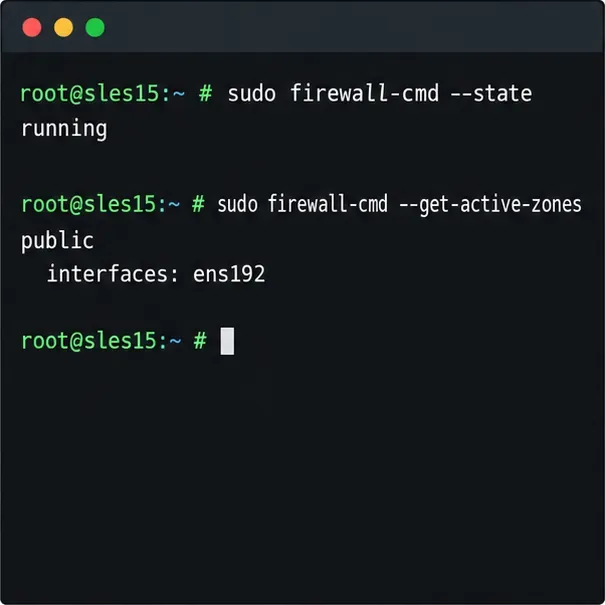
sudo firewall-cmd --state
sudo firewall-cmd --get-active-zones
sudo firewall-cmd --get-default-zone
The first command should report running. The active-zones command lists zones that have interfaces or source addresses assigned; it may show more than one. In the fictional web01 example, suppose it reports public and interface ens192. Use the zone attached to the incoming network interface in later commands. Do not assume the interface is named eth0, and do not assume public is active just because it is a common default.
If the service is not running, inspect its state before starting it: sudo systemctl status firewalld. On standard SLES 15 installations firewalld is installed and enabled by default, but image profiles, upgrades, or local policy can differ. If it is installed but stopped, start and enable it only after confirming that its current policy will preserve your needed access: sudo systemctl enable --now firewalld. On a remotely managed host, confirm console access and your SSH allowance before activating a firewall whose current rules are unknown.
A firewalld service is a named bundle of ports and protocols. Check the local definition before opening it:
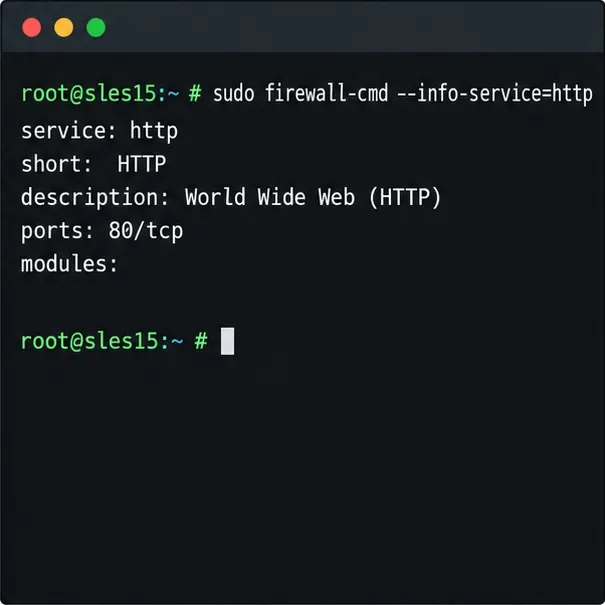
sudo firewall-cmd --info-service=http
sudo firewall-cmd --zone=public --list-all
On SLES, the predefined http service corresponds to TCP port 80. The zone listing lets you inspect currently allowed services and ports. Replace public with the active zone you found. If SSH is how you administer the server, ensure ssh is allowed in that zone before proceeding. SLES installation behavior and existing policy can vary, so check rather than rely on an assumption. If the installed SSH daemon listens on a nonstandard port, a generic ssh service entry may not match it; confirm the daemon’s actual listening port and existing firewall policy first.
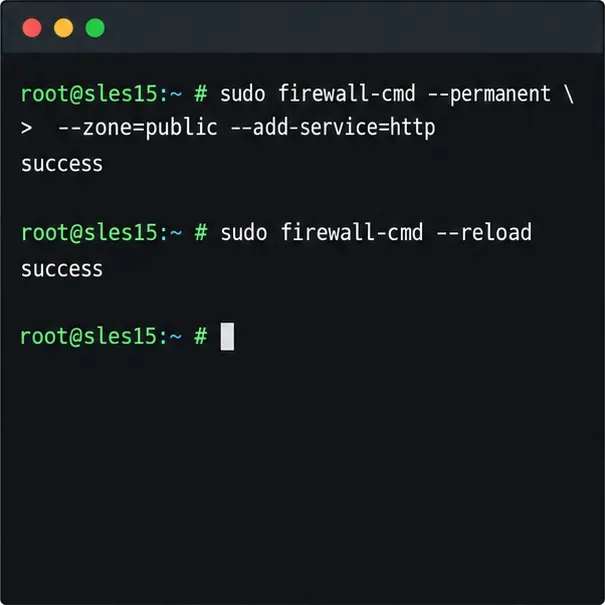
Firewalld maintains separate runtime and permanent configurations. A normal command changes the active runtime rules only; --permanent writes the saved configuration but does not immediately activate that change. For web01, add the HTTP service to the zone that owns its public interface:
sudo firewall-cmd --permanent --zone=public --add-service=http
sudo firewall-cmd --reload
Use --zone explicitly so the rule cannot land in an unintended default zone. A reload applies the permanent rules to runtime. Unsaved runtime-only changes are discarded during reload, so inspect and preserve any temporary rules you intentionally need before running it. To test a service before making it persistent, you can first run sudo firewall-cmd --zone=public --add-service=http without --permanent; if it works, add the permanent rule and reload. A runtime-only test is lost after a reload or firewall restart.
If you need a single port rather than a predefined service, specify both the port and protocol, for example --add-port=8080/tcp. Only do this when the application actually listens on that port. A firewall allowance does not start a web server, create a cloud security-group rule, or configure an upstream router; all network layers must permit the traffic.
Check the running and saved configurations:
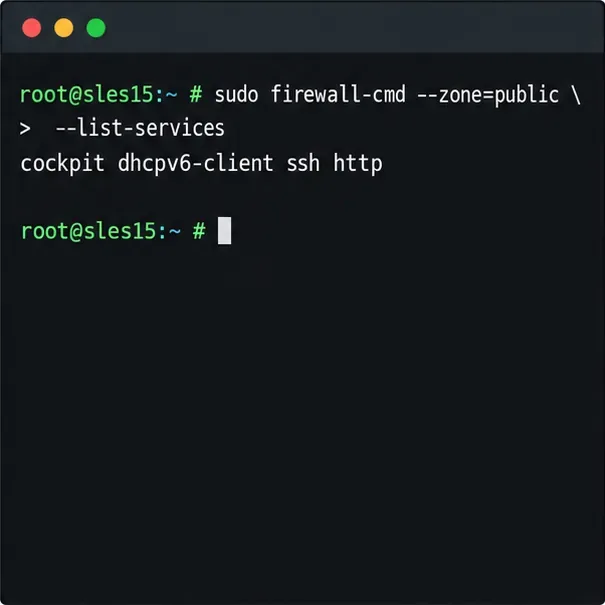
sudo firewall-cmd --zone=public --list-services
sudo firewall-cmd --permanent --zone=public --list-services
sudo firewall-cmd --check-config
The output should include http in both service lists, and the configuration check should complete without reporting an error. Also verify the application is listening locally, for example with sudo ss -lntp, and test the site from a client on the intended network. A firewall listing confirms a rule, not end-to-end reachability: DNS, a cloud firewall, routing, and the web server itself can still block or fail the request.
If HTTP is no longer required, remove the saved rule and reload: sudo firewall-cmd --permanent --zone=public --remove-service=http, followed by sudo firewall-cmd --reload. Recheck the runtime and permanent lists afterward. Avoid flushing all rules or switching to a trusted zone to solve a single access issue; those broader changes can expose unrelated services.
For release-specific guidance, consult the SUSE SLES 15 SP7 Security and Hardening Guide. For command behavior across firewalld versions, see the upstream firewall-cmd documentation and runtime versus permanent configuration reference. Available options can vary with the firewalld version shipped in a particular SLES service pack, so confirm local help with firewall-cmd --help if a command is unavailable.
Use systemd jobs and the previous boot journal to locate a slow service, mount, or storage dependency, then correct it without masking the cause.
Use firewall-cmd to inspect the active zone, allow HTTP safely, preserve SSH access, and verify that the rule survives a reload on SLES 15.
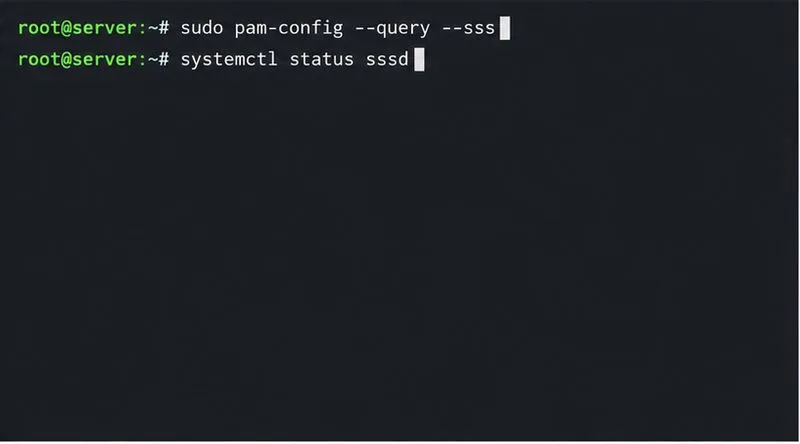
Trace a PAM failure to its service, account policy, or identity provider, then repair the right SLES configuration while preserving a working admin session.
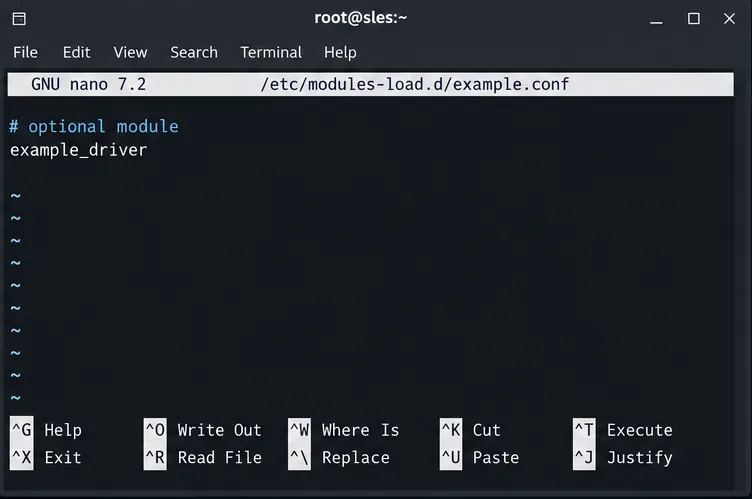
Trace a failed kernel module at SLES startup, correct an obsolete boot entry or repair the required driver, and verify the next boot.
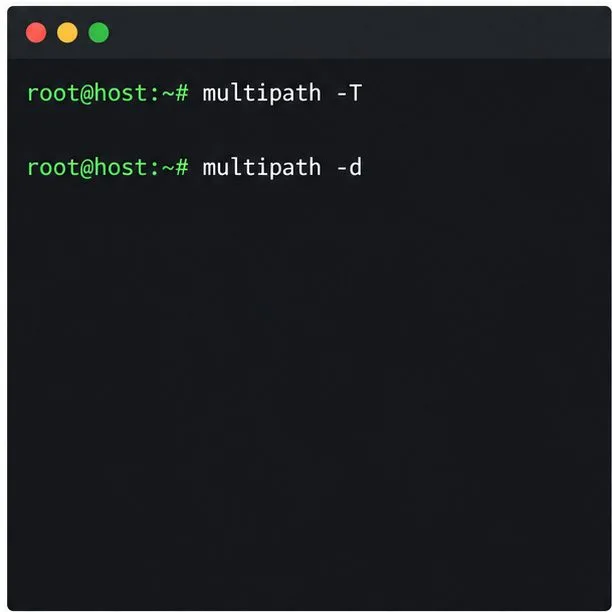
Prepare SCSI SAN paths, enable multipathd, inspect SUSE’s hardware defaults, and verify stable device maps without guessing array settings.
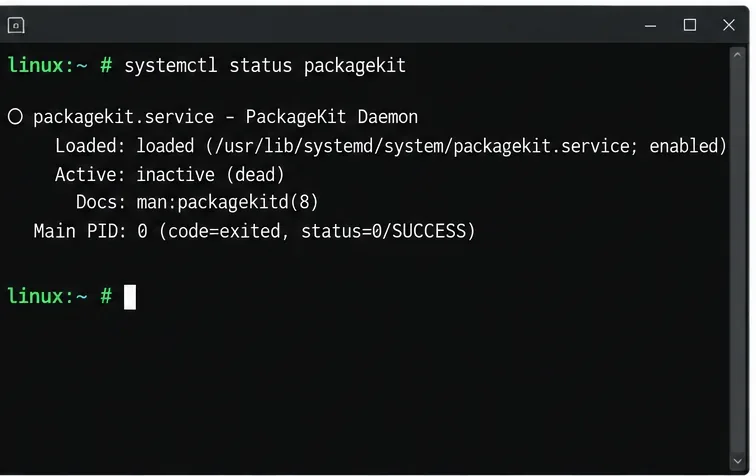
Find the process holding Zypper’s package lock, distinguish process conflicts from package locks, and retry updates without deleting lock files blindly.
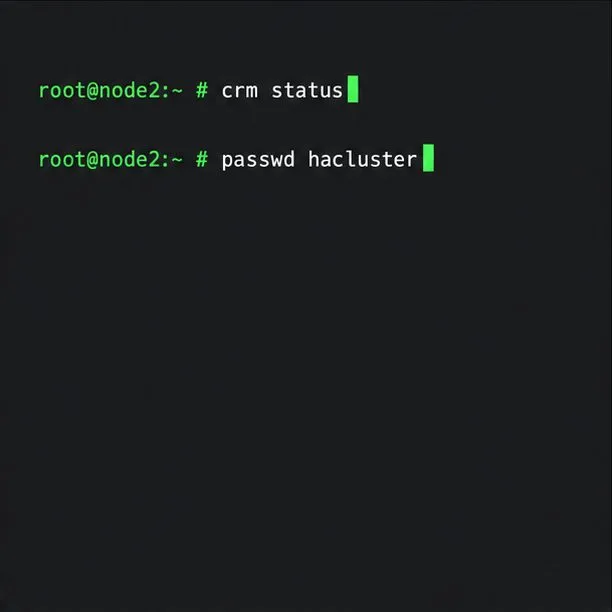
Register SLE HA, bootstrap SLES 15 nodes, then add fencing, quorum, and tested service resources before relying on failover.
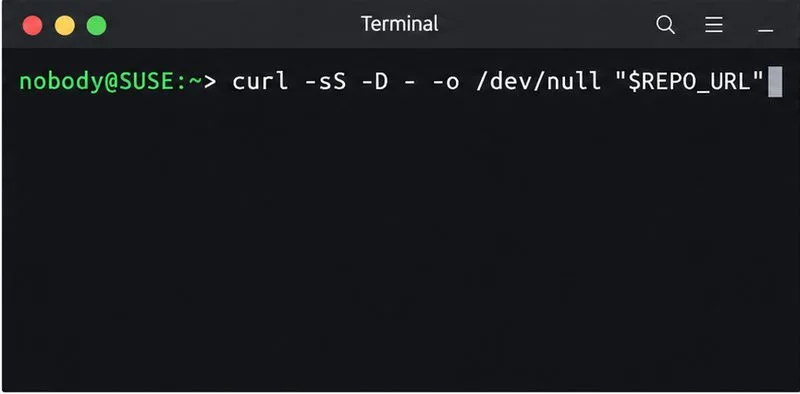
Trace a Zypper refresh error to SUSE, RMT, or a third-party endpoint, then apply the right server-side or cache fix without disabling essential updates.
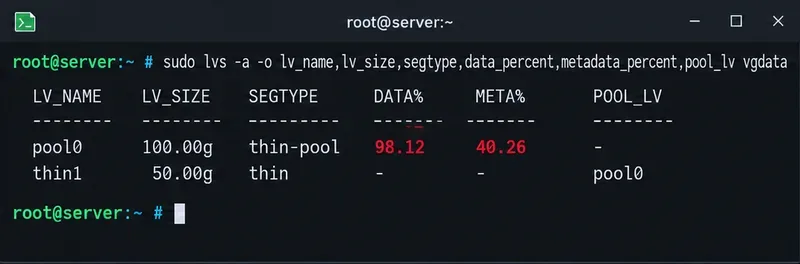
Resolve SUSE LVM thin-pool space errors by checking data and metadata usage, expanding the pool safely, and preventing repeat outages.
Identify whether Btrfs is intentionally read-only, short on space, or protecting data after errors, then choose a recovery path that fits the cause.