Clear a Zypper Lock Safely on SUSE Linux Enterprise
Find the process holding Zypper’s package lock, distinguish process conflicts from package locks, and retry updates without deleting lock files blindly.
If SUSE Linux Enterprise reports that Zypper is locked by another process, first let any active software update, YaST package operation, or automated maintenance job finish. Check which package-management process owns the work before stopping anything. If no package operation is running and the lock remains, investigate the stale state without deleting lock files blindly; then retry Zypper. A package lock created with zypper addlock is a different issue and needs a different fix.
Zypper and the underlying package-management tools protect package transactions from overlapping changes. A refresh, patch, install, YaST software task, or scheduled update can temporarily prevent a second transaction. The lock is a coordination mechanism: removing it while RPM or Zypper is still changing packages can leave the package database or system in an inconsistent state.
Verified distinction: a process lock prevents concurrent package operations; a package lock prevents a named package from being selected for installation, upgrade, or removal. SUSE documentation describes package locks as a separate feature. SUSE’s RPM Packaging guide explains Zypper package locks. If the error names another process or says the package manager is busy, start with the process checks below. If it says a particular package is locked or excluded, run sudo zypper locks and review the listed package rules instead.
Wait a few minutes if an update, installation, or repository refresh was just started. On a server, first check with the administrator or maintenance automation owner; a background patch job may not have a visible terminal.
ps -eo pid,ppid,etime,stat,cmd | grep -E '[z]ypper|[r]pm|packagekit|YaST|yast'Look for a real Zypper, RPM, YaST, or PackageKit task and note its PID, elapsed time, and command. The grep expression avoids matching the search command itself for Zypper and RPM. A process listing is a snapshot, so repeat it after a short wait if the result is unclear. The sample below is an illustrative terminal view, not a report from a real machine.
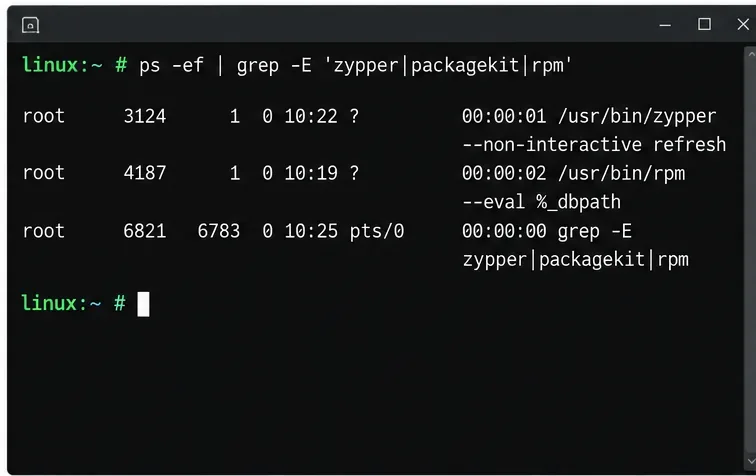
What is not established yet: seeing a process does not prove it is stuck. A package transaction may be downloading metadata or waiting on storage or a repository. Do not kill it just because the command has been quiet. If it is progressing, allow it to finish and rerun the original Zypper command afterward.
Desktop installations may use PackageKit, while managed servers may run scheduled updates through systemd timers or SUSE Manager. Check only services that exist on your host:
systemctl status packagekit
systemctl list-timers --all
If PackageKit is absent, systemd reports that the unit could not be found; that does not mean Zypper is broken. If it is active, inspect its recent journal entries and confirm that no install or update is in progress before considering a stop:
sudo journalctl -u packagekit --since "30 minutes ago"When a confirmed PackageKit operation has finished but its service remains active and is blocking Zypper, coordinate with the person or automation managing updates. On a host where stopping it is appropriate, use sudo systemctl stop packagekit, then verify with systemctl status packagekit. Do not disable the service or stop unrelated update timers as a general fix. Names and update schedules depend on the system’s installed components and management policy.
A stale lock can follow an interrupted session, a reboot, or a failed management task, but its presence alone does not identify the cause. SUSE’s user documentation does not provide one universal instruction to delete a lock file for every SLES release and configuration. Avoid commands such as rm against guessed paths, and do not use kill -9 on an unknown PID. A lock file can be recreated or replaced while a transaction is active, and deleting it does not stop the process that owns the transaction.
Recheck the process list, inspect relevant service logs, and make sure no package operation is in progress. If you can identify a stale PID file or lock path, verify its owner and confirm with the documented procedure for your exact SLES service pack or support guidance before changing it. For production systems, capture the exact error and logs and follow your organization’s SUSE support process. This is the point where local details matter: the error text, SLES service pack, installed desktop tools, and management agent can change the correct recovery action.
Once the competing operation has completed, refresh repository metadata:
sudo zypper refreshA successful refresh confirms that Zypper can now access its repositories and that the process lock no longer blocks that command. If your original task was to patch the system, preview the proposed changes before applying them:
sudo zypper patch --dry-runReview the packages and actions in the output. A dry run is a planning check; it does not install the listed updates. When the proposal is expected and your maintenance window permits it, run sudo zypper patch. SUSE’s SLES 15 SP7 documentation covers command-line software management, including installing and removing software; command behavior and available options can vary by release. See SLES 15 SP7 software management documentation and SUSE’s Zypper reference.
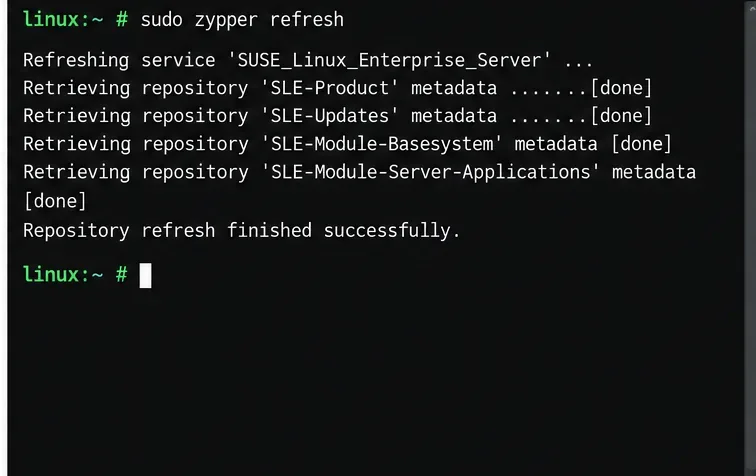
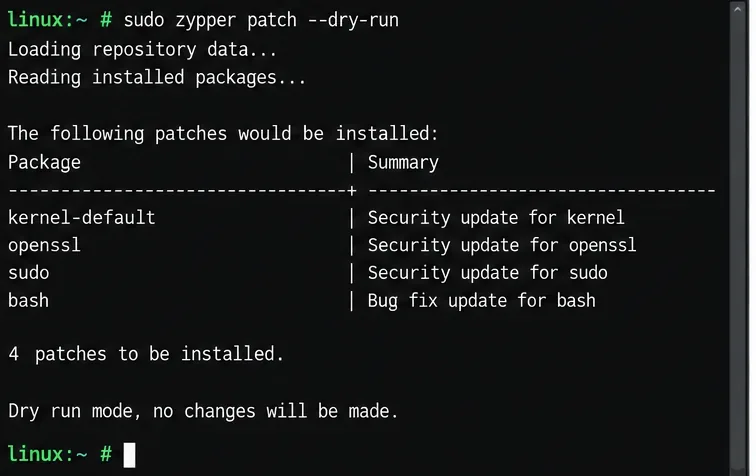
zypper locks when a named package is explicitly locked; do not remove package rules to clear a running transaction.The issue is cleared when sudo zypper refresh completes without a lock error and the intended command can run. For patching, inspect sudo zypper patch --dry-run and confirm its proposed actions before applying anything. If the lock returns, record the exact error, process list, relevant service status, recent journal output, and SLES release, then investigate the process or management tool that reacquires it rather than repeatedly deleting lock state.
Find the process holding Zypper’s package lock, distinguish process conflicts from package locks, and retry updates without deleting lock files blindly.
Register SLE HA, bootstrap SLES 15 nodes, then add fencing, quorum, and tested service resources before relying on failover.
Trace a Zypper refresh error to SUSE, RMT, or a third-party endpoint, then apply the right server-side or cache fix without disabling essential updates.
Resolve SUSE LVM thin-pool space errors by checking data and metadata usage, expanding the pool safely, and preventing repeat outages.
Identify whether Btrfs is intentionally read-only, short on space, or protecting data after errors, then choose a recovery path that fits the cause.
Prepare mirrored channels, create an activation key, and bootstrap an SLES 15 client without direct internet access while preserving the connection needed for Manager check-ins.
Fix YaST’s XIO launch error over SSH, verify X11 forwarding and xauth, and switch to the ncurses interface when a remote window is unnecessary.
Find the pre-update Btrfs snapshot, test it read-only, and make recovery permanent with Snapper while understanding which data stays outside the root rollback.
Send SLES system logs to a remote rsyslog collector over authenticated TLS, with certificate checks, outage buffering, and delivery tests.
Use RAM, swap, kernel, and Zypper logs to identify real memory pressure, protect package state, and choose a safer SLES upgrade retry.