Trace SLES Upgrade Memory Errors Before Retrying
Use RAM, swap, kernel, and Zypper logs to identify real memory pressure, protect package state, and choose a safer SLES upgrade retry.
If SLES reports “Cannot allocate memory” during an upgrade, first check whether the kernel recorded an out-of-memory event and whether RAM or swap was exhausted. Pause a known nonessential workload or increase the VM’s assigned memory only after confirming pressure, then verify that Zypper and RPM are no longer active before resuming the original upgrade procedure.
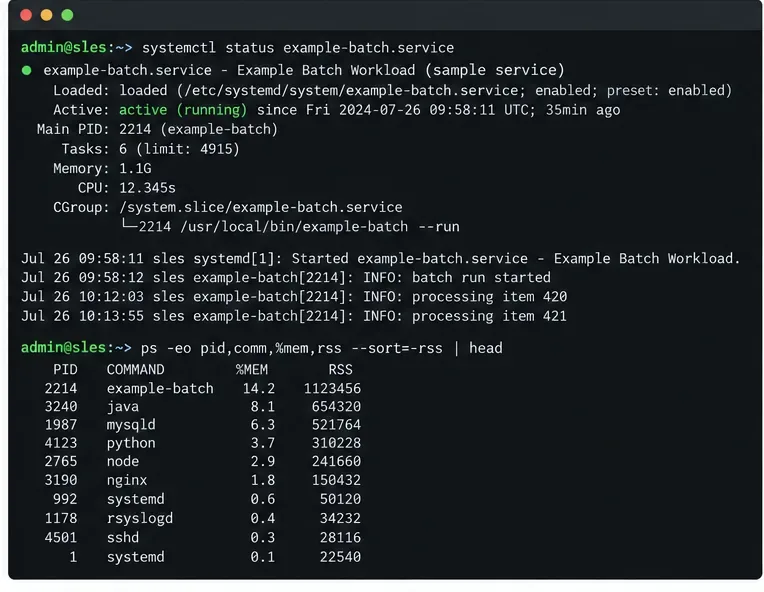
Hypothetical example: imagine a SLES 15 virtual machine where an administrator starts a scheduled package update while a large batch job is running. Zypper stops with a memory-allocation error. The example below is illustrative, not a report of a real incident or test; use the commands to collect evidence on your own host before choosing a remedy.
Do not reboot, kill package processes, or launch a second upgrade command just because the SSH session displayed an error. Reconnect in a second session and check for active Zypper or RPM processes:
pgrep -a 'zypper|rpm'If a package process is still running, give it time and inspect its output or logs. Do not delete Zypper lock files while a package operation may be active. If no process is running, preserve the exact error text and note when it occurred; that timestamp helps correlate the kernel and package logs.
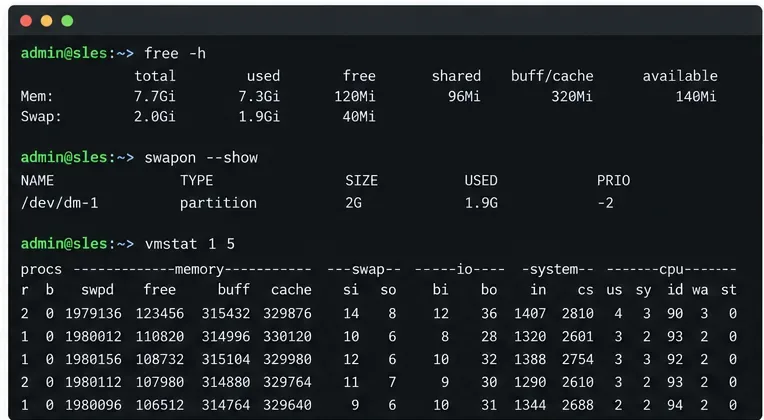
Collect a current RAM and swap snapshot:
free -h
swapon --show
vmstat 1 5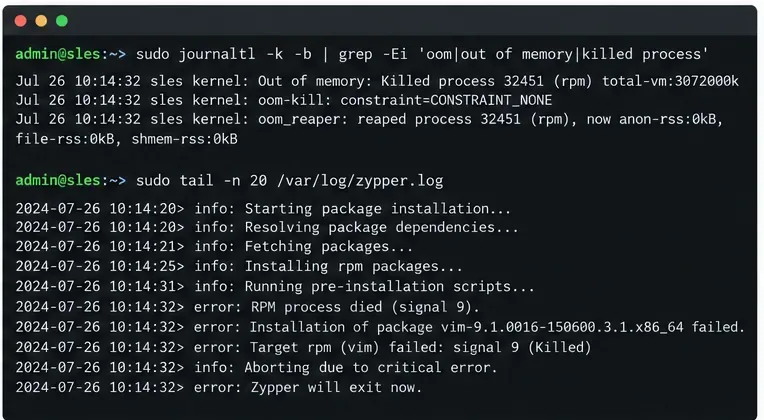
In free -h, check the available column, not only the amount marked free; Linux also uses RAM for cache. swapon --show reports whether swap exists and how much is used. In vmstat, repeated nonzero si and so values in the recent rows indicate active swapping; the first row is a since-boot average, so focus on later rows.
Then look for a kernel out-of-memory (OOM) kill around the failure and read the Zypper log:
sudo journalctl -k -b --since "30 minutes ago" | grep -Ei 'oom|out of memory|killed process'
sudo tail -n 80 /var/log/zypper.log
An OOM-kill record naming RPM, Zypper, or another process supports a genuine memory-pressure diagnosis. Low “free” RAM alone does not: cache can be reclaimed, and the message can also result from a process or service memory limit. If no kernel OOM entry appears, check the failing command’s limits and any systemd or container memory cap before adding host memory. The exact cause cannot be identified from the phrase “Cannot allocate memory” alone.
Return to the hypothetical VM. If the batch job is consuming memory and the system shows sustained swap activity or a kernel OOM kill, use the application’s supported pause or stop procedure. Do not terminate a database, SAP workload, or other stateful service without its operator’s shutdown steps. Check RAM and swap again after the workload is paused.
If the guest remains short of memory during normal maintenance, increase its assigned RAM through the supported hypervisor or cloud control plane, then confirm the operating system sees the new amount. Adding swap can provide temporary headroom, but it is slower than RAM and does not fix sustained memory demand. SLES storage layout matters: for example, SUSE documents specific constraints for swap files on Btrfs. Avoid creating or resizing swap during an upgrade unless you have checked the filesystem, snapshot, and platform requirements.
When OOM records are absent, investigate the limit that applies to the failing process instead. On SLES 15, inspect a systemd-managed workload’s configured memory cap, replacing the sample unit name with the affected service:
sudo systemctl show example-batch.service -p MemoryMaxCompare that value with available memory. A cgroup limit will not be fixed by increasing the VM’s RAM unless the limit is also raised appropriately. On older service packs, confirm the property name against that release’s systemd documentation.
Once the package process has exited, review /var/log/zypper.log for the last completed action and any failed package. If RPM or Zypper reports an incomplete transaction, follow SUSE’s recovery guidance for that exact error before retrying. Do not remove package database files or locks manually.
Use the same upgrade path you originally started. Routine package maintenance and a service-pack migration are different operations: SUSE documents zypper patch for installing applicable released patches, while service-pack and major-release upgrades have their own supported paths and preparation. Do not switch to zypper dup simply as a memory workaround. For a routine patch run, review the transaction first:
sudo zypper patch --dry-run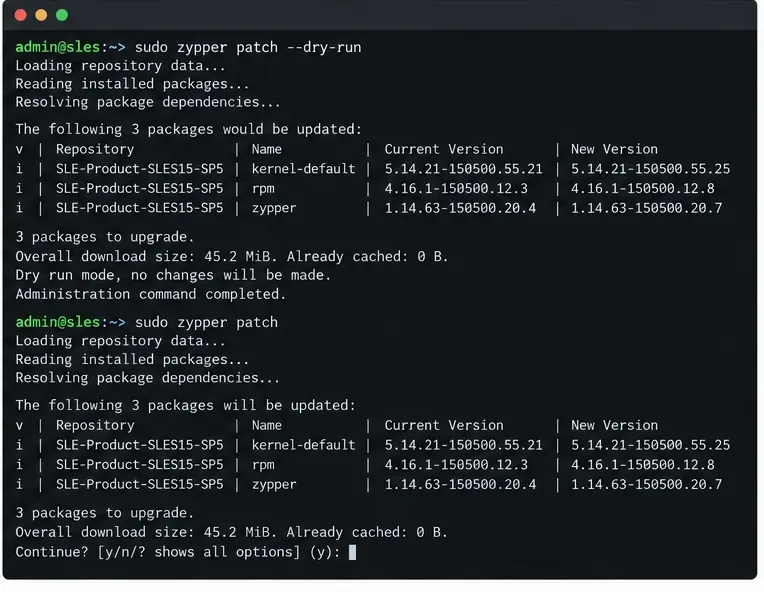
If the dry run shows a reasonable plan and memory is stable, schedule a maintenance window and run the appropriate command for your original task. Keep the SSH session available, monitor the process, and check the result afterward:
sudo tail -n 80 /var/log/zypper.log
sudo journalctl -k -b --since "30 minutes ago" | grep -Ei 'oom|out of memory|killed process'
A successful recovery means the intended packages or migration completed, Zypper exited cleanly, and no new OOM event appeared during the run. If the system is bootable but a SLES service-pack migration itself must be reverted, SUSE’s documented Snapper rollback applies only when its requirements are met, including a supported Btrfs root and configured snapshots. Do not treat rollback as a generic response to a failed package patch.
If the error repeats after memory pressure is relieved, package processes are still stuck, or the RPM database reports corruption, stop retrying. Preserve the Zypper log, kernel journal, product and service-pack level, and the exact command used. SUSE’s supportconfig can collect diagnostic data for a support case. The steps here help distinguish memory pressure from other allocation failures; they cannot determine a product-specific defect without the full logs and system configuration.
For current SLES 15 SP7 details, consult SUSE’s system monitoring utilities, log file reference, Zypper administration guidance, swap and Btrfs requirements, and online upgrade and rollback instructions. Commands and recovery paths can vary by SLES service pack, architecture, filesystem, and whether the task is patching or release migration.
Use RAM, swap, kernel, and Zypper logs to identify real memory pressure, protect package state, and choose a safer SLES upgrade retry.
Enable Debian’s unattended security updates over SSH, keep the default package sources, and verify scheduled runs through systemd and APT logs.
Compare mail delivery options, configure smartd on Ubuntu, and verify that disk-health warnings reach your inbox.
Restore DNS lookups on Debian 12 by checking systemd-resolved, repairing resolv.conf when needed, and verifying upstream DNS and application resolution.
Get Ubuntu to detect your monitor or TV as an audio output, select it in Sound settings, and check the connection or PipeWire device list if HDMI is missing.
Resolve Ubuntu APT signature warnings safely by identifying the failing source, refreshing its verified key, and checking the result without disabling security.
Learn the balanced three-phase formulas and convert line voltage, current, kW, kVA, and power factor step by step, with a worked example and limits to check.
Run a workload inside a systemd scope with CPUQuota and MemoryMax, then verify the limits through cgroup v2.
Set up dnscrypt-proxy as Pi-hole’s local DoH bridge on Ubuntu 24.04, with a localhost-only listener, resolver selection, and checks before switching DNS.
Check Ubuntu’s touchpad settings, confirm Wayland, and test GNOME’s built-in swipes before troubleshooting apps or hardware.