Debian 12 DNS Lookup Failures: Repair systemd-resolved
Restore DNS lookups on Debian 12 by checking systemd-resolved, repairing resolv.conf when needed, and verifying upstream DNS and application resolution.
If Debian 12 displays “Temporary failure in name resolution,” check the resolver service, the /etc/resolv.conf link, and the DNS servers listed by resolvectl—in that order. A service restart helps only when the service is stopped; a broken link or unreachable upstream server needs a different fix.
These instructions apply to Debian 12 (Bookworm) systems configured to use systemd-resolved. Debian split that resolver into a separate package and did not make it the default, as explained in the Debian 12 release notes. If your installation uses another DNS manager, keep that manager in control rather than forcing these settings onto it.
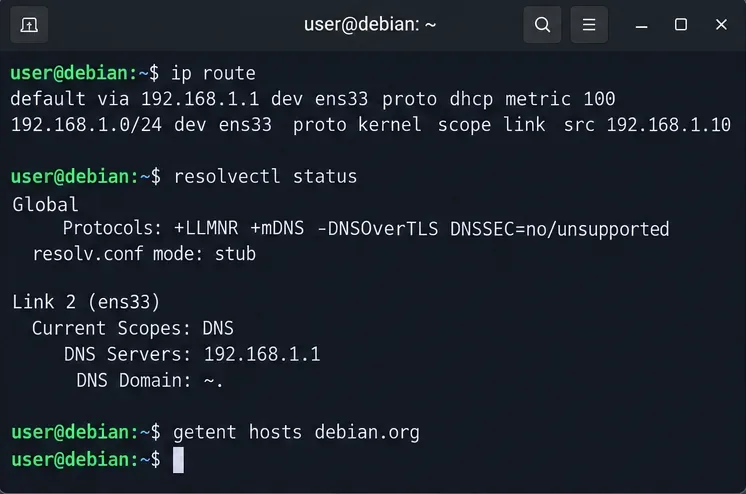
Start with the network route and a hostname lookup. Run the commands locally or in a terminal that will remain open if networking changes:
ip -br address
ip route
ping -c 2 1.1.1.1
resolvectl status
resolvectl query debian.org
getent ahosts debian.org
A default route and a working numeric-IP connection suggest that the machine can reach the network without DNS. An unsuccessful ping by itself does not prove a broken route: networks can block ICMP echo replies. If the interface lacks an address or a route, correct the network connection first.
resolvectl status shows the DNS servers and domains assigned globally or to individual interfaces. resolvectl query tests the systemd resolver; getent ahosts tests the hostname lookup path commonly used by Linux applications. The distinction helps isolate the fault.
| Observation | Next check |
|---|---|
| No address or default route | Fix the interface, gateway, or DHCP configuration before DNS. |
resolvectl cannot connect to its service | Check whether systemd-resolved is installed and running. |
resolvectl query works, getent fails | Inspect /etc/resolv.conf and the NSS hosts configuration. |
| Both lookups fail with a working route | Inspect upstream DNS addresses, DNS routing, and firewall access. |
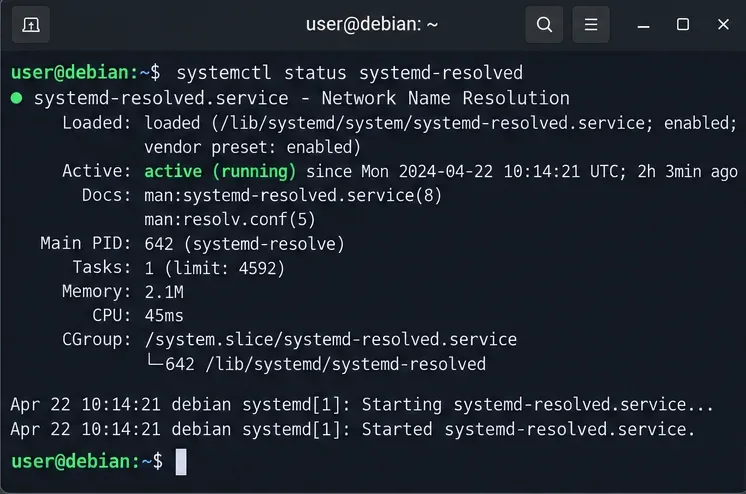
On Debian 12, the presence of systemd does not guarantee that the separate resolver package is installed. Check the package and unit before changing any DNS files:
dpkg-query -W -f='${Status}\n' systemd-resolved
systemctl status systemd-resolved --no-pager
If the package is installed but the service is inactive, start it and enable it for future boots:
sudo systemctl enable --now systemd-resolved
systemctl is-active systemd-resolved
The final command should report active. If the unit fails, inspect its actual error messages rather than repeatedly restarting it:
journalctl -u systemd-resolved -b --no-pager -n 60If the package is missing, install it with sudo apt install systemd-resolved only after you have working package-repository access. Installing it changes control of /etc/resolv.conf, so review any NetworkManager, VPN, or static DNS setup first. Debian documents this package change in its Bookworm upgrade notes.
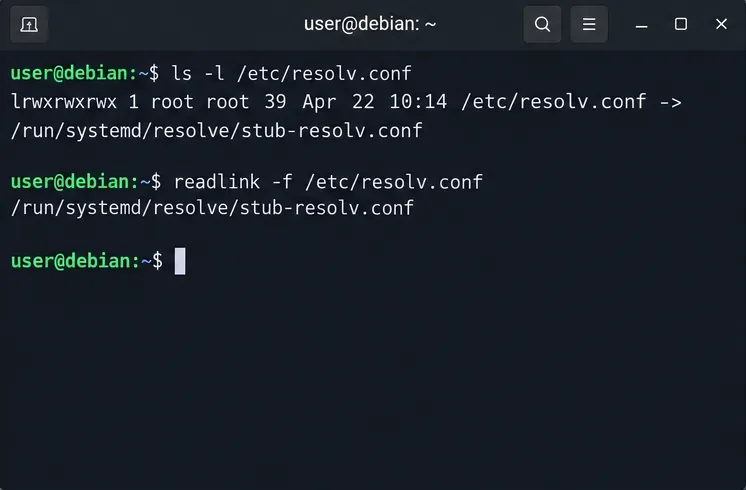
The standard systemd-resolved stub listens on 127.0.0.53. Its recommended compatibility file is /run/systemd/resolve/stub-resolv.conf, which can be linked from /etc/resolv.conf. Inspect your current mode first:
ls -l /etc/resolv.conf
readlink -f /etc/resolv.conf
cat /etc/resolv.conf
resolvectl status
A link to /run/systemd/resolve/resolv.conf is also a supported mode, but programs using it contact upstream DNS directly instead of the local stub. Do not call that link broken merely because it differs. The Debian systemd-resolved service manual explains the supported modes.
If you intentionally use the local stub, the service is running, the stub listener is enabled, and the existing /etc/resolv.conf is missing, dangling, or points to an obsolete resolver, restore the recommended link. First back up an existing file or link; skip the copy if no file exists:
sudo cp -a /etc/resolv.conf /etc/resolv.conf.dns-backup
sudo ln -sfn /run/systemd/resolve/stub-resolv.conf /etc/resolv.conf
cat /etc/resolv.conf
Do not run that replacement on a host where another service intentionally manages /etc/resolv.conf. A local nameserver 127.0.0.53 entry also requires a working stub listener; merely writing that address does not create DNS service. On a remote machine, retain a second access method before editing resolver settings.
When resolvectl status shows no suitable upstream DNS server, or a configured server is unreachable, fix the source of that assignment. Dynamic DNS settings may come from DHCP, NetworkManager, systemd-networkd, or a VPN. Verify which interface carries the default route and which DNS server belongs to that interface.
For a short diagnostic test on a network that permits public DNS, assign known public resolvers to that interface. Replace ens33 with the actual interface from ip -br address:
sudo resolvectl dns ens33 1.1.1.1 1.0.0.1
resolvectl query debian.org
Those two addresses are documented by Cloudflare as its public DNS resolver addresses. The resolvectl dns change is runtime configuration; a network manager may replace it when the link reconnects. If the lookup now works, fix the persistent DNS source rather than relying on this temporary command.
With NetworkManager, inspect the active connection using nmcli connection show --active and adjust that connection’s DNS settings or DHCP behavior. With systemd-networkd, put the intended DNS= settings in the matching .network file and reload or reconfigure the network at a safe time. See the Debian systemd.network manual and Debian NetworkManager configuration manual. Reconnecting a managed interface can interrupt an SSH session.
Prefer the organization’s or VPN’s DNS servers for internal names. Public resolvers cannot be assumed to answer private zones; forcing all queries to them may break split DNS or disclose internal hostnames. Global DNS= entries in resolved.conf can operate alongside per-link DNS rather than automatically replacing it; see the Bookworm resolved.conf manual.
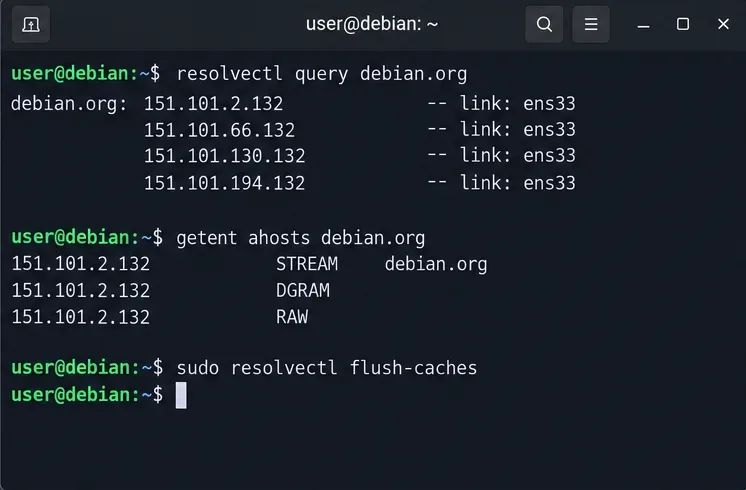
After correcting the service, resolver link, or upstream configuration, clear cached answers and retest:
sudo resolvectl flush-caches
resolvectl query debian.org
getent ahosts debian.org
resolvectl status
The repair is effective when resolvectl query returns addresses, getent ahosts returns address records, and the intended DNS servers remain visible after the network reconnects. The two commands test different interfaces, so do not treat success in one as proof that every application is fixed. The Debian resolvectl manual documents query, status, and cache flushing.
If resolvectl query succeeds but getent still fails, examine grep "^hosts:" /etc/nsswitch.conf and confirm an appropriate dns or installed resolve NSS module is in the lookup path. If both continue to fail, review the resolver journal and any firewall restrictions on DNS traffic, then test using the actual corporate, router, or provider DNS address. An isolated successful lookup is not enough: repeat the checks after reconnecting and after rebooting to verify the persistent fix.
Restore DNS lookups on Debian 12 by checking systemd-resolved, repairing resolv.conf when needed, and verifying upstream DNS and application resolution.
Get Ubuntu to detect your monitor or TV as an audio output, select it in Sound settings, and check the connection or PipeWire device list if HDMI is missing.
Resolve Ubuntu APT signature warnings safely by identifying the failing source, refreshing its verified key, and checking the result without disabling security.
Learn the balanced three-phase formulas and convert line voltage, current, kW, kVA, and power factor step by step, with a worked example and limits to check.
Run a workload inside a systemd scope with CPUQuota and MemoryMax, then verify the limits through cgroup v2.
Set up dnscrypt-proxy as Pi-hole’s local DoH bridge on Ubuntu 24.04, with a localhost-only listener, resolver selection, and checks before switching DNS.
Check Ubuntu’s touchpad settings, confirm Wayland, and test GNOME’s built-in swipes before troubleshooting apps or hardware.
Create and verify a two-disk Debian 12 RAID 1 data array, format it safely, and configure it to assemble and mount after reboot.
Set up random-key encryption for an existing Debian 12 swap partition, verify the active dm-crypt mapping, and understand the hibernation trade-off.
Restrict Ubuntu 24.04 SSH accounts to designated SFTP folders with chroot, proper permissions, Match rules, and safe tests—without granting shell access.