Encrypt Debian 12 Swap with a Fresh Key at Every Boot
Set up random-key encryption for an existing Debian 12 swap partition, verify the active dm-crypt mapping, and understand the hibernation trade-off.
On Debian 12, a dedicated swap partition can be encrypted with a fresh random key each time the system starts. Add a random-key mapping in /etc/crypttab, then point /etc/fstab at the mapped device; the setup below uses the existing partition and does not require reinstalling Debian.
This procedure is for ordinary swap, not suspend-to-disk (hibernation). Because the key is discarded at shutdown, a hibernation image cannot be decrypted on the next boot. If you need hibernation, use a persistent-key design with its own resume configuration instead.
Make sure you have a separate partition whose filesystem type is swap. Do not use the root partition, a data partition, or a disk that contains files you need. The example device names below are illustrative: replace them with values from your own system.
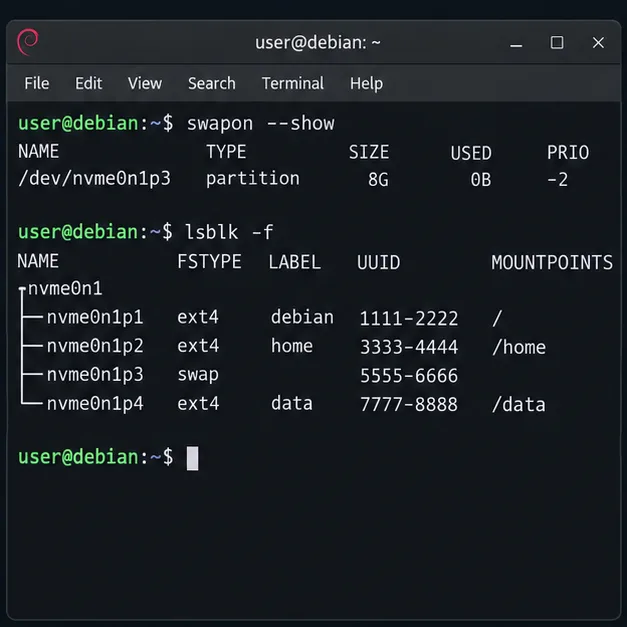
Check the active swap areas and match them to the block-device list:
swapon --show --output=NAME,TYPE,SIZE,USED,PRIO
lsblk -o NAME,PATH,TYPE,FSTYPE,UUID,PARTUUID,SIZE
Find the row where TYPE is part and FSTYPE is swap. Record its PARTUUID and confirm that it is the same partition shown by swapon --show. A PARTUUID identifies the partition itself and stays stable when the swap area is recreated. The swap filesystem UUID can change because the encrypted mapping is initialized again at startup.
Back up /etc/fstab before editing it. If the partition is in use, turn off only that swap area:
sudo cp -a /etc/fstab "/etc/fstab.before-cryptswap.$(date +%s)"
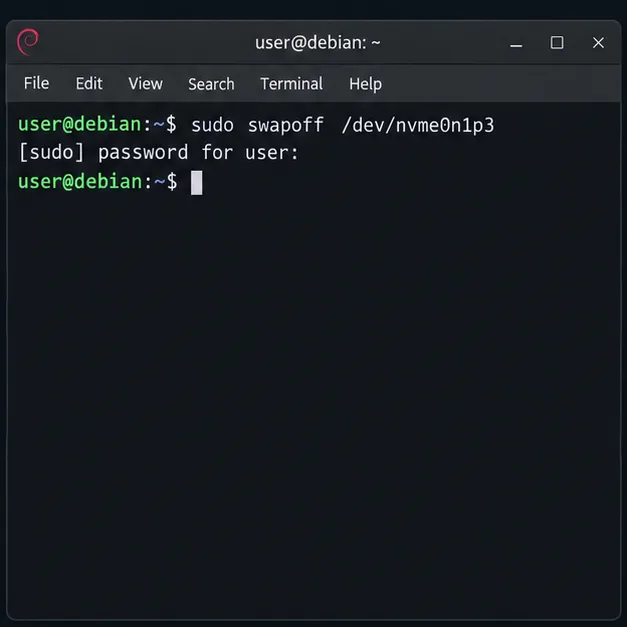
sudo swapoff /dev/nvme0n1p3
Replace /dev/nvme0n1p3 with the verified device. Disabling swap moves any pages stored there back into memory. If the command fails or the machine is under heavy memory pressure, stop here, close memory-heavy workloads, and retry when there is enough available RAM.
Open the crypttab file with a root editor:
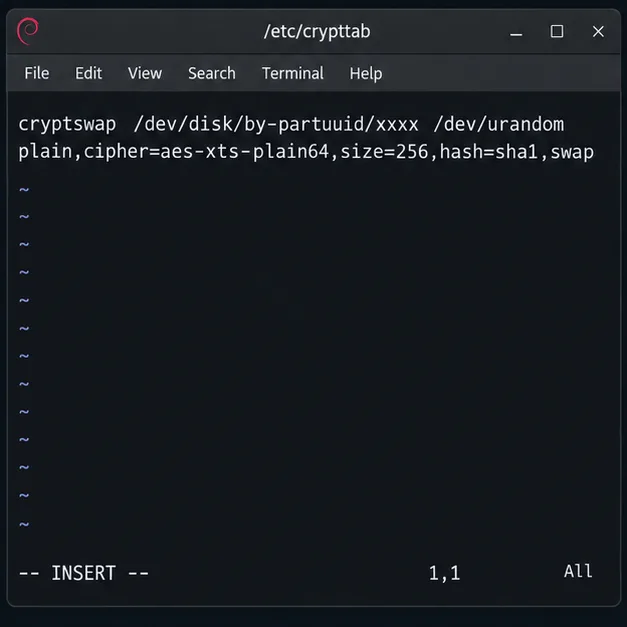
sudoedit /etc/crypttabAdd one line, replacing YOUR-PARTUUID with the actual partition identifier. Keep the mapping name cryptswap consistent in the next step.
cryptswap PARTUUID=YOUR-PARTUUID /dev/urandom plain,cipher=aes-xts-plain64,size=256,hash=sha1,swap/etc/crypttab tells Debian which encrypted block device to create at startup. The PARTUUID= source points to the raw partition; /dev/urandom supplies a new key; plain selects dm-crypt without a persistent LUKS header; and swap asks the crypttab helper to initialize the mapped device as swap. The cipher, key size, and hash are specified explicitly, following the Debian Bookworm crypttab example. The mapping appears as /dev/mapper/cryptswap. The swap option runs mkswap on that mapped device at startup, so its contents are reinitialized each boot. Point the source only at the dedicated swap partition you verified; this option is destructive if aimed at a partition holding files.
Now open /etc/fstab. Comment out or remove the old line that enables the raw swap partition, including any line that refers to its current swap UUID. Add this entry instead:
/dev/mapper/cryptswap none swap sw 0 0Do not leave both entries active: that could enable the unencrypted partition alongside the encrypted mapping. The fstab file describes swap areas enabled during startup, while Debian's systemd cryptsetup generator reads /etc/crypttab and creates the corresponding units. See the Bookworm systemd cryptsetup generator manual and Debian's fstab manual.
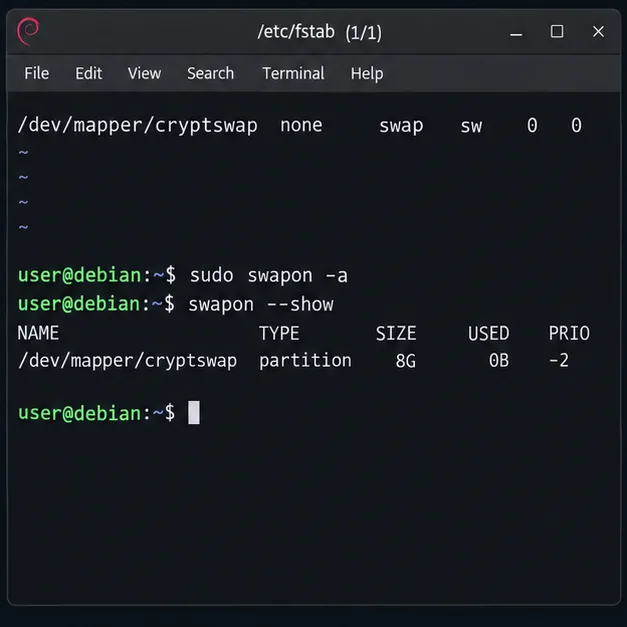
Save both files and reboot so Debian can create the mapping during startup:
sudo rebootAfter logging in again, check both the active swap path and the dm-crypt mapping:
swapon --show
sudo cryptsetup status cryptswap
The swap listing should name /dev/mapper/cryptswap, not the raw partition. The cryptsetup status output should show an active plain mapping and the expected underlying partition. This second check matters: a swap entry appearing in swapon --show alone does not prove that it is encrypted.
If the mapping is missing, check the spelling of the PARTUUID against lsblk and inspect the boot log with sudo journalctl -b -u systemd-cryptsetup@cryptswap.service. Confirm that the old raw-device entry is no longer active in /etc/fstab. Do not run mkswap directly on the raw partition after setting up the mapping.
With a new key generated at each boot, the contents written to swap during that session are encrypted on the block device, and the previous session's key is not retained after shutdown. This is useful when a device may be powered off and its storage examined. It does not encrypt the rest of the disk, protect data while Debian is running, or automatically erase plaintext that may have been left on the partition before conversion. If old swap contents are sensitive, treat sanitizing them as a separate storage-specific task; a filesystem-level reformat is not a guaranteed secure erase, especially on SSDs.
Debian's Bookworm installation guide describes random-key encryption as suitable for swap and notes that it prevents restoring a hibernation image after reboot. See the Debian 12 installation guide's encrypted-volume section. For the active device, use the two verification commands above: the mapper should be active, and its backing device should match the partition you selected.
Set up random-key encryption for an existing Debian 12 swap partition, verify the active dm-crypt mapping, and understand the hibernation trade-off.
Restrict Ubuntu 24.04 SSH accounts to designated SFTP folders with chroot, proper permissions, Match rules, and safe tests—without granting shell access.
Find which process owns Ubuntu’s dpkg frontend lock, let package work finish, and repair interrupted installations without deleting lock files.
Set up scheduled Btrfs system snapshots on Ubuntu Desktop with Timeshift, verify the Ubuntu subvolume layout, choose retention, and understand what snapshots cannot protect.
Plan a safer Debian 12 to Testing migration: upgrade through Stable, back up, clean APT sources, simulate dependency changes, and verify what changed.
Diagnose Ubuntu Server emergency mode safely. Read boot logs, check root and fstab mounts, repair a failed unit, handle filesystem errors, and verify a clean reboot.
Set up a Debian 12 WireGuard VPN server for one remote client. Configure keys, IPv4 forwarding, nftables NAT, firewall access, and connection checks.
Harden a Debian 12 workstation with a careful CIS Benchmark workflow: select the right profile, patch safely, review services and access, configure nftables, and document evidence.
Diagnose MySQL OOM kills on Debian 12, check VPS memory limits, configure swap, and tune database memory and concurrency without promising a universal fix.
Learn how to create and test a Debian-derived OSTree desktop in a VM, including system-tree preparation, boot integration, deployment checks, and rollback.