Home
» How to
»
How to Migrate Debian 12 to Testing Without Breaking Dependencies
How to Migrate Debian 12 to Testing Without Breaking Dependencies
Illustrative scenario: Morgan has a Debian 12 desktop used for personal development and wants newer libraries for a project. Morgan can reinstall if necessary, but would rather avoid a half-upgraded desktop or a resolver plan that removes important packages. This is a hypothetical example, not a real migration or test result. The safest practical approach is to stage the move, simulate APT's plan, and stop whenever the proposed changes are not understood.
As of October 9, 2026, Debian identifies the current testing distribution as Forky, the next release after Debian 13 “Trixie.” Debian warns that security updates for Testing are not managed by the Security Team in a timely way. Testing can be useful on a spare desktop or development machine, but it is a poor fit for systems that need predictable security coverage or continuous availability. No migration procedure can guarantee that every dependency and application will remain unchanged.
1. Is Debian Testing the right destination for this computer?
Testing contains packages that have passed automated migration criteria from Unstable, including checks intended to keep dependencies installable. That does not mean every package is bug-free or that every desktop configuration works. The Debian project explains how packages enter Testing in its overview of the Testing distribution. Debian's security FAQ notes that fixes can be delayed by migration waits or transitions.
For a work-critical desktop, a production server, or a machine with no recovery path, stay on Stable. For Morgan's hypothetical development desktop, Testing may be acceptable if occasional package transitions, temporary uninstallability, and hands-on maintenance are part of the plan. If the only goal is one newer application, check Debian Backports or another supported packaging option before moving the entire operating system.
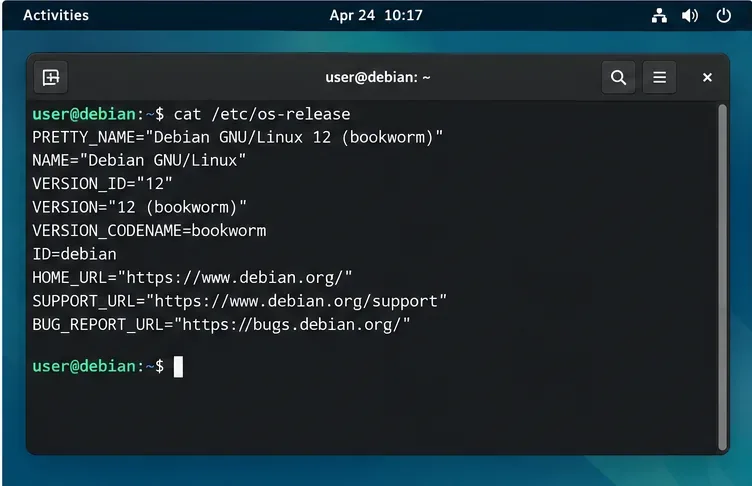
Confirm the starting system is Debian 12 Bookworm before following the matching release notes.
2. What must be backed up before changing repositories?
Make a backup you can restore, not just a copy of the package list. Preserve personal files, application data, encryption recovery keys, important settings, and any locally built packages. For a virtual machine, take a snapshot and confirm how to restore it. For a physical desktop, keep installation media and a tested way to boot it, and ensure the backup is stored on separate media.
Record the current package and source state so you can compare it later:
These records help explain what changed, but they do not recreate the system by themselves. Morgan should schedule the migration when there is enough time to review APT prompts and recover, rather than beginning just before a deadline.
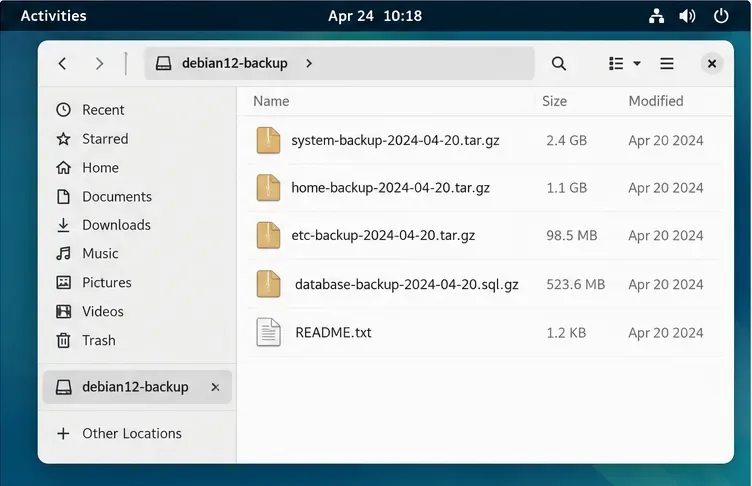
An example backup folder is a reminder to verify that your own separate backup is current and restorable.
3. Are package management and the Bookworm installation clean?
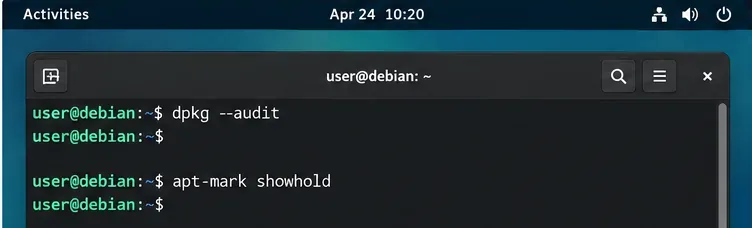
Resolve existing problems before introducing a new distribution. Complete normal Debian 12 updates, reboot if the kernel or core services changed, and verify the desktop works. Then inspect package state, holds, and repository origins:
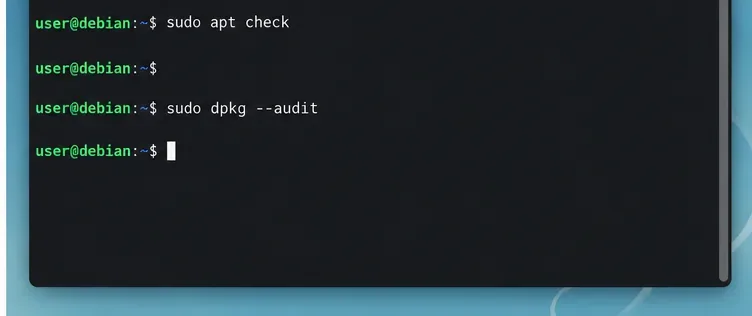
dpkg --audit reports partially installed or inconsistent package states; apt-get check checks dependency problems in the current system. Review held packages instead of blindly unholding them. Remove or disable third-party repositories for the transition, and note packages installed from vendor repositories, local files, or source builds. Those packages may not have compatible versions in Debian Testing.
If the system already has broken packages, unresolved configuration, or mixed suites, do not layer a distribution change on top. Fix the current state first or perform a clean installation in a separate partition or disk. The expected outcome here is a baseline whose package issues are understood, not a completely empty audit output asserted in advance.
Check for interrupted package configuration, held packages, and repository origins before starting the release transition.
4. Should you move from Bookworm to Trixie before Testing?
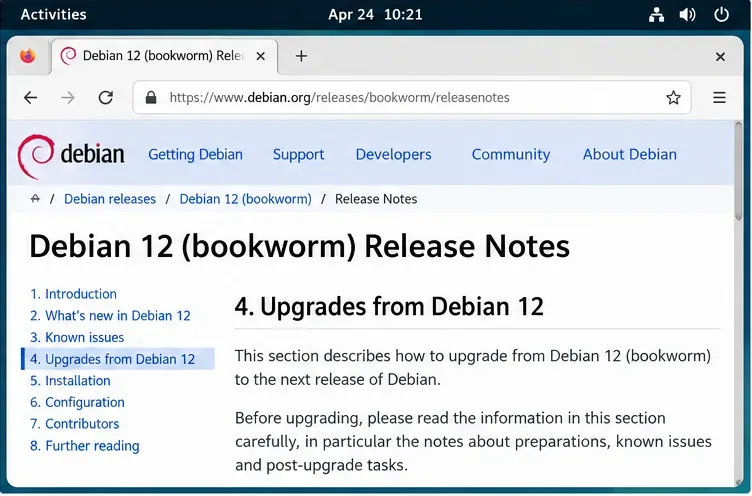
Yes, use the documented Bookworm-to-Trixie upgrade as an intermediate stage. Debian's release notes are written for upgrades from one stable release to the next and call out preparation, known issues, and post-upgrade tasks. Debian 12's Bookworm release notes describe the upgrade to the next release. Follow those instructions, reboot, and confirm that the machine is running current Stable before switching it to Testing.
This staged route gives you a known checkpoint and makes failures easier to isolate. Do not skip the release notes by changing Bookworm sources directly to Testing on your primary desktop. A direct jump may be resolvable by APT, but it is not the documented stable-to-stable upgrade path and can combine multiple rounds of package transitions into one harder-to-review change. If the stable upgrade itself fails or leaves packages unresolved, pause there.
Use the official Bookworm upgrade notes to complete the supported move to Debian 13 Stable before retargeting APT to Testing.
5. How should you point APT at Testing without mixing suites?
Once the Trixie system is clean and backed up, inspect every file under /etc/apt/sources.list and /etc/apt/sources.list.d/. Disable third-party repositories temporarily. Replace the Debian stable suite entries consistently; do not leave a mixture of trixie, trixie-security, testing, and unrelated suites unless you deliberately understand APT pinning.
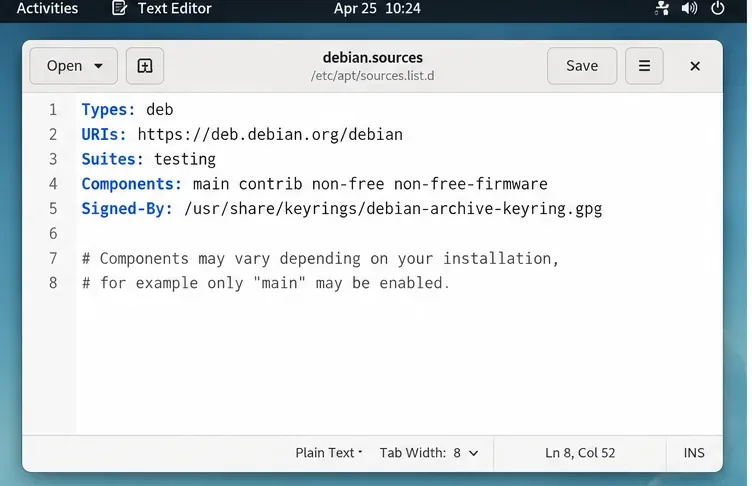
Deb822 source files use one stanza per source. A simplified example for the main Debian archive is:
Types: deb
URIs: https://deb.debian.org/debian
Suites: testing
Components: main contrib non-free non-free-firmware
Signed-By: /usr/share/keyrings/debian-archive-keyring.gpg
Preserve the components and signed-by setting appropriate to your installation; not every system enables every component. If you want the current Testing distribution to follow future transitions automatically, use the suite name testing. As of the date above, it resolves to Forky. Using the codename forky pins you to that release name instead; it will not follow the next Testing codename automatically after Forky is released.
Do not assume a testing-security line is equivalent to Stable's security repository. Debian's current Forky page says Testing security updates are not yet managed by the Security Team and may not arrive in a timely manner. Check the current Testing release information before you proceed.
Retarget the Debian archive stanza consistently and retain the keyring and components used by your installation.
6. What does APT propose to change?
Refresh package indexes, inspect the candidate versions, then simulate the distribution upgrade:
The -s option simulates the transaction; it does not install the proposed packages. Review the complete plan, especially package removals, newly installed libraries, held-back packages, and packages that have no candidate. APT's full-upgrade is allowed to install or remove packages to satisfy dependencies, so “the command completed” is not the same as “all of my desired applications remain installed.”
For a complicated plan, repeat the simulation with resolver diagnostics:
Do not proceed if the plan removes the desktop environment, display manager, networking, bootloader, or another package you rely on and you cannot explain why. A library transition may temporarily make some application unavailable in Testing. Waiting for the transition or temporarily keeping the system on Stable can be safer than forcing a package combination. Never use --force or mass package removals to make the simulation look clean.
Read the simulated transaction and its removal list before authorizing any package changes; the screen is not a real APT run.
7. When should you run the real upgrade?
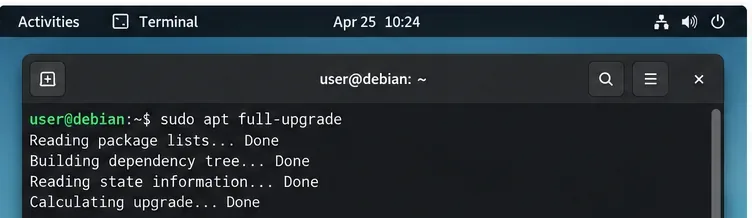
Proceed only after the simulated plan is acceptable, your backup is available, and the computer has reliable power and network access. Close applications, use a local terminal rather than a fragile remote session, and start the upgrade without automatic confirmation:
sudo apt full-upgrade
Read the package and removal summary again before accepting. If APT proposes removing a critical desktop or core package, answer no and investigate. If the upgrade stops on dependency errors, preserve the exact error output. Do not immediately run apt --fix-broken install or repeat the operation with -y; first identify which package or repository constraint caused the solver to stop.
After a successful transaction, follow any package notices, restart the computer, and check that the graphical session, network, sound, storage, and essential applications work. If a large transition is in progress or packages have disappeared temporarily from Testing, waiting for archive migrations is often preferable to mixing in Unstable packages. Debian's APT chapter in the Debian Administrator's Handbook explains the difference between ordinary upgrades and full-upgrade, including its ability to remove packages.
Start the upgrade only after the simulation is acceptable, then review the real transaction summary before accepting it.
8. How can you verify the migration and keep it recoverable?
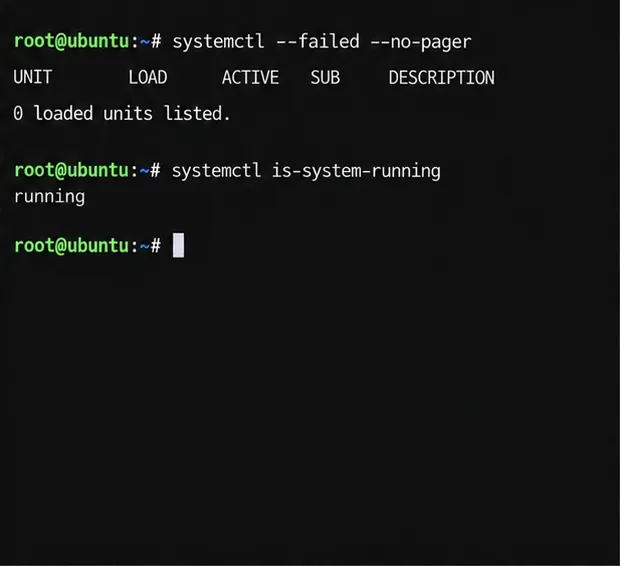
After rebooting, confirm the active release and check package consistency:
Review the APT history in /var/log/apt/history.log and the package log in /var/log/dpkg.log if you need to understand what changed. Test the applications Morgan depends on, including any project that motivated the move. Verify that source files now point at the intended suite and that disabled third-party entries have not silently returned.
Keep the backup until the desktop has passed normal work tasks and at least one further package update. APT does not provide a supported general-purpose downgrade from Testing to Stable. If the system becomes unusable, restoring a full-system image or reinstalling Stable and restoring data is usually more predictable than trying to reverse every package version by hand.
For ongoing use, update regularly, read the proposed package removals, and keep an eye on Debian's Testing and security notices. If Morgan's priorities change from newer development packages to predictable security maintenance, the right next step is a clean Stable installation or restore—not a casual suite edit and an assumption that downgrading will work.
Verify the release identifier and package state on your machine; the blank example output is not proof that an upgrade succeeded.