Home
» How to
»
Step-by-Step Debian 12 Hardening Guide for CIS Compliance
Step-by-Step Debian 12 Hardening Guide for CIS Compliance
Short answer: harden Debian 12 by selecting the matching CIS Benchmark version and workstation profile, applying its recommendations in a recoverable test environment, then collecting evidence for each control. A handful of shell commands cannot certify a machine as CIS compliant. The benchmark version, profile, scope, exceptions, and verification method all matter.
Illustrative scenario: imagine an administrator named Maya preparing a Debian 12 desktop used for internal office work. This is a hypothetical example, not a reported deployment or test. Maya wants a defensible baseline without accidentally locking herself out or breaking desktop functions. The same decision sequence helps administrators adapt the benchmark to a real workstation.
Which CIS benchmark and profile should you use?
Start with the exact benchmark, not a generic “Debian hardening” checklist. As of October 9, 2026, CIS lists the CIS Debian Linux 12 Benchmark v2.0.0. Download the official document and record its version and publication details; a future revision can change recommendations. CIS states that its benchmark PDFs are available at no cost for noncommercial use, while some assessment tools and build kits require membership. Check the current CIS Debian Linux Benchmark page before selecting your assessment materials.
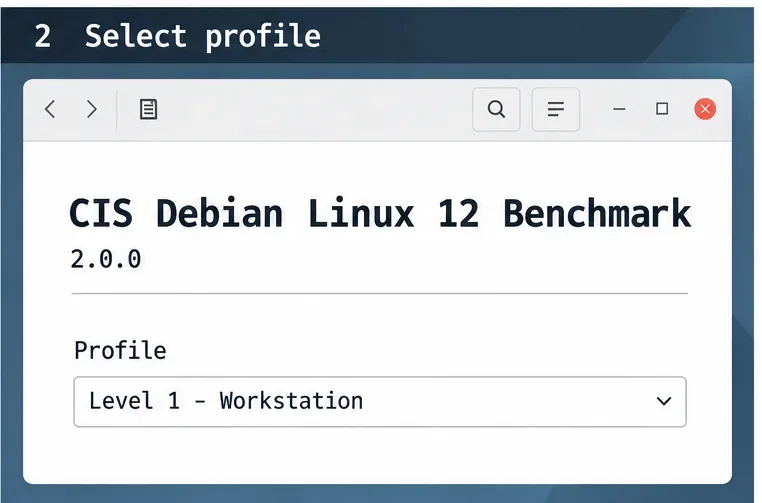
Choose the profile that matches how the computer is used and the scope you must meet. If the current Debian 12 benchmark offers a workstation profile, review that profile for a desktop; do not assume server controls fit a graphical endpoint. If your organization names a different profile or tailored baseline, follow that requirement and document the mapping. Maya would first record the benchmark version and the chosen workstation profile in her change ticket, rather than apply every recommendation indiscriminately.
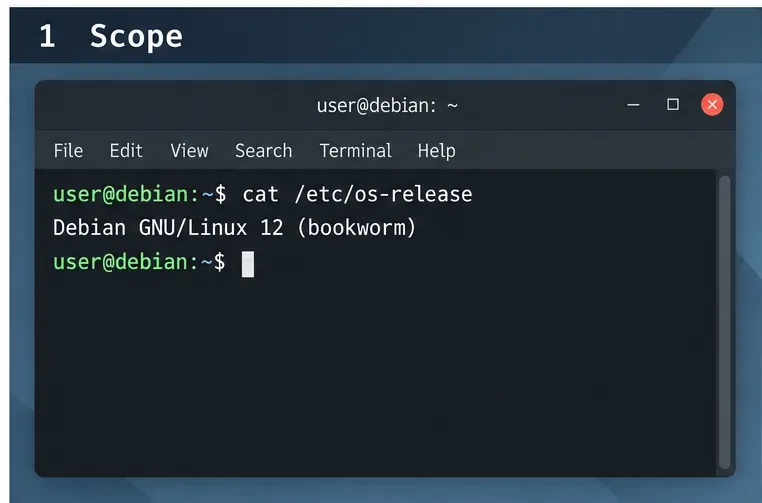
Confirm that the host reports Debian GNU/Linux 12 (bookworm) before applying a Debian 12 benchmark.
Can you safely recover if a hardening change breaks the desktop?
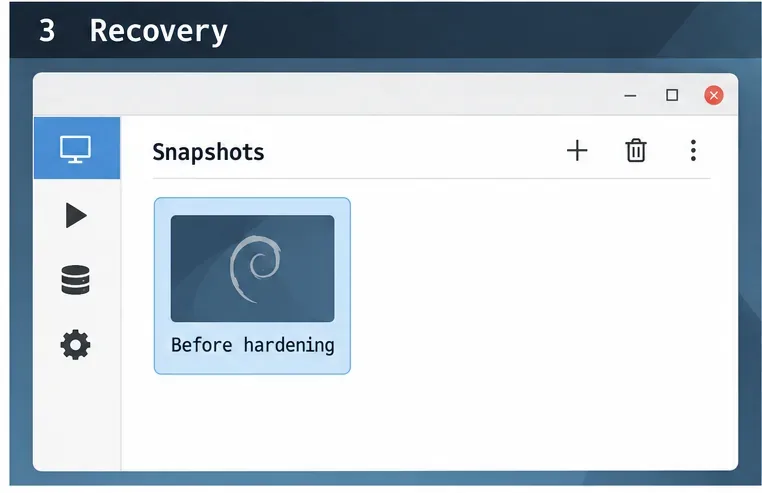
Before editing system settings, make a restorable backup and test in a virtual machine or spare workstation. Confirm that you have a working local console, recovery media, and access to the backup. For a virtual machine, take a snapshot and verify that you know how to restore it. A snapshot is not a substitute for a separate backup if the virtual disk or host can fail.
Keep a change log with the recommendation number, original setting, new setting, reason, and rollback command or file copy. Apply a small group of related changes, reboot or restart only the relevant service, and check login, networking, audio, printing, and required applications. Maya can use this staged process to identify which specific change caused a regression instead of facing a large batch of untraceable edits.
A pre-change snapshot provides a visible recovery point for the hypothetical workstation.
What is enabled on the machine before you change it?
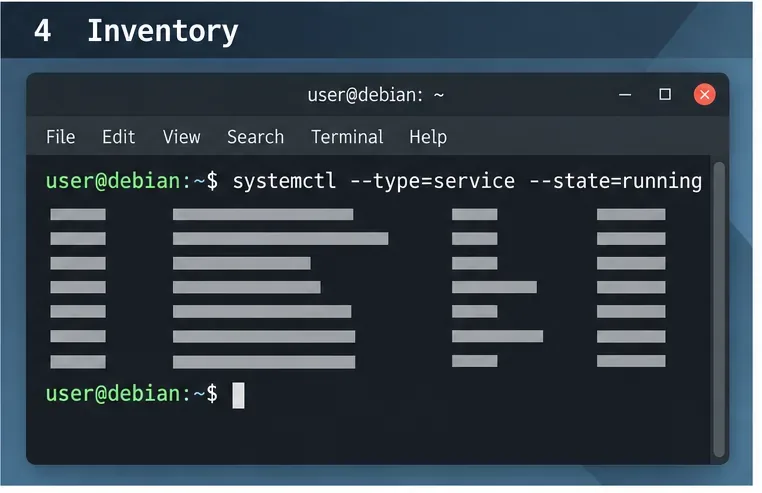
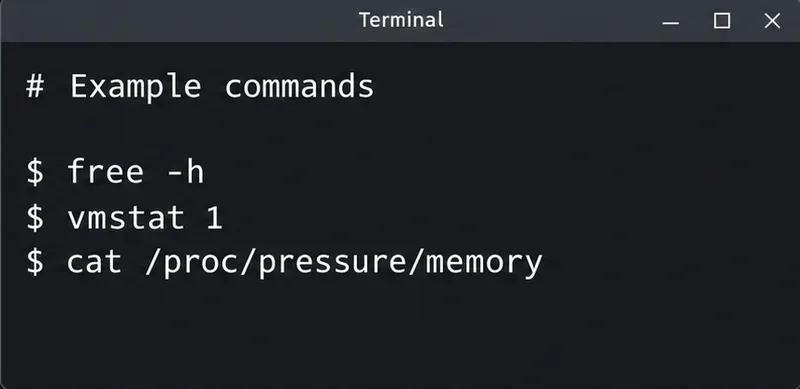
Capture a baseline first. Review the operating system release, installed packages, running services, enabled units, listening sockets, local users, and current firewall rules. For example:
These commands provide inventory, not a compliance verdict. Compare the output with the controls that apply to the chosen profile. Investigate unexpected listeners or services, but distinguish essential desktop components from optional network-facing software. Record why a service is needed before deciding whether to keep it.
Inventory running services and compare the real host output with the services required by the workstation.
Is Debian 12 still receiving security maintenance?
Bring the system to a supported, patched state before assessing configuration. Debian 12 Bookworm is now oldstable; Debian's current release information says its LTS period ends on June 30, 2028. Coverage can vary by architecture and package, so verify whether the packages on your machine are supported. Read the Debian Bookworm release information and the Debian LTS security page for current scope and advisories.
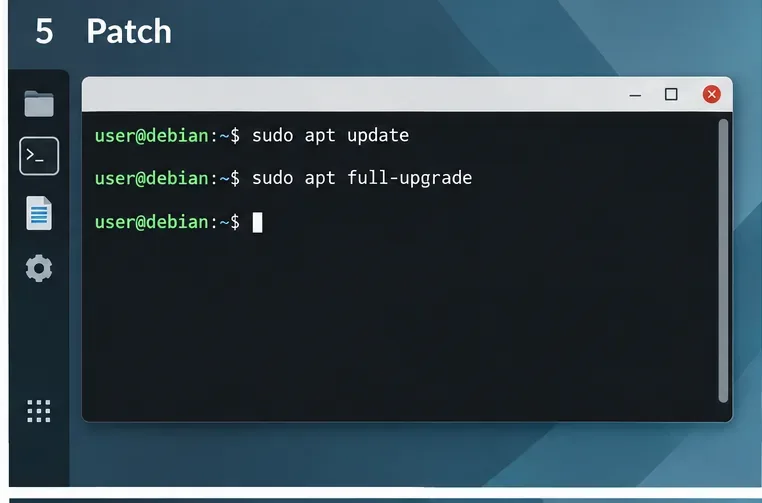
On a managed system, follow your organization's repository and maintenance process. On a personal test machine, review pending changes before applying them:
sudo apt update
sudo apt full-upgrade
Reboot when an update requires it, then recheck the system and record the date. Debian's unattended-upgrades package can automate updates when configured appropriately, but automation does not remove the need to verify that the correct security sources are enabled and that updates actually install.
Review package changes and complete the planned upgrade before starting the configuration assessment.
Which packages and services are genuinely necessary?
Use the benchmark's service and package recommendations as review prompts. Disable or remove only components that are both unnecessary and safe to change. A desktop may depend on services for networking, printing, Bluetooth, display management, remote access, or hardware support. The right answer depends on the user's work and the organization's policy.
Before changing a unit, inspect its status and dependencies. Prefer a reversible service-level change over purging packages until you understand the impact. After each change, verify that the desktop still starts and the approved functions still work. Maya could, for example, document that a remote administration service is required for her support team and treat it as an approved exception with compensating controls rather than disable it merely to make a checklist look cleaner.
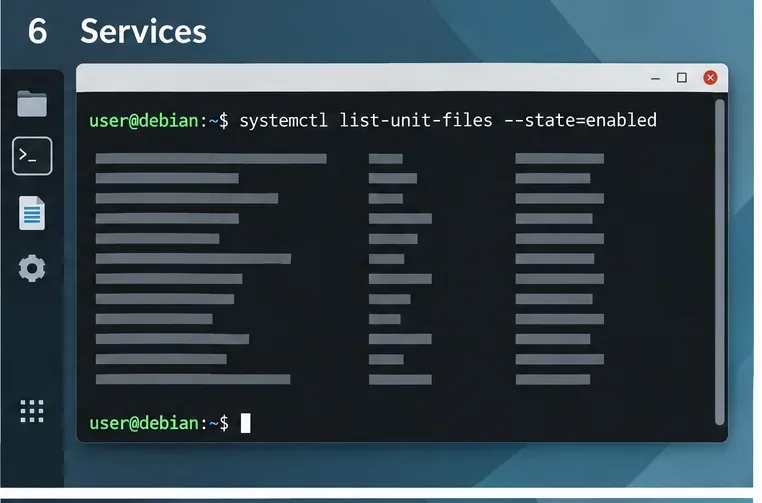
Review enabled units against the benchmark and the workstation's documented purpose; the bars are illustrative, not host output.
How should you restrict accounts and remote access?
Review administrator membership, dormant accounts, password policy, and the way administrators connect remotely. Remove access only after confirming ownership and recovery paths. Apply the precise CIS recommendation rather than copying a setting from an unrelated guide. For SSH, Debian's sshd_config(5) documents options such as PermitRootLogin and PermitEmptyPasswords; consult the Debian Bookworm OpenSSH server configuration manual.
If the host needs SSH, test a second administrative session before closing the first. Validate configuration with sudo sshd -t before reloading the service. Do not turn off password authentication until key-based access has been configured and tested for every required account. If remote access is not needed, follow the benchmark and organizational policy for disabling it, and retain console recovery.
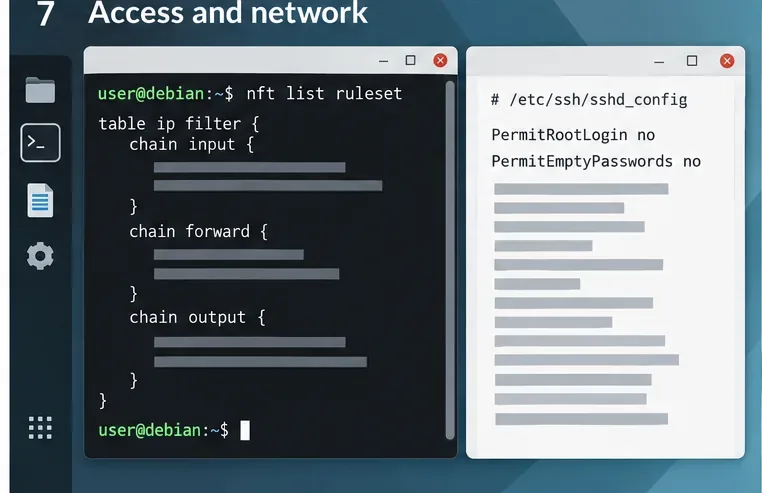
Review firewall state and SSH restrictions together, then validate the actual configuration before applying it.
What network rules can you enforce without locking yourself out?
First identify required inbound and outbound traffic, including DHCP, DNS, IPv6, remote support, printing, and any local services. Debian uses nftables as its packet-filtering framework; see the Debian Administrator's Handbook section on packet filtering. Do not paste a generic firewall ruleset onto a workstation without adapting it to the host's needs.
Inspect current rules with sudo nft list ruleset. If editing /etc/nftables.conf, check syntax before loading it: sudo nft -c -f /etc/nftables.conf. Keep a console or out-of-band path available, and test the rules before enabling them persistently. Verify both IPv4 and IPv6 behavior and all necessary desktop functions. The official Debian Bookworm nft manual documents command options. A firewall is one layer of defense, not a substitute for patching, account controls, or application security.
Inspect the active nftables rules and planned remote-access settings together; the displayed rule content is schematic, not a complete policy.
How do you verify compliance and document exceptions?
Assess each applicable recommendation against the exact benchmark version and profile. Record a status such as pass, fail, not applicable, or exception according to your organization's assessment method, and attach evidence: command output, configuration path, package state, or an approved exception reference. Do not mark a control passed merely because a related command ran.
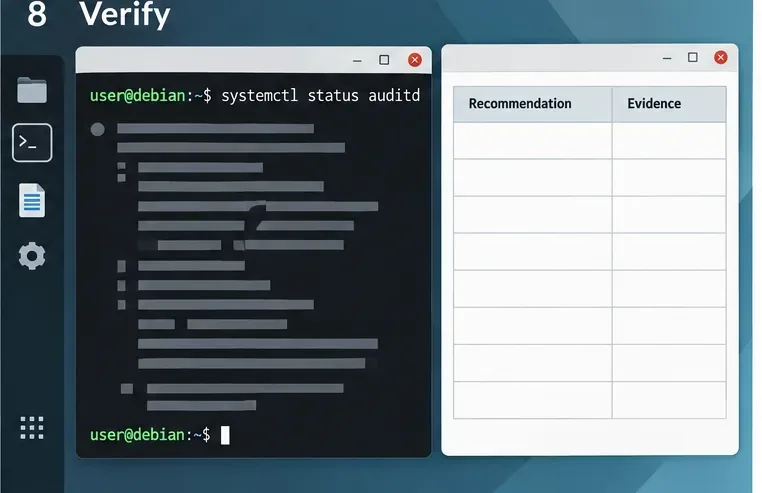
Audit logging can support investigation and evidence collection. Debian's auditd package provides userspace tools for the Linux kernel audit system; installing it alone does not prove that the required rules are configured or that log retention meets policy. Use the benchmark's specific audit recommendations and verify actual records and service behavior. CIS's benchmark page currently identifies CIS-CAT Pro and Build Kits as member resources; check the current official page for tool availability and licensing.
Repeat the assessment after remediation and after significant system changes. Keep results, exceptions, and evidence with the asset record. The benchmark provides a configuration baseline; compliance depends on the applicable requirements and a complete, documented assessment. This guide explains a safe workflow but does not certify Maya's hypothetical desktop or any real machine.
Collect real audit-service status and control evidence on the host; the blank table shown here contains no assessment result.