Release Ubuntu’s APT Lock Safely and Finish the Update
Find which process owns Ubuntu’s dpkg frontend lock, let package work finish, and repair interrupted installations without deleting lock files.
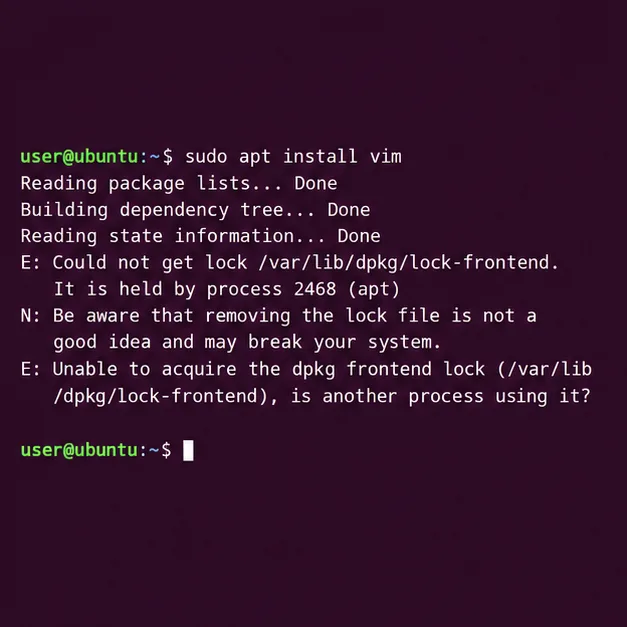
The error “Could not get lock /var/lib/dpkg/lock-frontend” usually means another package-management process is already working. Wait for that task to finish, identify the process if it does not clear, and only then repair any interrupted package configuration; deleting the lock file is not a safe fix.
APT is Ubuntu’s package-management tool, while dpkg performs lower-level package installation and configuration. They use locks so two operations cannot change package state at the same time. A lock file may remain on disk during normal operation, so its presence alone does not mean it is stale.
First close any other package task you started, such as another Terminal command, Software Updater, or an app-store installation. If an update dialog is open, let it finish rather than starting a second apt command. On desktop Ubuntu, background update services may also be working.
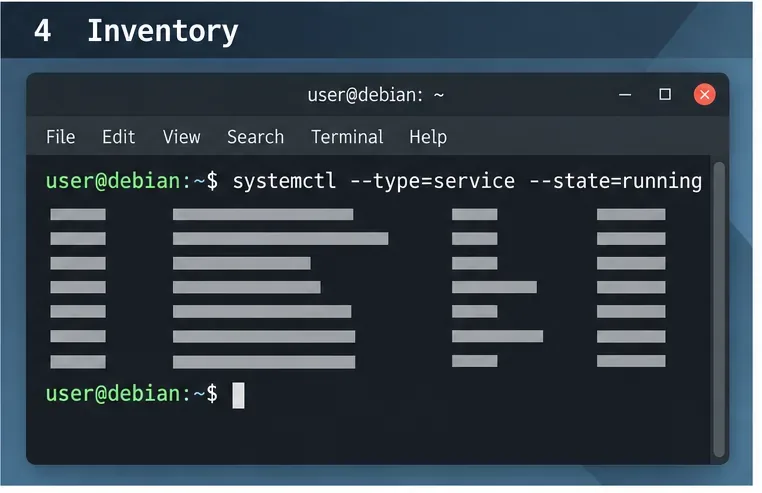
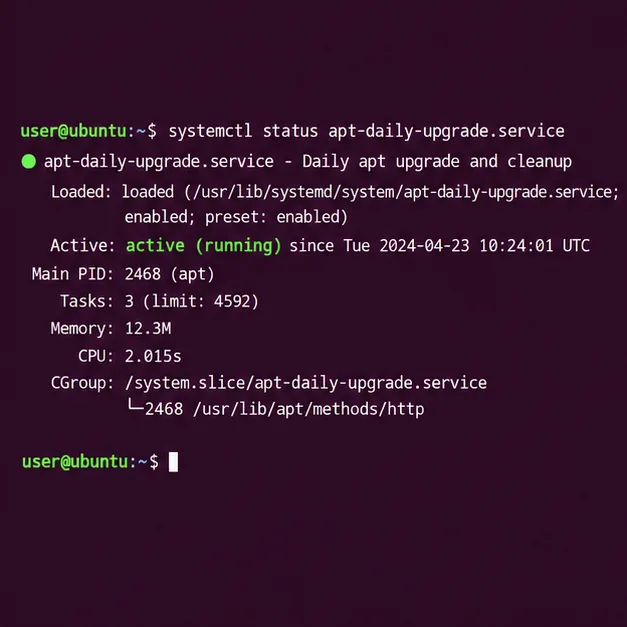
Check the relevant systemd services and wait if one is active:
systemctl status apt-daily.service apt-daily-upgrade.serviceThese units can be inactive even when another package frontend owns the lock, so also inspect the process using the exact lock. Do not launch more install or upgrade commands while the current operation is active.
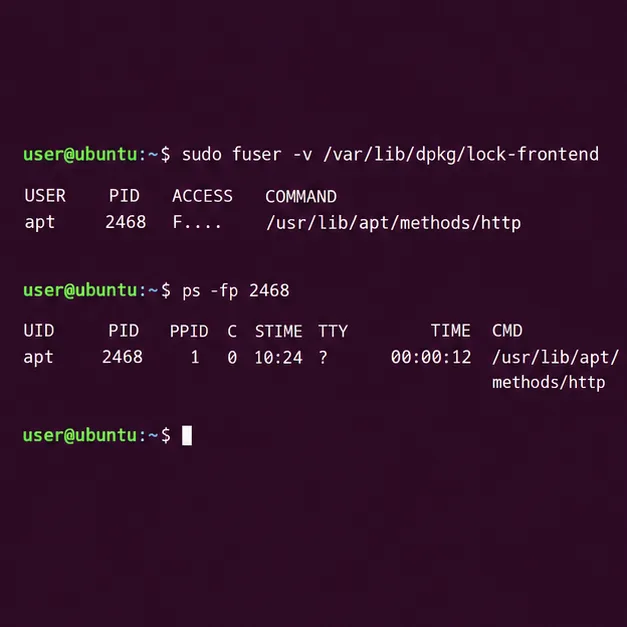
Use fuser to show processes accessing the lock, then inspect any PID it reports:
sudo fuser -v /var/lib/dpkg/lock-frontend
ps -fp 2468
Replace 2468 with the actual PID from your output. A process name such as apt, apt-get, dpkg, or an update service indicates that package work may still be underway. If you need to see a wider process list, run:
ps -eo pid,etime,cmd | grep -E '[a]pt|[d]pkg'Do not assume a process is frozen just because it has no visible progress. Package downloads, maintainer scripts, and service restarts can take time. If it is an update you started in another terminal, return to that terminal and let it finish. If a graphical updater owns it, use that application to cancel or close the operation normally.
If the process is an automatic update, check its status and logs before intervening:
systemctl status apt-daily-upgrade.service
sudo journalctl -u apt-daily-upgrade.service -b --no-pager
When the service is still making progress, leave it alone. If you recognize a package command you launched yourself and it is clearly stuck, interrupt it once from its own terminal with Ctrl+C and wait for it to return to the shell. Do not use kill -9, killall dpkg, or remove files under /var/lib/dpkg; abruptly stopping package scripts can leave packages unpacked but not configured.
If the process has exited but the package operation was interrupted, rebooting is a reasonable way to clear orphaned user-space work. After restart, make sure no Software Updater or install task is running before continuing. If a service repeatedly remains stuck, use the journal output to diagnose that service rather than repeatedly deleting lock files.
Once no package manager is using the lock, complete any pending package configuration:
sudo dpkg --configure -aThis configures packages that were unpacked but not fully set up. If it reports dependency problems, ask APT to resolve them:
sudo apt-get -f installRead the proposed changes before confirming. Do not add -y while troubleshooting: the prompt lets you review whether APT plans an unexpected removal or change. After the repair completes, refresh package lists and retry the original task:
sudo apt-get update
sudo apt-get install PACKAGE_NAME
Replace PACKAGE_NAME with the package you intended to install. Ubuntu’s APT-get manual documents -f as an attempt to correct broken dependencies, and the dpkg manual explains the package configuration action. If APT still reports the lock, repeat the process check; a second package task may have started in the meantime.
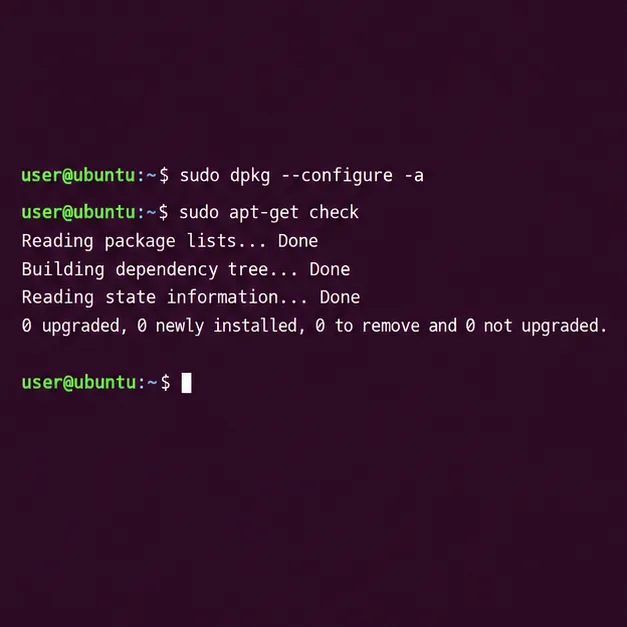
The fix is complete when the original install or update command runs without the lock error, sudo dpkg --configure -a exits without a pending-configuration failure, and sudo apt-get check reports no broken dependencies. If the lock returns, another process is still acquiring it; identify that process before taking further action.
Ubuntu’s current Noble manuals describe the package commands above. Exact service timing and process names vary by Ubuntu release and by which desktop package tools are installed, but the core rule remains the same: wait for the lock owner, then repair dpkg if the earlier operation was interrupted.
For the command references, see Ubuntu’s apt-get manual and Ubuntu’s dpkg manual.
Find which process owns Ubuntu’s dpkg frontend lock, let package work finish, and repair interrupted installations without deleting lock files.
Set up scheduled Btrfs system snapshots on Ubuntu Desktop with Timeshift, verify the Ubuntu subvolume layout, choose retention, and understand what snapshots cannot protect.
Plan a safer Debian 12 to Testing migration: upgrade through Stable, back up, clean APT sources, simulate dependency changes, and verify what changed.
Diagnose Ubuntu Server emergency mode safely. Read boot logs, check root and fstab mounts, repair a failed unit, handle filesystem errors, and verify a clean reboot.
Set up a Debian 12 WireGuard VPN server for one remote client. Configure keys, IPv4 forwarding, nftables NAT, firewall access, and connection checks.
Harden a Debian 12 workstation with a careful CIS Benchmark workflow: select the right profile, patch safely, review services and access, configure nftables, and document evidence.
Diagnose MySQL OOM kills on Debian 12, check VPS memory limits, configure swap, and tune database memory and concurrency without promising a universal fix.
Learn how to create and test a Debian-derived OSTree desktop in a VM, including system-tree preparation, boot integration, deployment checks, and rollback.
Configure an SSHFS boot mount in Debian with SSH keys, fstab, and systemd automount. Includes reboot checks, permissions, timeouts, and troubleshooting.
A practical October 2026 Chicago and Illinois home-maintenance checklist covering first frost, heating safety, gutters, leaves, pipes, renters, and winter-storm preparation.