Encrypt Pi-hole Upstream DNS on Ubuntu Server 24.04
Set up dnscrypt-proxy as Pi-hole’s local DoH bridge on Ubuntu 24.04, with a localhost-only listener, resolver selection, and checks before switching DNS.
On Ubuntu 24.04, get GNOME’s built-in touchpad gestures working by checking that the touchpad is enabled, confirming the session is Wayland, and testing gestures GNOME supports at the desktop level. Ubuntu 24.04 ships GNOME 46, whose system gestures are built in; you do not need a separate gesture daemon for workspace swipes. This guide follows a clearly hypothetical example: Jordan can move the pointer and scroll but cannot switch workspaces with a three-finger swipe. The example explains the checks; it is not a claim of a real test result.
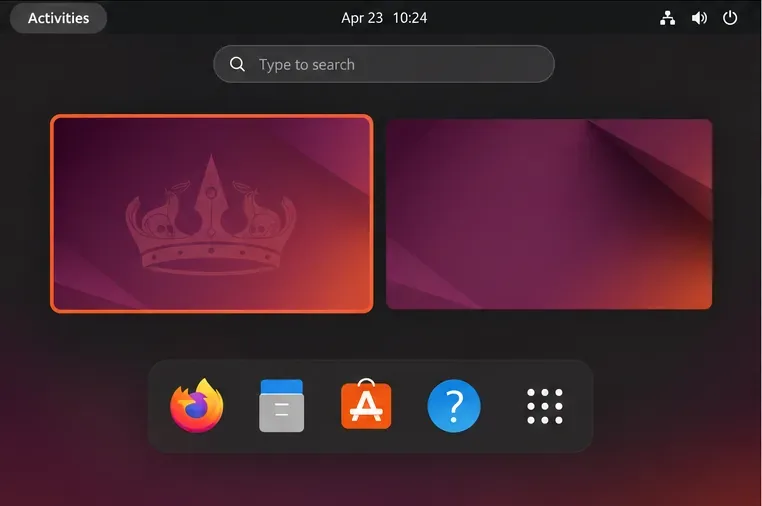
A Wayland session is the desktop session in which GNOME’s compositor manages windows, display output, and input. libinput is the input library that recognizes touchpad motion and reports gestures to the desktop. GNOME maps those events to actions: three fingers moving upward opens Activities, and three fingers moving left or right switches workspaces. These are system-wide gestures.
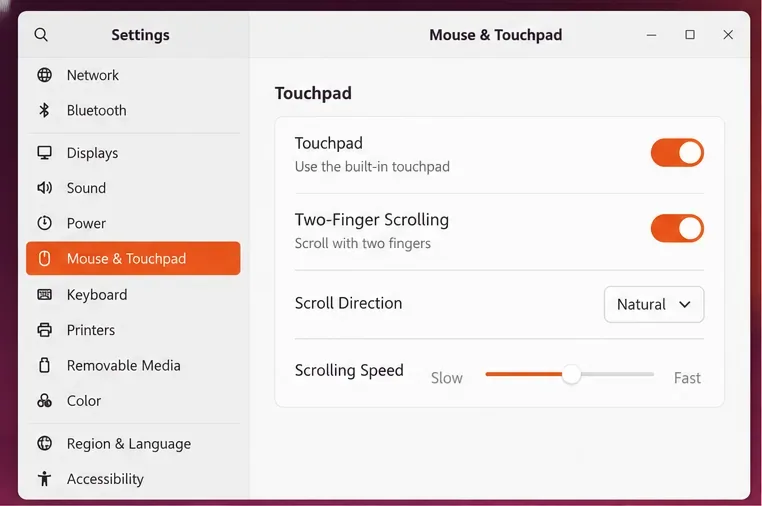
A pinch is different. libinput can report a pinch, but an application must decide what it means. GNOME documents pinch-to-zoom in apps such as Maps and Photos; pinch-to-zoom is not a desktop-wide action that must work in every window. Also, two-finger scrolling is a separate touchpad setting. Ubuntu’s Mouse & Touchpad panel can enable the touchpad and two-finger scrolling, but it does not provide a master switch for every multitouch gesture. See the GNOME gesture reference and touchpad settings instructions.
Open Activities, search for Mouse & Touchpad, then open the panel. Confirm the Touchpad switch is on. If two-finger scrolling is also failing, turn on Two-Finger Scrolling and test it in a long page. Jordan’s pointer already works, so this check mainly confirms the touchpad has not been disabled; scroll is a useful separate test of basic input.
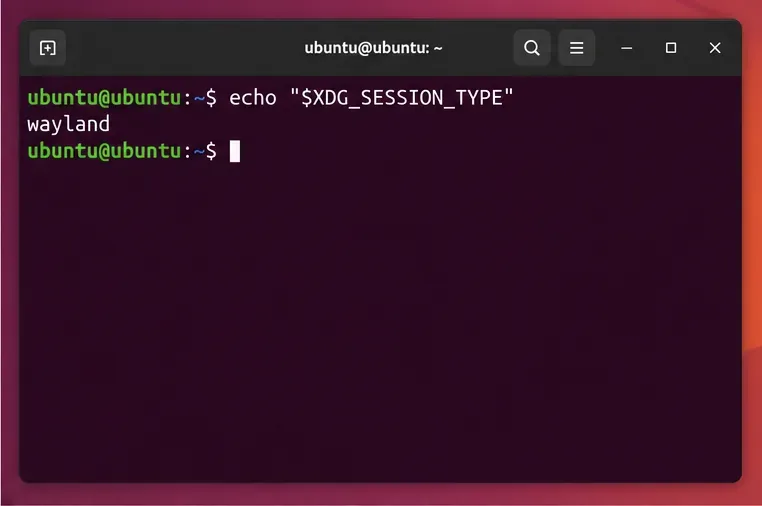
Open Terminal and run echo "$XDG_SESSION_TYPE". If it prints wayland, continue to the gesture test. If it prints x11, you are in an Xorg session: that is a different display system, and GNOME’s built-in Wayland swipe handling is not available there in the same way.
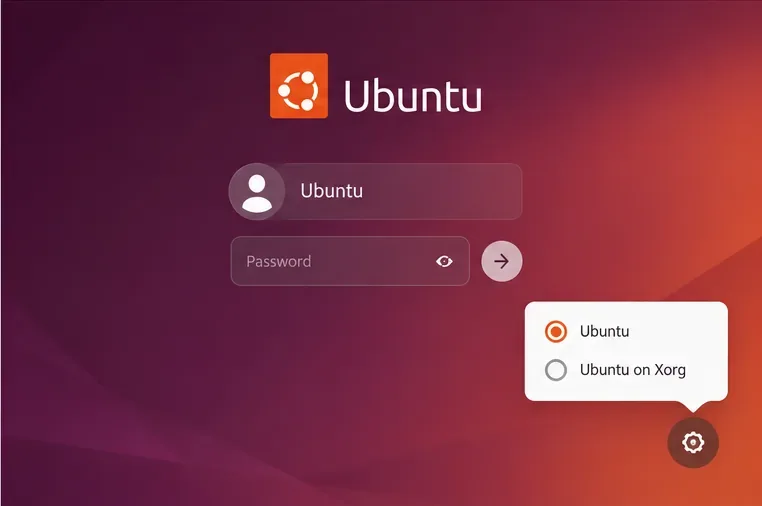
Save your work and sign out. At the login screen, select your user, open the session menu (usually the gear button), and choose Ubuntu, not Ubuntu on Xorg. Sign in, open Terminal again, and rerun the command from the previous step. Session labels can vary; use the entry that starts the normal Ubuntu desktop rather than the one explicitly marked Xorg. If the Wayland entry is missing, do not edit GDM configuration blindly. Install normal Ubuntu updates and check graphics-driver or device policies first; some hardware and driver combinations can hide or fall back from a session.
With wayland confirmed, place three fingers on the touchpad and move them upward together to open Activities. Then swipe left or right with three fingers to change workspace. Keep the fingers spaced apart and begin the movement together. In Jordan’s example, if either action works, the touchpad and Wayland path are functioning; troubleshoot only the gesture or application that still fails.
First, temporarily disable any GNOME Shell extension that remaps gestures, then sign out and back in before retesting. Such extensions can change what a swipe does, so test the default GNOME behavior before installing another gesture tool.
Next, check whether libinput recognizes the device. Ubuntu 24.04 provides the optional libinput-tools package; if the command is missing, install it with sudo apt install libinput-tools, then run sudo libinput list-devices. Look for the touchpad by name. This command reports devices and their default configuration; it does not prove that GNOME assigned a particular gesture. If no touchpad appears, update Ubuntu and check the laptop’s firmware or vendor support, because a desktop gesture setting cannot repair a device the input stack does not see. The libinput tools reference explains the output’s scope.
Finally, separate system gestures from app gestures. If the workspace swipe works but pinch does not, try pinch in an application that documents support, such as Maps or Photos. Ubuntu 24.04.5 also includes a libinput quirk for one Elan touchpad identifier, 04F3:3355; if that is your device, install current 24.04 updates before attempting manual configuration. See the Ubuntu 24.04.5 release notes.
Confirm echo "$XDG_SESSION_TYPE" returns wayland, then test the three-finger upward swipe and the left/right workspace swipe from the desktop. Treat pinch separately: it is fixed only in applications that support it. If the basic swipe still fails while the session and touchpad are detected, the remaining cause is likely device-specific or an extension conflict, not a missing global gesture switch.
Set up dnscrypt-proxy as Pi-hole’s local DoH bridge on Ubuntu 24.04, with a localhost-only listener, resolver selection, and checks before switching DNS.
Check Ubuntu’s touchpad settings, confirm Wayland, and test GNOME’s built-in swipes before troubleshooting apps or hardware.
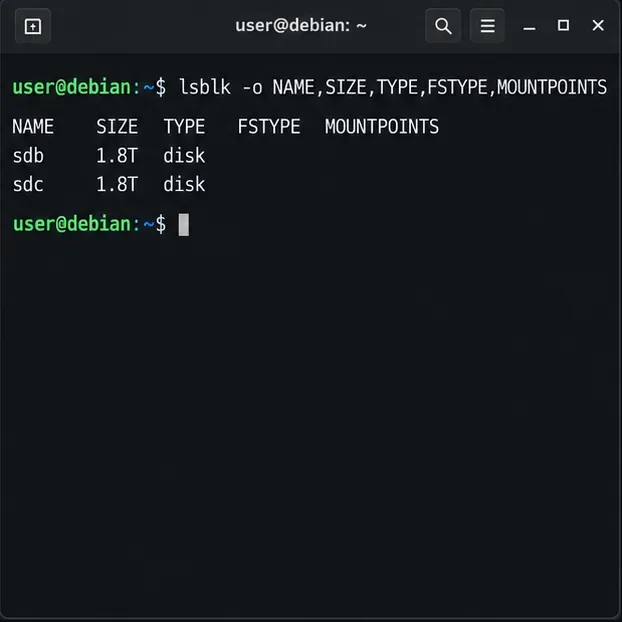
Create and verify a two-disk Debian 12 RAID 1 data array, format it safely, and configure it to assemble and mount after reboot.
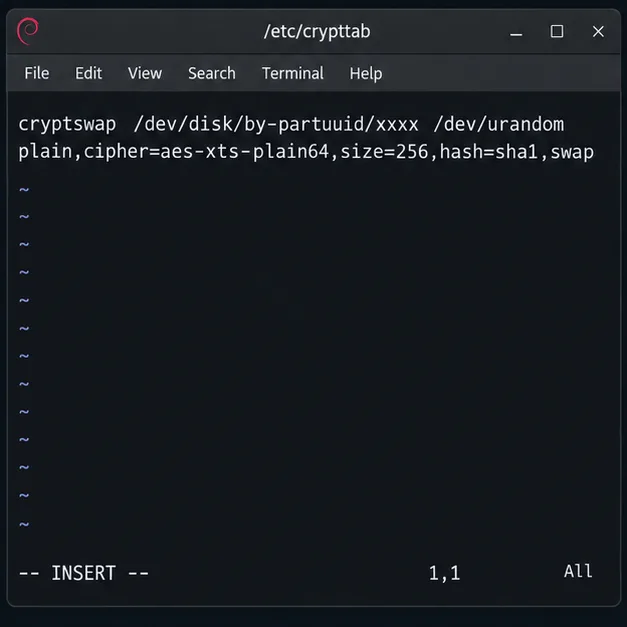
Set up random-key encryption for an existing Debian 12 swap partition, verify the active dm-crypt mapping, and understand the hibernation trade-off.
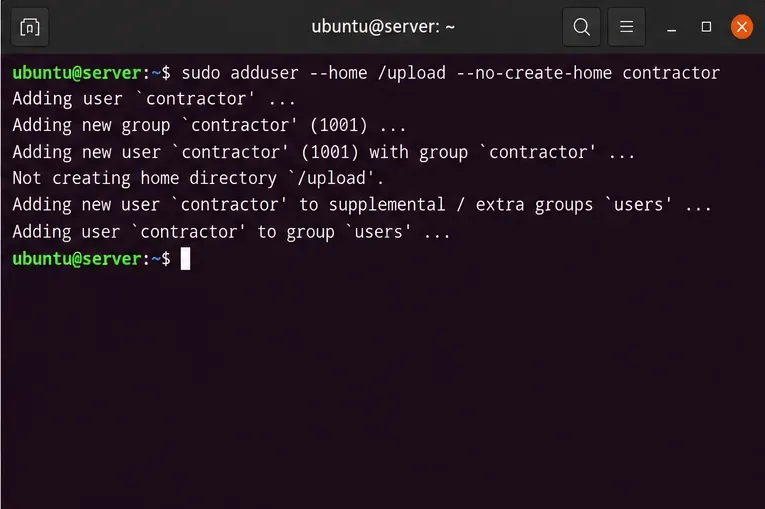
Restrict Ubuntu 24.04 SSH accounts to designated SFTP folders with chroot, proper permissions, Match rules, and safe tests—without granting shell access.
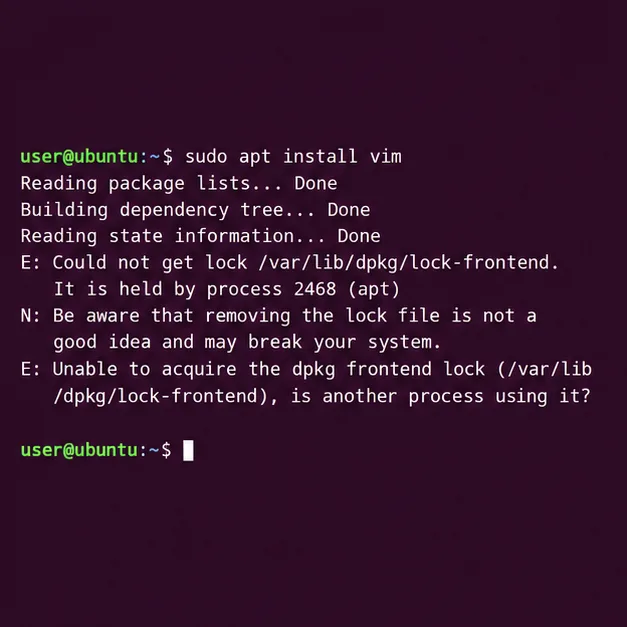
Find which process owns Ubuntu’s dpkg frontend lock, let package work finish, and repair interrupted installations without deleting lock files.
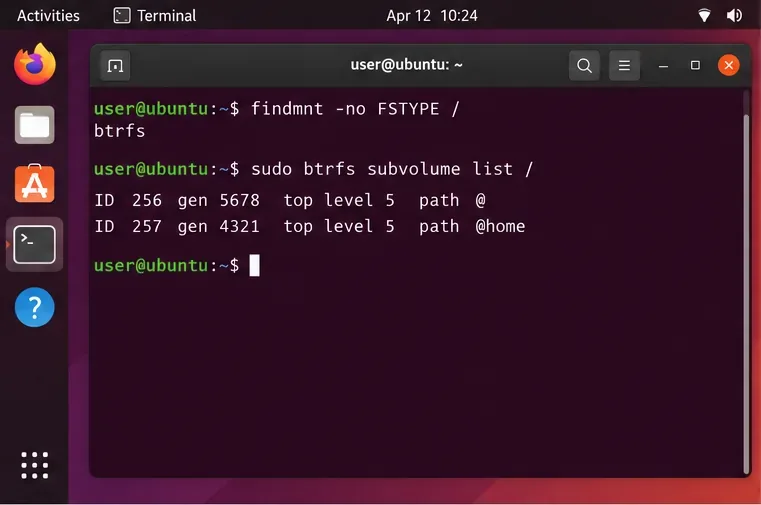
Set up scheduled Btrfs system snapshots on Ubuntu Desktop with Timeshift, verify the Ubuntu subvolume layout, choose retention, and understand what snapshots cannot protect.
Plan a safer Debian 12 to Testing migration: upgrade through Stable, back up, clean APT sources, simulate dependency changes, and verify what changed.
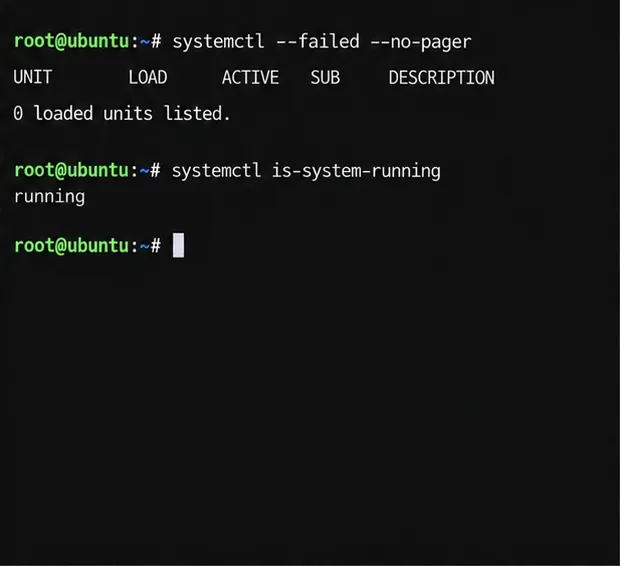
Diagnose Ubuntu Server emergency mode safely. Read boot logs, check root and fstab mounts, repair a failed unit, handle filesystem errors, and verify a clean reboot.
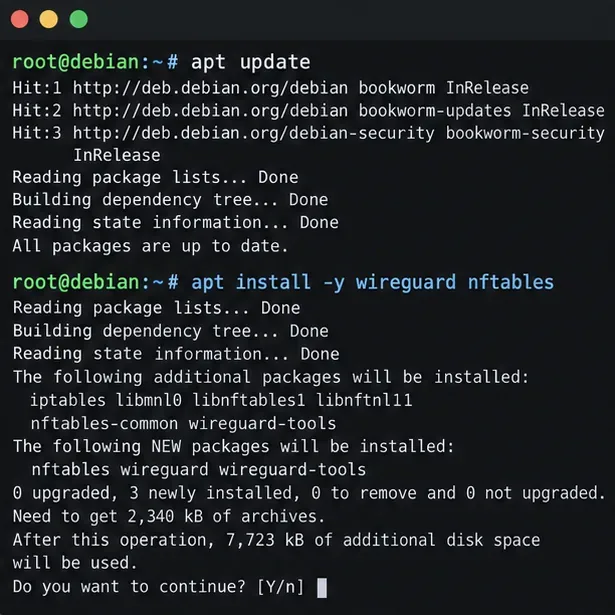
Set up a Debian 12 WireGuard VPN server for one remote client. Configure keys, IPv4 forwarding, nftables NAT, firewall access, and connection checks.