Home
» How to
»
Cap a Command’s CPU and Memory Use with Ubuntu cgroups
Cap a Command’s CPU and Memory Use with Ubuntu cgroups
If one command makes your Ubuntu desktop sluggish or causes a server to run short on memory, put the command and its child processes in a systemd-managed cgroup with a CPU quota and memory ceiling. On current Ubuntu releases, systemd-run --scope is the shortest practical route: it starts the command in a temporary scope, and systemd applies the limits through cgroup controls.
The example below caps a workload at half of one CPU’s capacity and 1 GiB of memory. These are limits for the whole scope, including child processes; they are not a promise that the program will run at a particular speed.
Why a process needs a cgroup limit
A busy process can compete with interactive applications, while a memory-heavy process can push the machine into reclaim or an out-of-memory condition. A cgroup groups a process with its descendants so the kernel can account for and constrain that group. Ubuntu’s systemd provides a convenient interface to those controls.
CPU and memory settings behave differently. CPUQuota=50% caps CPU time to half the capacity of one CPU, averaged over a scheduling period. A value of 200% represents up to two CPUs’ worth of time when available. This is a ceiling, not a CPU priority or a reservation. MemoryMax=1G sets a hard ceiling for memory charged to the cgroup; if the workload cannot stay below it, the kernel may reclaim memory or invoke an out-of-memory kill for a process in that cgroup. Choose a limit with headroom for the application and its children.
1. Check that Ubuntu is using cgroup v2
Ubuntu systems using systemd commonly use the unified cgroup v2 hierarchy. Confirm the active setup before relying on the paths shown later:
stat -fc %T /sys/fs/cgroup
systemctl --version | head -n 1
The first command should report cgroup2fs. If it reports another filesystem type, this article’s cgroup v2 file paths do not apply as written. The systemd properties may still be supported with a different hierarchy, but use the matching distribution documentation rather than copying v2 paths.
Also check the exact systemd version if a property is rejected. Ubuntu’s Noble documentation describes CPUQuota= and MemoryMax= as resource-control settings; older Ubuntu releases may package different systemd versions.
2. Start the workload inside a limited scope
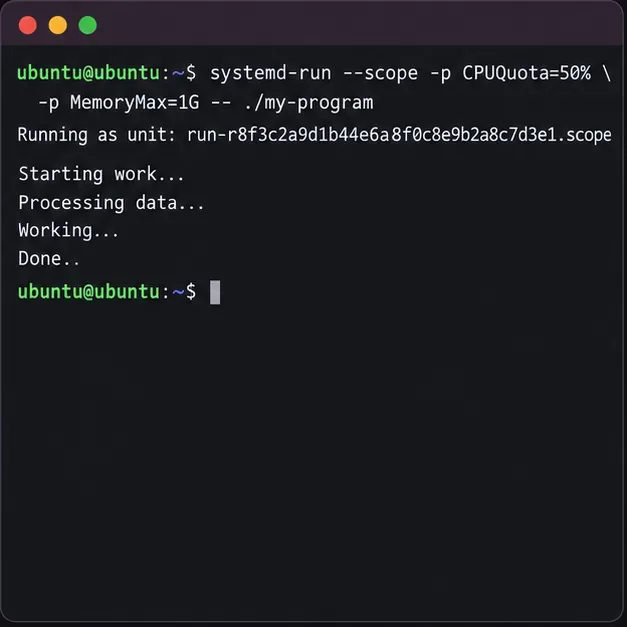
Run the program through systemd-run, substituting its real executable and arguments. For a command in the current directory, use ./ and pass all arguments after --:
Launch a command inside a transient systemd scope with CPU and memory limits.
For a user-owned command, try this without sudo first. If systemd reports that a requested controller or property is unavailable, the user manager may not have permission to delegate it; retrying as root may be appropriate for a system-wide workload, but it changes the command’s security context. Do not casually run an untrusted program as root. If using the system manager as root is required, use sudo systemd-run --scope ... only after accounting for that change.
The terminal remains attached to the scope while the command runs. Pressing Ctrl+C interrupts the foreground operation. The scope is transient and normally disappears after the processes exit. It is a convenient way to start a command under limits, rather than a persistent policy for future launches.
3. Find the scope and inspect its limits
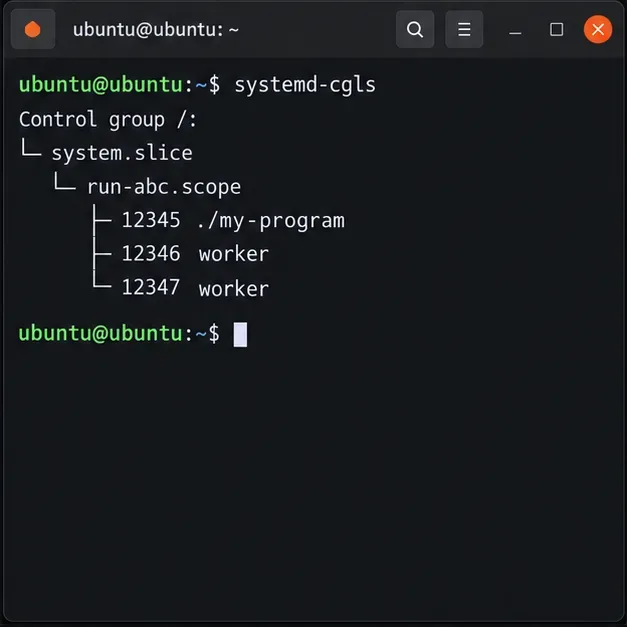
systemd-run prints the unit name it creates, typically something like run-….scope. While the command is still running, list the cgroup tree:
systemd-cgls
Find the transient scope and confirm the target program and its children appear beneath it. That matters because a child that runs outside the scope will not be covered by the same cgroup ceiling.
Use the cgroup tree to confirm the program and its workers are grouped under the transient scope.
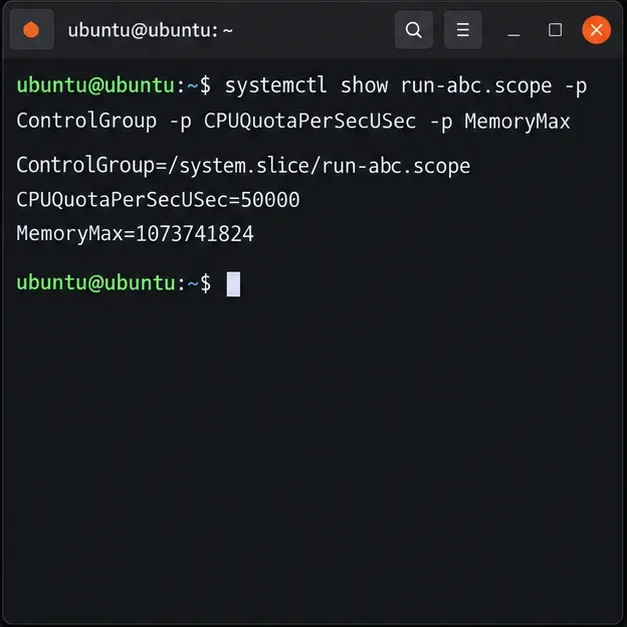
Use the printed scope name in the next command. Replace run-abc.scope with the actual name:
systemctl show run-abc.scope \
  -p ControlGroup -p CPUQuotaPerSecUSec -p MemoryMax
CPUQuotaPerSecUSec=50000 is consistent with a 50% quota when systemd’s quota period is 100 ms; MemoryMax=1073741824 is 1 GiB in bytes. The live values are more useful than assuming every host will accept every request unchanged, since parent cgroups and available controllers can constrain the effective result.
Check the scope’s reported control group and configured CPU and memory ceilings.
4. Verify kernel cgroup files and adjust safely
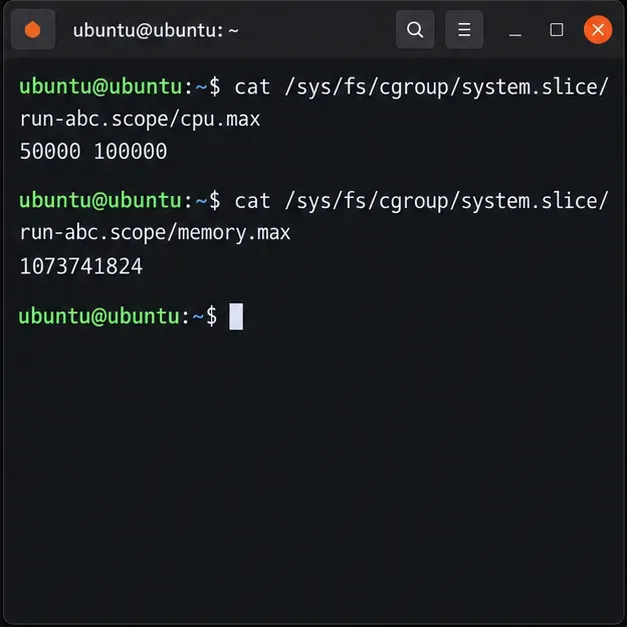
The ControlGroup property gives the cgroup path relative to /sys/fs/cgroup. Store it in a shell variable so the commands follow the path actually assigned on your machine:
On cgroup v2, cpu.max contains a quota and period in microseconds. For example, 50000 100000 means 50 ms of CPU time in each 100 ms period. memory.max shows the memory ceiling in bytes. If the files are missing, confirm that the scope is still active and that the kernel is using cgroup v2.
Read the kernel’s cgroup v2 files to verify the configured quota and memory ceiling.
If you started a named long-running unit and need to adjust its limits, systemd supports changing resource properties on an active unit, for example sudo systemctl set-property --runtime my-worker.service CPUQuota=50% MemoryMax=1G. This applies to that service’s cgroup and requires appropriate privileges. It does not attach an arbitrary already-running process just because its PID is known; for a one-off process, stop it cleanly and relaunch it through the limited scope. For a persistent service, configure the properties in the service unit or a systemd drop-in and restart it during an appropriate maintenance window.
Check the result
Keep the workload active while you inspect it. Confirm that systemd-cgls places the process and its children under the intended scope, that systemctl show reports the requested properties, and that the corresponding cpu.max and memory.max files exist with finite values. When the process exits, the transient scope is removed, so its cgroup files may disappear.
A quota limits CPU time but does not guarantee a fixed percentage in a desktop monitor, and a hard memory cap can cause failures if the application needs more than the cap. If the workload becomes unstable, stop it and raise the limit to a measured safe value or use a softer MemoryHigh= pressure threshold alongside a higher MemoryMax=. For exact behavior, check your installed systemd and kernel documentation; the authoritative references are the Ubuntu systemd-run manual, Ubuntu systemd resource-control manual, and Linux kernel cgroup v2 documentation.