Keep Debian 12 Security Updates Running on a Headless Server
Enable Debian’s unattended security updates over SSH, keep the default package sources, and verify scheduled runs through systemd and APT logs.
For a headless Debian 12 server, install unattended-upgrades, enable APT’s daily package-list refresh and unattended-upgrade settings, and keep the default security-origin allowlist. Then verify the systemd timers and logs over SSH. This automates eligible package updates; it does not perform a major Debian release upgrade or guarantee that every application needs no follow-up.
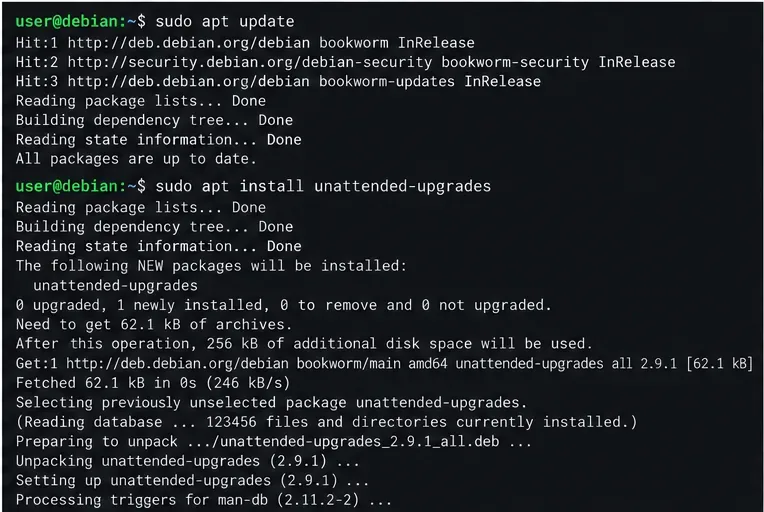
Connect with an account that can use sudo. Check the server release and update its package index before installing:
cat /etc/debian_version
sudo apt update
sudo apt install unattended-upgrades
This procedure targets Debian 12 (Bookworm) using its normal APT repositories. Review the package plan before accepting it. If APT reports repository, DNS, disk-space, or dependency errors, resolve those first; unattended operation cannot correct a broken package source or an unhealthy filesystem.
Set APT’s periodic options in a dedicated local file. This enables a daily package-list refresh and the unattended-upgrade run:
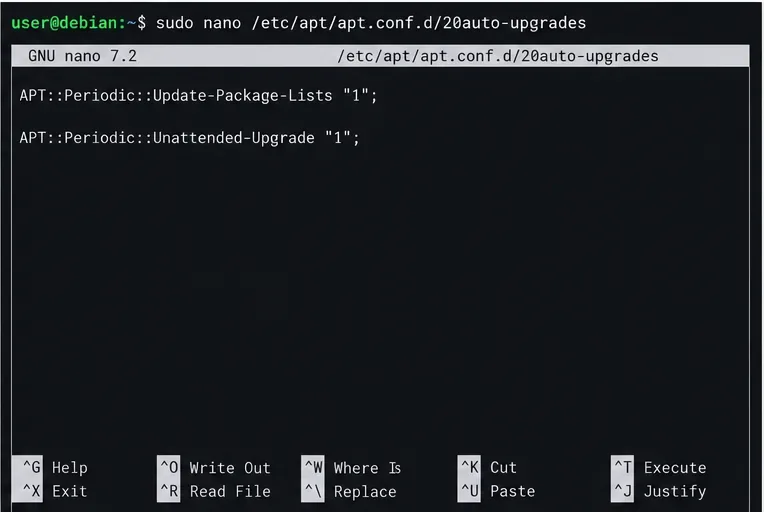
sudo nano /etc/apt/apt.conf.d/20auto-upgradesEnter and save these two lines:
APT::Periodic::Update-Package-Lists "1";
APT::Periodic::Unattended-Upgrade "1";
In Nano, press Ctrl+O, Enter, then Ctrl+X. The value 1 means every day. APT’s unattended-upgrades package configuration controls which archive origins may be installed. On a standard Debian 12 setup, leave /etc/apt/apt.conf.d/50unattended-upgrades unchanged at first; its default allowlist is intended to select Debian security updates and related configured Debian updates. Do not add third-party repositories or all of Bookworm just to make the status output appear busier. If you deliberately broaden the allowlist, review the exact origins, test them, and monitor the service as you would any other production change.
For a remotely managed server, check the reboot policy in 50unattended-upgrades:
grep -n 'Automatic-Reboot' /etc/apt/apt.conf.d/50unattended-upgradesDo not enable automatic reboot unless you have planned for service interruption, checked application recovery, and have a reliable out-of-band or console recovery path. Debian security updates can install a new kernel or libraries that need a restart to take effect, but unattended-upgrades does not replace a reboot policy or an on-call plan. With automatic reboot disabled, arrange a regular maintenance window and check whether a reboot is required after updates.
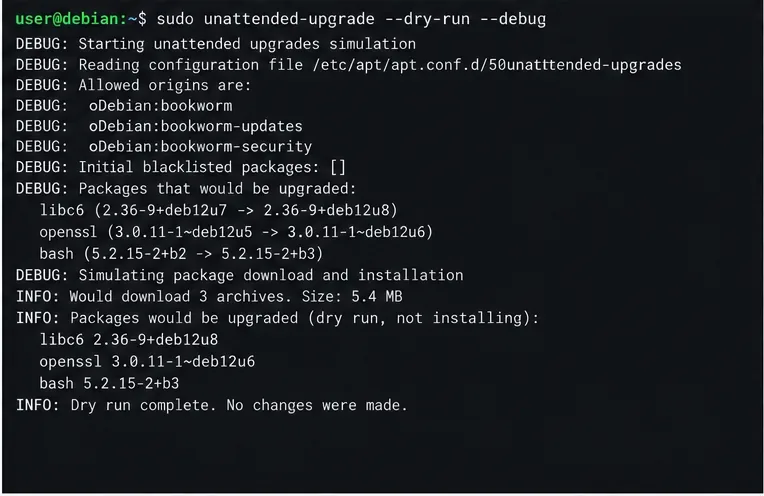
Run a simulation from SSH. The --dry-run flag does not install packages, while --debug gives more detail in the unattended-upgrades log:
sudo unattended-upgrade --dry-run --debugRead the output for the allowed origins and proposed package actions. A message saying there are no packages to upgrade can be a healthy result when nothing eligible is pending; it is not proof that the timer will run later. If the allowed origins are empty or candidates are unexpectedly missing, inspect the release’s APT sources and 50unattended-upgrades patterns before changing them. The Bookworm manual documents this command as a simulation, not an installation.
APT uses systemd timer units for its daily work. Check both timers and the upgrade service:
systemctl status apt-daily.timer apt-daily-upgrade.timer
systemctl list-timers 'apt-daily*'
systemctl status apt-daily-upgrade.service
The timers should be loaded and active, and the list should show their next scheduled run. If the timers are installed but inactive, start them and enable them for future boots:
sudo systemctl enable --now apt-daily.timer apt-daily-upgrade.timerA service can be inactive between scheduled runs because it is a one-shot job; inspect its last result rather than expecting it to remain running. After a scheduled window, review the package log and systemd journal:
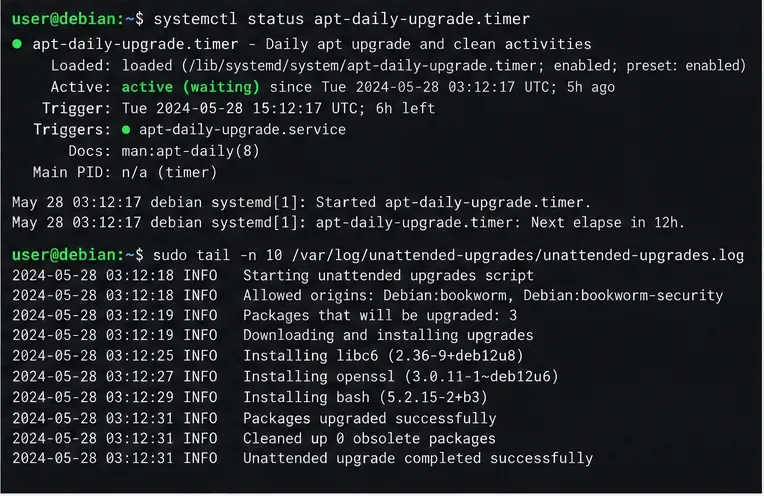
sudo tail -n 50 /var/log/unattended-upgrades/unattended-upgrades.log
sudo tail -n 50 /var/log/unattended-upgrades/unattended-upgrades-dpkg.log
sudo journalctl -u apt-daily-upgrade.service --since "7 days ago"
Look for a completed run, the allowed origins, and whether packages were installed or none were pending. Investigate repeated download failures, held packages, or dpkg errors. The manual lists these log paths and explains that the systemd service runs the unattended-upgrade backend.
A working configuration means the timers are active, periodic APT settings are enabled, and logs show successful unattended runs. It does not prove that every package in every repository is updated, that a reboot-dependent fix is already active, or that a service remained healthy after a package change. Debian’s release upgrade process remains a separately planned operation; unattended-upgrades is for package updates within configured sources. For critical servers, add monitoring for failed runs, maintain backups, test changes in a representative environment, and define a human-reviewed reboot window.
These steps follow the Debian Bookworm unattended-upgrade manual, the Debian Periodic Updates guidance, and the Bookworm systemd.timer manual. The Bookworm manual identifies the Debian package version as 2.9.1+nmu3; package versions can change with Debian updates.
Enable Debian’s unattended security updates over SSH, keep the default package sources, and verify scheduled runs through systemd and APT logs.
Compare mail delivery options, configure smartd on Ubuntu, and verify that disk-health warnings reach your inbox.
Restore DNS lookups on Debian 12 by checking systemd-resolved, repairing resolv.conf when needed, and verifying upstream DNS and application resolution.
Get Ubuntu to detect your monitor or TV as an audio output, select it in Sound settings, and check the connection or PipeWire device list if HDMI is missing.
Resolve Ubuntu APT signature warnings safely by identifying the failing source, refreshing its verified key, and checking the result without disabling security.
Learn the balanced three-phase formulas and convert line voltage, current, kW, kVA, and power factor step by step, with a worked example and limits to check.
Run a workload inside a systemd scope with CPUQuota and MemoryMax, then verify the limits through cgroup v2.
Set up dnscrypt-proxy as Pi-hole’s local DoH bridge on Ubuntu 24.04, with a localhost-only listener, resolver selection, and checks before switching DNS.
Check Ubuntu’s touchpad settings, confirm Wayland, and test GNOME’s built-in swipes before troubleshooting apps or hardware.
Create and verify a two-disk Debian 12 RAID 1 data array, format it safely, and configure it to assemble and mount after reboot.