Get YaST’s X11 Forwarding Working Over SSH
Fix YaST’s XIO launch error over SSH, verify X11 forwarding and xauth, and switch to the ncurses interface when a remote window is unnecessary.
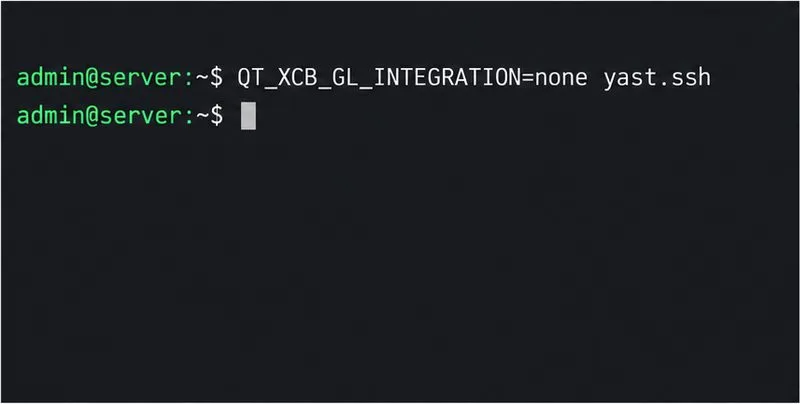
If YaST exits with XIO: fatal IO error 11 (Resource temporarily unavailable) over SSH, first try the SUSE-documented Qt workaround: QT_XCB_GL_INTEGRATION=none yast.ssh. For an installed SLES system and a specific YaST module, use the same variable before that module, such as QT_XCB_GL_INTEGRATION=none yast2 disk. If no graphical application can open, repair X11 forwarding first: connect with ssh -X, check that the remote shell has a DISPLAY value, and verify the server has X11 forwarding enabled.
SUSE's SLES 15 SP7 Deployment Guide documents this exact XIO failure and both the Qt workaround and ncurses alternative. The passage appears in the remote installation context, so use it as a targeted fix for the matching YaST-over-SSH behavior; it does not establish that every YaST launch failure has the same cause. The checks below separate that case from a missing local X server, disabled SSH forwarding, or an X authentication problem.
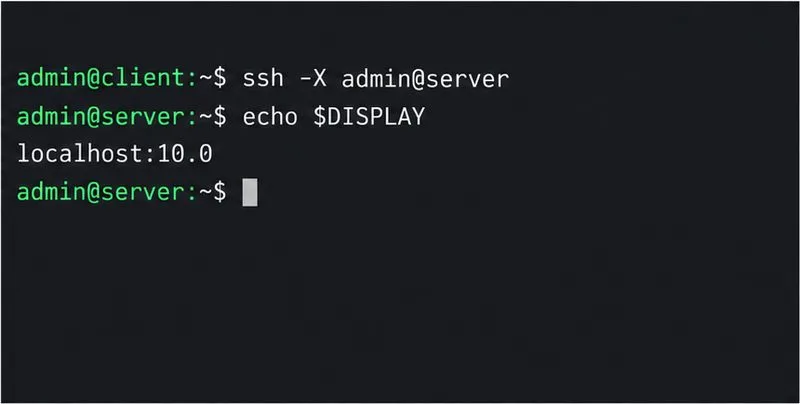
X11 forwarding sends a remote application's window traffic through SSH to an X server on your local computer. Your local machine therefore needs a running X server, and the SSH client must request forwarding. On an X11 desktop, open a fresh terminal and connect like this:
ssh -X admin@server.example.comReplace the account and host with your own. After login, run:
echo "$DISPLAY"A value such as localhost:10.0 indicates that SSH set up a forwarded display. It is an example, not a fixed value: the display number may differ. If the output is blank, log out and reconnect with -X. If it remains blank, inspect the client-side SSH settings and the server configuration in the next section. Do not manually set DISPLAY to a guessed value; SSH creates a proxy display for the session.
If you use PuTTY on Windows, enable X11 forwarding in the session's Connection > SSH > X11 settings and make sure a local X server is running. SUSE's deployment guide calls out this requirement. A remote host cannot display a window if the local machine has no X server, even when SSH login succeeds.
On the SLES host, an administrator can inspect the SSH daemon configuration:
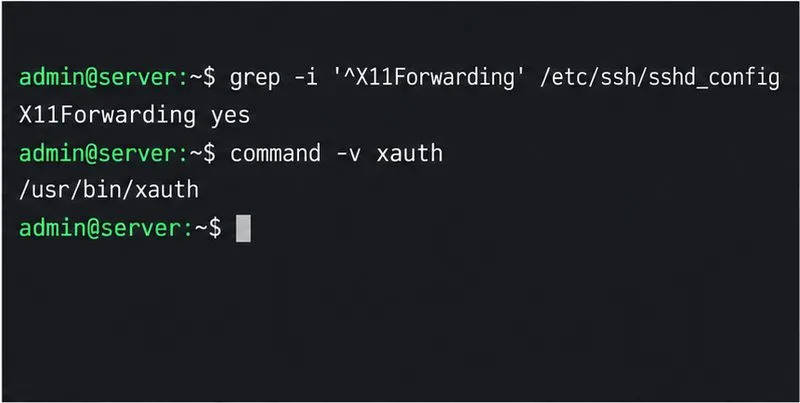
sudo grep -i '^X11Forwarding' /etc/ssh/sshd_config
command -v xauth
The effective server policy must permit X11 forwarding, and xauth must be available for the authentication handoff. SUSE documents X11Forwarding Yes as the server-side setting and notes that SSH sets the remote DISPLAY when a client connects with -X. A simple grep can miss settings in included configuration files or conditional Match blocks; if the output seems to conflict with behavior, have the SSH administrator inspect the effective configuration rather than adding duplicate lines.
If you change sshd_config, validate the file before reloading the daemon:
sudo sshd -t
sudo systemctl reload sshd
Run these only with administrator authorization. Keep your existing SSH session open while testing a new one, so a configuration mistake does not lock you out. Then disconnect and reconnect; forwarding settings are negotiated when the SSH session starts. Avoid opening TCP port 6000 on the server or using xhost + as a shortcut. SSH forwarding is designed to tunnel X traffic and manage its authentication; direct X access can expose the display to other machines.
If DISPLAY is set and another forwarded X application opens, but YaST fails with the XIO error above, try the documented environment override for that one launch:
QT_XCB_GL_INTEGRATION=none yast.sshFor a regular installed system, launch the required module rather than assuming the installation helper is present. For example, SUSE documents this module form:
QT_XCB_GL_INTEGRATION=none yast2 diskThe variable applies only to the command that follows it; it does not permanently change Qt settings or SSH policy. The exact yast.ssh command is used by SUSE for its installation system, while an installed SLES host commonly starts YaST modules with yast2. If a different module is failing, substitute its documented module name for disk. Do not treat this environment setting as a fix for a blank DISPLAY or for a client without an X server.
If you only need to complete administration and do not need a graphical window, use YaST's ncurses interface in the SSH terminal. For the disk module, SUSE documents:
yast2 disk --ncursesYou can also explicitly request the ncurses backend for the module:
YUI_PREFERRED_BACKEND=ncurses yast2 disk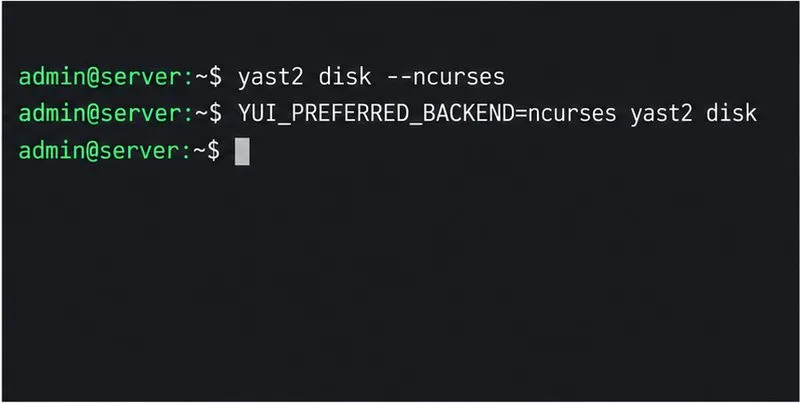
The text interface avoids X11 forwarding entirely and is often the simplest choice for a remote server. It is still YaST and still changes system configuration; review disk, partition, firewall, and network changes carefully before confirming them. For the SLES installation system, SUSE says YaST provides an ncurses interface when a local X server is unavailable.
Open a new SSH session with ssh -X, confirm echo "$DISPLAY" is nonempty, then launch YaST using the appropriate command. Success means the YaST window appears on the local desktop, or the ncurses module opens in the terminal if you chose that backend. If forwarding is healthy but the exact XIO error remains after the Qt override, capture the complete terminal error and check the SLES release notes or SUSE Support Knowledgebase for a release-specific issue; this procedure cannot identify an unrelated Qt or YaST defect from the error fragment alone.
-X and trusted -Y.Fix YaST’s XIO launch error over SSH, verify X11 forwarding and xauth, and switch to the ncurses interface when a remote window is unnecessary.
Find the pre-update Btrfs snapshot, test it read-only, and make recovery permanent with Snapper while understanding which data stays outside the root rollback.
Send SLES system logs to a remote rsyslog collector over authenticated TLS, with certificate checks, outage buffering, and delivery tests.
Use RAM, swap, kernel, and Zypper logs to identify real memory pressure, protect package state, and choose a safer SLES upgrade retry.
Enable Debian’s unattended security updates over SSH, keep the default package sources, and verify scheduled runs through systemd and APT logs.
Compare mail delivery options, configure smartd on Ubuntu, and verify that disk-health warnings reach your inbox.
Restore DNS lookups on Debian 12 by checking systemd-resolved, repairing resolv.conf when needed, and verifying upstream DNS and application resolution.
Get Ubuntu to detect your monitor or TV as an audio output, select it in Sound settings, and check the connection or PipeWire device list if HDMI is missing.
Resolve Ubuntu APT signature warnings safely by identifying the failing source, refreshing its verified key, and checking the result without disabling security.
Learn the balanced three-phase formulas and convert line voltage, current, kW, kVA, and power factor step by step, with a worked example and limits to check.