Secure SLES Syslog Forwarding with rsyslog and Mutual TLS
Send SLES system logs to a remote rsyslog collector over authenticated TLS, with certificate checks, outage buffering, and delivery tests.
To forward SUSE Linux Enterprise Server (SLES) system logs securely, configure rsyslog to send messages over TLS-protected TCP port 6514, verify the collector's certificate name, and confirm delivery with a test event. SLES 15 SP7 received an optional rsyslog update on March 27, 2026 that added an OpenSSL TLS module; the configuration below deliberately uses the established GnuTLS (gtls) module instead.
This procedure covers a SLES 15 sender named sles01.example.net and an rsyslog collector named logs.example.net. Replace both names and all certificate paths with your own values. It uses mutual TLS, so the collector authenticates the sender as well as the sender authenticating the collector.
On both hosts, install the rsyslog daemon and its GnuTLS module from your registered SUSE repositories. Existing installations may already contain the first package.
sudo zypper install rsyslog rsyslog-module-gtls
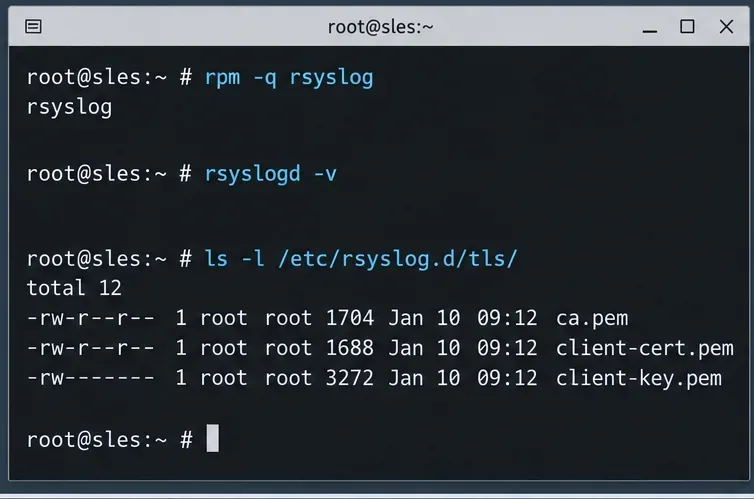
rpm -q rsyslog rsyslog-module-gtls
sudo systemctl enable --now rsyslog
rsyslogd -v
Review /etc/rsyslog.conf and existing snippets under /etc/rsyslog.d/ before adding rules. In particular, disable any older unencrypted *.* @@host forwarding rule for the same destination; otherwise messages may take two routes, including one without TLS.
SLES uses systemd-journald for journal events while rsyslog processes syslog inputs. Confirm that the events you need reach rsyslog through the existing input configuration. SUSE documents ForwardToSyslog=yes in /etc/systemd/journald.conf for journal-to-syslog forwarding; check your deployment before changing it because separately enabling journal readers can create duplicate events. This procedure forwards messages already processed by rsyslog, not every file under /var/log automatically.
Use an organization-controlled certificate authority (CA) to issue a certificate with the DNS subject alternative name logs.example.net for the collector and a separate certificate identifying sles01.example.net for the sender. Make sure the certificates are valid for their TLS server or client roles and that both machines trust the issuing CA. Follow your PKI process for generation and renewal; do not reuse a private key across hosts.
Copy the appropriate files over an administrator-approved secure channel. In this example, both machines use /etc/rsyslog.d/tls/ca.pem. The collector additionally has server-cert.pem and server-key.pem; the sender has client-cert.pem and client-key.pem.
sudo install -d -m 0750 /etc/rsyslog.d/tls
sudo chmod 0600 /etc/rsyslog.d/tls/*-key.pem
sudo chmod 0644 /etc/rsyslog.d/tls/ca.pem
Restrict certificate and key access to the rsyslog service identity where necessary. Do not expose private keys in diagnostics, shell history, Git repositories, or the exported log stream. Confirm that your rsyslog process can read its key before restarting the daemon.
On logs.example.net, add the following as /etc/rsyslog.d/30-tls-listener.conf. If imtcp is already loaded elsewhere, keep only one module-load statement. The dedicated ruleset places remotely received messages in a separate file instead of mixing them with local system messages.
global(
  DefaultNetstreamDriverCAFile="/etc/rsyslog.d/tls/ca.pem"
  DefaultNetstreamDriverCertFile="/etc/rsyslog.d/tls/server-cert.pem"
  DefaultNetstreamDriverKeyFile="/etc/rsyslog.d/tls/server-key.pem"
)
module(load="imtcp")
ruleset(name="remote_tls") {
  action(type="omfile" file="/var/log/remote-tls.log")
}
input(
  type="imtcp"
  port="6514"
  StreamDriver.Name="gtls"
  StreamDriver.Mode="1"
  StreamDriver.AuthMode="x509/name"
  PermittedPeer="sles01.example.net"
  ruleset="remote_tls"
)
StreamDriver.Mode="1" enables TLS, while x509/name and PermittedPeer reject clients without an accepted certificate identity. The single permitted name is intentional; extend the approved peer list when adding other senders instead of weakening authentication.
sudo rsyslogd -N1
sudo systemctl restart rsyslog
sudo firewall-cmd --permanent --add-port=6514/tcp
sudo firewall-cmd --reload
sudo ss -ltn | grep ':6514'
Run the firewall commands only if the collector uses firewalld. Restrict inbound TCP/6514 to known sender networks using your host or upstream firewall; opening the port does not replace certificate authentication. Also verify that no preexisting plaintext listener is unintentionally exposed.
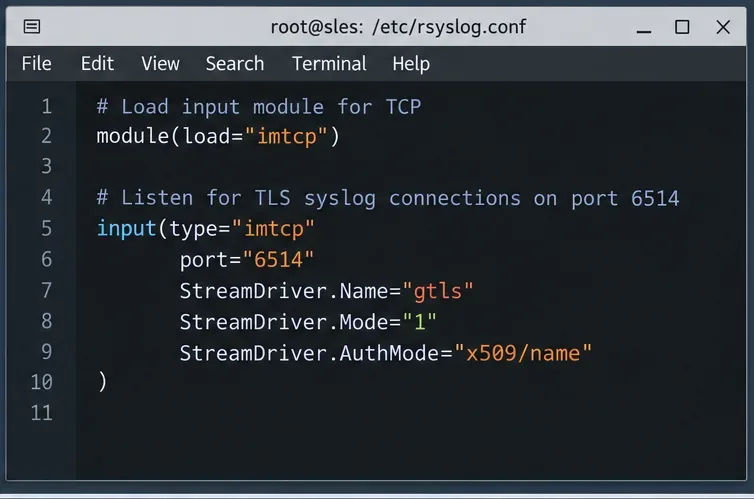
On sles01.example.net, ensure the rsyslog working directory exists and is writable by the service. The directory shown here is illustrative; retain an already configured workDirectory if your packaged setup supplies one. Add this snippet as /etc/rsyslog.d/60-tls-forward.conf:
global(
  DefaultNetstreamDriverCAFile="/etc/rsyslog.d/tls/ca.pem"
  DefaultNetstreamDriverCertFile="/etc/rsyslog.d/tls/client-cert.pem"
  DefaultNetstreamDriverKeyFile="/etc/rsyslog.d/tls/client-key.pem"
)
*.* action(
  type="omfwd"
  target="logs.example.net"
  port="6514"
  protocol="tcp"
  StreamDriver="gtls"
  StreamDriverMode="1"
  StreamDriverAuthMode="x509/name"
  StreamDriverPermittedPeers="logs.example.net"
  queue.type="LinkedList"
  queue.filename="tls_forward"
  queue.size="10000"
  queue.maxDiskSpace="1g"
  queue.saveOnShutdown="on"
  action.resumeRetryCount="-1"
)
The TLS settings authenticate the collector before sending. The disk-assisted action queue buffers messages during short outages and retries a failed forwarding action, but it is not infinite or a guarantee against all message loss: available disk space, queue limits, process shutdown behavior, and receiver health still matter. Check rsyslog's effective working directory and create it with appropriate ownership before relying on disk buffering.
Validate and restart the sender:
sudo rsyslogd -N1
sudo systemctl restart rsyslog
If configuration validation fails, do not restart; correct the first reported error. In an existing rsyslog deployment, global certificate directives may affect other TLS actions. Review other outbound actions and use supported per-action certificate parameters if they require different credentials.
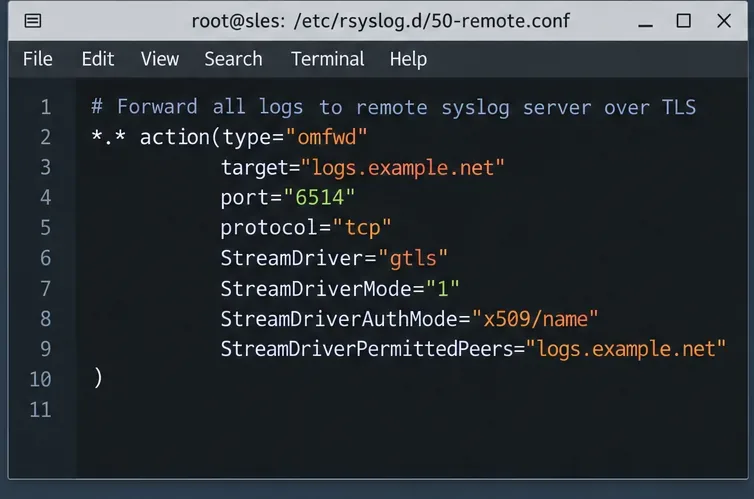
First confirm that the collector is listening on TCP/6514 and that the sender can reach the host through the firewall. Then run the following command on the SLES sender:
logger -t sles-tls-check "TLS forwarding probe"On the collector, search the configured remote log file:
sudo grep 'TLS forwarding probe' /var/log/remote-tls.log
sudo journalctl -u rsyslog -n 50 --no-pager
Finding the marker in /var/log/remote-tls.log confirms that the application-level forwarding path worked for this test. It does not prove that every application-specific log file is being collected. To test authentication independently, temporarily use a different, untrusted certificate or mismatched peer name in a controlled maintenance window and confirm that the TLS connection fails; restore the original configuration immediately.
If the marker does not appear, follow the failure in order:
systemctl status rsyslog, TCP/6514, and collector firewall rules.PermittedPeer and StreamDriverPermittedPeers; verify the CA chain, expiration dates, system clocks, and private-key permissions.journalctl -u rsyslog on both hosts.The method follows the official SLES 15 SP7 system logging guide, rsyslog certificate-authenticated client guide, imtcp listener reference, and omfwd forwarding reference. The March 2026 SUSE update notice documents the optional OpenSSL module addition. Configurations vary across SLES service packs, so validate on your installed rsyslog build before applying changes to production.
Send SLES system logs to a remote rsyslog collector over authenticated TLS, with certificate checks, outage buffering, and delivery tests.
Use RAM, swap, kernel, and Zypper logs to identify real memory pressure, protect package state, and choose a safer SLES upgrade retry.
Enable Debian’s unattended security updates over SSH, keep the default package sources, and verify scheduled runs through systemd and APT logs.
Compare mail delivery options, configure smartd on Ubuntu, and verify that disk-health warnings reach your inbox.
Restore DNS lookups on Debian 12 by checking systemd-resolved, repairing resolv.conf when needed, and verifying upstream DNS and application resolution.
Get Ubuntu to detect your monitor or TV as an audio output, select it in Sound settings, and check the connection or PipeWire device list if HDMI is missing.
Resolve Ubuntu APT signature warnings safely by identifying the failing source, refreshing its verified key, and checking the result without disabling security.
Learn the balanced three-phase formulas and convert line voltage, current, kW, kVA, and power factor step by step, with a worked example and limits to check.
Run a workload inside a systemd scope with CPUQuota and MemoryMax, then verify the limits through cgroup v2.
Set up dnscrypt-proxy as Pi-hole’s local DoH bridge on Ubuntu 24.04, with a localhost-only listener, resolver selection, and checks before switching DNS.