Diagnose a SUSE Server That Hangs at the systemd Shutdown Screen
Use systemd jobs and the previous boot journal to locate a slow service, mount, or storage dependency, then correct it without masking the cause.
If SUSE Linux Enterprise Server hangs during systemd shutdown, identify the unit with a running stop job or inspect the final messages from the previous boot, then fix that unit or its dependency. A unit is a systemd-managed resource such as a service or mount; a stop job is systemd’s request to shut one down. Do not lower a global timeout or force power off as a first fix, because a service or filesystem may still be closing files or writing data.
This walkthrough follows the SLES 15 SP7 documentation checked in October 2026. The exact stop policy depends on the service and storage vendor, so use their guidance for any unit-specific changes.
If the console shows “A stop job is running for …” with a countdown, write down the named service or mount and whether the timer changes. This means systemd awaits that unit’s stop operation, not necessarily that the OS crashed; databases and remote storage may need time to close cleanly.
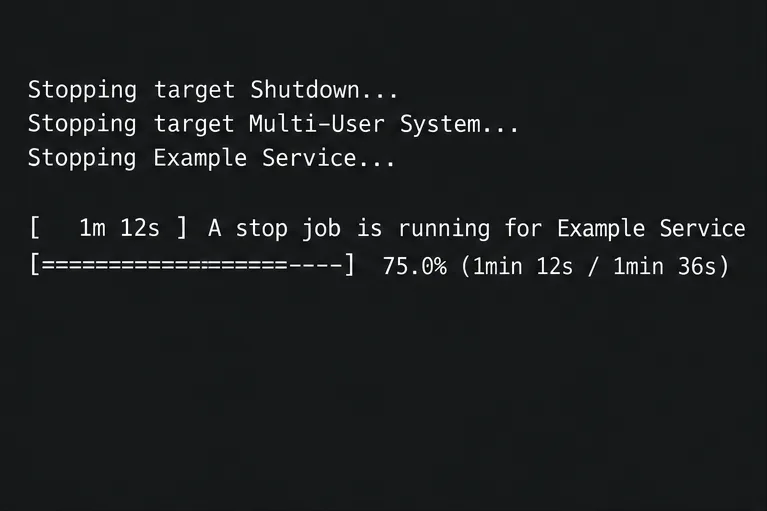
Observe through remote or serial console, or another available terminal. Avoid reset or power commands while writes may be in progress. If the system stops responding, record the last visible line and continue after it boots.
If SSH or a second terminal still works, ask systemd which jobs are running or waiting, then check the unit named on screen:
sudo systemctl list-jobs
sudo systemctl status SERVICE.service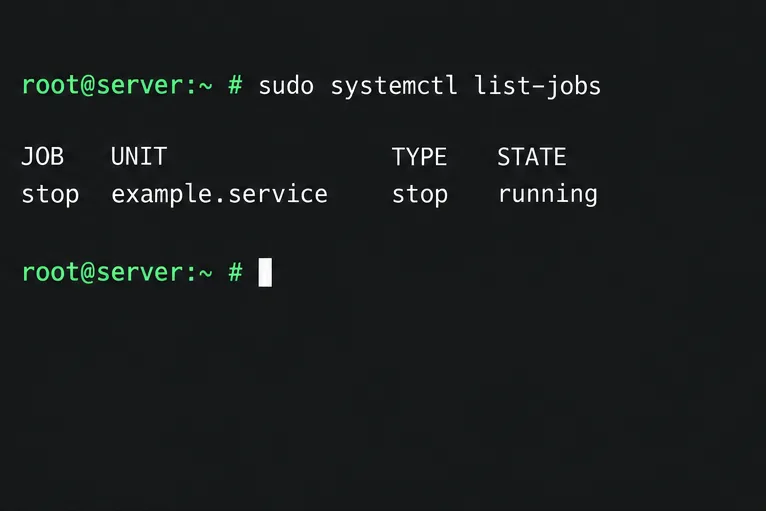
Replace SERVICE with the actual unit name. A running stop job narrows the search but does not explain why the process has not exited. Read its status and logs before changing configuration. If systemd no longer answers, do not cancel jobs blindly; inspect the previous journal after the host returns.
The journal is systemd’s indexed log of kernel, service, and system messages. After the next successful start, list recorded boots and inspect the end of the previous one:
sudo journalctl --list-boots
sudo journalctl -b -1 -e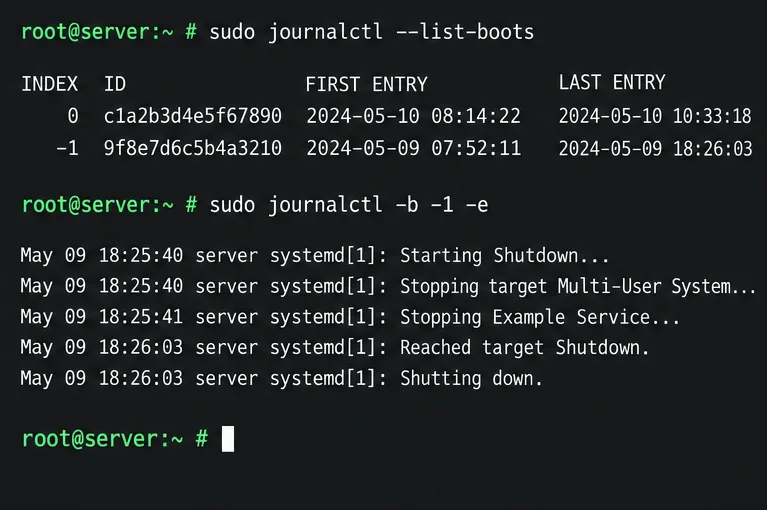
-1 offset selects the preceding boot, and -e moves to its most recent entries.Look for the last “Stopping” message, a timeout, retries, or a named device or mount. The final line is only a clue: shutdown ordering may leave another unit waiting behind it. Compare timestamps and nearby messages.
When the screen or journal names a service, query only that unit’s previous-boot entries. Review its loaded configuration as well:
sudo journalctl -b -1 -u SERVICE.service --no-pager
sudo systemctl cat SERVICE.service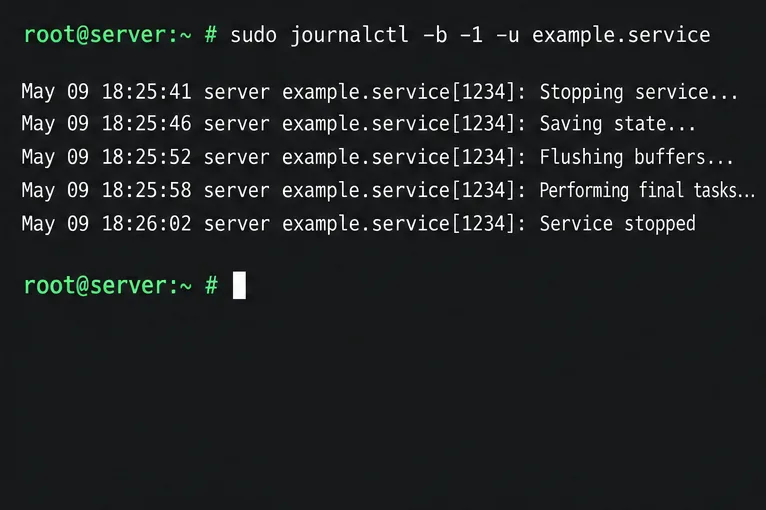
Check for a custom ExecStop, a script that waits indefinitely, a lingering child process, or an application error in its shutdown hook. For vendor units, compare the package and configuration with supported guidance before editing.
If the journal names a mount, device, or remote filesystem, inspect the mount table and the matching entry in /etc/fstab:
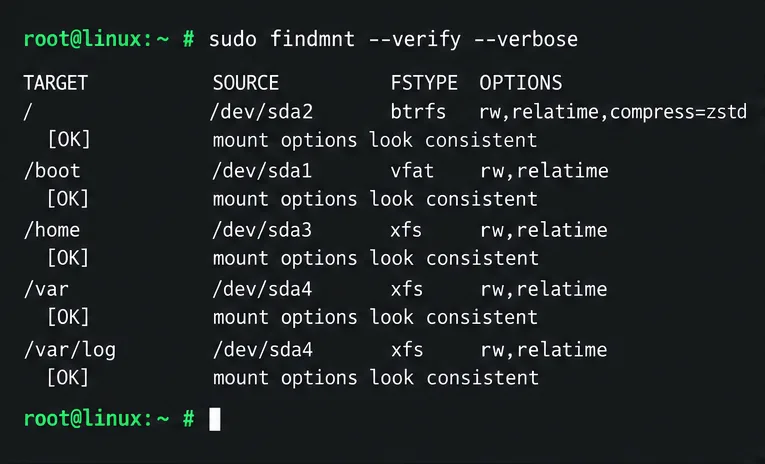
sudo findmnt --verify --verboseCheck whether an NFS, CIFS, iSCSI, or other remote dependency is reachable and expected during shutdown. Remove an obsolete mount entry only after confirming it is unused. Do not force-unmount a live filesystem based only on a slow reboot.
For a service that does not exit, fix its shutdown script, application configuration, or package issue first. A per-unit drop-in from sudo systemctl edit SERVICE.service is stored under /etc/systemd/system/ without editing the vendor file. SUSE documents TimeoutSec for service start or stop; use a vendor-approved value for this workload.
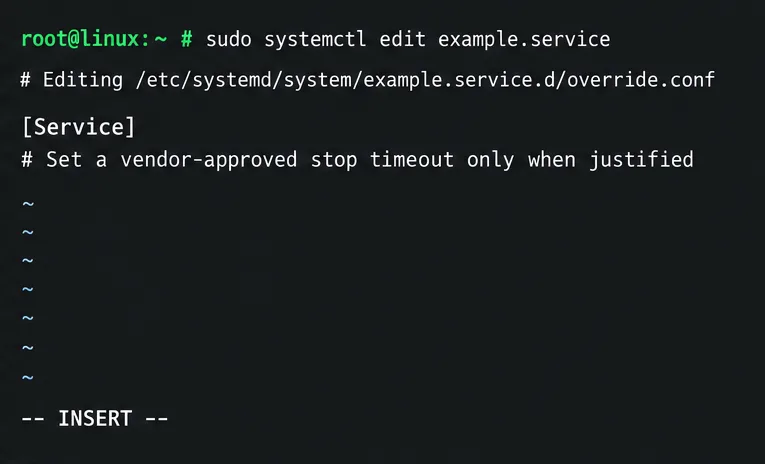
After a documented edit, reload systemd’s unit definitions with sudo systemctl daemon-reload and inspect the result with sudo systemctl cat SERVICE.service. A longer timeout can let a legitimate shutdown finish but can also lengthen a failed reboot. A shorter one may terminate a service before it flushes state. Do not change global defaults to hide one unit’s defect.
SLES stores journal data under /run/log/journal/ by default, and that volatile directory is cleared at reboot. If journalctl -b -1 has no previous-boot entries, enable persistent journal storage for future diagnosis:
sudo mkdir -p /var/log/journal
sudo systemd-tmpfiles --create --prefix=/var/log/journal
sudo journalctl --flush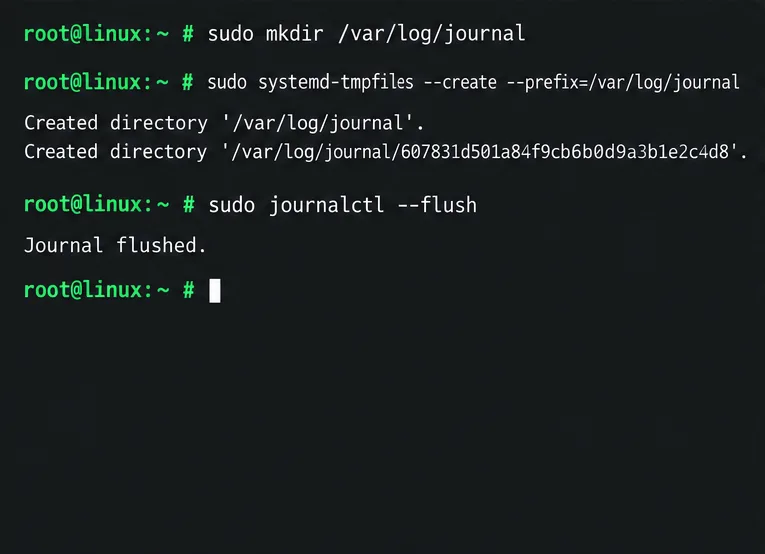
Persistent logs use space under /var; SUSE notes the journal may use up to 10 percent of that filesystem by default. Check free space and retention, especially on small /var volumes.
Once the suspected cause is corrected, schedule one controlled reboot with console access available. After the machine returns, inspect the previous boot’s final messages and check the service’s current state:
sudo journalctl -b -1 -e
sudo systemctl status SERVICE.service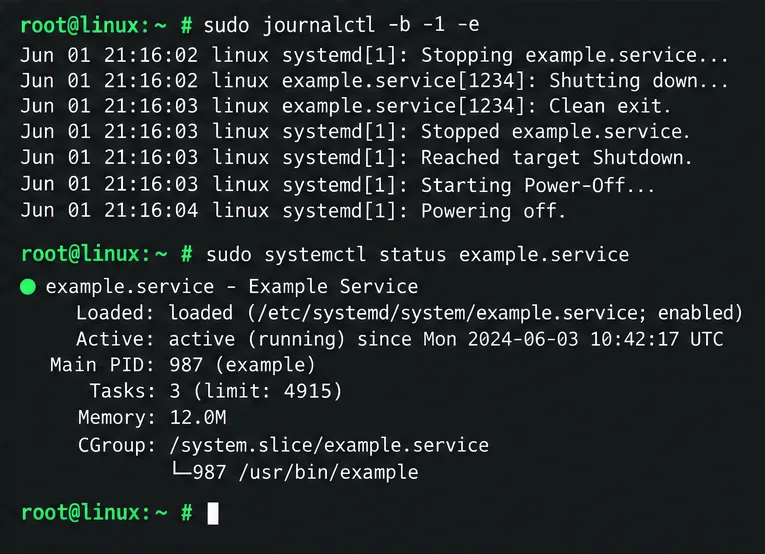
The issue is resolved when the server shuts down without waiting on the same unit, boots normally, and the service or mount works. If logs end abruptly or show kernel, controller, or hardware errors, preserve them and investigate with SUSE or the hardware vendor instead of tuning timeouts.
For command details, see the SLES 15 SP7 systemd guide and SUSE’s guide to persistent journals and journalctl filters. These steps identify likely blockers; the correct service, filesystem, or hardware remedy depends on the unit named by the machine’s own logs.
Use systemd jobs and the previous boot journal to locate a slow service, mount, or storage dependency, then correct it without masking the cause.
Use firewall-cmd to inspect the active zone, allow HTTP safely, preserve SSH access, and verify that the rule survives a reload on SLES 15.
Trace a PAM failure to its service, account policy, or identity provider, then repair the right SLES configuration while preserving a working admin session.
Trace a failed kernel module at SLES startup, correct an obsolete boot entry or repair the required driver, and verify the next boot.
Prepare SCSI SAN paths, enable multipathd, inspect SUSE’s hardware defaults, and verify stable device maps without guessing array settings.
Find the process holding Zypper’s package lock, distinguish process conflicts from package locks, and retry updates without deleting lock files blindly.
Register SLE HA, bootstrap SLES 15 nodes, then add fencing, quorum, and tested service resources before relying on failover.
Trace a Zypper refresh error to SUSE, RMT, or a third-party endpoint, then apply the right server-side or cache fix without disabling essential updates.
Resolve SUSE LVM thin-pool space errors by checking data and metadata usage, expanding the pool safely, and preventing repeat outages.
Identify whether Btrfs is intentionally read-only, short on space, or protecting data after errors, then choose a recovery path that fits the cause.