Home
» How to
»
Diagnose SLES PAM Login Failures Without Locking Yourself Out
Diagnose SLES PAM Login Failures Without Locking Yourself Out
A “PAM authentication failure” message does not point to one universal fix. First identify which service and users fail, then check the journal at the matching time. On SUSE Linux Enterprise Server (SLES), repair a confirmed global PAM issue through pam-config, and change an individual service file only when its own stack is wrong. Keep a working root or administrative session open while testing; a broken PAM stack can block new SSH and console logins.
The current SLES 15 SP7 Security and Hardening Guide describes PAM as a stack of authentication, account, password, and session modules. That distinction matters: a correct password can pass the auth stage and still be rejected later by an account policy or a service-specific rule. A generic failure message alone cannot identify which stage failed.
What does the error prove—and what does it not prove?
PAM mediates between an application, such as sshd or the console login, and the configured authentication methods. Each PAM-aware service has a file under /etc/pam.d/. The service file may include SLES common files such as common-auth and common-account, so a failure isolated to SSH can have a different cause from failures across all login methods.
Verified: SUSE’s documented SSH stack includes pam_nologin.so and common PAM files. If /etc/nologin exists, the documented module denies logins to users other than root. Context-dependent: locally edited rules, directory services, and third-party MFA modules can add further checks. Not established by the message alone: that the password is wrong, that PAM files are corrupt, or that the account is locked. Start with the affected service and its log instead of replacing the stack.
Which login path is failing?
Reproduce the failure once and note the time, username, and method: SSH, local text console, graphical login, sudo, or su. If you can sign in as an administrator, inspect recent system messages:
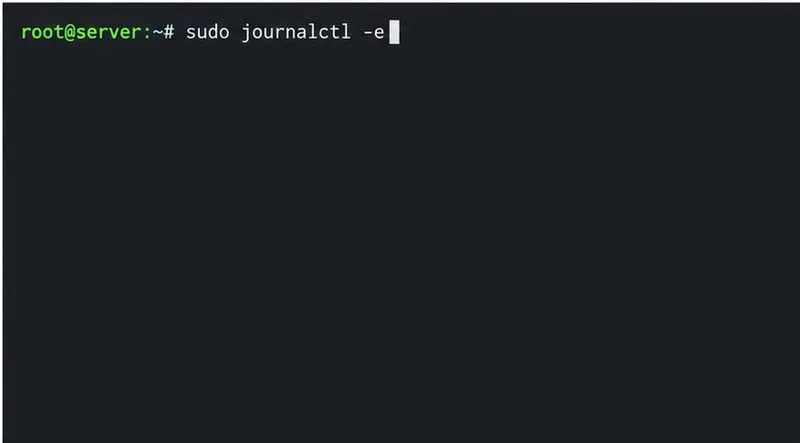
sudo journalctl -e
SUSE’s SLES troubleshooting guide specifically recommends checking the journal for login and PAM errors. Look around the exact attempt time for the module name or reason—such as a denied account, unavailable directory service, missing module, or file/permission error. Do not share logs publicly without removing usernames, hostnames, addresses, and other sensitive details.
Use the system journal around the failed login time to find PAM and login-process messages.
If only SSH is failing, inspect the SSH daemon’s journal:
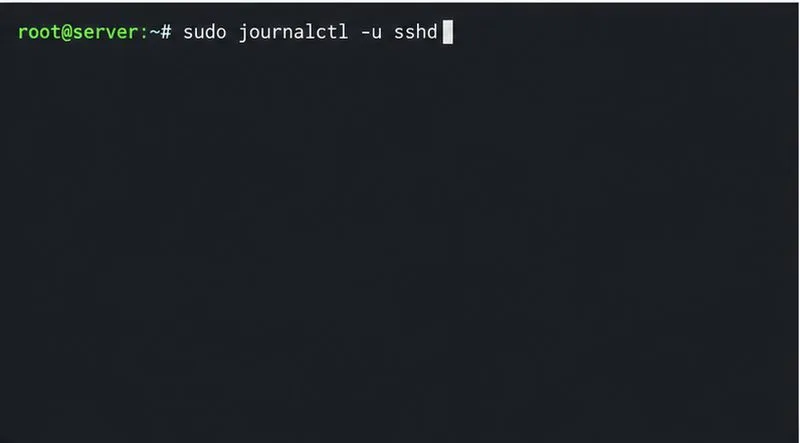
sudo journalctl -u sshd
Check the sshd journal when the failure occurs only during SSH authentication.
Then compare access paths. If a user can authenticate at the local console but not through SSH, focus on /etc/pam.d/sshd, SSH access policy, or an SSH-specific module. If multiple services reject the same local users, inspect their shared common-* files. If only one user fails, verify the account state and password before changing system-wide authentication.
Is this a local account or a network identity?
For a local user, check the username, keyboard layout, and Caps Lock first. If a credential reset is needed, use the administrator-approved password tool, such as YaST User and Group Management, rather than editing /etc/shadow by hand. If every non-root user is denied through SSH, check whether a planned maintenance file such as /etc/nologin is present before changing PAM; remove it only if the maintenance block is confirmed to be stale and you are authorized.
For LDAP, Active Directory, or another directory-backed user, a working password on another server does not prove this SLES host can reach the identity provider. SUSE lists network and DNS problems, Kerberos clock drift, misconfigured PAM rules, host access policy, and unavailable home directories among possible causes. Test whether another domain user can log in and whether the affected user can log in to a different host. Then check the configured identity service and server connectivity.
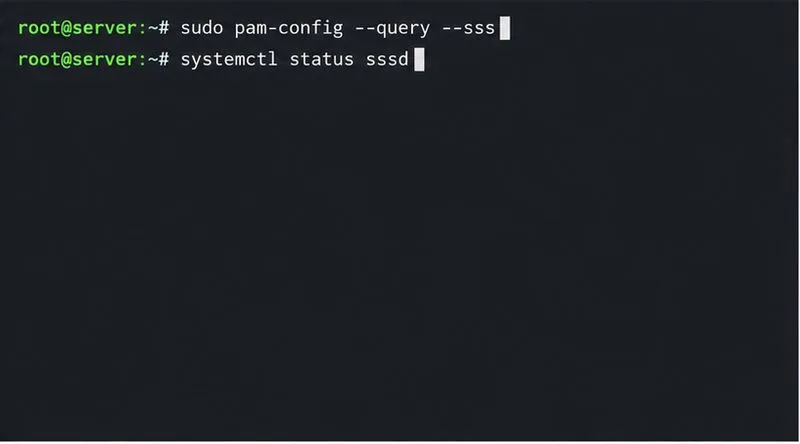
When the host uses SSSD, check its service and whether PAM is configured to use it:
systemctl status sssd
sudo pam-config --query --sss
Check whether SSSD is included in PAM and running when domain-backed users cannot authenticate.
SSSD can cache user information and may allow authentication while the directory is temporarily unreachable, but that behavior depends on its configuration and cached credentials. A stale or missing cache is therefore one possibility, not a conclusion. Check DNS, time synchronization for Kerberos, directory reachability, and SSSD logs before clearing any cache or changing modules. If the identity provider reports “Account locked out” or “Account disabled,” have the directory administrator check that account’s policy; PAM is reporting the decision, not necessarily creating it.
How should you repair a confirmed PAM configuration problem?
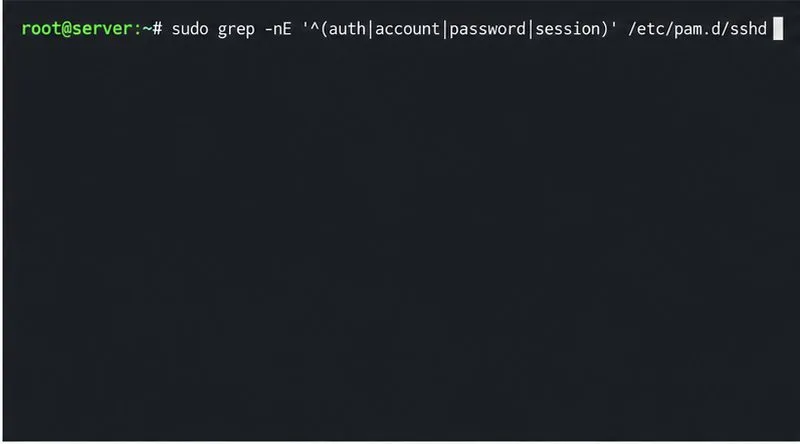
Inspect the service-specific file and the shared rules it includes:
Review the service-specific PAM stack for sshd before changing common authentication rules.
On SLES, pam-config maintains global files under /etc/pam.d/common-*; individual service files such as /etc/pam.d/sshd are maintained separately. Do not hand-edit generated common files unless you have deliberately disabled pam-config for them. If you confirm that this host is supposed to use SSSD and its SSSD PAM rules are missing, SUSE documents sudo pam-config --add --sss to add them. Use it only after confirming SSSD itself is configured and running, then test a new login while the working administrative session remains open.
A common but risky misconception is that pam-config --create is a harmless repair command. SUSE says it creates a basic Unix authentication configuration and overwrites pre-existing files it does not manage, keeping backup copies. That can remove custom MFA or directory-authentication behavior. Do not run it as a generic recovery step. For a service-file typo, restore that service’s known-good, version-appropriate configuration from a trusted backup or change the specific faulty line under your organization’s change process.
How can you confirm the repair?
Leave the original root or administrator session open. Start a second session through the same service that failed—such as a new SSH connection—and test the affected account. Confirm that the journal no longer records the same PAM denial and that another configured authentication method still works. If the failure continues, capture the exact timestamp, service, PAM module name, and relevant sanitized log lines; those details are more useful than the generic “authentication failure” message.