SLES Boot Module Load Failure: Find the Driver and Fix It
Trace a failed kernel module at SLES startup, correct an obsolete boot entry or repair the required driver, and verify the next boot.
When SLES shows “Failed to Start Load Kernel Modules” during boot, first inspect systemd-modules-load.service logs to identify the module that failed. If the module is an obsolete optional entry, remove that request from its configuration; if it is required, repair the driver or kernel mismatch instead of disabling the service.
This procedure applies to SUSE Linux Enterprise Server (SLES) 15, using the SLES 15 SP7 administration documentation as the reference. Commands should be run from a local console or a working SSH session with sudo access.
A kernel module is a driver or kernel feature that can be loaded separately. During startup, systemd-modules-load.service processes requests to load specific modules, including those defined in modules-load.d files. An unsuccessful request can make that service fail even when other parts of the server continue running.
SUSE notes that most drivers load automatically when hardware is detected. A manual module list is usually unnecessary, so an outdated entry is a reasonable possibility—but the boot message alone does not prove it. Preserve console access, take a system snapshot or configuration backup where available, and do not unload storage, network, or cluster drivers merely to make the warning disappear. See SUSE's kernel module administration guide for the supported model.
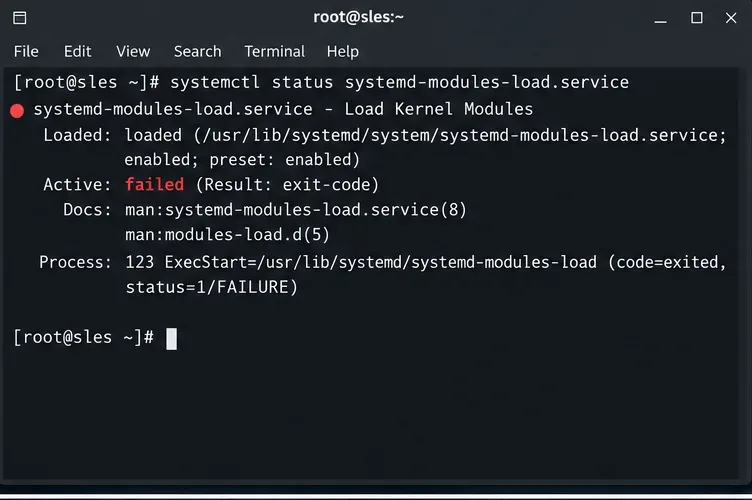
Start with the systemd status. systemd is the service manager responsible for starting services and reporting their state.
sudo systemctl status systemd-modules-load.service --no-pager
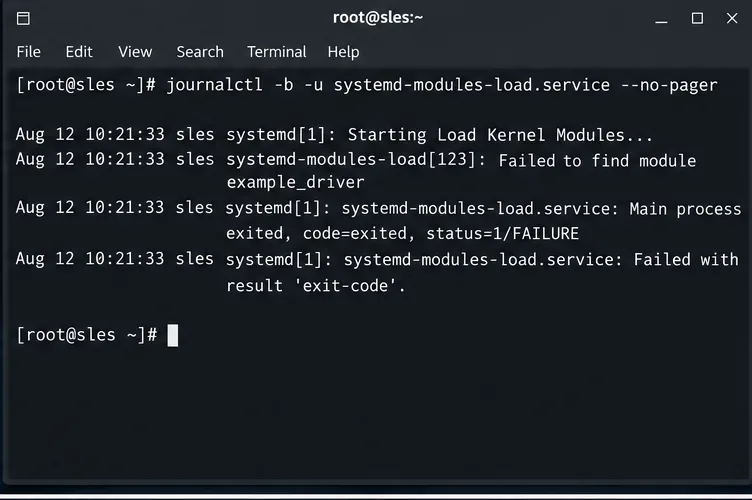
sudo journalctl -b -u systemd-modules-load.service --no-pager
The -b flag restricts journalctl to the current boot, and -u selects this service. Look above the final “Failed with result” line for messages such as “Failed to find module,” an invalid option, or a permission or signature error. Record the exact module name and error text. Do not assume the module named in the example below exists on your server.
If the service log is inconclusive, check kernel messages for additional detail:
sudo journalctl -k -b --no-pagerIf the computer cannot reach a usable login, start an older installed kernel from GRUB if one is available, or use SLES rescue media. Do not edit boot-critical modules from an untested remote-only session. SUSE documents journal filters in its journalctl administration chapter.
Suppose the journal names example_driver. Replace that placeholder with the actual module name, then search the module lists:
sudo grep -Rns --include='*.conf' 'example_driver' \
  /etc/modules-load.d /run/modules-load.d \
  /usr/lib/modules-load.d 2>/dev/null
Each matching line tells you which file requests that module at boot. An administrator's local configuration usually lives under /etc/modules-load.d/, whereas a package may provide its file under /usr/lib/modules-load.d/. A local file with the same basename takes precedence over the vendor file, as described in SUSE's systemd configuration guide. If the search finds nothing, also examine cat /proc/cmdline for boot-time module requests and verify that the failure name was copied correctly.
Open the matching file and identify whether the entry is still needed by the hardware or application. A module requested for an old, removed device is different from a storage controller driver or a cluster watchdog.
Check which kernel is running and whether the driver is available for it. modprobe loads kernel modules and resolves dependencies; its -n option performs a dry run without inserting one.
uname -r
modinfo example_driver
sudo modprobe -n -v example_driver
Again, replace example_driver. The dry run helps identify lookup or configuration problems, but does not prove that a driver will initialize successfully on your hardware or pass Secure Boot signature checks. SUSE recommends modprobe rather than direct insmod loading; details of the dry-run flags appear in the modprobe manual.
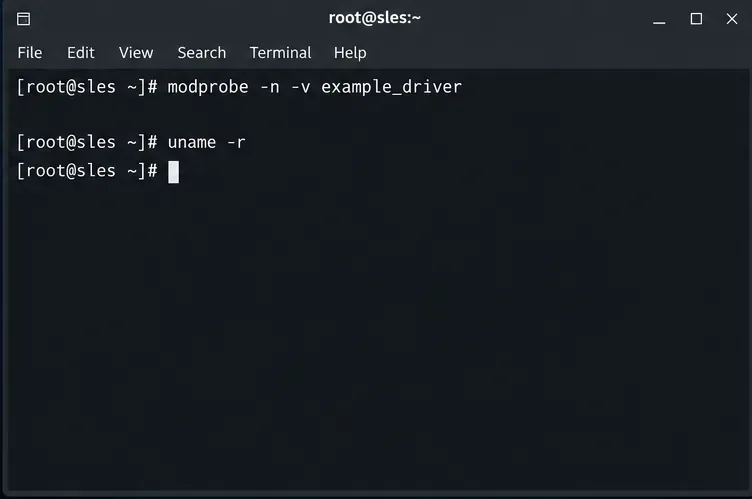
Back up the specific local file and comment out only the obsolete line. For example, if /etc/modules-load.d/example.conf is the confirmed source:
sudo cp -a /etc/modules-load.d/example.conf \
  /etc/modules-load.d/example.conf.bak
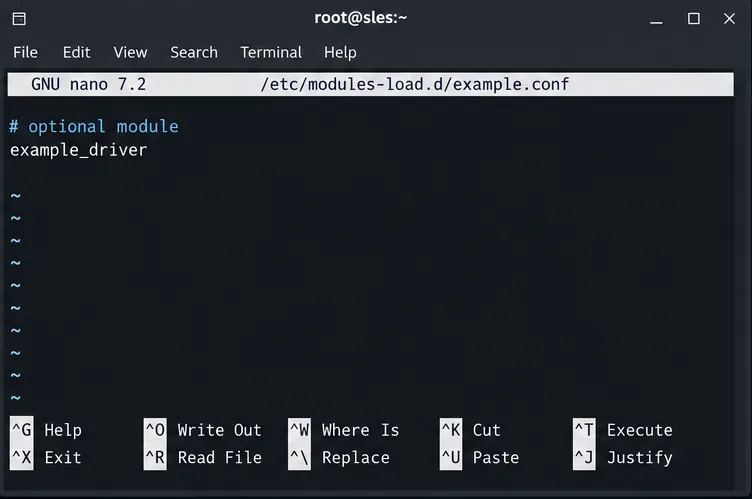
sudoedit /etc/modules-load.d/example.conf
Change a lone example_driver entry to # example_driver, save, and leave other module requests intact. If the source is a package file under /usr/lib, do not edit that packaged file directly; use a properly reviewed local override or have the package's configuration corrected. Never remove a module request merely because modinfo reports it missing if the corresponding device is required.
Do not comment it out. Confirm that the driver package supports the output of uname -r and the installed SLES service pack. A “module not found” message may indicate that the matching driver was not installed or was not rebuilt after a kernel update. An “invalid module format” message suggests a compatibility problem; kernel log lines can narrow it further. Restore or reinstall the supported matching driver through SUSE or the hardware vendor's instructions. Avoid copying arbitrary .ko files from a different kernel.
If the module exists but its dependency index is demonstrably stale, rebuild that index for the current kernel and retry the dry run:
sudo depmod -a "$(uname -r)"
sudo modprobe -n -v example_driver
This step does not install a missing driver. If you see “Required key not available” or module-signature rejection on a Secure Boot system, follow SUSE's trusted-key enrollment and driver-signing workflow; do not disable Secure Boot as a generic workaround. SUSE explains third-party driver restrictions in its Secure Boot deployment guidance.
After correcting the configuration or restoring the driver, retry the loader and inspect its status. Perform this only after validating that all remaining entries are appropriate; restarting will attempt the configured loads again.
sudo systemctl restart systemd-modules-load.service
sudo systemctl status systemd-modules-load.service --no-pager
sudo journalctl -b -u systemd-modules-load.service --no-pager
If the unit succeeds, schedule a controlled reboot with console access and run the status and journal commands again. The fix is confirmed when the service no longer fails on the new boot and any required hardware or software that depends on the module still works. If the error returns, compare the new log with the old one: another listed module may also be failing. Keep the backup until that check passes; do not mask systemd-modules-load.service merely to suppress the startup message.
Trace a failed kernel module at SLES startup, correct an obsolete boot entry or repair the required driver, and verify the next boot.
Prepare SCSI SAN paths, enable multipathd, inspect SUSE’s hardware defaults, and verify stable device maps without guessing array settings.
Find the process holding Zypper’s package lock, distinguish process conflicts from package locks, and retry updates without deleting lock files blindly.
Register SLE HA, bootstrap SLES 15 nodes, then add fencing, quorum, and tested service resources before relying on failover.
Trace a Zypper refresh error to SUSE, RMT, or a third-party endpoint, then apply the right server-side or cache fix without disabling essential updates.
Resolve SUSE LVM thin-pool space errors by checking data and metadata usage, expanding the pool safely, and preventing repeat outages.
Identify whether Btrfs is intentionally read-only, short on space, or protecting data after errors, then choose a recovery path that fits the cause.
Prepare mirrored channels, create an activation key, and bootstrap an SLES 15 client without direct internet access while preserving the connection needed for Manager check-ins.
Fix YaST’s XIO launch error over SSH, verify X11 forwarding and xauth, and switch to the ncurses interface when a remote window is unnecessary.
Find the pre-update Btrfs snapshot, test it read-only, and make recovery permanent with Snapper while understanding which data stays outside the root rollback.