Imagine picking up right where you left off on your desktop—tabs open, passwords ready, and favorites at your fingertips—now on your phone. Linking your Microsoft Edge account to your phone makes this a reality with effortless sync across devices. Whether you're on Android or iOS, this guide delivers precise, up-to-date steps to get you synced fast. No tech headaches, just smooth browsing bliss. Let's dive in! 👆
Why Link Your Microsoft Edge Account to Your Phone? The Game-Changing Benefits ⭐
Before we jump into the steps, here's why millions swear by Edge sync:
- Seamless Continuity: Open tabs from PC appear instantly on mobile.
- Secure Passwords & Data: Auto-fill logins without retyping.
- Bookmarks & History: Everything unified, no more digging.
- Collections & Notes: Your creative workspace travels with you.
Ready to unlock this? First, ensure you're set up. Pro Tip: Use the same Microsoft account everywhere for magic to happen.
Prerequisites for Smooth Syncing 📱
| Requirement |
Details |
| Microsoft Account |
Sign in on your PC Edge first: Go to edge://settings/profiles/sync. |
| Edge App |
Latest version from Google Play (Android) or App Store (iOS). |
| Internet |
Stable Wi-Fi for initial sync. |
| OS Version |
Android 7.0+ or iOS 15+ for best compatibility. |
Got these? Perfect. Now, follow these tailored guides. We'll cover Android first, then iOS. 😊
How to Link Microsoft Edge Account to Phone on Android: 1️⃣-2️⃣-3️⃣ Steps
Android users, rejoice—this is straightforward. Sync starts the moment you sign in.
- Download & Install Edge: Head to Google Play Store, search "Microsoft Edge", and hit install. Open it up.
- Sign In Magic: Tap the profile icon (bottom right). Select "Sign in to sync data". Enter your Microsoft account email and password used on PC. Boom—link Microsoft Edge account to phone activated!
- Enable Sync Features: Go to Settings > Profiles > Sync. Toggle on favorites, passwords, tabs, history. Watch data flow in real-time.
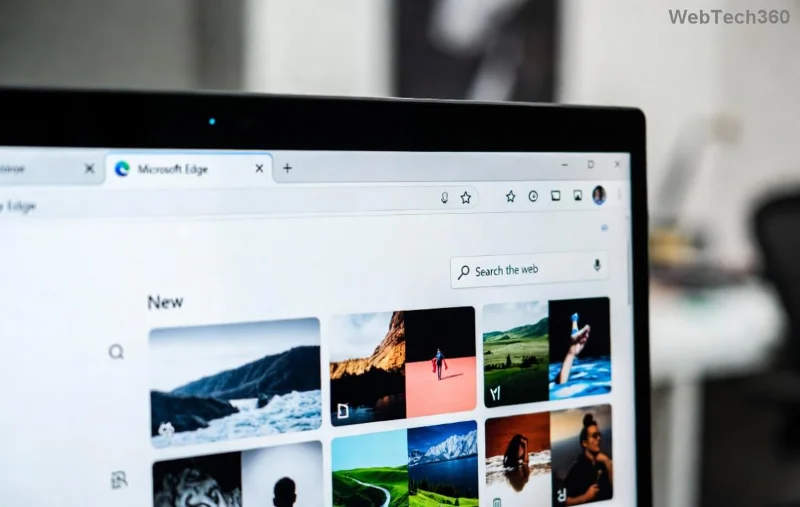
Visual cue above shows the sign-in prompt—your gateway to synced bliss! Test it: Open a tab on PC, check your phone. Instant? You're golden. 🎉
Link Microsoft Edge Account to iPhone: iOS Edition Made Simple
iOS? No sweat. Apple's ecosystem plays nice with Edge's latest updates.
- Grab the App: App Store > "Microsoft Edge" > Get. Launch it.
- Profile Sync Setup: Tap bottom profile avatar. "Sign in" > Use your PC's Microsoft credentials. Authorize if prompted.
- Customize Sync: Settings > Sync > Turn on what you need (tabs, passwords, etc.). iCloud? Edge syncs independently for purity.
![iOS Microsoft Edge sync settings screen]()
Screenshot highlight: Toggle those switches, and your data unites across worlds. Swipe to new tabs from desktop—pure joy! ✨
Verify Your Sync: Is Everything Linked? 🔍
Doubt creeping in? Quick checks:
- New tab on PC? Pull down on phone's Edge to refresh tabs.
- Save a bookmark? Search it on mobile.
- Passwords? Try autofill on a site.
![Edge sync verification with tabs and bookmarks on phone]()
The image above confirms success—tabs mirroring perfectly. If not syncing, jump to troubleshooting below. You're almost there! 👍
Troubleshooting: Fix Microsoft Edge Sync Phone Issues Fast 🚧
Bumps happen. Here's your fix-it toolkit:
| Issue |
Solution |
| No Sync After Sign-In |
Restart app, check internet, toggle Sync off/on in settings. |
| Wrong Account |
Profiles > Add profile > Sign out old, sign in correct one. |
| Slow or Partial Sync |
edge://settings/sync on PC; ensure "Continue syncing" everywhere. Clear cache if needed. |
| Password Not Filling |
Settings > Passwords > Offer to save. Enable autofill in phone OS settings. |
Still stuck? For official help, visit Microsoft Edge Support. Pro users: Enable Collections sync for next-level organization.
Pro Tips to Supercharge Your Edge Browser Sync Experience 🌟
Linked and loving it? Level up:
- Vertical Tabs: Phone layout shines—pin favorites.
- Private Mode Sync: No, it doesn't cross InPrivate, but regular does.
- Multi-Profile: Link work/personal separately for zen.
- Share tabs via "Send to devices" for on-the-go power.
Syncing transforms Edge into your ultimate companion. From rushed commutes to lazy scrolls, everything flows. Questions? Drop them below—we're in this together! Keep exploring for more browser hacks. 😎