Run Mjölnir as a Matrix Room Moderation Bot with Docker
Set up Mjölnir with a dedicated Matrix account, encrypted management room, Docker Compose, policy list, and permission checks.
If Matrix moderation is scattered across personal accounts and rooms, run Mjölnir as a dedicated bot and give moderators one private management room for commands. The simplest self-hosted setup uses Docker Compose, a separate Matrix account, and an encrypted management room; then you add the community rooms Mjölnir should protect and verify its permissions.
Mjölnir is a Matrix moderation bot that applies policy lists and moderation actions as its own account. A homeserver is the Matrix server that hosts user accounts and rooms. A management room is the private room where authorized moderators issue bot commands. A protected room is a room Mjölnir monitors and can moderate.
For this guide, you need access to a Matrix account on the homeserver, permission to create a bot account and rooms, and a host with Docker Engine and the Docker Compose plugin. You do not need to make Mjölnir a homeserver administrator for ordinary room moderation. Some server-wide actions—such as deactivating users or shutting down rooms—require a Synapse homeserver and server-admin privileges; leave those privileges out unless your use case requires them. See the project’s official Mjölnir repository.
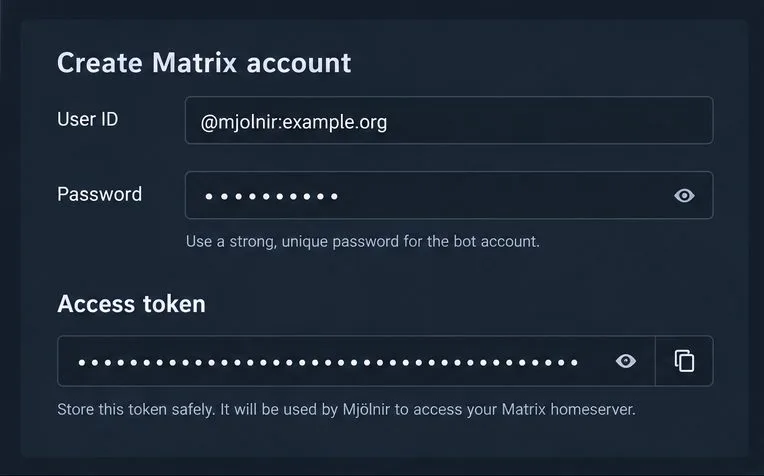
Register a dedicated account such as @mjolnir:example.org on your homeserver. Do not use a moderator’s personal account: separate credentials make it easier to rotate access and keep bot actions distinct. Create a private room for moderators, enable end-to-end encryption, and invite both the human moderators and the bot. Keep membership limited to people you trust. Anyone in the configured management room can issue commands, and Mjölnir does not provide finer-grained command permissions inside that room.
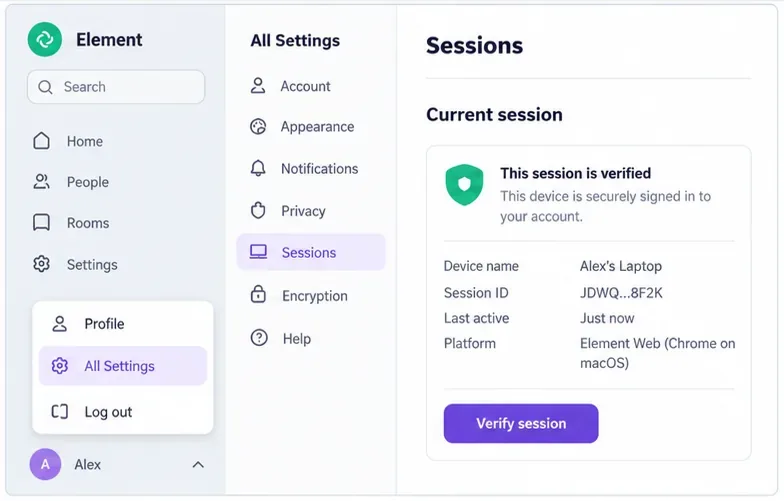
Sign in as the bot in a separate browser profile or private window to obtain its Matrix access token through Element’s Help & About settings. Copy the token into your configuration securely. Close that browser window without logging out; logging out invalidates the token. The official setup documentation recommends encryption for the management room and says to enable encryption in Mjölnir’s configuration so the bot can communicate there.
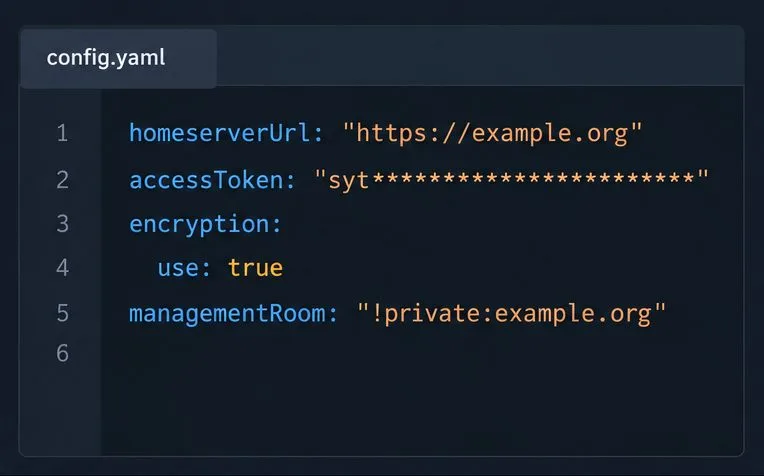
On the Docker host, create a persistent data directory and copy the project’s sample configuration to ./mjolnir/config/production.yaml. The sample file documents additional options; set only the values required for your deployment. At minimum, use your homeserver’s client API URL, the bot token, native encryption, and the management room’s Matrix room ID or alias:
homeserverUrl: "https://matrix.example.org"
accessToken: "YOUR_BOT_ACCESS_TOKEN"
encryption:
  use: true
managementRoom: "!roomid:example.org"
Replace every example value. A room ID begins with !; an alias begins with #. Do not paste a matrix.to link into managementRoom. Treat the configuration file and token as secrets: restrict file access, keep the file out of source control, and do not publish it in support requests. If the bot cannot decrypt the management room, recheck the encryption setting and confirm that the bot joined the room.
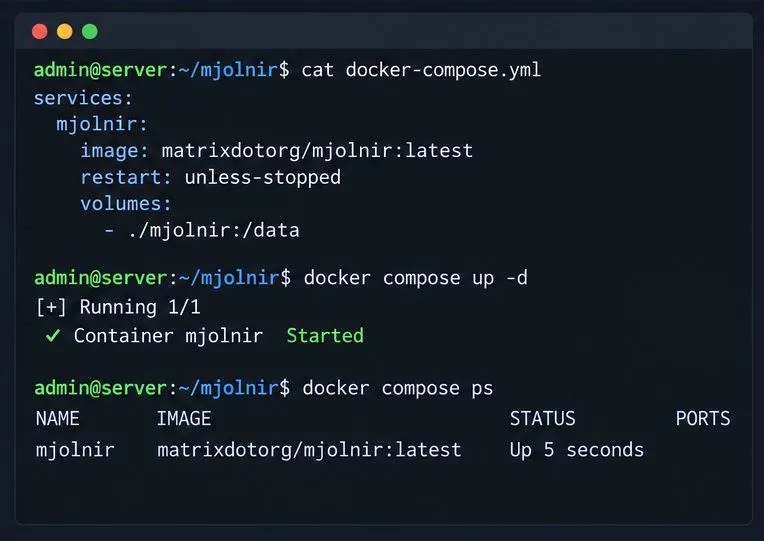
The official Docker instructions use the matrixdotorg/mjolnir image and mount a host directory at /data. Create docker-compose.yml beside the mjolnir directory:
services:
  mjolnir:
    image: matrixdotorg/mjolnir:latest
    restart: unless-stopped
    volumes:
      - ./mjolnir:/data
From that directory, start Mjölnir with docker compose up -d. The mounted directory preserves configuration and bot data when the container is recreated. The official guide uses the latest tag as an example; for a production server, choose a release tag you have tested and record it so upgrades are deliberate. Follow startup with docker compose logs -f --tail 100 mjolnir. Wait for Mjölnir’s startup messages in the management room before moving on.
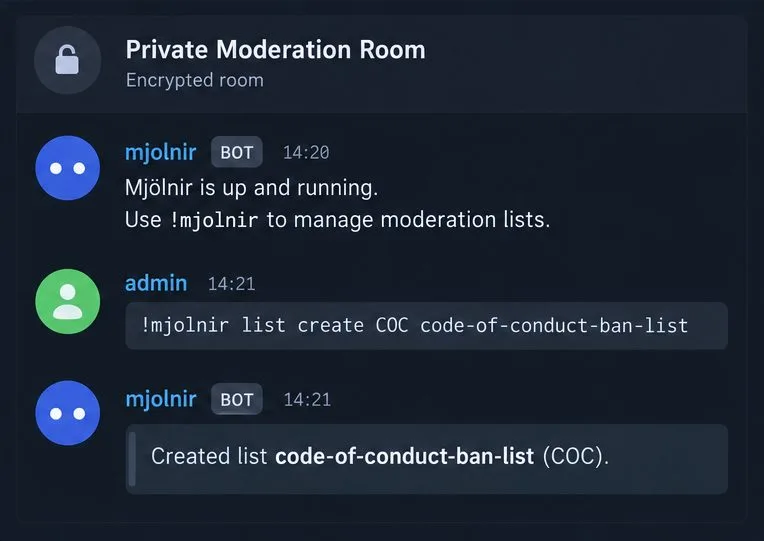
In the management room, ask the bot for !mjolnir help if it does not respond. Create a ban list with a short code and a room alias name, then make it the default list:
!mjolnir list create COC code-of-conduct-ban-list
!mjolnir default COC
Mjölnir creates the list room and invites you to it. A policy list is a Matrix room containing moderation rules, so review its visibility and membership before sharing it. Add each community room you want Mjölnir to monitor:
!mjolnir rooms add #community:example.org
!mjolnir verify
The bot needs sufficient power in every protected room to carry out moderation actions, typically the ability to ban users and redact events. Use the room’s power-level settings to grant only the permissions required. The verify command checks whether Mjölnir has the required permissions in protected rooms. Add the bot to a room before protecting it. Do not set protectAllJoinedRooms casually: it broadens protection to rooms the bot joins and makes room-by-room selection less useful.
docker compose ps shows the service running, logs show no repeated authentication or encryption errors, and the bot posts its startup status in the management room.!mjolnir status and !mjolnir rules in the configured room. Do not test commands in a public room.!mjolnir rooms lists the intended rooms, and !mjolnir verify reports adequate power levels.If the bot stays silent, first confirm the management room ID or alias is exact and that the bot is a joined member. For encrypted rooms, check that encryption is enabled and that the bot can decrypt messages. If moderation fails only in one room, check that it is protected and that its power levels permit the requested action. For command syntax and configuration options, consult the current Mjölnir moderator guide, Docker setup guide, and sample configuration.
Set up Mjölnir with a dedicated Matrix account, encrypted management room, Docker Compose, policy list, and permission checks.
Skip the retired proxy and configure Synapse’s built-in Sliding Sync. Check client discovery, then measure room-list loading and reconnect behavior on a compatible phone.
Deploy Element Web as a static site, point it to your Matrix homeserver, add HTTPS, and configure Nginx to serve updates without stale files.
Set up Conduit on a 64-bit Raspberry Pi 4 with persistent data, HTTPS federation, protected registration, and checks for a working homeserver.
Give a Matrix room an easy-to-share address on your domain using Element or the Matrix API, with checks for permissions, Synapse naming, and federation.
Configure coturn and Synapse with matching TURN credentials, open the required relay ports, and verify that Matrix clients can obtain relay candidates.
Set up a persistent Synapse homeserver with Docker Compose, PostgreSQL, a private config, and checks before exposing it through HTTPS.
Set a branded name, custom colors, and login assets for your Element Web deployment while understanding which parts remain Element-branded.
Diagnose whether Synapse hit its per-process open-file cap, set a systemd drop-in for the right service or worker, and verify the live limit.
Find out whether the error is limited to one browser or one event, then use Element’s recovery key or a trusted device without risking your remaining encrypted history.