Raise Synapse’s Systemd File Limit Without Guesswork
Diagnose whether Synapse hit its per-process open-file cap, set a systemd drop-in for the right service or worker, and verify the live limit.
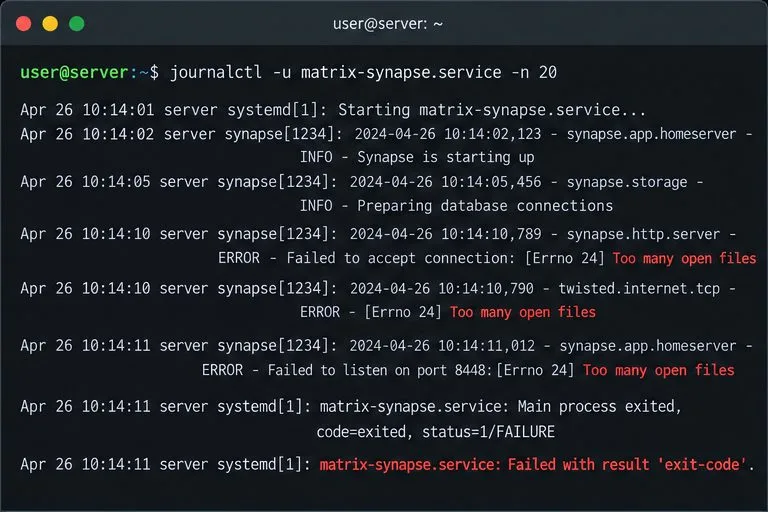
Illustrative scenario: Rowan administers a small Matrix homeserver and sees Synapse log [Errno 24] Too many open files when activity rises. If the running Synapse process has reached its systemd open-file limit, raise LimitNOFILE in a systemd drop-in for the affected service, reload systemd, and restart Synapse. Confirm the limit on the running process. Do not change a global kernel limit until you have evidence that the machine-wide file table is exhausted.
The exact limit depends on the installation and workload; the example value below is not an official Synapse minimum. Synapse’s current systemd guidance covers a master service, optional worker template units, and a target that groups them. Match the unit names to your own installation. See the Synapse systemd-with-workers documentation.
“Open files” means file descriptors: handles a process uses for sockets, files, pipes, and other resources. Synapse may need many descriptors for client connections, federation, database connections, and workers. First inspect the service and its logs:
sudo systemctl status matrix-synapse.service
sudo journalctl -u matrix-synapse.service -b --no-pager -n 100
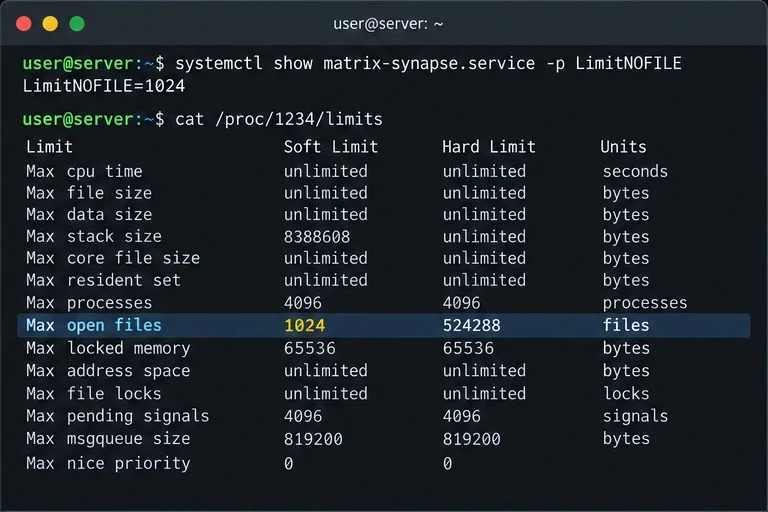
sudo systemctl show matrix-synapse.service -p MainPID -p LimitNOFILE
Replace matrix-synapse.service if your unit has another name. A package, container, or custom deployment can name or launch the service differently. Use systemctl list-units '*synapse*' to find units managed by the current systemd manager. If systemd does not directly launch Synapse, this override may not control the process.
Take the MainPID from the output and inspect that process. Substitute its numeric PID for PID:
grep -i 'open files' /proc/PID/limits
ls /proc/PID/fd | wc -l
The first command shows the running process’s soft and hard limits; the second counts its currently open descriptors. If the count is near the soft limit and the log contains Too many open files or Errno 24, a per-process limit is a plausible cause. The kernel exposes these values through /proc/<pid>/limits; see the Linux process limits reference.
For Rowan’s example, suppose the process soft limit is 1,024 and the descriptor count is close to it. That supports adjusting the unit. If the process is nowhere near its limit, inspect the full error and resource usage before raising limits; a leak or a different failure may be responsible.
A drop-in adds a small override without editing the package’s vendor unit. On a typical systemd installation, create the override for the actual master unit:
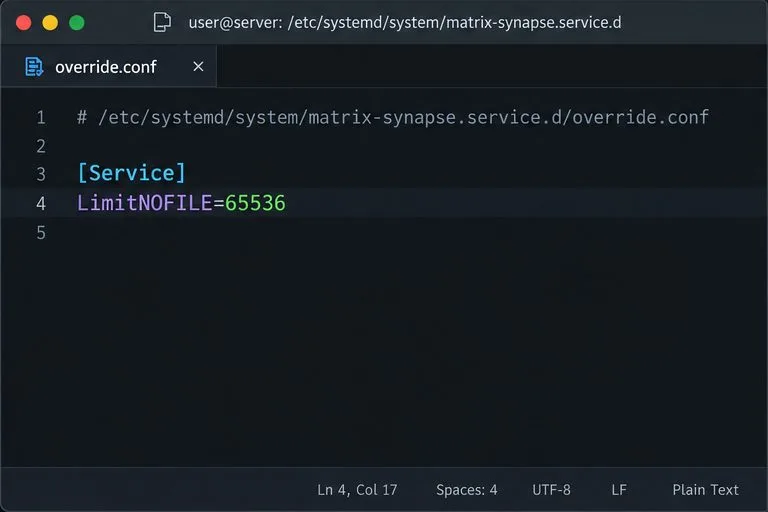
sudo systemctl edit matrix-synapse.serviceEnter this setting in the editor:
[Service]
LimitNOFILE=65536
Save and exit. 65536 is an example, not a Synapse-prescribed value. Choose a value above observed peak use with headroom, within the host’s supported hard limit and operational capacity. systemd accepts resource-limit settings such as LimitNOFILE; its documentation also cautions that some programs using select(2) cannot handle descriptors above 1,023. Confirm the runtime and application tolerate the chosen value rather than copying it blindly. Read the systemd.exec resource-limit documentation.
Reload the unit definitions and restart Synapse so the process is relaunched with the new limit:
sudo systemctl daemon-reload
sudo systemctl restart matrix-synapse.service
sudo systemctl status matrix-synapse.service --no-pager
Do not rely on ulimit -n from your SSH session to change a system service. A login shell and a systemd service receive limits from different contexts; the service’s effective setting must be inspected directly.
If you run Synapse workers, each worker is a separate service process and has its own resource limit. The official systemd example uses units such as matrix-synapse-worker@generic_worker.service. Create a matching drop-in for every active worker unit that is hitting the limit, for example:
sudo systemctl edit matrix-synapse-worker@generic_worker.serviceThen add the same [Service] and LimitNOFILE lines, reload systemd, and restart the worker or the Synapse target. The Synapse documentation shows restarting the target to restart the master and its workers together. Confirm each affected unit’s effective limit individually.
For Docker or another container manager, a host systemd override only helps if that unit directly starts the process and passes the limit through. Otherwise, set the file-descriptor limit through the container runtime or orchestration configuration, then recreate/restart the container and inspect the process inside it. Synapse’s installation documentation lists its official container image; packaging details vary, so check the runtime’s current configuration instead of applying a host-only command.
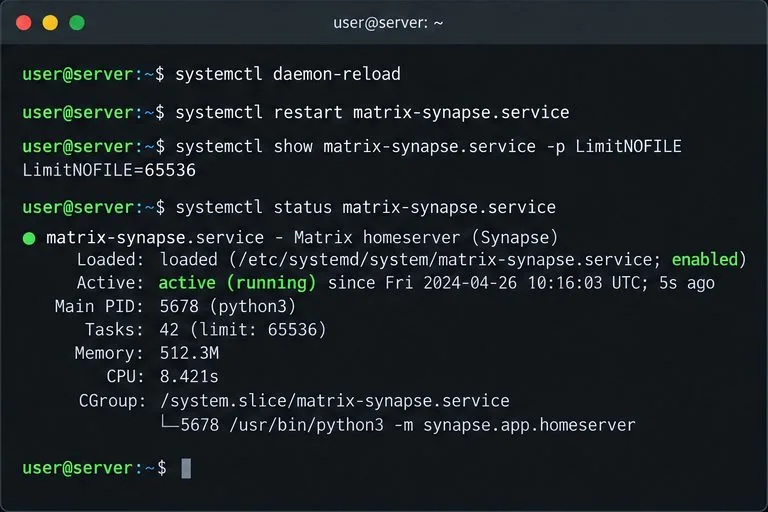
After restart, rerun systemctl show and inspect /proc/PID/limits using the new main PID. The effective soft and hard limits should reflect the configured value. Check the journal for startup failures and fresh Too many open files errors, then make a client request and confirm federation or worker activity that was affected has resumed.
If the error says Too many open files in system or logs point to the kernel file table, inspect /proc/sys/fs/file-nr: its first number is allocated file handles and its third is the maximum. A system-wide shortage is different from Synapse reaching its own descriptor limit; investigate other services and global capacity before considering kernel-level changes. The Linux proc filesystem reference documents file-nr and file-max.
For Rowan, the fix is verified only when the restarted process has the intended limit, Synapse stays active, and the original log error no longer recurs under the relevant workload. If usage keeps climbing toward the new limit, investigate descriptor leaks or capacity needs instead of repeatedly increasing the number.
Diagnose whether Synapse hit its per-process open-file cap, set a systemd drop-in for the right service or worker, and verify the live limit.
Find out whether the error is limited to one browser or one event, then use Element’s recovery key or a trusted device without risking your remaining encrypted history.
Use Synapse’s history and media purge APIs or retention settings to remove stale data safely, then verify completion and disk-space recovery.
Install the current library, connect a dedicated Matrix account, and run a small !echo bot with safer credential handling and a clear test.
Set up three mautrix bridges with separate registrations, logins, and tests—and avoid Docker networking, account-policy, and sync surprises.
Find what is filling Synapse storage, set safe media retention, and purge remote cache without deleting files directly from disk.
Review device activity, deactivate confirmed inactive Synapse accounts through the Admin API, and learn what the optional erase flag actually removes.
Find whether PostgreSQL memory comes from query work, shared buffers, connections, or maintenance, then make targeted Synapse-safe changes.
Trace slow Matrix room joins to one remote homeserver, federation backoff, local database load, or an outbound sender queue before changing Synapse settings.
Stop open account creation on a self-hosted Synapse server, or keep sign-ups invite-only with limited-use registration tokens.