Home
» How to
»
Element Shows “Failed to Decrypt”? Restore the Missing Room Key
Element Shows “Failed to Decrypt”? Restore the Missing Room Key
If Element Web shows “Failed to decrypt event,” check whether that same event opens on another device you trust. If so, restore keys on the browser using Secure Backup or that trusted device. Do not clear browser storage, sign out of your last working session, or reset your digital identity before checking recovery options; you could lose your remaining keys.
Why can one encrypted event fail to decrypt?
Matrix stores encrypted room events on the homeserver, but the homeserver does not hold the plaintext decryption keys. For group chats, clients share room-session keys with participating devices. A client that never received the relevant key cannot turn that event into readable text, even if it can display newer messages. The Matrix end-to-end encryption guide describes this device-level key sharing and key requests.
The message is a symptom, not a diagnosis. If only a new browser or device shows it, start with that session's key backup. If every device fails, no device you still control may have received the key, or the event may predate your access to the room. A missing key differs from a bad password or a slow network.
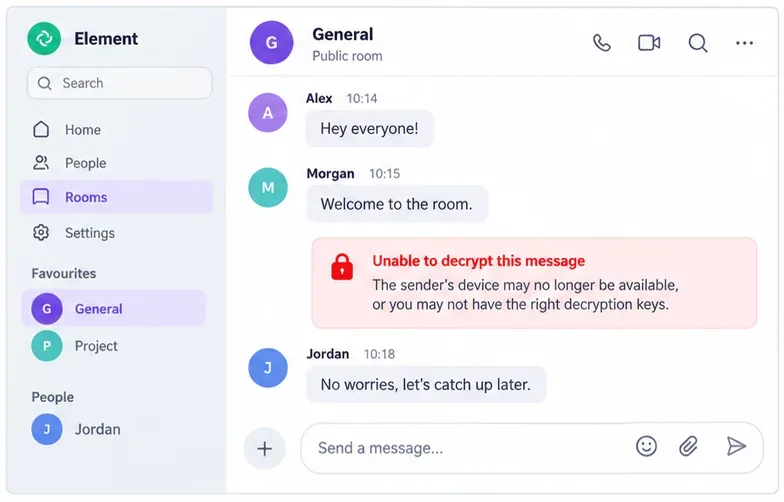
Compare the affected event. One unreadable event among readable messages suggests a missing key for that event, not necessarily a room-wide outage. Exact error text varies. Conceptual UI mockup.
Which recovery option fits your situation?
Option
Best fit
Trade-off
Restore with Secure Backup recovery key
A new browser or device needs older keys and you have the recovery key.
Restores keys that were backed up; it cannot recreate keys that were never backed up or shared.
Verify from another trusted device
You still have an active, verified Element session.
Avoids typing a recovery key, but the other device must be available and have the needed keys or be able to respond to a key request.
Ask a room participant or original sender
Only a particular event is missing and another participant can read it.
They may be able to share a key or resend the information, but they cannot recover a key they do not have.
Reset the digital identity
You have no working recovery key and no verified session.
Last resort: Element warns that prior encrypted history may become inaccessible and contacts can see an identity change.
Choose the least destructive option you still control. Clients can request keys from other devices, but a device must possess the key to share it. A person joining an encrypted room later may not decrypt earlier events if the key was never shared; refreshing will not create it.
How do you restore keys on Element Web?
Compare sessions before changing anything. Open the affected room on another signed-in device you trust. If the event decrypts there, keep that session open and use it as the recovery route. If it fails everywhere, note whether other messages in the same room still work and whether the problem is limited to one event.
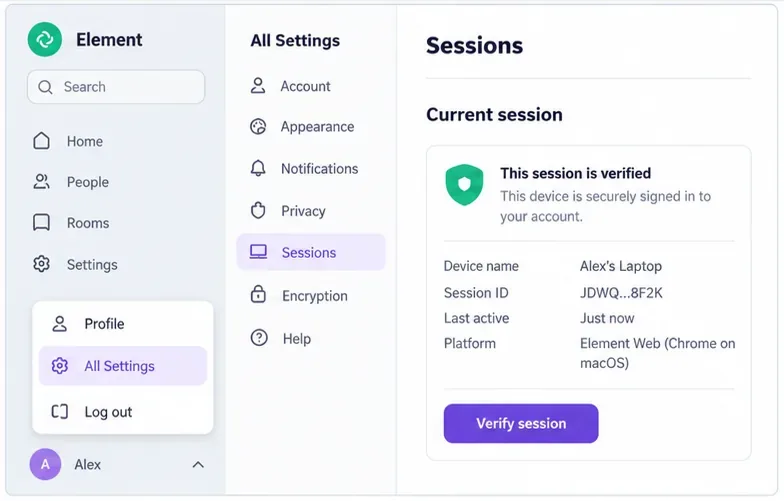
Check this browser session. In Element Web, open the profile menu, choose All Settings, then Sessions. Confirm which session is current and verified. This is a conceptual UI mockup; layouts vary by release.
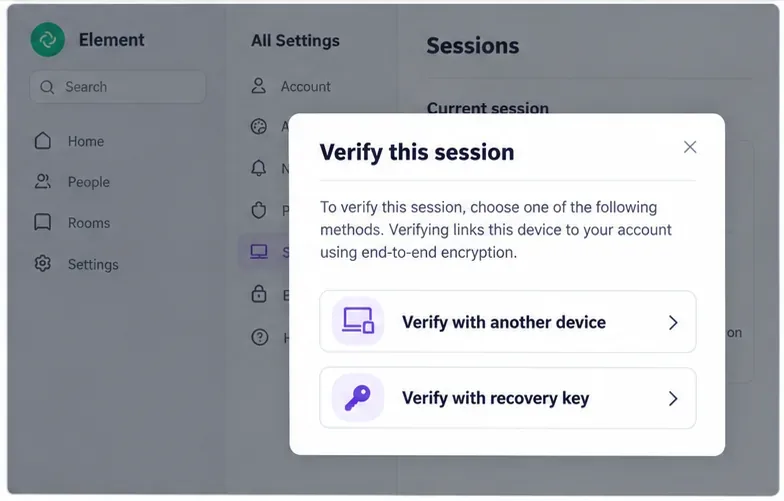
Check this browser's verification state. In Element Web, open your profile avatar, choose All Settings, then Sessions. Find Current session and look for the green shield that Element documents as a verified session. If it is unverified, select Verify session. Element documents verification with another device or with a recovery key; choose the first if you can approve the prompt on a trusted session, or the second if you have your recovery key.
Choose a verification path. Element documents another verified device or a recovery key. Verification establishes trust; it does not guarantee every old room key is already on this browser. Conceptual UI mockup.
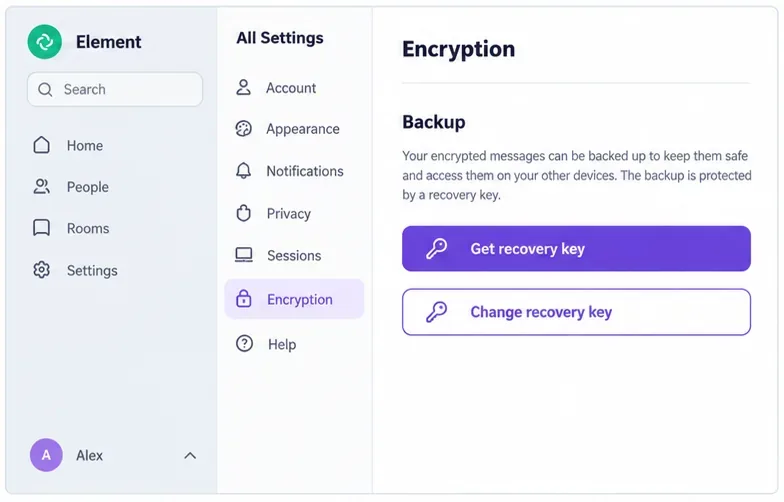
Restore the backup when the key is available. Element's recovery-key instructions distinguish the key from your account password. In All Settings → Encryption, check Backup. When prompted, use the key saved during Secure Backup setup. Never paste it into a support ticket, chat, or third-party site. If a verified session remains but you have no saved key, use it to get or set up one now.
Locate the recovery key. Element's current guidance places Backup under All Settings → Encryption. Keep the key private. Conceptual interface mockup, not a live account screenshot.
Let the client request keys, then reopen the room. Keep both the recovering browser and trusted device online, allow them to sync, and accept a key-sharing prompt only when you recognize the requesting session. Reopen the affected room or reload Element once after synchronization. Avoid clearing site data: browser storage can contain encryption state that has not yet been restored from backup.
Labels may vary by release. Element's device-verification instructions document the Sessions route and both methods. For a customized build, follow its administrator's equivalent settings.
What if only one event still fails?
Check whether another verified device can read that exact event, not just whether it can open the room. If it can, keep that device available and use the client's key-sharing or verification flow. If no device can read the event, ask the sender or another participant who can decrypt it to share the information again. For a message sent before you joined, the room's history-sharing policy and whether anyone retained its key determine what can be recovered. No administrator can decrypt a message merely by changing a homeserver setting.
Resetting your digital identity should be the final fallback. Element's account-security guidance warns that losing all recovery methods can mean losing access to encrypted messages. A reset does not decrypt old events; it creates new cryptographic identity material. If you still have any verified device, preserve it and seek help from Element's official support guidance before resetting.
How can you confirm the fix?
After restoration or verification, confirm the browser session is verified, reopen the room, and test the exact event plus a recent encrypted message. If newer messages work but an older event still fails everywhere, the session is fixed but that event's key remains unavailable. Keep your working session and recovery key safe while asking whether a participant can provide the content.