Home
» How to
»
Enable Native Matrix Sliding Sync for Faster Mobile Loading
Enable Native Matrix Sliding Sync for Faster Mobile Loading
For a current Matrix mobile client, do not add the old standalone Sliding Sync Proxy to Docker Compose. The proxy was archived in November 2025; Synapse serves native Simplified Sliding Sync itself, enabled by default since Synapse 1.114. Update Synapse to a supported release, check that the native capability reaches clients through your public URL, and measure loading on a client that supports it.
What changed, and what you need
“Sliding Sync” originally referred to the proxy implementation of MSC3575, which sat in front of Synapse and needed a separate service and discovery setting. The Matrix specification evolved: MSC4186, Simplified Sliding Sync, replaced that design. The official proxy repository is archived and says modern clients are no longer expected to work with it. Synapse added native support for MSC3575 and MSC4186 and enabled it by default beginning with v1.114.0, as recorded in the Synapse changelog.
This guide assumes Synapse already runs with Docker Compose behind a public HTTPS URL such as https://matrix.example.org. You need shell access to the Compose project, a way to edit its image tag and homeserver configuration, and a mobile app whose current version supports native Sliding Sync. If you only wanted a faster initial load in a client that does not support it, adding a proxy will not make that client use the feature.
Prepare a safe Synapse update
Use a currently maintained Synapse release rather than pinning a new deployment to the historical feature minimum. Review the official Synapse releases and the upgrade notes for the version you are moving from. Back up the database and the Synapse data/configuration volumes before upgrading, and check whether the notes call for intermediate upgrade steps. This matters especially on old installations: Synapse’s security advisory for a Sliding Sync room-state disclosure lists affected releases through v1.120.0 and fixes it in v1.120.1. Choose a current supported release with later fixes, not merely that first patched version.
In your Compose file, identify the service key for Synapse and the image tag it uses. If the tag is pinned to an old version, change it to the supported release you selected. Then pull and recreate only that service; replace synapse below if your service has another name:
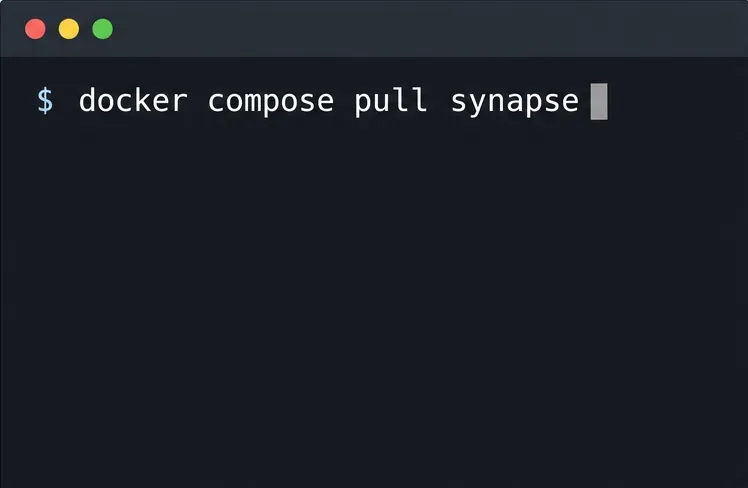
Pull the Synapse image after updating its tag to the release selected for your deployment.
docker compose pull synapse
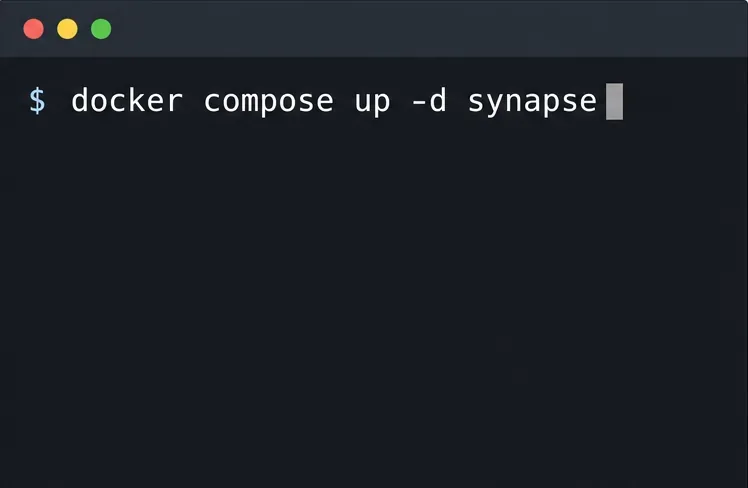
Recreate the Synapse service so Compose runs the selected image.
docker compose up -d synapse
docker compose logs --tail=100 synapse
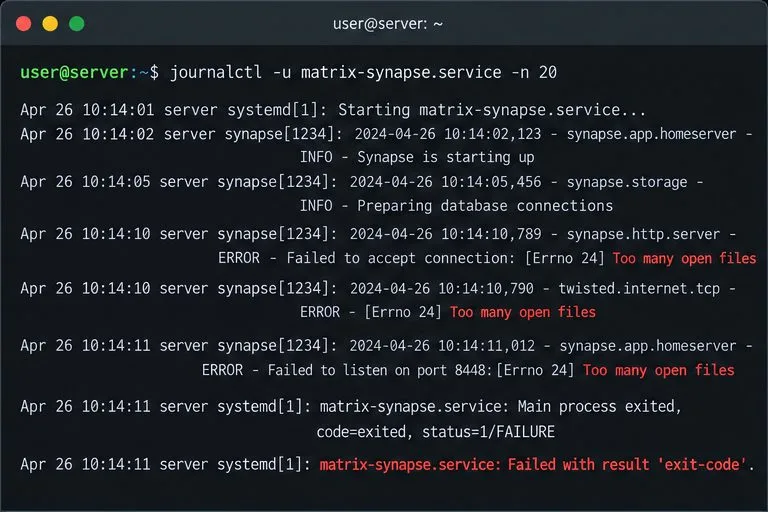
Review the logs for startup errors and a completed database upgrade before continuing. Do not run a blind downgrade if startup fails; consult the version-specific upgrade guidance and restore a backup only using the recovery process appropriate to your database.
Confirm native Sliding Sync is enabled
Synapse normally enables native Sliding Sync by default, so a fresh install often needs no extra YAML. The setting retains the older MSC name, which can be confusing: it controls Synapse’s native implementation and is not a request to run the retired proxy. Check your existing homeserver.yaml for an explicit false value. If you find one, change it in the existing feature block:
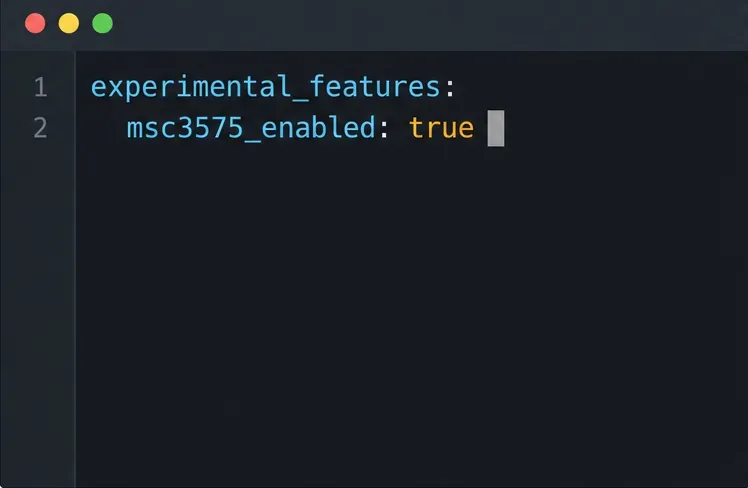
If your Synapse configuration explicitly disables the capability, enable it in the existing experimental_features block.
experimental_features:
  msc3575_enabled: true
If experimental_features already exists, edit that block instead of adding a duplicate YAML key. If the setting is absent or already true, leave it alone. Recreate the Synapse service after a configuration change and check its logs. A YAML indentation error can prevent Synapse from starting.
Remove the retired proxy path and test discovery
Inspect the JSON served at https://matrix.example.org/.well-known/matrix/client. If it contains the old org.matrix.msc3575.proxy property, remove that property while preserving unrelated client discovery entries. Also remove any reverse-proxy rule that sends Matrix client requests to the retired proxy; the standard /_matrix/client/ API path must reach Synapse. Do not add a new proxy port or advertise a proxy URL for native MSC4186. Keep any other well-known values, including your homeserver URL, as required by your setup.
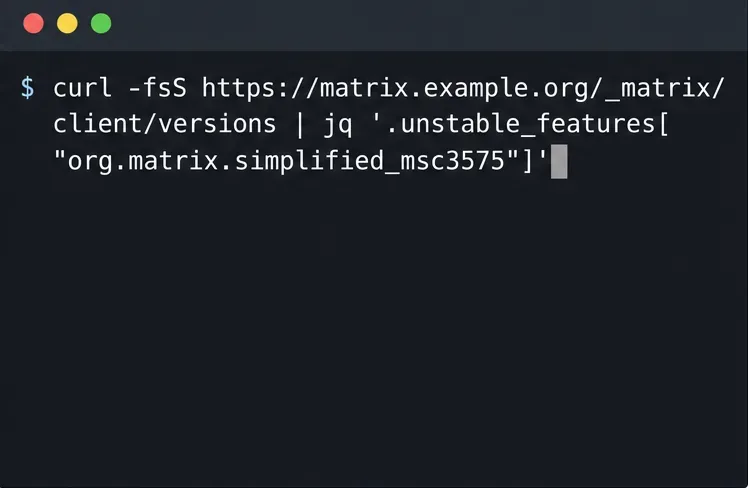
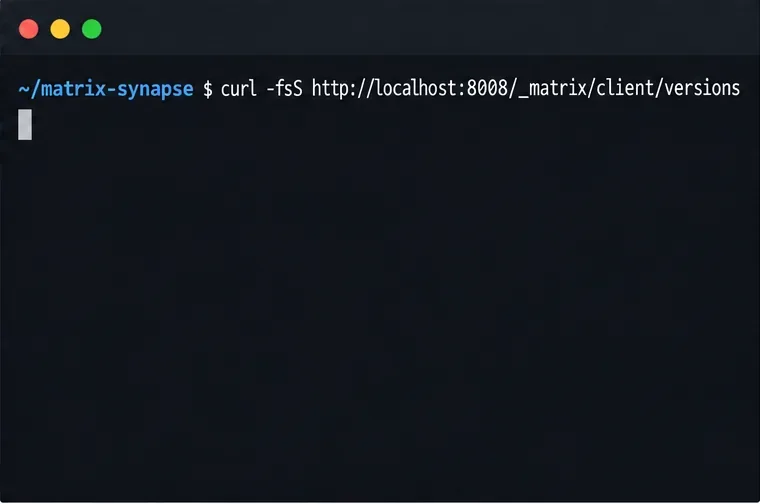
From a machine that can reach the public homeserver, query the Client-Server versions endpoint. This checks the service clients actually discover, rather than only checking a container on the private Docker network:
Check the public homeserver response for the native simplified_msc3575 capability.
For a Synapse release with native support enabled and a correctly routed endpoint, this should print true. If jq is unavailable, run the curl request without the pipe and inspect the JSON field. A missing or false value is a useful fault signal: verify that DNS and HTTPS reach the expected server, that the reverse proxy passes the client API path to Synapse, that the running image is the version you selected, and that no explicit configuration disables the feature. Do not expose access tokens when sharing diagnostic output; this public versions request does not need one.
Judge the result on a compatible phone
Sign in or reconnect with a client version that supports the native protocol, using the same account and phone you will use for comparison. Record a baseline before changing the server if possible. Compare a cold app start after clearing or rebuilding local app data only if you understand that this removes cached content; then compare ordinary warm starts and a reconnect after the phone has been offline. Keep the network, account, room set, and test method consistent.
Measure the time from opening the app until the room list is usable, not just until a splash screen disappears.
Check whether recent room names, unread state, and new messages appear promptly after reconnecting.
Watch Synapse logs for endpoint errors, repeated retries, or worker/database pressure during the same test.
A faster first room list and a clean catch-up after reconnect are practical signs that the client is using the expected path. There is no universal speed gain: client implementation and local cache, network latency, database performance, account room count, and server load all affect the result. Sliding Sync also does not accelerate media downloads or repair an overloaded database. If the capability check passes but the app remains slow, compare another supported client and investigate those bottlenecks before changing proxy or cache settings. If you still operate older clients that depend on the retired MSC3575 proxy, test their compatibility separately before removing their old discovery path; do not assume one endpoint serves every client generation.