Set Up coturn for Reliable Matrix Voice and Video Calls
Configure coturn and Synapse with matching TURN credentials, open the required relay ports, and verify that Matrix clients can obtain relay candidates.
Run Synapse as a Docker Compose project with a persistent configuration directory and a PostgreSQL database. The setup below generates Synapse’s signing keys and homeserver.yaml, connects it to PostgreSQL, and keeps the HTTP listener on localhost so you can place HTTPS and federation behind a reverse proxy before opening the server to the internet.
Synapse is the Matrix homeserver: it stores accounts, rooms, events, and media for a server. Docker Compose runs the Synapse and PostgreSQL containers from one YAML file. This is a single-machine starting point, not a complete public Matrix deployment.
Install Docker Engine and the Docker Compose plugin, then confirm that docker compose version works. Docker Desktop includes Compose on Windows and macOS; Linux users can install the Compose plugin from Docker’s package repository. See Docker’s Compose installation instructions.
Choose the permanent Matrix server name before generating the configuration. It appears in user IDs, such as @alex:matrix.example.org, and changing it later is not a routine hostname edit. In this example, matrix.example.org is both the Matrix server name and public hostname. For a public server, point its DNS record to your host and plan an HTTPS reverse proxy. Synapse’s generated HTTP listener on port 8008 is suitable for local testing; its installation documentation says practical use requires HTTPS.
On the Docker host, create a working directory and the persistent folders. The synapse folder will hold the generated configuration and signing key; data/postgres will hold the database files.
mkdir -p ~/matrix-synapse/synapse ~/matrix-synapse/data/postgres
cd ~/matrix-synapse
umask 077
openssl rand -hex 32
Copy the command’s output into a new .env file as DB_PASSWORD=.... Keep this file private and make a secure backup of it. Compose reads .env for substitutions in the Compose file; Synapse does not automatically expand those variables inside homeserver.yaml. You will enter the same password in that config in step 3.
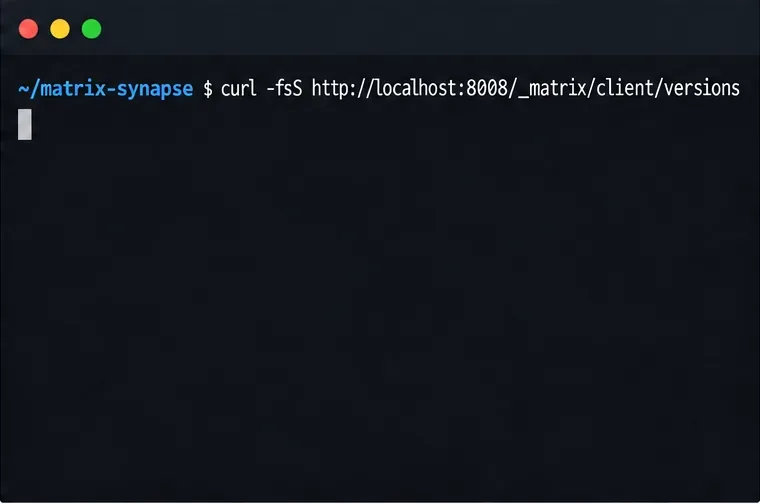
Create docker-compose.yml in the project directory. This example uses the official Synapse image published by Element HQ and PostgreSQL 16. The Synapse port is bound to loopback rather than every network interface. The health check helps Compose wait for PostgreSQL before starting Synapse.
services:
  synapse:
    image: ghcr.io/element-hq/synapse:latest
    restart: unless-stopped
    environment:
      SYNAPSE_CONFIG_PATH: /data/homeserver.yaml
    volumes:
      - ./synapse:/data
    ports:
      - "127.0.0.1:8008:8008"
    depends_on:
      db:
        condition: service_healthy

  db:
    image: postgres:16-alpine
    restart: unless-stopped
    environment:
      POSTGRES_USER: synapse
      POSTGRES_PASSWORD: ${DB_PASSWORD}
      POSTGRES_DB: synapse
      POSTGRES_INITDB_ARGS: --encoding=UTF-8 --lc-collate=C --lc-ctype=C
    volumes:
      - ./data/postgres:/var/lib/postgresql/data
    healthcheck:
      test: ["CMD-SHELL", "pg_isready -U synapse -d synapse"]
      interval: 10s
      timeout: 5s
      retries: 5
Put DB_PASSWORD=your-generated-value in .env, using the random value from step 1. Do not commit this file to source control. If you change the PostgreSQL major version later, follow PostgreSQL’s upgrade procedure rather than simply pointing a newer image at an existing data directory.
Generate the initial configuration and signing key in the mounted synapse directory. Use the same server name you chose above. Set the statistics choice explicitly; here it is no.
docker compose run --rm --no-deps \
  -e SYNAPSE_SERVER_NAME=matrix.example.org \
  -e SYNAPSE_REPORT_STATS=no \
  synapse generate
The official container’s generate mode creates homeserver.yaml and the required signing key. Open synapse/homeserver.yaml and replace its SQLite database section with the following. Replace PASTE_THE_SAME_DB_PASSWORD_HERE with the exact value stored in .env. This field is a literal Synapse configuration value, not Compose interpolation.
database:
  name: psycopg2
  args:
    user: synapse
    password: PASTE_THE_SAME_DB_PASSWORD_HERE
    dbname: synapse
    host: db
    port: 5432
    cp_min: 5
    cp_max: 10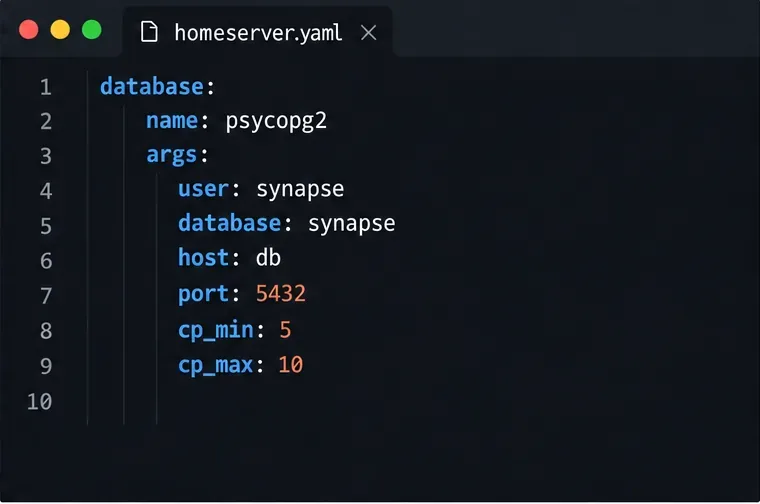
Keep the generated registration_shared_secret private. Synapse uses it for the command-line user-registration tool; anyone who obtains it can create accounts, including administrators. Leave public registration disabled unless you deliberately intend to offer it and have reviewed the associated abuse controls.
From the directory containing docker-compose.yml, validate the Compose file and start the services:
docker compose config
docker compose up -d
docker compose ps
docker compose logs --tail=100 synapse db
The first command checks that Compose can parse the file and resolve DB_PASSWORD. The next starts the database and homeserver in the background. Check the logs for database connection errors or a missing configuration file. Because this setup bind-mounts the local folders, the database and Synapse configuration persist when containers are recreated.
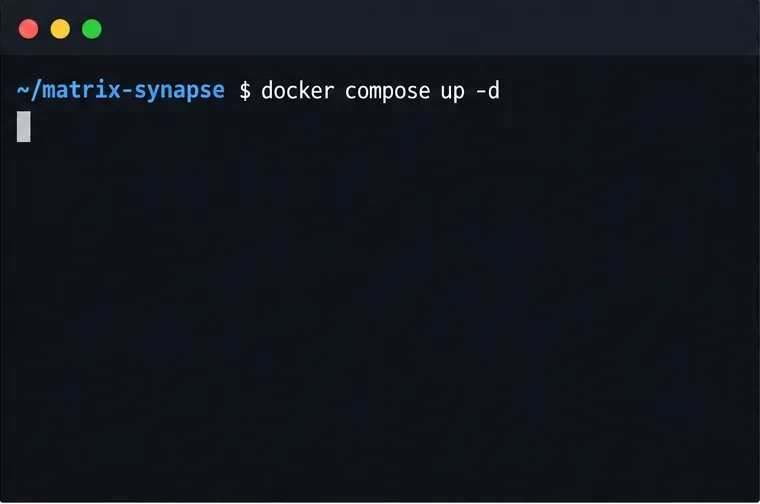
Run the Matrix client versions request from the Docker host. A JSON response means the client API is responding; an empty reply, connection refusal, or HTTP error means you should inspect the Synapse logs and confirm that port 8008 is listening.
curl -fsS http://127.0.0.1:8008/_matrix/client/versionsOnce it responds, create an initial user interactively. This command prompts for a username and password; choose “no” for administrator unless you specifically need an admin account.
docker compose exec synapse register_new_matrix_user \
  -c /data/homeserver.yaml http://localhost:8008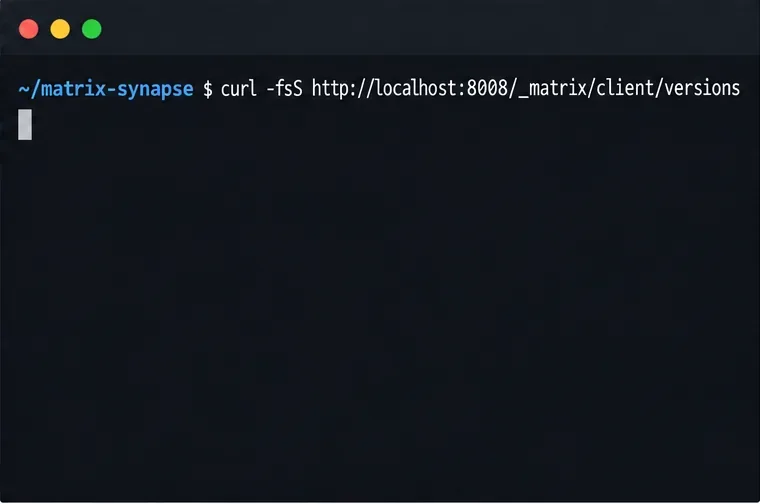
The localhost-only port mapping is intentional: it prevents direct public access to the unencrypted HTTP listener. For remote clients, configure a reverse proxy with a valid TLS certificate and forward Matrix paths to Synapse. The proxy must pass the X-Forwarded-For and X-Forwarded-Proto headers; in the generated listener configuration, enable x_forwarded: true for port 8008. Do not set a containerized Synapse listener to bind only to 127.0.0.1, because that prevents a proxy container from reaching it. If the reverse proxy is also containerized, put it and Synapse on a shared Docker network and proxy to the service name synapse:8008.
Federation is separate from local startup. Other Matrix servers need to discover and reach your server, commonly on port 8448 or through delegated HTTPS discovery. DNS, reverse-proxy routing, and any required .well-known records must match the chosen server name. Follow Synapse’s reverse-proxy documentation and installation guidance before announcing a public homeserver. Voice and video calls also need a TURN server for reliable media connectivity.
If Synapse cannot connect to PostgreSQL, verify that host is db (the Compose service name), that both passwords match exactly, and that the database container is healthy. If the endpoint cannot be reached, check docker compose ps, the Synapse logs, and whether another service already uses host port 8008. Back up both the PostgreSQL data directory and the Synapse configuration and signing key; the signing key is essential to the server’s identity.
For PostgreSQL configuration details, consult Synapse’s PostgreSQL guide. For container options and user creation, use the official Synapse Docker documentation.
Configure coturn and Synapse with matching TURN credentials, open the required relay ports, and verify that Matrix clients can obtain relay candidates.
Set up a persistent Synapse homeserver with Docker Compose, PostgreSQL, a private config, and checks before exposing it through HTTPS.
Set a branded name, custom colors, and login assets for your Element Web deployment while understanding which parts remain Element-branded.
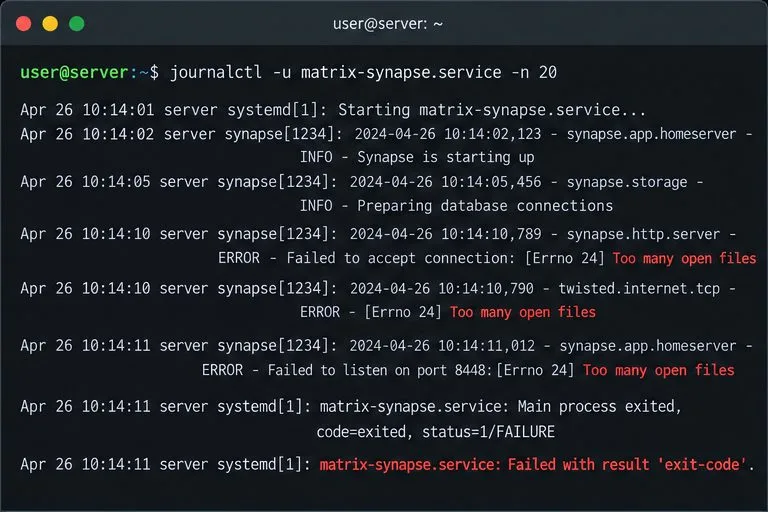
Diagnose whether Synapse hit its per-process open-file cap, set a systemd drop-in for the right service or worker, and verify the live limit.
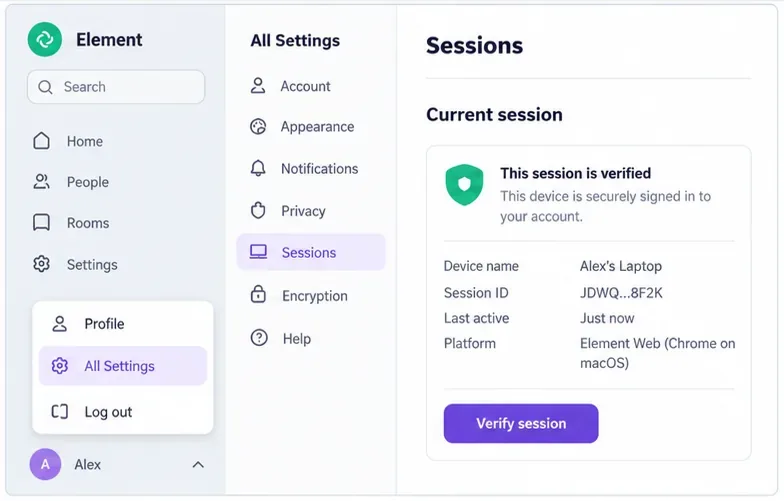
Find out whether the error is limited to one browser or one event, then use Element’s recovery key or a trusted device without risking your remaining encrypted history.
Use Synapse’s history and media purge APIs or retention settings to remove stale data safely, then verify completion and disk-space recovery.
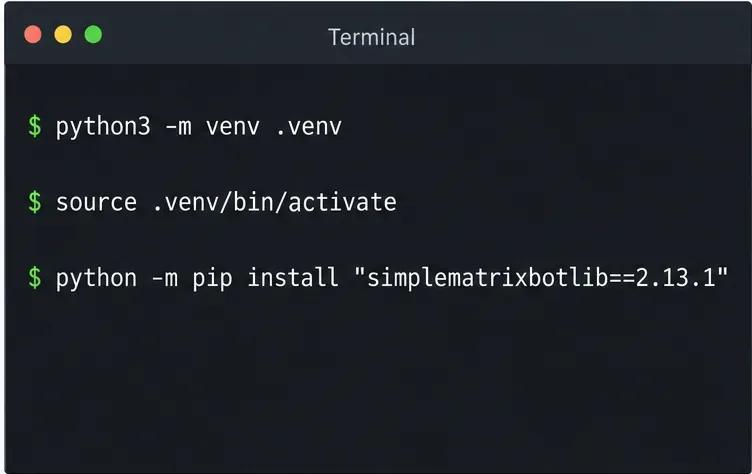
Install the current library, connect a dedicated Matrix account, and run a small !echo bot with safer credential handling and a clear test.
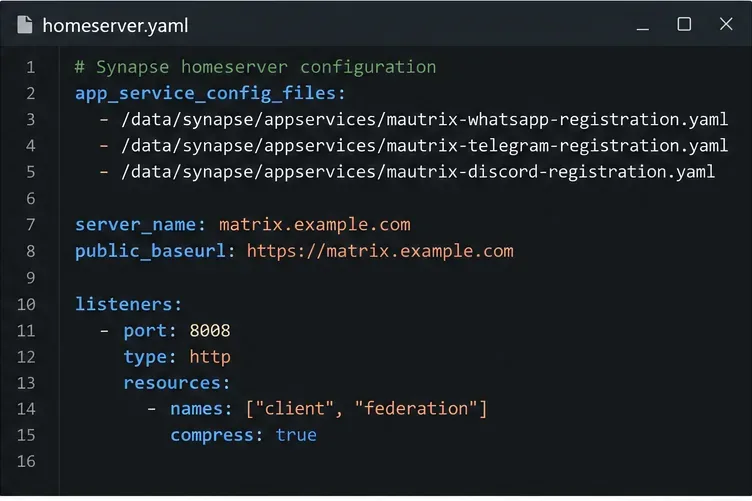
Set up three mautrix bridges with separate registrations, logins, and tests—and avoid Docker networking, account-policy, and sync surprises.
Find what is filling Synapse storage, set safe media retention, and purge remote cache without deleting files directly from disk.
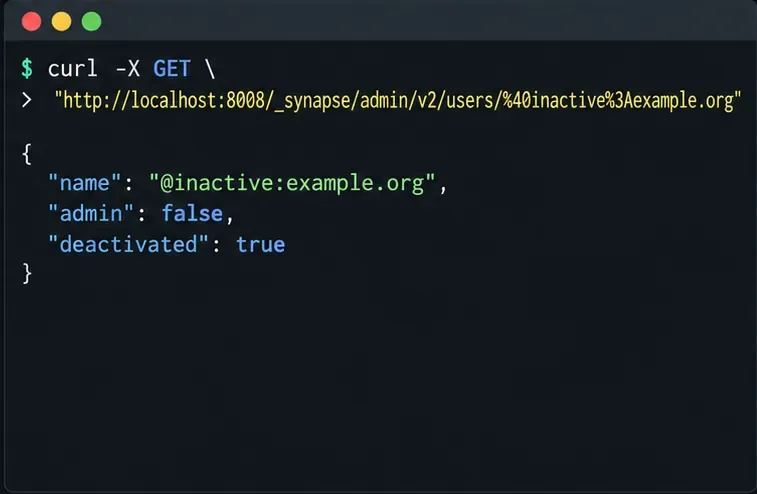
Review device activity, deactivate confirmed inactive Synapse accounts through the Admin API, and learn what the optional erase flag actually removes.