Set Up a Custom Matrix Room Alias on Your Own Domain
Give a Matrix room an easy-to-share address on your domain using Element or the Matrix API, with checks for permissions, Synapse naming, and federation.
To give a Matrix room an address such as #support:example.com, create a local room alias on the homeserver whose configured server name is example.com, then select that alias as the room's main address in Element. You do not need a separate DNS record for each room alias, but you cannot change an existing homeserver's alias domain merely by pointing DNS at it.
A room alias is a readable address that resolves to a Matrix room's permanent room ID, an identifier usually beginning with !. One room can have multiple aliases, for example #support:example.com and #help:example.com, both pointing to the same room. The text after the colon identifies the homeserver responsible for resolving that alias, not necessarily the server hosting every participant.
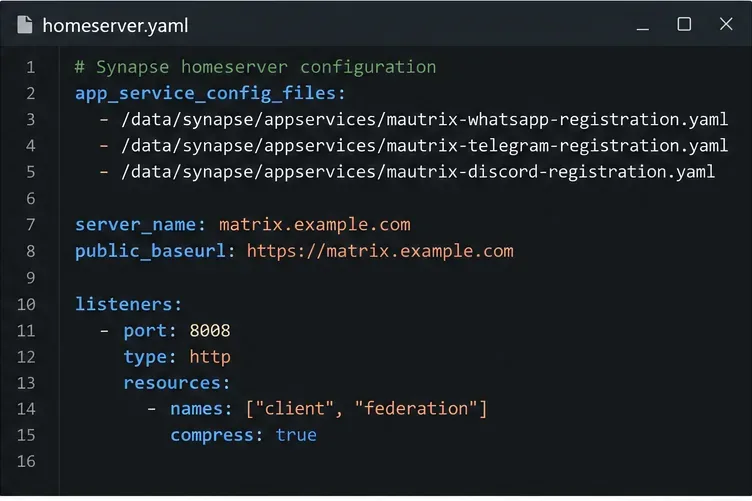
Matrix defines aliases in the form #localpart:server-name. For Synapse, the server_name setting determines the domain used for locally created room addresses, and Synapse documents that this setting cannot be changed after initial setup. If your existing server is named matrix.example.com, Element will not turn its local aliases into #support:example.com just because you own example.com. See the Matrix identifier specification and Synapse configuration manual.
https://matrix.example.com while its configured server_name is example.com. The client URL and the server name may differ.support. An alias must be unique on the server that creates it.The following path matches the room-settings terminology in the Element room settings documentation checked in October 2026. Menu positions can differ across Element versions and other Matrix clients.
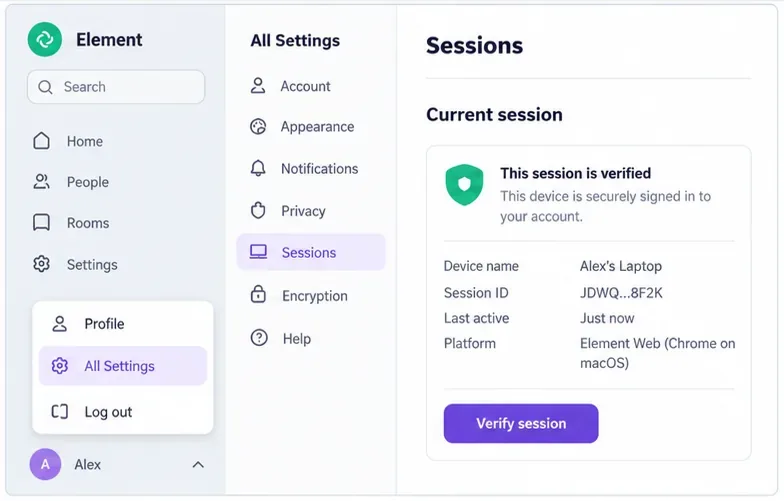
In Element Web or Element Desktop, open the destination room. Select Room settings from the Room info panel, or use the room's three-dot menu and choose Settings. If you need the internal room ID for troubleshooting later, look in the Advanced section and copy it without altering any characters.
On the General settings page, find Room Addresses, then Local Addresses. Enter the alias localpart, such as support, in the Room Address field and select Add or the equivalent save control. Confirm that the resulting full address is #support:example.com. If it instead ends in :matrix.example.com, stop: that is a homeserver-name issue, not a typo the room settings can correct.
Still under Room Addresses, find Published Addresses and set Main Address to #support:example.com. Element's documentation says the first created local address is normally selected as the main address automatically. Selecting it explicitly is useful when the room already has several aliases.
The main address is the room's canonical alias: the preferred address advertised in room state. Creating an alias and choosing the canonical alias are related but distinct actions. Matrix also supports alternative advertised aliases. A canonical alias should already resolve to that room before it is advertised.
Only enable Publish this room to the public room directory when you actually want directory discovery. Setting an address does not itself make a room public, and publishing a room is separate from its join rules. A private or invite-only room can have a memorable alias without granting everyone permission to join. For public community rooms, check both the directory setting and the room's join rules before sharing the address widely.
Administrators and automation tools can use the standard Matrix Client-Server API. The example below creates the same alias; do not run it if Element already created #support:example.com. Substitute the real room ID and a valid access token for a user permitted by the homeserver's alias policy. Treat the token as a password.
curl --request PUT \
  --header 'Content-Type: application/json' \
  --header 'Authorization: Bearer YOUR_ACCESS_TOKEN' \
  --data '{"room_id":"!yourRoomId:example.com"}' \
  'https://matrix.example.com/_matrix/client/v3/directory/room/%23support%3Aexample.com'
A successful request returns HTTP 200 with an empty JSON object. The %23 and %3A parts are URL encoding for # and :. The PUT request creates an alias-to-room mapping; it does not necessarily change the room's canonical alias. After an API-only creation, return to Element's Main Address control if you want that alias advertised as the primary one. Do not paste a real bearer token into a shared shell command, screenshot, or support ticket.
The directory lookup does not require a login. Replace the URL host with your own accessible client API endpoint:
curl --fail-with-body --silent --show-error \
  'https://matrix.example.com/_matrix/client/v3/directory/room/%23support%3Aexample.com'
The response should contain a room_id matching the destination room and a servers array. This tests alias resolution, not whether every remote server can federate with yours.
Verify Synapse's configured server_name. Do not change that value on an established server in an attempt to rebrand its aliases: its identity and existing Matrix identifiers depend on it. For a new deployment, plan the desired server name before creating users and rooms. If you already operate under another name, using its actual alias domain may be the safer choice unless you can arrange an appropriately named homeserver to own the new aliases.
HTTP 403 typically indicates denied permission or an applicable server policy. Check the user's room privileges and Synapse's alias_creation_rules; rules are evaluated in order, and an explicitly empty list prevents all alias creation. HTTP 409 means the alias already exists. Choose a different localpart or investigate the existing mapping rather than overwriting it blindly. The Synapse configuration manual documents the alias policy options.
Check that the alias resolves locally first. If local lookup succeeds but external discovery fails, inspect federation for the alias domain, including HTTPS certificates, the relevant /.well-known/matrix/server delegation, and the exposed federation listener. A hostname used for client traffic does not automatically establish federation for a different Matrix server name. The Matrix Server-Server API describes server discovery and delegation. Also confirm that remote users are allowed to join; an invite-only room can resolve successfully while refusing a join.
#support:example.com appears under Local Addresses and as the intended Main Address in Element.room_id with the ID shown in Element's Advanced room settings.https://matrix.to/#/%23support%3Aexample.com. The link should resolve to the expected room; whether the account can join still depends on the room's access rules.Matrix's room-alias and matrix.to format reference defines the encoded share-link format. If all three checks pass, the new address is ready to share while the original room ID remains unchanged.
Give a Matrix room an easy-to-share address on your domain using Element or the Matrix API, with checks for permissions, Synapse naming, and federation.
Configure coturn and Synapse with matching TURN credentials, open the required relay ports, and verify that Matrix clients can obtain relay candidates.
Set up a persistent Synapse homeserver with Docker Compose, PostgreSQL, a private config, and checks before exposing it through HTTPS.
Set a branded name, custom colors, and login assets for your Element Web deployment while understanding which parts remain Element-branded.
Diagnose whether Synapse hit its per-process open-file cap, set a systemd drop-in for the right service or worker, and verify the live limit.
Find out whether the error is limited to one browser or one event, then use Element’s recovery key or a trusted device without risking your remaining encrypted history.
Use Synapse’s history and media purge APIs or retention settings to remove stale data safely, then verify completion and disk-space recovery.
Install the current library, connect a dedicated Matrix account, and run a small !echo bot with safer credential handling and a clear test.
Set up three mautrix bridges with separate registrations, logins, and tests—and avoid Docker networking, account-policy, and sync surprises.
Find what is filling Synapse storage, set safe media retention, and purge remote cache without deleting files directly from disk.