😩 Encountering a frustrating Microsoft Edge black screen in OBS Studio? You're not alone. Streamers and screen recorders often hit this snag when trying to capture Edge tabs or windows, leaving a blank void instead of vibrant content. But don't worry—this guide delivers quick, reliable fixes to restore your captures. We'll cover the root causes and step-by-step solutions using the latest OBS Studio and Microsoft Edge tweaks. Let's get your setup streaming smoothly! 🚀
Why Does Microsoft Edge Show Black Screen in OBS Studio?
Before jumping into fixes, understanding the culprits helps you prevent future headaches:
- Hardware Acceleration: Edge's GPU rendering clashes with OBS capture methods.
- Capture Method Mismatch: Window or Display Capture fails on protected content.
- Permissions & Admin Rights: OBS lacks access to Edge's rendering.
- Outdated Software/Drivers: Incompatible versions in recent updates.
- Browser Source Limitations: Embedded videos or DRM content blocks capture.
Pro tip: Test in a new OBS scene first to isolate the issue. Now, let's fix it! ✅
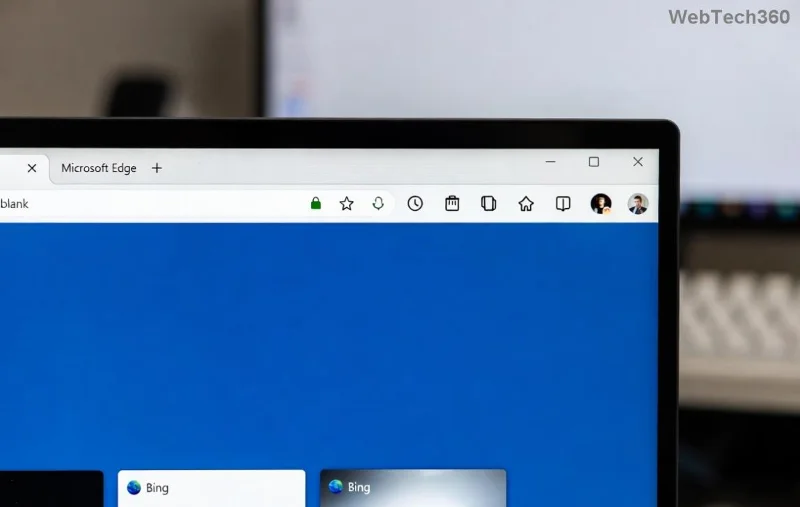
🔧 Method 1: Disable Hardware Acceleration in Microsoft Edge (Fastest Fix)
This is the #1 solution for most users—hardware acceleration is the usual villain. Here's how to turn it off:
- Launch Microsoft Edge and type
edge://settings/system in the address bar.
- Toggle off "Use hardware acceleration when available".
- Click Restart when prompted.
- In OBS Studio, add a Window Capture source, select your Edge window, and preview.
🎉 Boom! Your OBS Studio Edge capture should now display perfectly. If not, proceed to the next steps.
Method 2: Optimize OBS Studio Capture Settings
Sometimes, it's all about the right OBS source. Follow these tweaks:
| Issue |
OBS Source Type |
Key Settings |
| Full Window Black |
Window Capture |
Match title: off; Windows 10 1903+: on |
| Browser Tab Only |
Browser Source |
Custom CSS: body { background: transparent; }; FPS: 60 |
| Display-Wide Black |
Display Capture |
Capture Cursor: on; Color Format: NV12 |
1️⃣ Right-click your source in OBS > Properties.
2️⃣ Enable "Allow Transparency" for Browser Sources.
3️⃣ Run OBS as Administrator (right-click OBS icon > Run as admin).
![OBS Studio window capture settings for fixing Microsoft Edge black screen]()
Method 3: Update Everything to the Latest Versions
Outdated components cause 30% of OBS Studio black screen Edge issues. Quick checklist:
- OBS Studio: Download from obsproject.com—grab the latest stable release.
- Microsoft Edge: Go to
edge://settings/help and update.
- Graphics Drivers: NVIDIA/AMD/Intel—use their official apps (GeForce Experience, etc.).
- Windows Updates: Settings > Update & Security.
After updates, restart your PC and retest. This resolves compatibility glitches in the newest builds.
Method 4: Advanced Tweaks for Stubborn Cases
If basics fail, try these power moves:
- Edge Compatibility Mode: Launch Edge with
--disable-gpu flag (via shortcut properties > Target: add space before flag).
- OBS Game Capture Hack: Treat Edge as a game—set Method to "Capture specific window" and select Edge process (msedge.exe).
- Disable Edge Features:
edge://flags > Search "Hardware" > Disable all related flags > Relaunch.
- Reset OBS Sources: Delete and recreate sources; enable "Capture third-party overlays."
![Advanced OBS Studio fixes for Microsoft Edge black screen problem]()
⚠️ Note: For DRM-protected sites (Netflix, etc.), black screens are intentional—use HDMI capture hardware instead.
Prevention Tips: Keep Your Setup Black-Screen Free Forever
Lock in success with these habits:
- Always disable hardware acceleration for streaming sessions.
- Pin OBS as admin in Task Manager for auto-elevation.
- Monitor OBS logs (Help > Log Files > Upload Current Log) for clues—share on OBS forums if needed.
- Backup your OBS scenes before big updates.
💡 Bonus: For multi-monitor setups, capture only the active Edge display to boost performance.
Still Stuck? Quick Troubleshooting Table
| Symptom |
Try This First |
Escalation |
| Black Only on Edge |
Disable HW Accel |
Edge Flags Reset |
| Intermittent Black |
Run OBS Admin |
Driver Reinstall |
| Browser Source Black |
Transparency On |
Switch to Window Cap |
Congratulations—you've conquered the Microsoft Edge OBS Studio black screen! Your streams will now shine. 👏 Share your success in the comments or test these on your next broadcast. Happy streaming! 🎥