If you changed your mind about an order you’ve placed on DoorDash — maybe it arrived late or was wrong — you’ll be happy to know you can get a refund. In the article below, we dive into how to get a refund from DoorDash. There are some ifs and buts involved here, but in most cases, you should be able to get a refund on your DoorDash order.
Do note that you may incur specific fees when canceling a DoorDash order. No cancelation fee is charged if you cancel your order before the restaurant has accepted or started working on it. But if the restaurant has begun working on your order, you’ll have to pay a cancelation fee due to the inconvenience.
With that in mind, let’s look at how to get a refund on a canceled DoorDash order.
How to Cancel a DoorDash Order and Get a Refund
From the DoorDash App
You can try making changes to your order, like updating the address, before canceling and requesting a refund.
However, if it isn’t possible to make changes, you didn’t get your food, or there was something wrong with it, you can quickly request a refund in the app.
To get a refund for a canceled order from DoorDash using the app, follow the steps below:
- Open the DoorDash app on your iPhone or Android.
- Tap on Orders at the bottom of the screen.
- Find the current order that’s in progress.
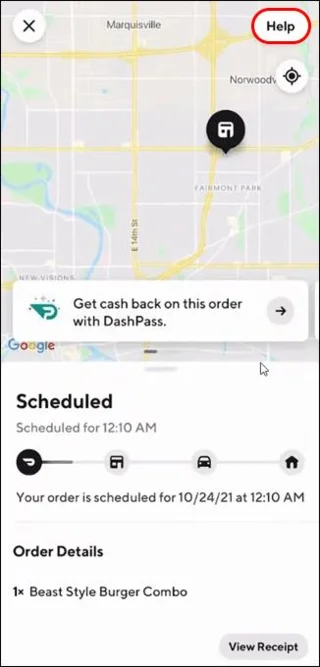
- Tap View Order.

- Select Help from the right corner of your screen.

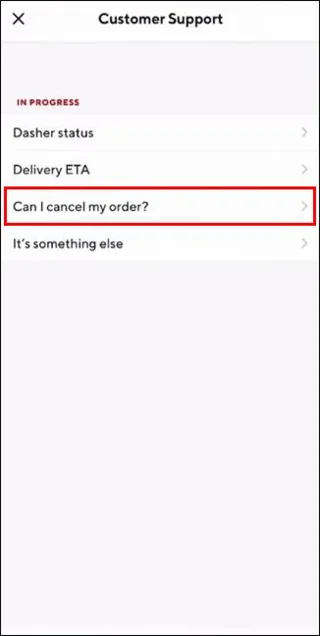
- From the menu, choose Can I cancel my order?

After you request your refund, leave a review that your Dasher can view. Of course, be mindful that whatever the hiccup is with your order, it may not be your Dasher’s fault.
From the Web
Cancel your order and get a refund from a desktop by signing into your DoorDash account and doing the following:
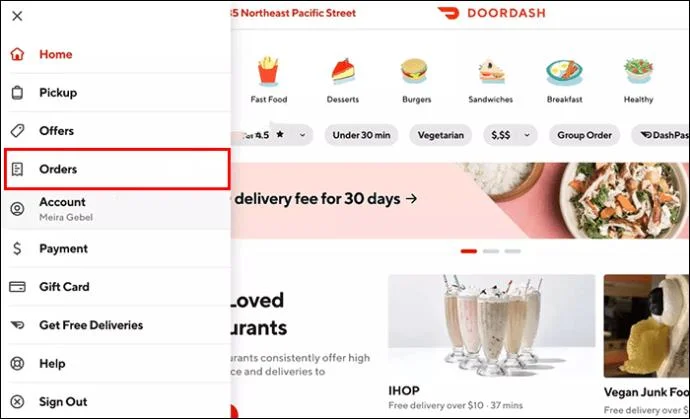
- Click the Menu icon in the top left (it looks like three lines).
- Choose Orders.

- Select the order that DoorDash needs to refund.
- Click Request Refund.
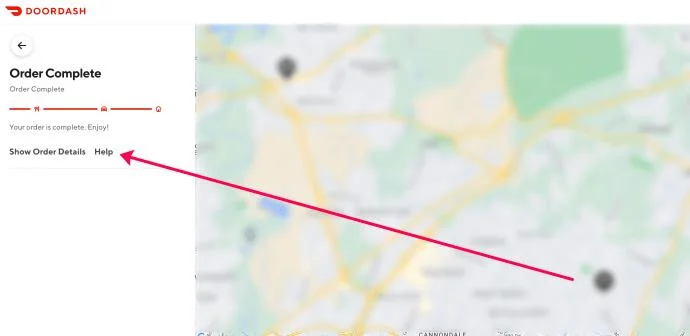
- If a Refund option doesn’t appear, click Help.

- Select one of the options in the list that matches your issue. Or, click It’s something else to chat with live support.
Contact Customer Service
You can contact DoorDash’s customer care by dialing 855-431-0459. Explain to them why you believe you’re entitled to a refund for your canceled order. Not all refunds are guaranteed, though, and the service might not tell you immediately if you’re even eligible.
Email DoorDash Support
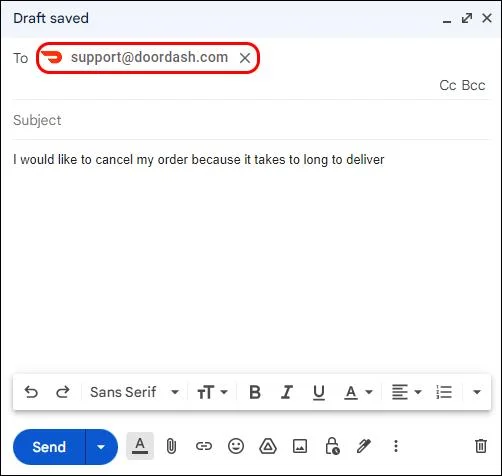
Another way to receive a DoorDash refund is to email their customer service. Be sure you have all the information related to your canceled order, then do the following:
- Compose a new email, write your order details and explanation, and add all the relevant attachments, like screenshots or photos, as evidence.
- Send the email to support@doordash.com

- Wait to hear back from customer service.
Use Live Chat
Contact DoorDash’s customer support via Live Chat to appeal your case to receive a refund. Alternatively, you can use the support menu within the DoorDash app. Using Live Chat ensures a direct conversation with a DoorDash customer representative and may result in a speedier solution to receiving your refund.
What is DoorDash’s Refund Policy?
DoorDash determines whether you’re eligible for a refund for a canceled order according to its refund policy. You must raise refund requests or disputes within 14 days of placing the order. DoorDash’s headquarters will review your request and are not obligated to refund your canceled order.
The terms of service for DoorDash refunds stipulate that all charges you paid for any complete and delivered order are non-refundable and final. Although DoorDash is not obligated to refund you, they may do so at their sole discretion. Alternatively, DoorDash could grant you a gratuitous credit that you can use within the DoorDash app.
When applying for a refund, ensure you provide all the details possible. This will assist DoorDash with deciding to refund you in less time.
How Will DoorDash Refund Your Money?
You can request a refund and/or file a complaint with DoorDash. If you choose the refund route, the following sections review the different types of refunds you can get.
Full Refund
To receive a full refund for a canceled DoorDash order, the restaurant must have yet to confirm and accept the order. In some situations where DoorDash cannot source Dashers due to bad weather, for example, they will cancel and refund your order.
A full refund from DoorDash means you’ll receive all your money back, along with the included tips (if you left any before the delivery).
Partial Refund
You can get a partial refund when you’ve placed a DoorDash order, and the restaurant accepted and prepared the food, but the assigned driver hasn’t yet picked it up. If your order is still on “Preparing Order,” wait before you cancel, as DoorDash might not refund you.
You can rate any poor service you receive by using the rating option in the DoorDash app. Plus, if you have an issue with a particular DoorDash driver, reporting them is always an option.
Free DoorDash Credit
Most of the time DoorDash will issue your account with free credit as compensation instead of a refund. You can use this credit to purchase food from DoorDash. If the available credit covers the cost of your order, the amount will be taken off your balance.
If your DoorDash credits are not available within a week of being issued, contact DoorDash’s customer support.
DoorDash Refund Timelines and Methods
There are three main ways in which DoorDash can compensate you for canceled orders. This includes getting a credit in your DoorDash account, getting the money in your bank account, or a re-delivery of your order.
Most refunds are sent to your chosen payment method. If you paid for your DoorDash order in cash, the money will be credited to your account.
DoorDash Refund Release Times
You can’t check the status of your refund from the DoorDash app directly. If you’re concerned about not receiving the refund in time, contact customer care.
After a refund is issued, it might not show up immediately in your account or payment method. The following table shows the different refund methods and their timelines.
| REFUND METHOD |
TIME TAKEN TO RELEASE THE REFUND |
| Credit Card |
Between three to five business days |
| Debit Card |
10 business days or less |
| Gift Card Balance |
Between two to three hours |
| Prepaid Credit Card |
30 days or less |
Dash Into a DoorDash Refund
You may be eligible for a refund when you cancel a DoorDash order for various. There are several ways to secure a refund, the easiest being via DoorDash’s Live Chat or the mobile app.
Full refunds are rare, and there’s no guarantee you will even get a refund. So explain your issue in detail and attach all supporting evidence to increase your chance of receiving a refund from DoorDash. If successful, you could get a refund in a few hours to 30 days.
If you are new to DoorDash, you should know how to get a Red Card from DoorDash.
FAQs
DoorDash canceled my order, but they still charged me. What can I do?
If DoorDash cancels your order, you should receive a full refund. You can contact DoorDash’s support to dispute the credit charge.
I received my DoorDash order, but the food could have been better. Can I get a refund?
If you received your DoorDash order but are unhappy with the quality of your food, go to the app and report it. Here are the steps to do that:
1. Tap on the order.
2. Tap on Help.
3. Go to Order Issues.
4. Select Poor Food Quality.