Clear a Zimbra Mail Backlog Without Deleting Messages
Inspect the Zimbra Postfix queue, fix the cause of delayed delivery, and safely request a retry. Learn when to remove a specific message and what never to purge blindly.
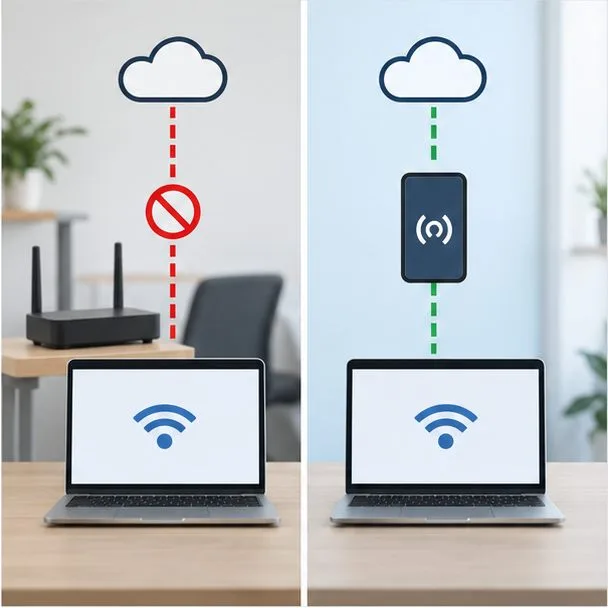
If BigBlueButton shows an ICE socket or negotiation failure while your webcam will not load, first check camera permission, then test the meeting on another network. If that changes the result, the likely fix is a network or server-side UDP/NAT setting; reinstalling the camera or repeatedly rejoining will not repair a blocked media path. BigBlueButton’s troubleshooting guide associates ICE negotiation failure (error 1007) with failure to establish a media route, with NAT, firewall-blocked UDP, or a need for TURN among the possible causes.
Camera permission still matters, but it is a separate check: permission allows the browser to capture video, while ICE helps the browser and server exchange it. Use the sequence below to identify which side needs attention.
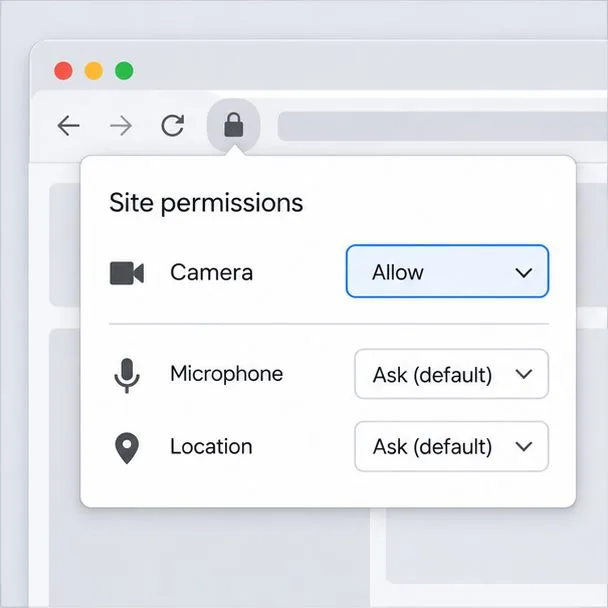
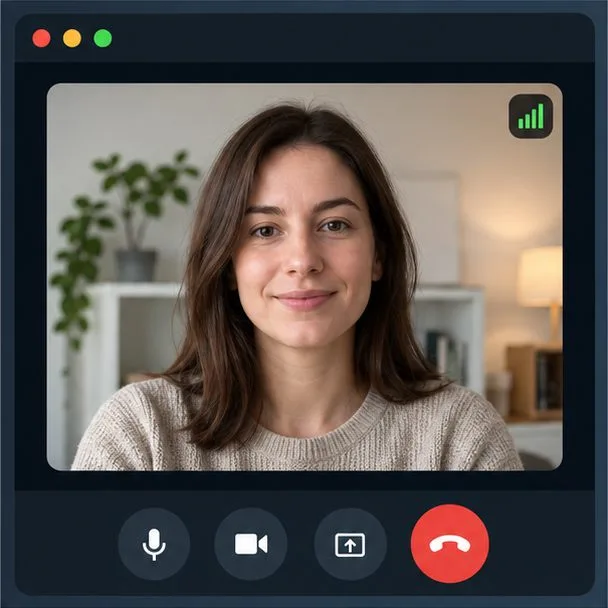
If the local camera preview appears but other attendees see a blank tile or the meeting reports an ICE error, the browser can capture video and the remaining problem is more likely in the media connection. Note whether meeting audio also fails, whether the problem affects one participant or everyone, and whether it happens only on one network. Those observations help narrow the cause without assuming that every webcam failure is a camera fault.
BigBlueButton’s public troubleshooting material describes error 1007 as ICE negotiation failure. Its error description says the browser and media server fail to negotiate a path for media; the listed causes include NAT, blocked UDP, and cases where TURN is required. The page is the 4.0 development guide, so an older server may show a different message or use different internals. The network test is still useful, but administrators should follow the instructions for their installed release.
If the alternate-network test succeeds, share the result with the network or BigBlueButton administrator. Ask whether outbound or return-path UDP traffic required for BigBlueButton WebRTC is restricted, and whether the organization’s proxy, VPN, or firewall allows the meeting’s real-time media path. HTTP access to the meeting page alone does not prove that WebRTC media traffic can pass.
BigBlueButton’s firewall guide documents TCP 80/443 and an inbound UDP range of 16384–32768 for a typical server deployment. The exact rules depend on the server’s version and network design. A participant should not open ports on a personal router or change corporate firewall rules blindly; only the administrator can confirm where filtering occurs and apply an approved rule.
sudo bbb-conf --check. Review warnings and errors, and confirm the relevant services are running. The official troubleshooting guide recommends this as the starting point. It can surface configuration problems, but it does not prove that every external firewall or cloud security rule passes UDP./etc/bigbluebutton/bbb-webrtc-sfu/production.yml, including the mediasoup.webrtc.listenIps setting. Compare it with the server’s real public address and the current version’s configuration instructions; do not copy an example IP literally. After a justified change, restart BigBlueButton as the guide directs, then test from outside the server network.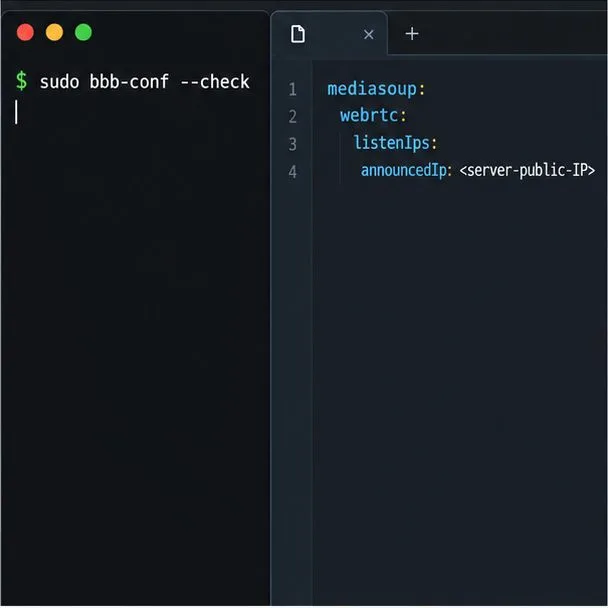
Join a fresh meeting from the network that originally failed. Confirm that the browser displays the camera preview, another attendee can see the live video, and the meeting remains connected for several minutes without another ICE error. Repeat the check on the affected Wi-Fi or VPN; success only on a hotspot means the original network path still needs attention.
If the issue remains, send the administrator the exact error text or code, approximate time, browser and operating-system versions, whether audio works, and the results on each network. BigBlueButton’s getting-help guidance also asks for the output of sudo bbb-conf --check for server-related reports. Share diagnostic output through the support channel your administrator approves, since it can reveal server details.
Inspect the Zimbra Postfix queue, fix the cause of delayed delivery, and safely request a retry. Learn when to remove a specific message and what never to purge blindly.
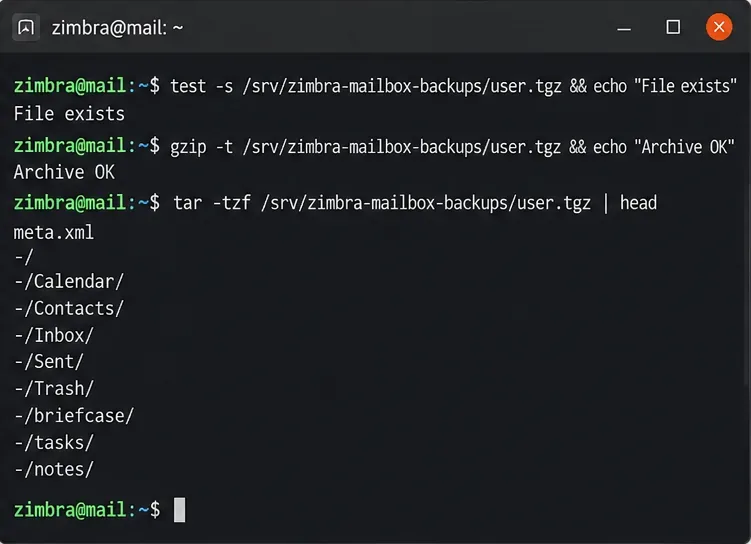
Export an individual Zimbra Community Edition mailbox, validate its TGZ backup, and restore missing items without overwriting existing mail.
Plan your Art Basel Miami visit with this 5-step guide to ticket prices, transit, and dining costs, calculating a realistic daily budget of $145 to $550.

Follow these 6 steps to navigate an American office holiday party with confidence, connect with coworkers, and leave a professional impression.
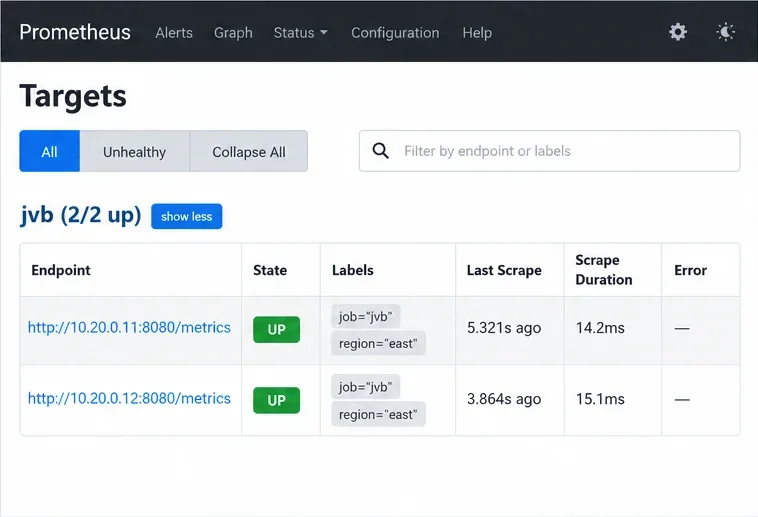
Scrape each JVB’s private metrics endpoint securely, confirm Prometheus targets are healthy, and build Grafana panels for bridge load and meeting traffic.
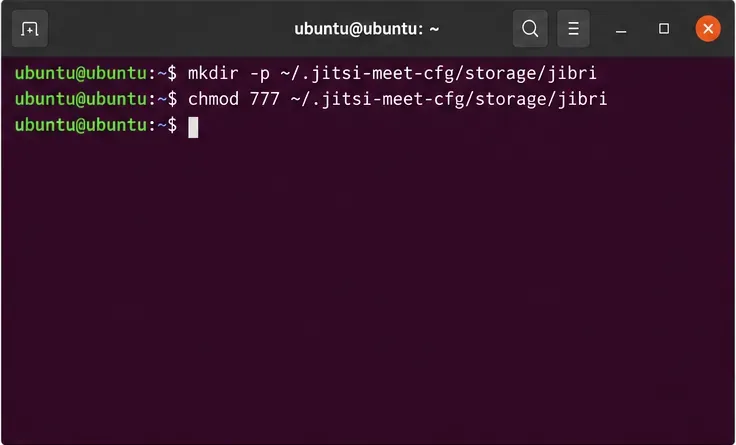
Enable Jitsi Meet recording and live streaming with the official Docker Compose Jibri service, secure XMPP credentials, writable storage, and practical verification steps.
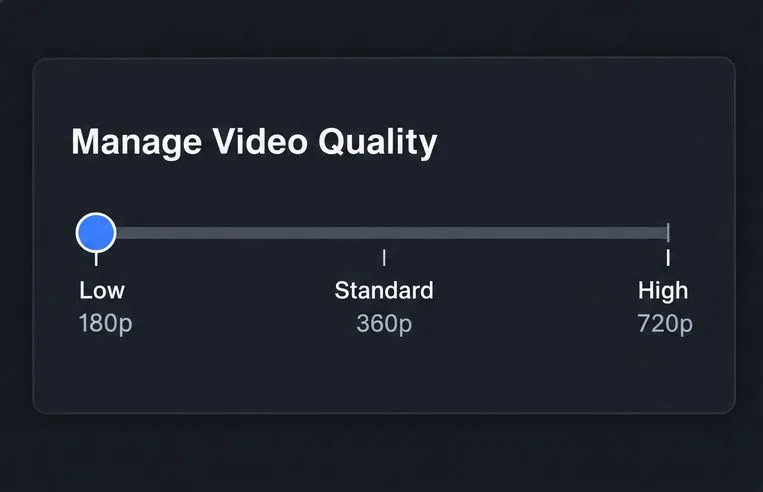
Lower Jitsi Meet video quality to 180p or 360p, reduce outgoing camera traffic, and test bitrate caps without sacrificing meeting audio.
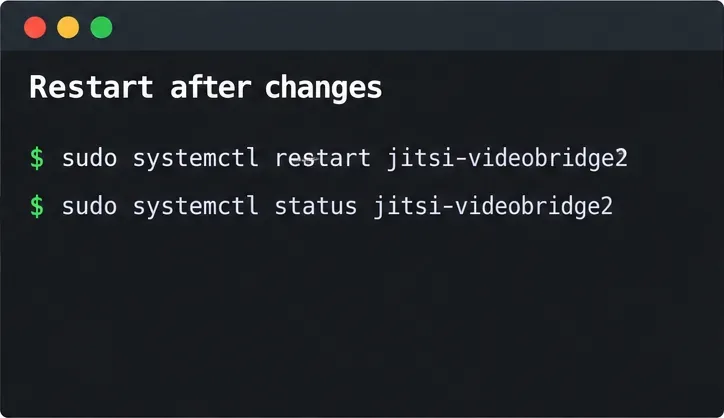
Trace bridge failures from service health to UDP 10000 and NAT mapping, then retest Jitsi Meet without opening unrelated firewall ports.
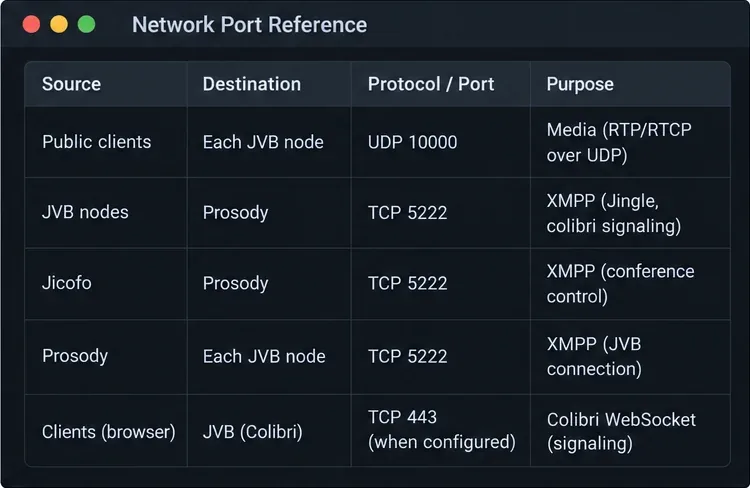
Add Jitsi Videobridge nodes for more concurrent meetings, configure OCTO only when a single conference must span bridges, and verify network paths and bridge discovery.