Restore Jitsi Meet Bridge Connections by Checking UDP and NAT
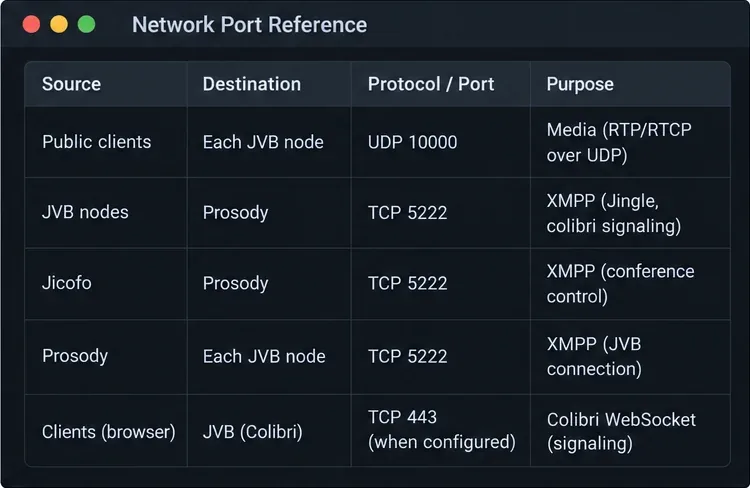
Trace bridge failures from service health to UDP 10000 and NAT mapping, then retest Jitsi Meet without opening unrelated firewall ports.
On a slow connection, start Jitsi Meet’s Manage Video Quality control at Low (180p), then move to Standard (360p) only if faces or shared details are too hard to see. If your own upload is the bottleneck, turn your camera off; if incoming video is the problem, lower the quality you receive. These steps reduce video load while preserving audio, but they cannot repair a weak or unstable network path.
In a desktop meeting, press A to open Manage Video Quality, or use the corresponding toolbar control if it is visible. Set the slider to Low, confirm if prompted, and assess the call while people speak and move. The current Jitsi handbook lists Low as 180p, Standard as 360p, and High as 720p; the actual resolution can change with device, codec, meeting layout, and network conditions.
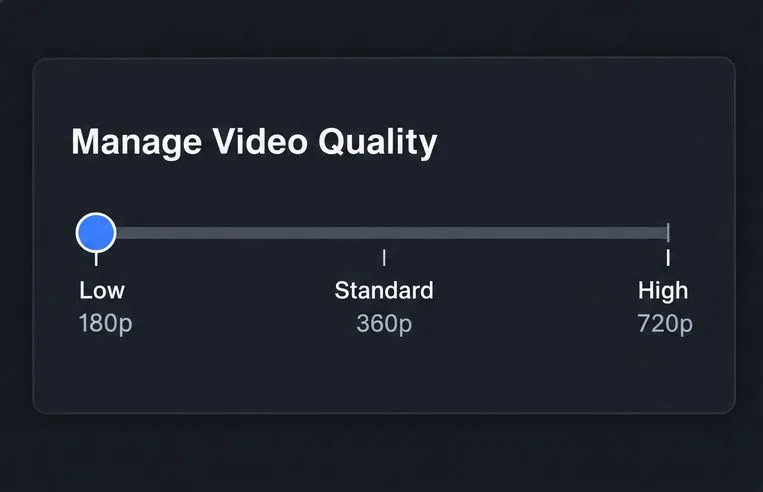
If Low keeps voices clear and faces recognizable, leave it there. If the call is smooth but faces are too small or soft, try Standard. Return to Low if video freezes, becomes heavily delayed, or repeatedly drops while audio remains usable. The Jitsi keyboard shortcut list documents A for Manage Video Quality. This user control may be hidden or restricted on customized deployments.
Jitsi’s quality selection can change the video resolution sent and received by the client, as described in the Jitsi video quality command reference. It does not reserve a fixed amount of bandwidth, and it cannot force every remote camera to look sharp on every device. A host may have configured different quality limits.
Your camera uses upload capacity; the video tiles you receive use download capacity. If other people say your video is frozen while you can hear them, stop your camera first. If you can hear the meeting but incoming video stutters, keep your microphone on and reduce Manage Video Quality. Turning off your camera alone does not stop the other participants’ video from reaching you.
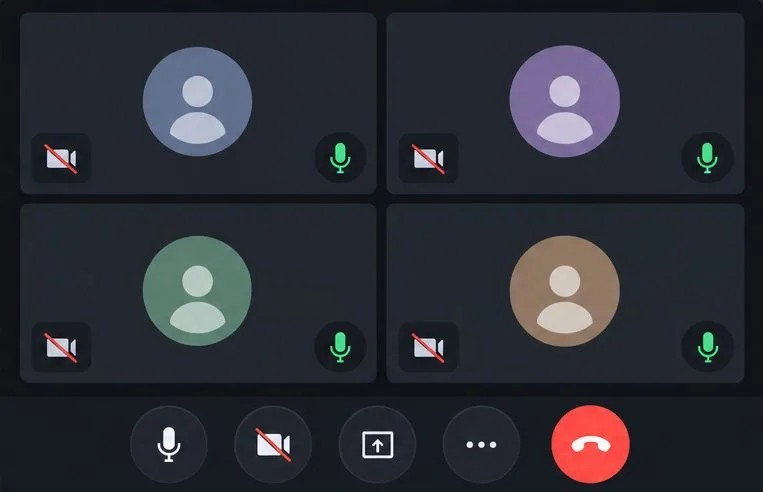
For a meeting where seeing everyone is not essential, ask participants to turn off cameras they do not need. This lowers the number of active video streams in the room. It may not be suitable for a class, interview, or meeting where visual cues matter, so agree on that trade-off before the call. If Jitsi still feels delayed with cameras off, the cause may be Wi-Fi interference, packet loss, route latency, or a busy device rather than video resolution alone.
If you administer Jitsi Meet, test a lower local capture ceiling in a staging room before applying it to everyone. In the server’s config.js, merge settings like these into the existing config object; do not replace the whole file:
resolution: 360,
constraints: {
  video: {
    height: {
      ideal: 360,
      max: 360,
      min: 240
    }
  }
}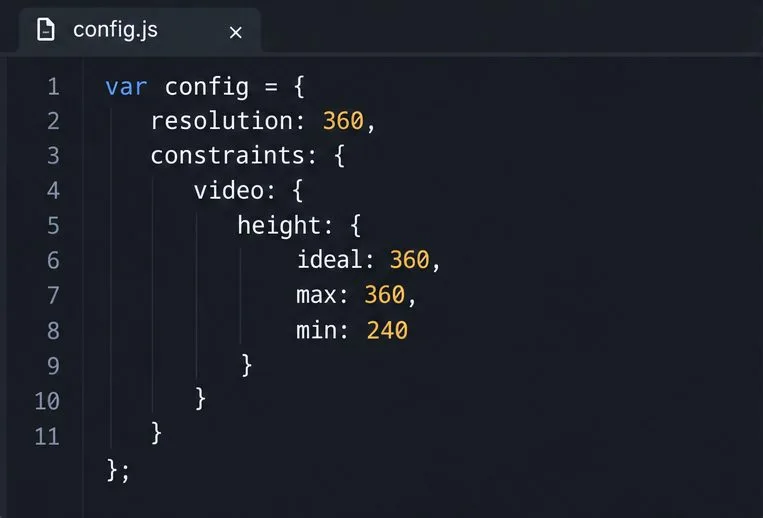
resolution sets the preferred local-video height. Jitsi documents constraints as a separate setting for browsers using its newer camera-capture flow, so setting both avoids relying on one path alone. It affects camera video sent from the endpoint; it is not a universal cap on incoming tiles or screen sharing. For a stricter low-bandwidth policy, test a 240p ceiling and check that faces remain usable. Some cameras, browsers, or clients may not produce the exact requested size.
Jitsi’s videoQuality configuration lets an administrator define maxBitratesVideo for each supported codec and quality level. The current handbook gives these VP8 reference values in bits per second:
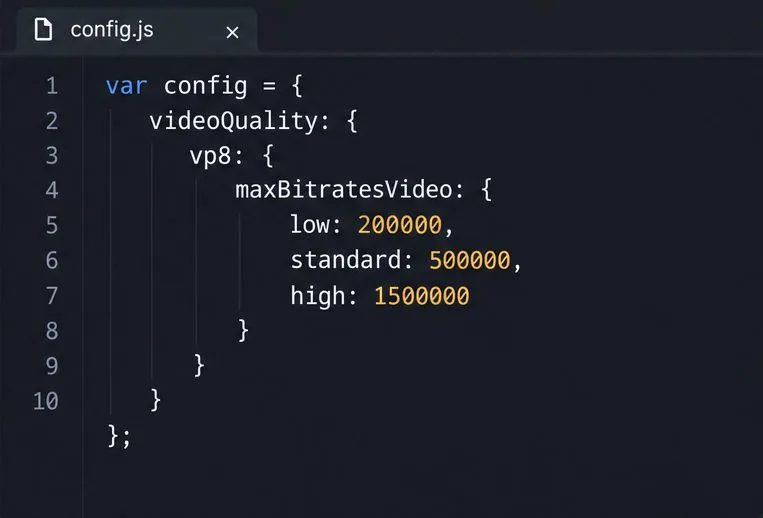
These are codec-specific caps from the current configuration documentation, not exact bandwidth promises. AV1 and VP9 have different example values, and a server may negotiate a different codec. If you lower a cap, make the change for the codecs your deployment actually uses, then test motion, text, and packet stability with more than one device. A lower cap can reduce detail, especially when the image has motion; it will not make a poor route reliable. See Jitsi’s video quality configuration reference before changing production settings.
Jitsi’s deployment guide gives rough network-capacity reference points of about 200 kbps at 180p, 500 kbps at 360p, and 2.5 Mbps at 720p. Treat these as planning estimates, not a personal speed-test threshold: actual traffic varies with codec, motion, number of simultaneous streams, and server topology. One person receiving several video tiles can need substantially more download capacity than a single stream requires.
Run the test with the same number of participants and the same layout you expect in the real call. A useful setting keeps speech intelligible, avoids recurring freezes, and leaves enough detail for the meeting’s purpose. If 180p is stable but too blurry, try 360p and compare. If both levels still freeze—or audio also breaks—switch to a more reliable network or ask the meeting administrator to investigate the route and bridge capacity. Jitsi’s deployment requirements notes that real-time quality depends on reliable network links and adequate server resources. A lower resolution can improve a constrained call, but it cannot create bandwidth that the connection does not have.
Trace bridge failures from service health to UDP 10000 and NAT mapping, then retest Jitsi Meet without opening unrelated firewall ports.
Add Jitsi Videobridge nodes for more concurrent meetings, configure OCTO only when a single conference must span bridges, and verify network paths and bridge discovery.
Discover whether the Rockefeller Center Christmas Tree is worth the hype. Follow 5 proven steps to avoid crowds and enjoy the holiday display.
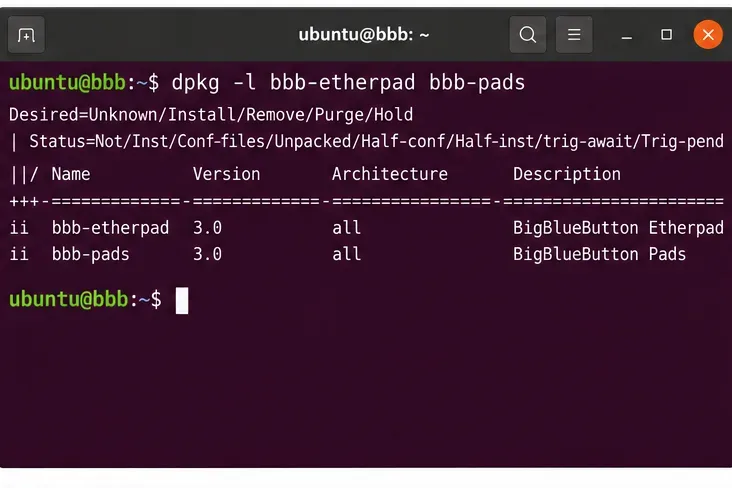
Check the version first, then install BBB 3.0's Etherpad packages and set the shared-notes editor globally or per meeting.
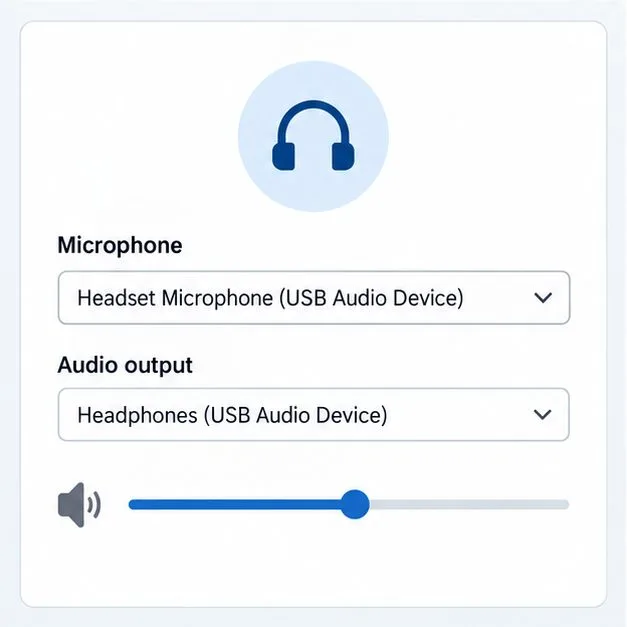
Use BigBlueButton’s echo test, headset, and browser audio settings to stop microphone feedback, then isolate network or server causes of audio lag.
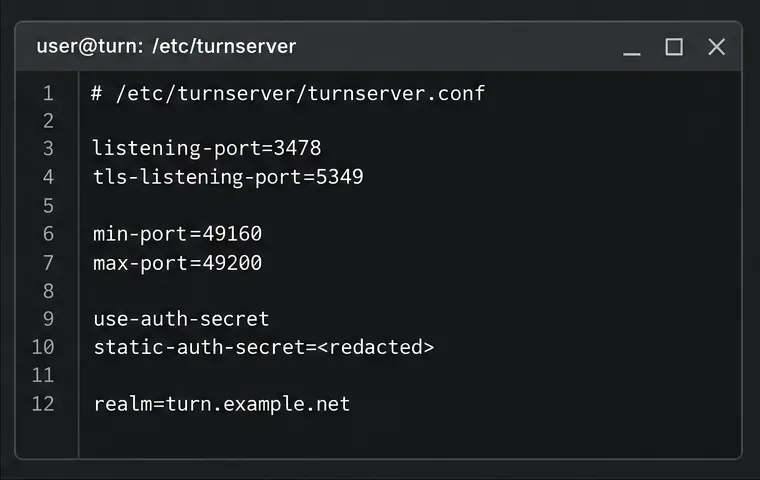
Configure coturn, NAT port forwarding, and Prosody so Jitsi can relay calls when direct media connections fail.
Master a 5-step guide to understand holiday inflation spending, balance family traditions with budget realities, and safeguard your finances.
Install Jitsi Meet from its official Ubuntu packages, obtain a Let’s Encrypt certificate, open the right ports, and verify secure meetings.
Discover what happens behind the scenes of Giving Tuesday donations across 6 detailed steps, from payment gateways to matching fund delivery.
Reduce browser CPU spikes in Jitsi Meet by limiting incoming video, tuning camera use, checking hardware acceleration, and testing the result.