Set Up External TURN for Jitsi Behind NAT
Configure coturn, NAT port forwarding, and Prosody so Jitsi can relay calls when direct media connections fail.
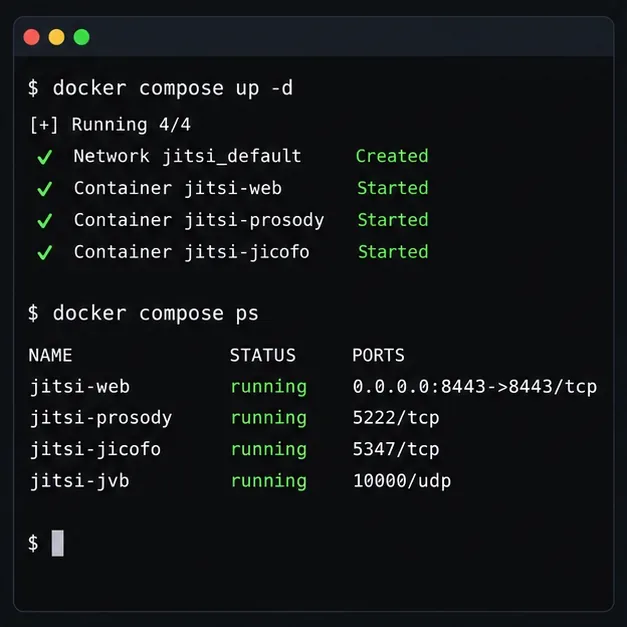
When Jitsi is behind NAT, remote users may join a meeting but fail to establish media. Put coturn on a publicly reachable host, advertise its correct public address, and let Prosody provide time-limited TURN credentials. These steps cover package-based Debian or Ubuntu Jitsi; Docker uses different settings.
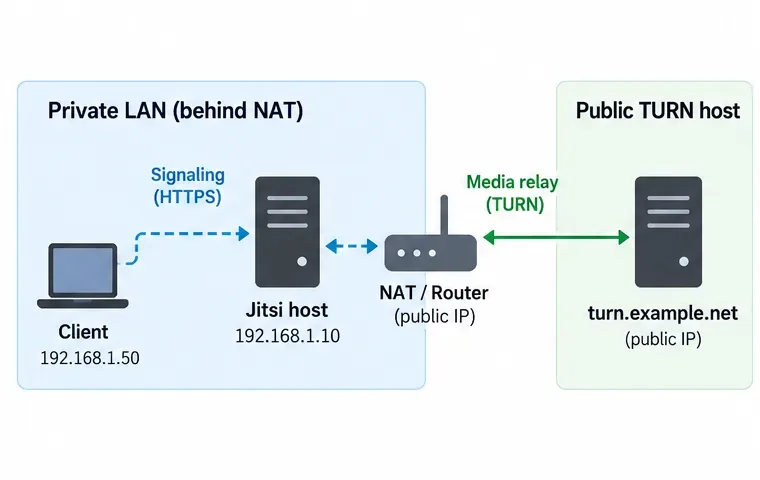
TURN (Traversal Using Relays around NAT) relays media when a firewall blocks a direct route. It does not replace Jitsi Videobridge (JVB), which carries group-call media. Jitsi documents TURN as a fallback for one-to-one peer-to-peer calls.
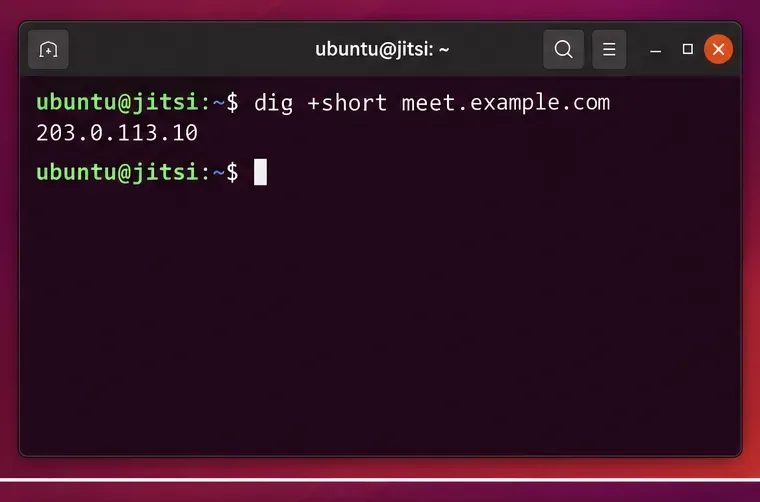
Prepare a publicly reachable TURN host and DNS name such as turn.example.net. Record its public and private addresses, your Jitsi domain, and a relay UDP range. The sample uses documentation-only addresses 203.0.113.10 and 10.0.0.20; replace them with your own.
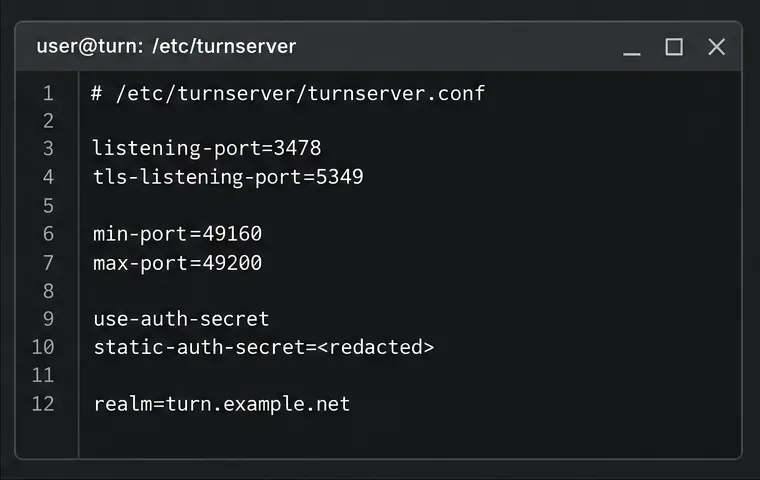
On the TURN host, install coturn using your distribution’s package manager, then edit its configuration, commonly /etc/turnserver.conf. Confirm the actual path and service name for your distribution. A minimal example is:
listening-port=3478
tls-listening-port=5349
min-port=49160
max-port=49200

fingerprint
lt-cred-mech
use-auth-secret
static-auth-secret=REPLACE_WITH_A_LONG_RANDOM_SECRET
realm=turn.example.net
server-name=turn.example.net

# Only when coturn itself is behind one-to-one NAT:
 listening-ip=10.0.0.20
relay-ip=10.0.0.20
external-ip=203.0.113.10/10.0.0.20
Replace both example addresses and the secret. The external-ip=public/private mapping is specifically for a TURN server behind NAT: coturn must return a reachable public relay address while binding relay sockets to its local interface. Do not set this mapping merely because the Jitsi server is behind NAT if coturn itself has a directly assigned public address. coturn’s documentation also requires NAT to preserve the same external and internal relay port numbers.
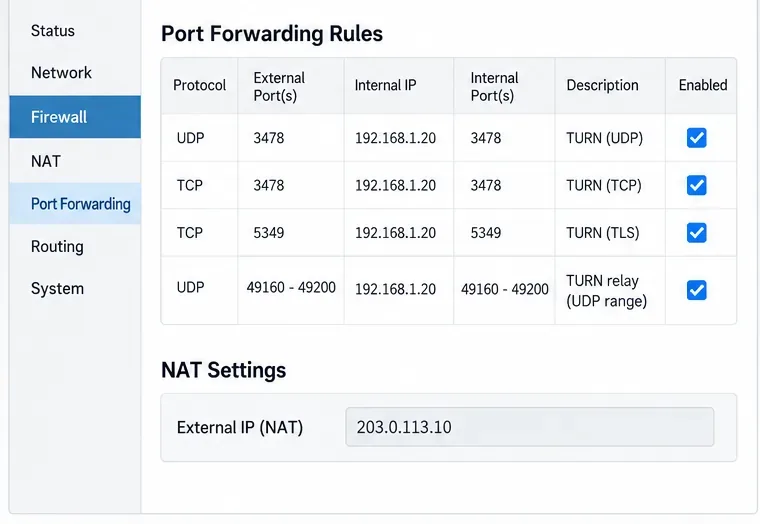
For the example configuration, permit UDP and TCP 3478, TCP 5349 for TURN over TLS, and UDP 49160–49200 for allocated media relays. Forward each port to the TURN host without changing the port number. If you disable a transport, do not open its unused listener. If clients must use TLS, install a valid certificate for turn.example.net and configure coturn’s certificate and private-key paths; the certificate hostname must match the advertised TURN hostname.
Do not expose coturn’s control interface. Size the relay range for your expected use, and allow it in both host and upstream firewalls. A cloud VM still needs matching security-group rules.
For a package-based Jitsi deployment, edit the Prosody configuration for the Jitsi virtual host, usually /etc/prosody/conf.d/meet.example.net.cfg.lua. Add the TURN services to the existing global settings or the appropriate Jitsi virtual-host scope as required by your installed Prosody/Jitsi configuration. Do not create a second conflicting external_services definition. Example:
external_service_secret = "REPLACE_WITH_A_LONG_RANDOM_SECRET"
external_services = {
  {
    type = "turn",
    host = "turn.example.net",
    port = 3478,
    transport = "udp",
    secret = true,
    ttl = 86400,
    algorithm = "turn",
  },
  {
    type = "turns",
    host = "turn.example.net",
    port = 5349,
    transport = "tcp",
    secret = true,
    ttl = 86400,
    algorithm = "turn",
  },
}
Prosody’s mod_external_services uses external_service_secret for both entries, with secret = true requesting time-limited credentials. The sample follows Jitsi’s Prosody configuration format. Confirm the module is enabled for your Jitsi domain; custom or older installations may differ. The default credential lifetime is one day; adjust ttl if needed. If you do not offer TURN over TLS, remove the second entry and do not advertise it.
For coturn, use-auth-secret and static-auth-secret must match the Prosody service secret exactly. Do not put a permanent username and password in config.js: Jitsi warns that static client-side credentials can be copied and abused to consume relay bandwidth. Restart coturn and Prosody after validating their configuration with the checks available for your installed versions.
Ensure the DNS record resolves from an external network, and verify the public-to-private forwarding on the router or cloud network. For coturn behind NAT, preserve every relay port one-to-one: external UDP 49160 must reach internal UDP 49160, and so on. A listener may answer on 3478 even when media fails because the relay range is blocked or coturn advertises a private address.
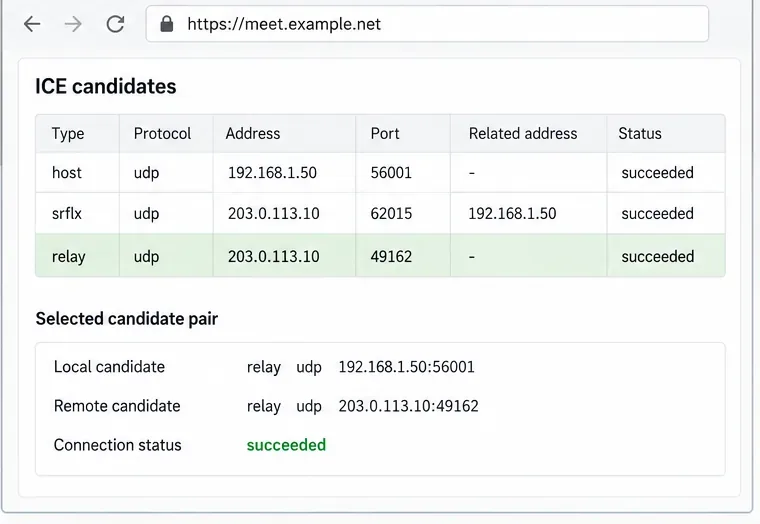
A correct setup provides a reachable fallback for restrictive networks while preserving Jitsi’s normal paths. If your deployment is the official Docker Compose stack, configure the documented TURN_HOST, TURN_PORT, TURN_TRANSPORT, or TURNS_HOST/TURNS_PORT variables in its environment instead of editing a package host’s Prosody files; follow the documentation for the exact image version in use.
Configure coturn, NAT port forwarding, and Prosody so Jitsi can relay calls when direct media connections fail.
Master a 5-step guide to understand holiday inflation spending, balance family traditions with budget realities, and safeguard your finances.
Install Jitsi Meet from its official Ubuntu packages, obtain a Let’s Encrypt certificate, open the right ports, and verify secure meetings.
Discover what happens behind the scenes of Giving Tuesday donations across 6 detailed steps, from payment gateways to matching fund delivery.
Reduce browser CPU spikes in Jitsi Meet by limiting incoming video, tuning camera use, checking hardware acceleration, and testing the result.
Set a meeting title, enable the logo area, and choose a default or per-meeting logo on a self-hosted BigBlueButton server.
Use this 4-step guide to compare AI shopping help with holiday sales, verify prices, and choose gifts with confidence this December.
Set up the Moodle activity, add the matching BigBlueButton endpoint and shared secret, then verify teacher, student, and media access.
Master U.S. holiday etiquette in 5 clear steps, avoiding conversation faux pas, tipping mistakes, and host blunders for a smooth, festive trip.
Point a Jitsi Meet Docker hostname to your server, configure PUBLIC_URL and HTTPS, then verify browser access and media.