Connect Moodle to BigBlueButton and Test a Live Class
Set up the Moodle activity, add the matching BigBlueButton endpoint and shared secret, then verify teacher, student, and media access.
To integrate BigBlueButton with Moodle, configure the Moodle BigBlueButton activity with the server’s exact API URL and shared secret, then create a test activity in a course and join it as both a teacher and a student. Moodle 4.0 and later include the activity in core; Moodle 5.3 enables it by default on new installations, but you still need to enter server credentials. Older Moodle sites may need a compatible plugin release.
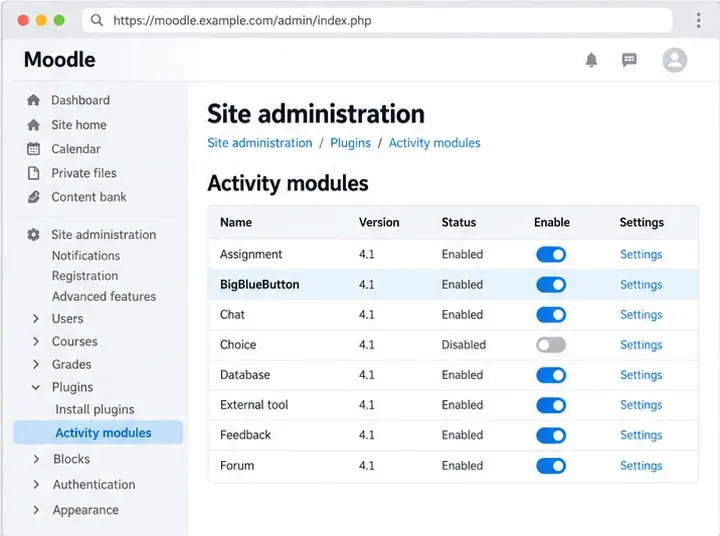
You need administrator access to Moodle and a working BigBlueButton server. BigBlueButton recommends a dedicated server; Moodle and BigBlueButton can run on separate hosts. The Moodle server must be able to reach the BigBlueButton API, and users’ browsers must be able to reach the meeting server for audio, video, and screen sharing. Use HTTPS for the public Moodle and BigBlueButton addresses.
In Moodle 4.0–5.2, BigBlueButtonBN is included but may be disabled. In Moodle 5.3, it is enabled by default on new installations; an upgrade or a site with incomplete settings can behave differently. If the activity is missing, open Site administration > Plugins > Activity modules > Manage activities and check its status. If it is not installed on an older Moodle version, choose a release from the official Moodle BigBlueButtonBN plugin directory that explicitly supports your Moodle version, install it through Moodle’s plugin installer, and complete the database upgrade prompt. Do not install a package simply because it is the newest one.
On the BigBlueButton host, ask an administrator to run:
sudo bbb-conf --secretRecord the displayed server URL and shared secret in a secure place. The URL normally includes the protocol, hostname, and API path, for example https://bbb.example.com/bigbluebutton/. Use the exact URL printed for your server, including the trailing slash. If BigBlueButton is hosted by a provider, obtain the endpoint and secret from that provider instead.
The shared secret signs API requests. Do not paste it into a course description, a browser-side script, or a public support message. BigBlueButton’s API documentation explains that API authentication uses a checksum derived from the shared secret.
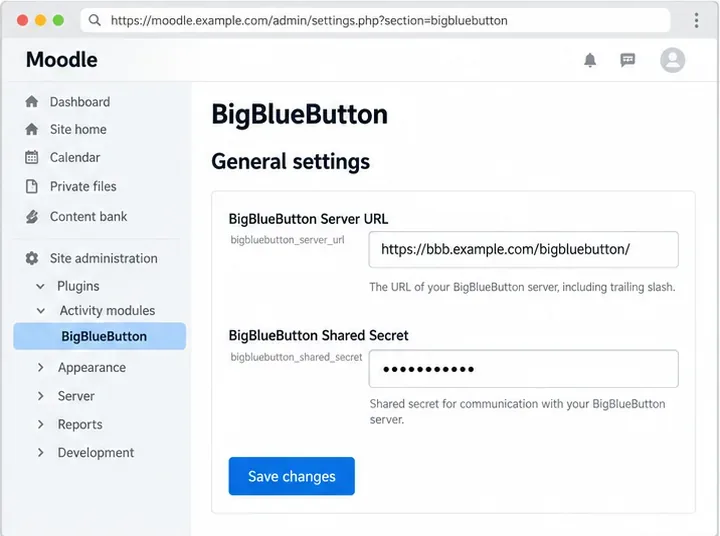
bbb-conf --secret in BigBlueButton Server URL and BigBlueButton Shared Secret. If the settings page has a checksum algorithm option, keep the provider’s documented value; do not change it to fix a URL or secret mismatch.These are site-wide credentials used by the activity, so course teachers should not need to enter the secret. Moodle stores the integration configuration on the server side. See the current Moodle BigBlueButton activity documentation and BigBlueButton’s server customization documentation.
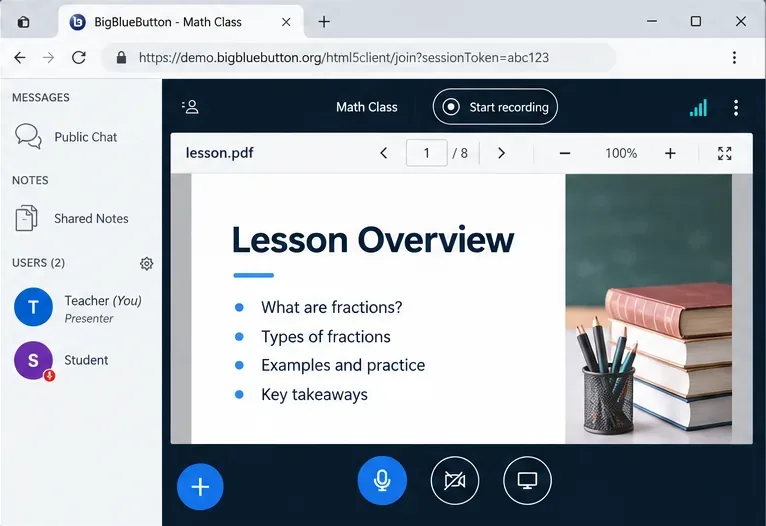
Open a course where you have editing rights, turn editing on, and choose Add an activity or resource. Select BigBlueButton, then enter a clear activity name such as “Live lecture.” Add a description if students need joining instructions. Use the scheduling fields to set when the room opens and closes; Moodle can show scheduled times in the course calendar.
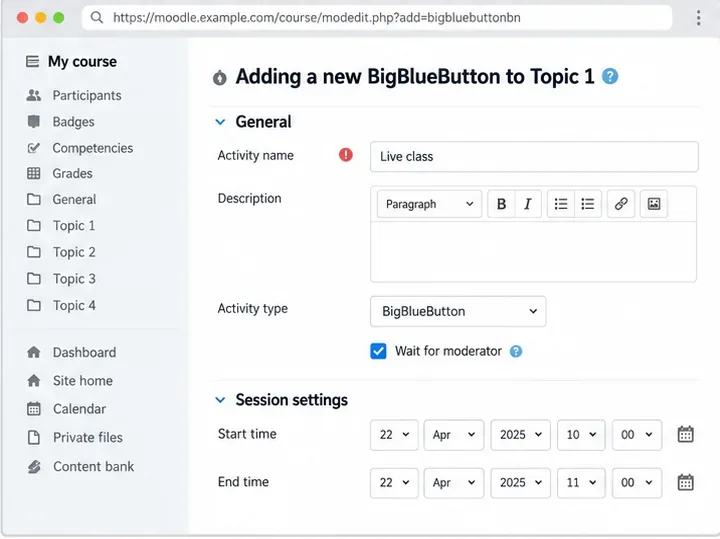
Choose Wait for moderator if students should not enter before a teacher or other moderator. Configure recording only if your server and course policy allow it; recordings may take time to process and their visibility depends on Moodle and BigBlueButton settings. Save the activity and use Save and display so you can test the room immediately.
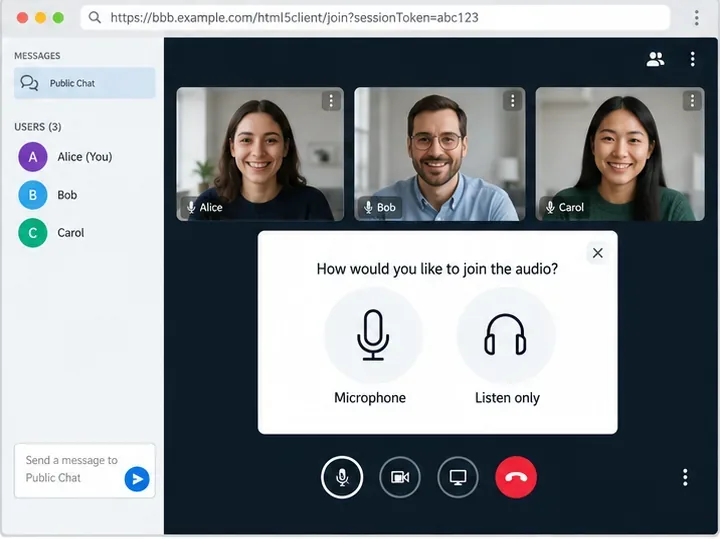
Open the activity as the teacher, enter the meeting, and select a microphone or listen-only connection. Then use a second browser or test account enrolled as a student to check the student path. Confirm the student sees the activity at the intended time, waits when a moderator is required, and can join after the teacher enters. Test audio and video from the student device; a successful API connection alone does not prove that WebRTC media traffic is passing.
If Moodle reports an API error or says the server is unavailable, verify the URL and shared secret first. If Moodle opens the room but participants cannot connect audio, video, or screen sharing, investigate BigBlueButton firewall rules, browser connectivity, and TURN requirements instead of reinstalling the Moodle activity. The BigBlueButton firewall guide describes the network paths the media server needs. If the activity is not visible in a course, return to Moodle’s activity-module status and course editing permissions.
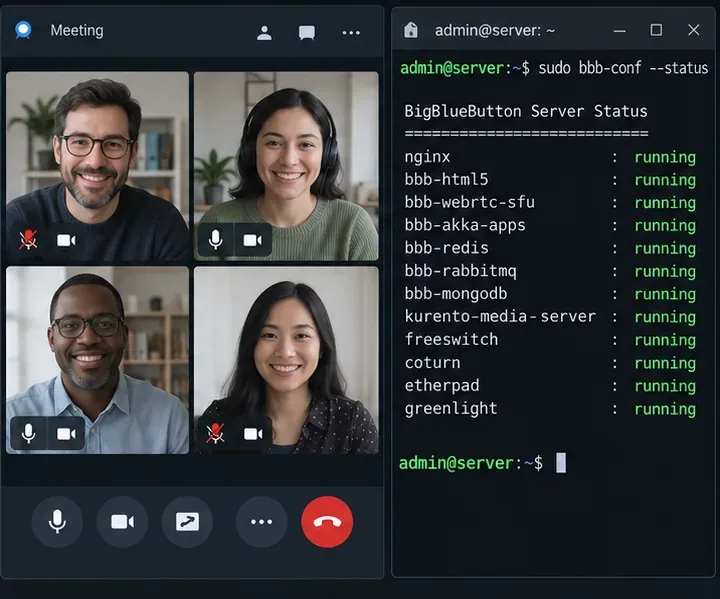
For a final server-side check, run sudo bbb-conf --check on the BigBlueButton host. A clean check, a successful teacher and student join, and working audio in a representative meeting are stronger evidence of a working integration than seeing the activity listed in Moodle alone. If any test fails, record the Moodle version, BigBlueButton version, plugin status, and exact error before changing more settings; this helps distinguish compatibility, API credentials, and media-network issues.
Set up the Moodle activity, add the matching BigBlueButton endpoint and shared secret, then verify teacher, student, and media access.
Master U.S. holiday etiquette in 5 clear steps, avoiding conversation faux pas, tipping mistakes, and host blunders for a smooth, festive trip.
Point a Jitsi Meet Docker hostname to your server, configure PUBLIC_URL and HTTPS, then verify browser access and media.
Trace the failing Jitsi service from Compose status to its logs, then fix missing secrets, unwritable mounts, or resource failures safely.
Resolve unsupported presentation uploads in BigBlueButton by choosing the right format, checking the real file type, and identifying server-side failures.
Trace KMS crashes to resource pressure, verify your BigBlueButton media path, and apply the supported fixes without guessing at capacity.
Set up local host accounts on a self-hosted Jitsi Docker server, then add a separate password to meetings that need tighter guest access.
Disable optional Jitsi analytics and rtcstats, then set a separate retention policy for Docker logs so privacy controls do not erase troubleshooting evidence.
Allow only approved accounts to start Jitsi Meet rooms using Keycloak and token authentication, while keeping guest joining available when needed.
Learn why December is America's most stressful yet magical month and follow 5 clear steps to manage holiday fatigue and reclaim seasonal joy.