Stop a Jitsi Meet Docker Restart Loop by Finding Its Cause
Trace the failing Jitsi service from Compose status to its logs, then fix missing secrets, unwritable mounts, or resource failures safely.
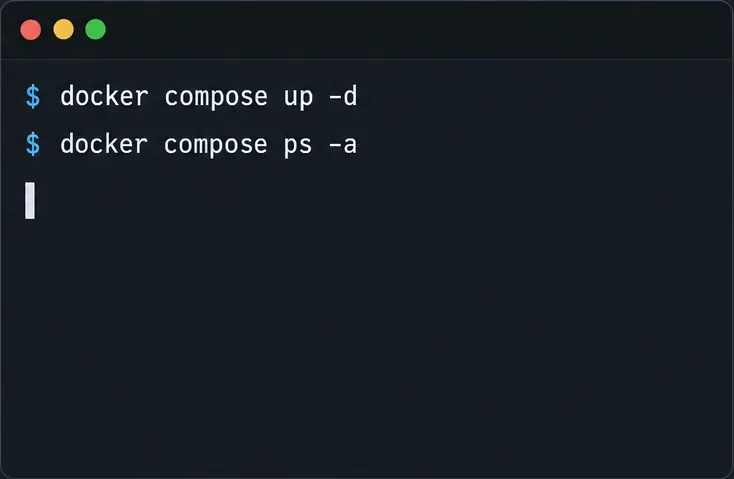
Illustrative example only: An administrator at a small organization sees its Jitsi Meet stack repeatedly restart after an update. The word “Jitsi” does not identify the cause: the web, Prosody, Jicofo, and Videobridge containers run as separate services and can fail for different reasons. Start with docker compose ps -a, inspect the service that is actually restarting, and read its recent logs before changing the restart policy or rebuilding the stack.
A restart policy tells Docker what to do after a container exits; it does not explain why the process exited. Docker documents unless-stopped as a policy that restarts a container regardless of exit code until it is stopped or removed. Treat the repeated restart as a symptom. The checks below apply to the official Jitsi Docker Compose deployment; customized Compose files may use different service names, mount paths, image tags, or startup requirements.
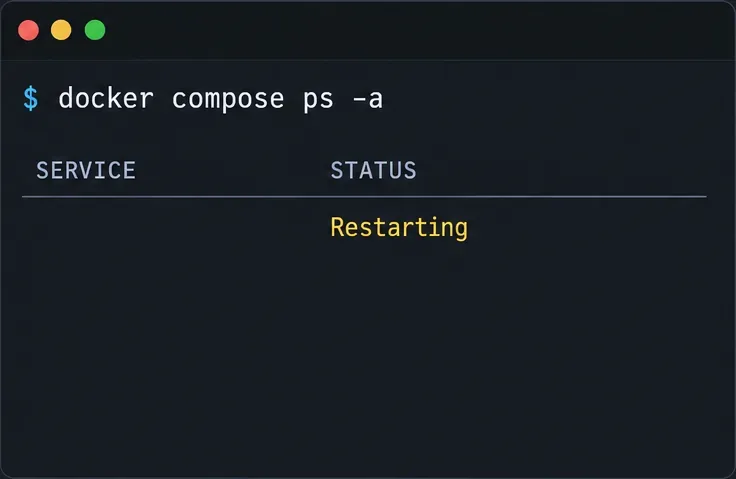
From the directory containing the active Jitsi Compose file, run:
docker compose ps -aLook for the STATUS column and note the corresponding service name, such as prosody, jicofo, jvb, or web. Compose can show stopped containers with -a; this helps distinguish a service that exited once from one cycling through restarts.
Verified: Jitsi’s Docker deployment separates its web interface, XMPP server (Prosody), conference focus (Jicofo), and video bridge (JVB) into components. Action: troubleshoot the service named in the status output first. If every service is down, check shared configuration and Docker daemon availability before treating each container as a separate failure.
Depends on the setup: optional services such as Jigasi, Jibri, Coturn, or a reverse proxy may appear in your project. Action: use the exact service label shown by docker compose ps -a, not a guessed container name.
Replace <service> with the service name from the previous command:
docker compose logs --tail=100 --timestamps <service>For a service that restarts quickly, the final log lines from each attempt often show where initialization stopped. Jitsi documents Compose logs as the way to retrieve component output; Docker’s --tail and --timestamps options limit and date the displayed lines.
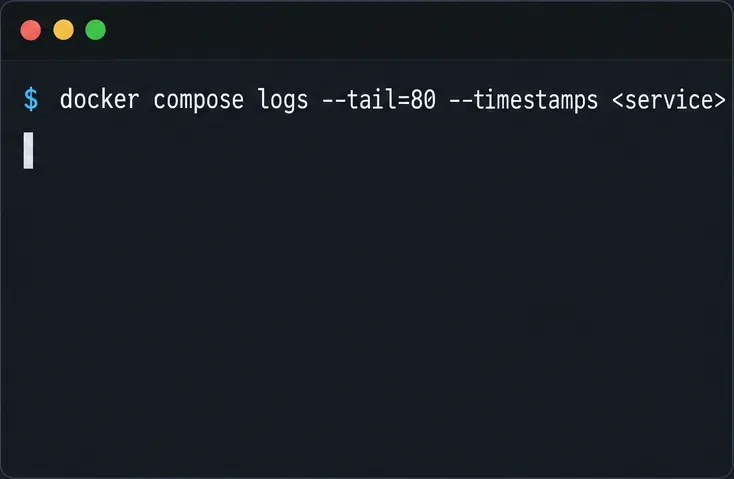
Verified: the Jitsi Docker images log to standard output by default, so Compose can retrieve the output. Action: save the first meaningful error and the lines immediately before it. Don’t share full logs publicly without review; configuration details or internal hostnames may be present.
Not knowable from the symptom alone: “Restarting” does not prove a bad password, broken network, or corrupted image. Action: if the message is unclear, inspect the container state for the exact container ID reported by Compose:
docker inspect <container_id> --format '{{.State.Status}} exit={{.State.ExitCode}} oom={{.State.OOMKilled}} error={{.State.Error}} restarts={{.RestartCount}}'An oom=true value supports a memory-pressure diagnosis; a nonzero exit code by itself only confirms that the process failed. Follow the log evidence instead of assuming every exit is an out-of-memory event.
If a fresh installation’s logs say that a required component password is missing, check the active project’s .env file and compare it with the env.example shipped with the same Jitsi Docker release. The Jitsi handbook states that current containers will not start without required internal account passwords. On a new setup, the project’s ./gen-passwords.sh helper generates strong values and updates .env; it also keeps a backup named .env.bak.
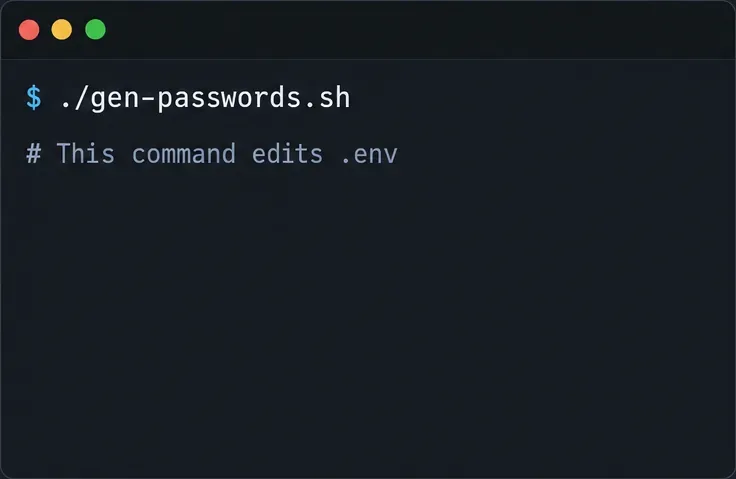
Important distinction: generating passwords again on an existing installation changes credentials that running components use to communicate. Action: do not rerun the helper as a generic repair. Restore a known-good environment backup or reconcile the required values for your exact release, then recreate the affected services. Keep .env and its backup private because they contain secrets; never include them in screenshots or support posts.
Also confirm that you are in the intended Compose project directory. Two Jitsi folders can have different .env files and configuration volumes. Action: check the working directory and file timestamps locally, and avoid printing the entire resolved Compose configuration where secrets could be exposed.
If logs mention a missing directory, read-only path, or permission denied, inspect the CONFIG path in the active .env and confirm that the expected host directories exist and are writable. For Jitsi’s current rootless layout—documented for release stable-11146 and newer—the storage and tmp directories must be writable by the container’s unprivileged UID/GID 1000. The older layout differs, so do not copy newer folder commands to an older release without checking its matching guide.
Action: create or correct only the paths named by the log and grant the documented container user the needed write access. Avoid broad recursive permission changes across the entire home directory or configuration tree.
If this began after an image update or custom build, compare the image tags across services and confirm they belong to a compatible release. Jitsi notes that its repository’s master branch is designed for unstable images, not release images. Action: for a production deployment, use a consistent stable release set; if using a development checkout, align it with the matching unstable images rather than mixing tracks.
After correcting the specific cause, run the command from the same Compose project directory:
docker compose up -dCompose applies changed service configuration by stopping and recreating affected containers while preserving mounted volumes. This is why up -d is appropriate after changing an environment value; a plain restart may start the old container definition again. Avoid docker compose down -v as a routine fix because removing volumes can delete persistent Jitsi data.
Confirm that the affected service remains Up and its restart count no longer increases. Review fresh logs with docker compose logs --tail=50 --timestamps <service>. Then test the web interface and, if the repaired service was JVB, join a meeting with a second participant to verify media connectivity. A green container status alone does not prove that every meeting function works.
Sources: Jitsi Meet Docker self-hosting guide; Jitsi Docker Compose project; Docker Compose up command; Docker Compose logs command; Docker Compose restart policy reference.
Trace the failing Jitsi service from Compose status to its logs, then fix missing secrets, unwritable mounts, or resource failures safely.
Resolve unsupported presentation uploads in BigBlueButton by choosing the right format, checking the real file type, and identifying server-side failures.
Trace KMS crashes to resource pressure, verify your BigBlueButton media path, and apply the supported fixes without guessing at capacity.
Set up local host accounts on a self-hosted Jitsi Docker server, then add a separate password to meetings that need tighter guest access.
Disable optional Jitsi analytics and rtcstats, then set a separate retention policy for Docker logs so privacy controls do not erase troubleshooting evidence.
Allow only approved accounts to start Jitsi Meet rooms using Keycloak and token authentication, while keeping guest joining available when needed.
Learn why December is America's most stressful yet magical month and follow 5 clear steps to manage holiday fatigue and reclaim seasonal joy.
Troubleshoot Jitsi Meet connection drops, isolate browser and network issues, and check the UDP and NAT settings that commonly affect self-hosted calls.
Configure Jibri, expose Jitsi’s live-stream control, and test a YouTube broadcast using a protected stream key.
Separate a participant’s device issue from a WebRTC or audio-bridge problem, then use the right checks to restore breakout-room audio.