Stop Jitsi Meet Disconnects by Checking the Network Path

If Jitsi Meet shows “You have been disconnected,” first check whether your device still has internet, then reconnect once. If the disconnect repeats, test the same meeting from another network or browser; on a self-hosted server, have the administrator verify that TCP 443 and especially UDP 10000 reach the Jitsi host. The message is a symptom, not a diagnosis: it does not by itself prove that your Wi-Fi, browser, or Jitsi server is at fault.

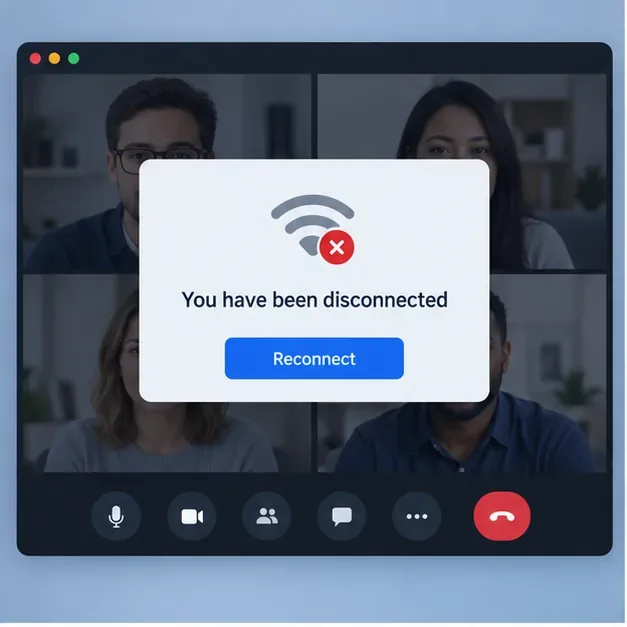
A meeting window displays a disconnect notice and a reconnect control. Reconnect once after checking whether the device still has internet access.

What the disconnect notice tells you

The current Jitsi Meet interface pairs this notice with a reconnect countdown. It tells you that the client lost its conference connection, but does not name the failed component. A brief Wi-Fi interruption, a restrictive workplace firewall, an unreachable media bridge, or a server-side issue can look similar to the person in the room.

Verified: Jitsi’s self-hosting documentation lists TCP 443 for general web access and UDP 10000 for normal audio/video traffic. Context-dependent: whether either path is blocked depends on where the meeting is hosted and the participant’s network. Not knowable from the popup alone: which path failed. Start by isolating the client from the network and server.

Try these checks as a participant

  1. Check the connection outside the meeting. Open another website or switch briefly between Wi-Fi and mobile data. If other services also stop loading, restore the device’s internet connection first. Avoid repeatedly pressing Reconnect while the device is offline; reconnect once the network is stable.
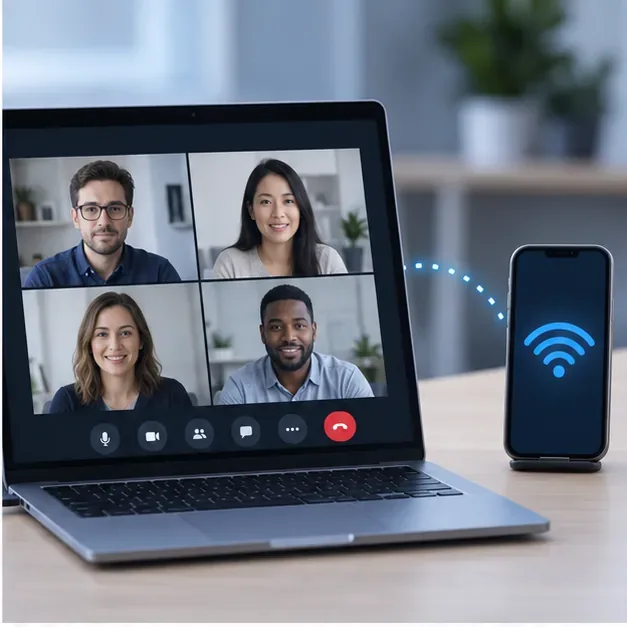
  2. Join the same room from a different network. If the meeting works on a phone hotspot but repeatedly drops on office or school Wi-Fi, the original network may restrict real-time media traffic. Give the network administrator the meeting time, your network type, and whether the room page loaded before the drop. Do not ask them to open broad inbound access; the relevant server-side ports are described below.
A video meeting on a laptop and a phone hotspot illustrate a controlled network test. Rejoin on a different connection to see whether the original network is involved.
  1. Try a supported, up-to-date browser. Jitsi’s handbook lists current desktop support for Chrome, Firefox, Safari, and Edge, with minimum versions on its support page. Close duplicate meeting tabs and temporarily disable extensions that filter scripts or network requests. If the issue occurs in only one browser, update it and retest before changing router settings.
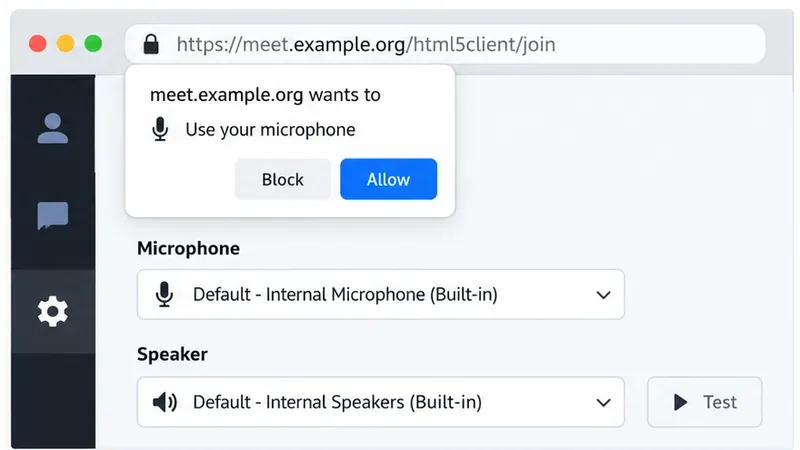
  2. Separate video trouble from a full disconnect. If the room remains connected but video or sound is missing, check device permissions and select the correct camera and microphone in the meeting controls. A missing camera permission does not by itself explain every conference disconnect, so do not treat changing camera settings as a universal fix.

On a managed network, a VPN or security gateway can affect real-time traffic, but the result varies by policy. If permitted, compare one test with the VPN disconnected and one connected; do not bypass an employer’s security controls. The Jitsi FAQ recommends checking firewall/NAT when participants cannot see or hear one another.

If you administer a self-hosted Jitsi server

First determine whether the web page or the media path is failing. A meeting page that opens proves only that the web service is reachable; it does not prove that the Videobridge can exchange audio/video traffic with participants. The Jitsi FAQ specifically points administrators to firewall/NAT configuration, especially UDP 10000, when a meeting works with two people but fails after a third joins. That pattern is a useful clue, not proof that every disconnect has the same cause.

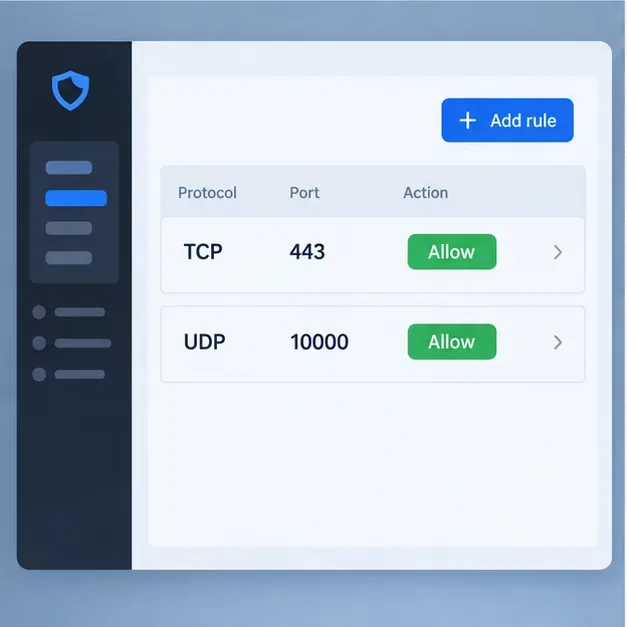
A firewall rules view shows TCP 443 and UDP 10000 allowed. Self-hosted administrators should verify both protocol and port at the server and router.
  1. Check the external firewall and router. For the standard Debian/Ubuntu setup, Jitsi documents TCP 443 for general access and UDP 10000 for audio/video. The Docker guide lists the same web and media ports. Confirm the UDP rule at the host firewall, cloud firewall or security group, and router port-forwarding layer if the server is behind NAT. An “allow” rule at only one layer is not enough if another layer still drops packets.
  2. Check NAT advertisement when applicable. If the server has a private address behind a different public address, verify the Videobridge’s public/private address mapping against the current Jitsi guide. The handbook notes that a three-way call may require additional Videobridge configuration for outside reachability. Do not copy a sample address literally; use the actual local and public addresses for that host.
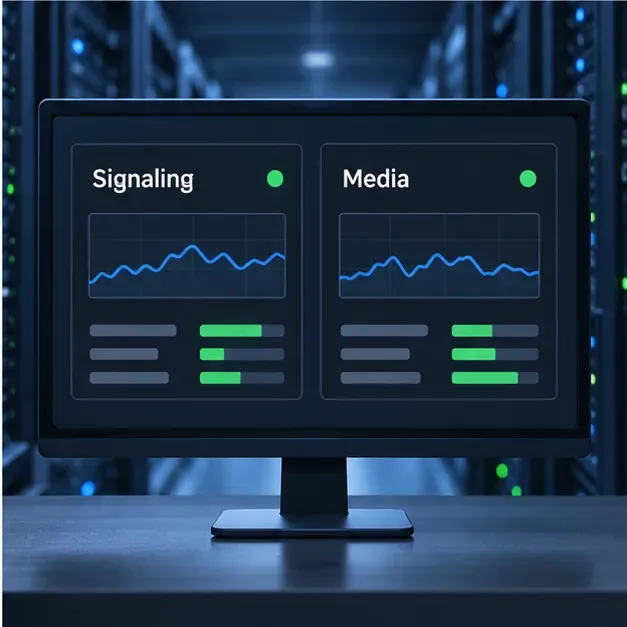
  3. Inspect whether signaling and media fail together. Check reverse-proxy/browser errors and the Prosody, Jicofo, and Jitsi Videobridge service logs around the disconnect time. If the web client cannot establish its signaling connection, inspect the proxy and configured public URL. If signaling works but participants cannot exchange media, focus on the Videobridge’s UDP path and NAT. The exact log commands and container names differ between package and Docker installations, so use the matching deployment guide instead of mixing instructions.
A monitoring view separates signaling from media health. A room can load while the media path through the Videobridge still fails.

Make one change at a time, then test with two participants and a third participant from an external network. This comparison helps distinguish a local peer-to-peer call from a call that must route through the Videobridge. Record the time, client network, and whether audio/video stopped before the client disconnected; those facts make logs more useful.

Common assumptions to avoid

  • “The popup means my internet is down.” It advises checking the connection, but Jitsi’s message does not identify the cause. Check another site and another network before concluding that.
  • “If the room page loads, the server is configured correctly.” Web access and real-time media use different paths. Confirm UDP 10000 reaches the Videobridge on a standard deployment.
  • “Opening port 443 fixes every call.” TCP 443 serves the web interface, while Jitsi documents UDP 10000 for general audio/video. Check both appropriate paths and any NAT forwarding; do not expose extra ports without a deployment-specific reason.
  • “A successful two-person test proves the bridge works.” Jitsi documents a case where two participants communicate but the third-participant route fails. Test with a third participant when diagnosing a self-hosted bridge.

Verify the repair

Rejoin from the network that previously failed and keep a short test call active while a second and then a third participant joins. Confirm that the room stays connected and that participants can hear and see one another. If only one network or browser still drops, share that comparison with its network or server administrator. If all clients disconnect from the same hosted service at once, collect the time and meeting address and check the service provider’s support/status channel; this article cannot identify a live service outage.

Sources

Documentation checked October 10, 2026. Port requirements can differ if an administrator has deliberately changed the deployment configuration.

Leave a Comment

Let Approved Users Create Jitsi Rooms With Keycloak Sign-In
Let Approved Users Create Jitsi Rooms With Keycloak Sign-In

Allow only approved accounts to start Jitsi Meet rooms using Keycloak and token authentication, while keeping guest joining available when needed.

How to Balance December Holiday Stress and Magic: Step-by-Step Guide

Learn why December is America's most stressful yet magical month and follow 5 clear steps to manage holiday fatigue and reclaim seasonal joy.

Stop Jitsi Meet Disconnects by Checking the Network Path

Stop Jitsi Meet Disconnects by Checking the Network Path

Troubleshoot Jitsi Meet connection drops, isolate browser and network issues, and check the UDP and NAT settings that commonly affect self-hosted calls.

Enable Jitsi YouTube Streaming with Jibri and a Stream Key

Enable Jitsi YouTube Streaming with Jibri and a Stream Key

Configure Jibri, expose Jitsi’s live-stream control, and test a YouTube broadcast using a protected stream key.

Restore Audio in BigBlueButton Breakout Rooms

Restore Audio in BigBlueButton Breakout Rooms

Separate a participant’s device issue from a WebRTC or audio-bridge problem, then use the right checks to restore breakout-room audio.

How to Tell Why Some U.S. Cities Thrive in December: A 5-Step Guide

How to Tell Why Some U.S. Cities Thrive in December: A 5-Step Guide

Use this 5-step guide to assess weather, visitors, events, and downtown design—and understand why some U.S. cities feel lively in December.

How Ugly Christmas Sweaters Became a Multi-Million-Dollar American Tradition

How Ugly Christmas Sweaters Became a Multi-Million-Dollar American Tradition

Trace ugly Christmas sweaters from midcentury knitwear to U.S. party staple and specialty retail. Five milestones explain the trend and its sales claims.

Greenlight Dashboard Error 500: Find the Failing Service

Greenlight Dashboard Error 500: Find the Failing Service

Trace a BigBlueButton Greenlight 500 error through application logs, PostgreSQL, Redis, environment settings, and Nginx without risking room data.

Set a Safe Retention Schedule for BigBlueButton Recordings

Set a Safe Retention Schedule for BigBlueButton Recordings

Preview which published recordings exceed your retention period, then schedule BigBlueButton cleanup with a logged daily script and a dry-run safeguard.

Resolve BigBlueButton SIP Gateway Registration Timeouts

Resolve BigBlueButton SIP Gateway Registration Timeouts

Trace FreeSWITCH REGISTER requests, correct gateway or network settings, and confirm that your BigBlueButton SIP trunk registers successfully.