Enable Jitsi YouTube Streaming with Jibri and a Stream Key
Configure Jibri, expose Jitsi’s live-stream control, and test a YouTube broadcast using a protected stream key.
For a self-hosted Jitsi Meet deployment, YouTube livestreaming depends on Jibri, Jitsi’s recording and broadcast service. Enable Jibri in Docker Compose, expose the livestream control in the web client, then enter a YouTube stream key in the meeting. The current Jitsi Docker documentation also notes that newer containers run rootless and read-only, so make persistent changes in mounted configuration files instead of editing generated files inside a running container.
This setup applies to administrators of a self-hosted Jitsi server. If you use the public meet.jit.si service, you cannot install or configure its Jibri workers yourself; ask the service operator about streaming access.
You need administrative access to the Jitsi Docker Compose deployment, a Jibri service that can join the meeting, and a YouTube channel with livestreaming enabled. Jibri captures the conference and sends its audio and video to the streaming destination. Turning on a button in Jitsi alone does not provide that worker.
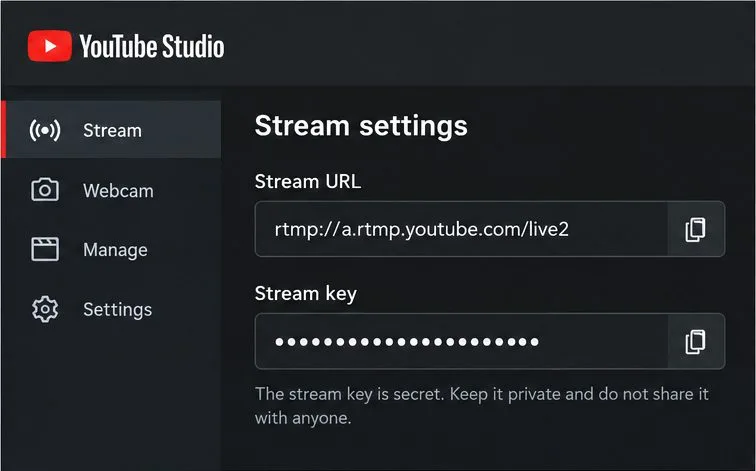
Create or schedule the broadcast in YouTube Studio’s Live Control Room before the event. Copy the stream key and keep it private: YouTube treats the key like a password. The Jitsi YouTube flow can accept the key directly; connecting a Google account is an optional route and may require additional Google API configuration on a self-hosted server.
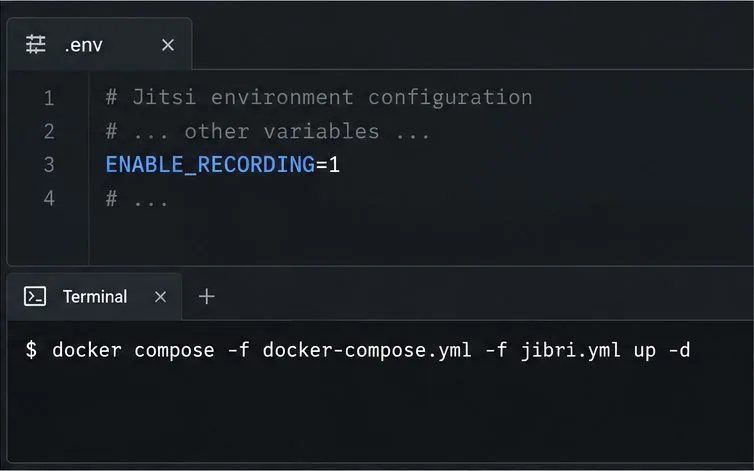
In the Jitsi deployment directory, open the persistent .env file and set:
ENABLE_RECORDING=1Despite the variable name, Jitsi’s Docker guide uses this setting to enable Jibri for both recording and live streaming. Then start the normal Compose file together with the Jibri service definition:
docker compose -f docker-compose.yml -f jibri.yml up -dIf your installation already uses extra Compose files, keep those options and add -f jibri.yml to the same command. Do not replace a customized launch command with the example if that would drop other services or overrides. Follow the current Docker guide for required Jibri configuration and writable storage directories; newer rootless containers should not be “fixed” with broad permissions such as chmod 777.
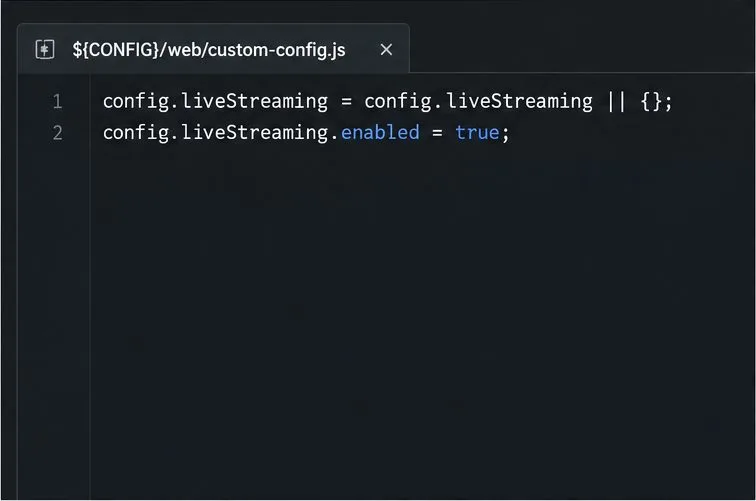
Jitsi’s web client has a liveStreaming.enabled option. In the mounted web configuration directory, create or update custom-config.js with:
config.liveStreaming = config.liveStreaming || {};
config.liveStreaming.enabled = true;
For the default Docker configuration this file is commonly under ~/.jitsi-meet-cfg/web/custom-config.js; use the actual CONFIG path from your installation if it differs. Jitsi loads this custom file into the web configuration. If you explicitly set toolbarButtons, include 'livestreaming' in that list; otherwise the control can remain hidden even though livestreaming is enabled. Recreate or restart the web service with the same Compose files so it reads the change. Avoid editing generated config.js inside the container, because that file is rebuilt when the service starts.
For a custom RTMP destination rather than YouTube, Jitsi’s self-hosted FAQ says to provide the RTMP server URL and stream key. That is a separate destination setup from the YouTube key-only dialog. YouTube recommends RTMPS for encoders that support it; the built-in Jitsi YouTube flow manages its destination, so do not assume that pasting a key changes the endpoint protocol.
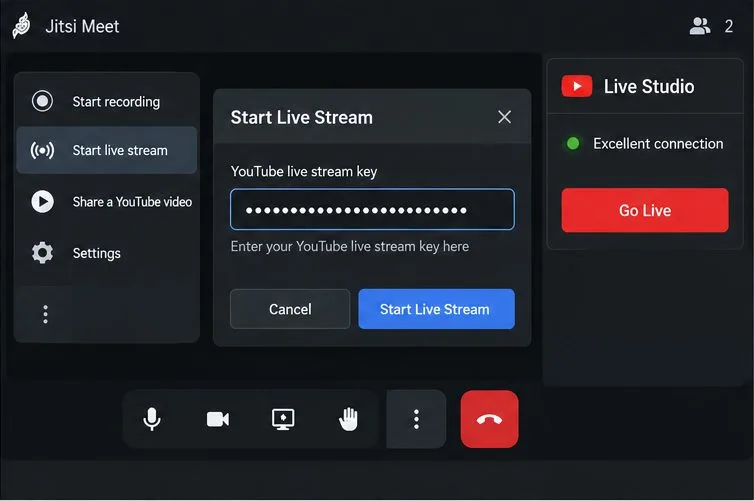
Run a short private or unlisted test and confirm that YouTube receives both moving video and clear audio before relying on a public event. YouTube advises checking the preview and stream health before going live. Verify that the Jitsi meeting continues to show the live-stream control for moderators after a page reload.
If the control is missing, check liveStreaming.enabled and any explicit toolbar button list, then confirm the web container was restarted. If Jitsi says no streamers are available or cannot start the broadcast, check that the Jibri container is running with docker compose ps and inspect its logs with docker compose logs jibri. A running container alone does not prove Jibri can authenticate to the Jitsi XMPP services; check the deployment’s Jibri credentials and configuration against the official guide.
Use the official Jitsi Docker deployment guide for the Compose setup, the Jitsi FAQ on streaming for YouTube and custom RTMP destinations, and YouTube’s stream settings help for managing the key and destination.
Configure Jibri, expose Jitsi’s live-stream control, and test a YouTube broadcast using a protected stream key.
Separate a participant’s device issue from a WebRTC or audio-bridge problem, then use the right checks to restore breakout-room audio.
Use this 5-step guide to assess weather, visitors, events, and downtown design—and understand why some U.S. cities feel lively in December.
Trace ugly Christmas sweaters from midcentury knitwear to U.S. party staple and specialty retail. Five milestones explain the trend and its sales claims.
Trace a BigBlueButton Greenlight 500 error through application logs, PostgreSQL, Redis, environment settings, and Nginx without risking room data.
Preview which published recordings exceed your retention period, then schedule BigBlueButton cleanup with a logged daily script and a dry-run safeguard.
Trace FreeSWITCH REGISTER requests, correct gateway or network settings, and confirm that your BigBlueButton SIP trunk registers successfully.
Enable a Jitsi Meet background, troubleshoot missing controls, and reduce video lag on slower laptops without risky configuration changes.
Trace M_FORBIDDEN to room power levels, membership, or Synapse server-admin access, then restore only the permission the blocked action needs.
Configure Synapse discovery, HTTPS, and proxy routing so other Matrix homeservers can find and contact your server.