Greenlight Dashboard Error 500: Find the Failing Service
Trace a BigBlueButton Greenlight 500 error through application logs, PostgreSQL, Redis, environment settings, and Nginx without risking room data.
A Greenlight dashboard showing 500 Internal Server Error usually needs a server-side fix, not a browser refresh. On Greenlight v3, read the application log at the time of the failure, then correct the specific database, cache, configuration, or proxy problem it reports. Do not delete Docker volumes or recreate the database as a first attempt: doing so can erase users, rooms, and other persistent data.
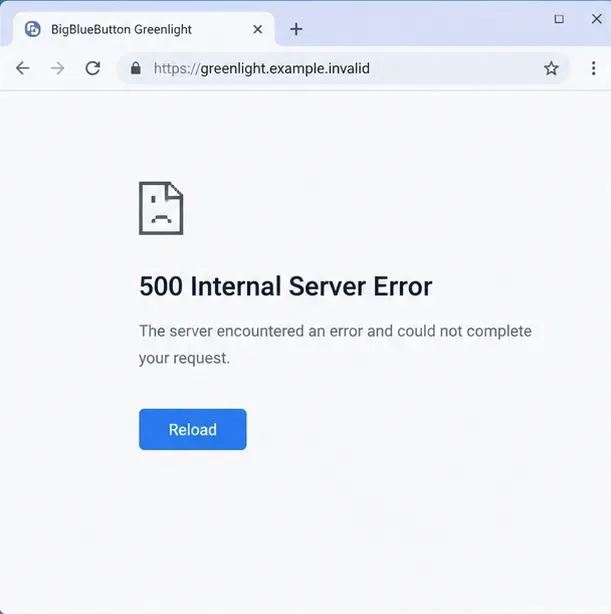
Greenlight is the web portal used to sign in, manage rooms, and launch meetings on a BigBlueButton server. An HTTP 500 response means the server encountered an error while processing the request; the browser page alone does not identify its cause.
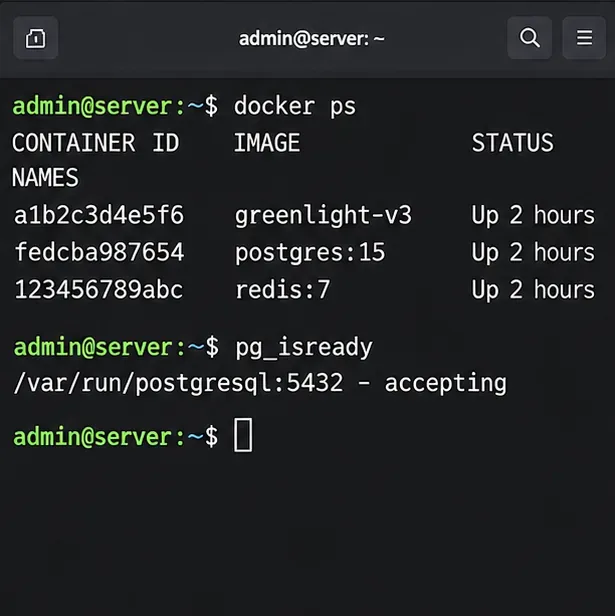
This procedure targets Greenlight v3, whose standard Docker Compose deployment includes the application, PostgreSQL (its relational database), and Redis (a fast data store used by the application). Its example containers are named greenlight-v3, postgres, and redis; yours may differ. See the Greenlight v3 installation instructions and upstream Docker Compose file.
Use SSH with Docker permissions. Record the failing URL and time, and preserve a recent backup before changing settings. Note any recent upgrade.
First see which containers are present and whether they are running:
docker ps -a --format 'table {{.Names}} {{.Status}} {{.Image}}'On a standard v3 installation, inspect recent application logs, then reload the failing dashboard once while recording the time:
docker logs --since 15m --tail 150 greenlight-v3Match the error near the failed request to the next check:
PG::ConnectionBad, ActiveRecord::ConnectionNotEstablished, or authentication failure: inspect PostgreSQL and the database URL.REDIS_URL.For other exceptions, investigate their specific message instead.
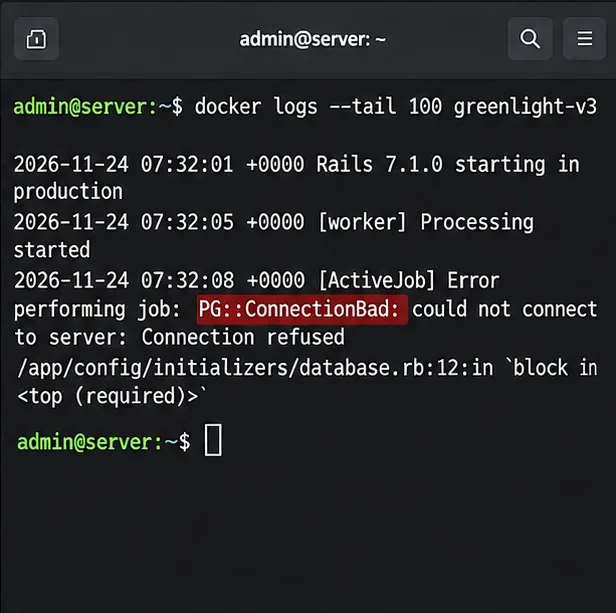
Even a running application container can fail when it queries its database or cache. Inspect dependency logs:
docker logs --tail 80 postgres
docker logs --tail 80 redis
For the container names in the official example, these checks report whether PostgreSQL is accepting connections and Redis answers a ping:
docker exec postgres pg_isready -U postgres
docker exec redis redis-cli ping
Redis normally returns PONG. PostgreSQL readiness does not verify Greenlight's password; compare authentication errors with Step 3. If the containers are stopped, examine their logs and free disk space with df -h before starting them. On a standard installation, docker start postgres redis starts existing stopped containers without deleting their stored data.
If one of these commands reports that its container does not exist, use the actual name from Step 1 rather than creating a second, empty database. Do not use docker compose down -v, docker volume prune, or database initialization commands as a casual repair.
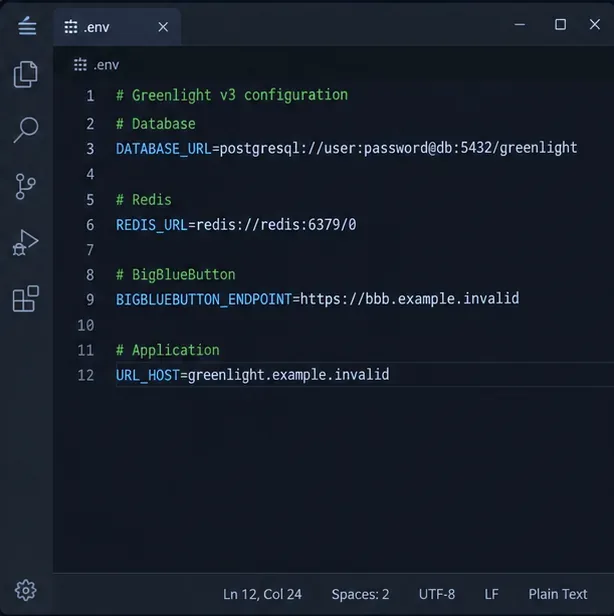
The documented Greenlight installer normally places the environment file at /root/greenlight-v3/.env. Edit it with sudo nano /root/greenlight-v3/.env and compare it with Compose. Never publish its passwords or secrets.
Check DATABASE_URL for the correct PostgreSQL host, database name, user, and password; REDIS_URL for the Redis host and port; and URL_HOST for the hostname visitors actually use. The upstream Compose service hosts are postgres and redis, not localhost inside the application container. The project sample environment file documents these variable names and the SECRET_KEY_BASE setting.
If your log points to a BigBlueButton API or certificate problem, confirm BIGBLUEBUTTON_ENDPOINT and BIGBLUEBUTTON_SECRET against sudo bbb-conf --secret on the BigBlueButton server. That command displays a secret; keep its output private. Also check that the configured endpoint is reachable over HTTPS with a trusted certificate. If Greenlight runs under a subdirectory such as /gl, check RELATIVE_URL_ROOT against the deployed proxy route. The official Greenlight setup guide explains that path setting.
Do not replace SECRET_KEY_BASE with a new random value just to clear a 500 error. Changing it can invalidate sessions or tokens; restore the original value from secure records.
Nginx is a reverse proxy: it accepts browser requests and forwards them to the Greenlight application. If Greenlight responds locally but the public site fails, inspect proxy routing and TLS configuration rather than resetting PostgreSQL.
The upstream example publishes the Greenlight container on 127.0.0.1:5050 on the host. If your Compose file uses this mapping, check the local route, the Nginx configuration, and the error log:
curl -I http://127.0.0.1:5050/
sudo nginx -t
sudo tail -n 80 /var/log/nginx/error.log
Local success but public failure suggests a proxy or hostname issue. Local 500 means inspect the application log. Connection refusal suggests an unavailable container or different port. Never expose the private Greenlight application port to the Internet as a workaround.
After restoring a stopped dependency, try the dashboard again before restarting anything else. If you changed .env, a simple container restart may leave the old environment in place. From the verified Compose directory, the following command recreates only the Greenlight service using the current configuration:
cd /root/greenlight-v3
docker compose up -d --no-deps --force-recreate greenlight-v3
Use the actual Compose directory and service name for your installation. This command is not a database repair tool; run it only after checking the configuration and preserving application data. If Nginx configuration was edited, run sudo nginx -t first and reload Nginx only after the test passes. If the related BigBlueButton server also fails, run sudo bbb-conf --check on that server as advised by the official BigBlueButton troubleshooting guide.
Open the Greenlight URL in a fresh browser session, sign in, load the dashboard, and open a room page. Confirm that the page responds without a 500 error and that existing rooms remain visible. If meeting creation was affected, test it with a noncritical room. Finally, run docker logs --since 5m greenlight-v3 and ensure the same exception does not recur during those actions. If it does, keep the correlated log message and revisit the failing dependency rather than repeating resets.
Trace a BigBlueButton Greenlight 500 error through application logs, PostgreSQL, Redis, environment settings, and Nginx without risking room data.
Preview which published recordings exceed your retention period, then schedule BigBlueButton cleanup with a logged daily script and a dry-run safeguard.
Trace FreeSWITCH REGISTER requests, correct gateway or network settings, and confirm that your BigBlueButton SIP trunk registers successfully.
Enable a Jitsi Meet background, troubleshoot missing controls, and reduce video lag on slower laptops without risky configuration changes.
Trace M_FORBIDDEN to room power levels, membership, or Synapse server-admin access, then restore only the permission the blocked action needs.
Configure Synapse discovery, HTTPS, and proxy routing so other Matrix homeservers can find and contact your server.
Configure a Keycloak OIDC client and Synapse provider so Element Web users can sign in through your identity server without exposing client secrets.
Save a recovery key, verify your Element sessions, and check that encrypted message keys can be restored without confusing backup with your account password.
Diagnose Synapse out-of-memory failures during sync, adjust caching safely, identify request backlogs, and verify stable memory use.
Trace Matrix federation certificate failures to the correct server, repair the TLS chain or CA trust, and verify the fix without disabling security checks.