Resolve BigBlueButton SIP Gateway Registration Timeouts
Trace FreeSWITCH REGISTER requests, correct gateway or network settings, and confirm that your BigBlueButton SIP trunk registers successfully.
If FreeSWITCH reports a SIP gateway in TIMEOUT, first confirm that the gateway is supposed to register, then check whether its SIP REGISTER request reaches the provider and receives a response. A true timeout means no response arrived; correct DNS, routing, firewall, provider allowlisting, or the configured SIP destination before increasing timers or changing unrelated BigBlueButton settings.
This applies when you configured BigBlueButton’s optional telephone dial-in gateway or another external SIP trunk. Standard browser audio does not require your server to register a user account with a carrier. If the problem is that browser users cannot join audio, use BigBlueButton’s separate audio troubleshooting path instead of changing a provider gateway.
FreeSWITCH can register an outbound gateway to a SIP provider, or accept registrations from phones and other endpoints. BigBlueButton’s telephone dial-in configuration uses an external FreeSWITCH gateway to connect to an Internet telephone service provider. In a terminal on the BBB server, inspect the gateway that is failing:
sudo fs_cli -x "sofia status"
sudo fs_cli -x "sofia status gateway carrier"
Replace carrier with the gateway name in your XML file. A gateway intended to register should normally show State: REGED. TIMEOUT means the REGISTER request got no response; FAILED means the last registration attempt failed, commonly because of credentials or a provider-side response. NOREG is normal for an IP-authenticated trunk configured not to register. Do not treat a healthy NOREG gateway as a fault.
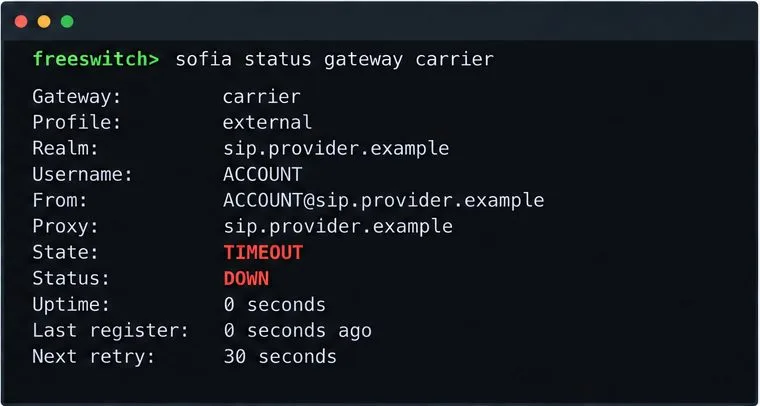
Enable SIP tracing only on the external profile to avoid flooding logs for unrelated profiles:
sudo fs_cli -x "sofia profile external siptrace on"
sudo fs_cli -x "sofia profile external register carrier"
Then review the FreeSWITCH console or its configured log output for the REGISTER exchange, and turn tracing off when finished:
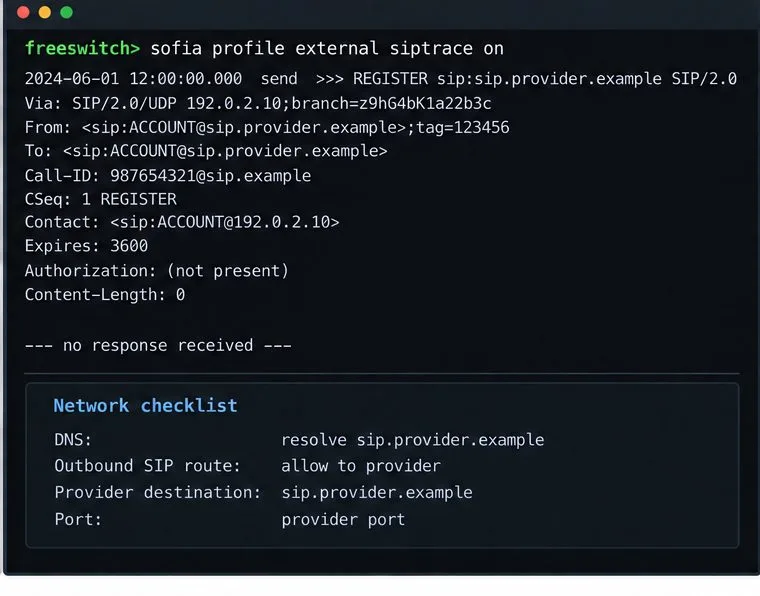
sudo fs_cli -x "sofia profile external siptrace off"If you see an outbound REGISTER and no inbound response, focus on reachability: confirm the provider hostname resolves using the provider’s specified SIP DNS method, the configured proxy and registration target are correct, and the server’s outbound firewall and upstream NAT permit the provider’s required transport and return traffic. Ask the carrier to confirm that the destination, source public IP, port, transport, and account are correct and that it sees the request. Do not assume UDP or a particular SIP port; use the values supplied for your trunk.
If a reply arrives, read its SIP status before editing credentials. A first 401 Unauthorized challenge can be a normal digest-authentication step; FreeSWITCH should answer it with an authenticated REGISTER. A repeated 401 or a 403 points toward the username, authentication username, password, realm, or provider policy—not a no-response timeout. The FreeSWITCH troubleshooting guide distinguishes a registration timeout from explicit provider rejection.
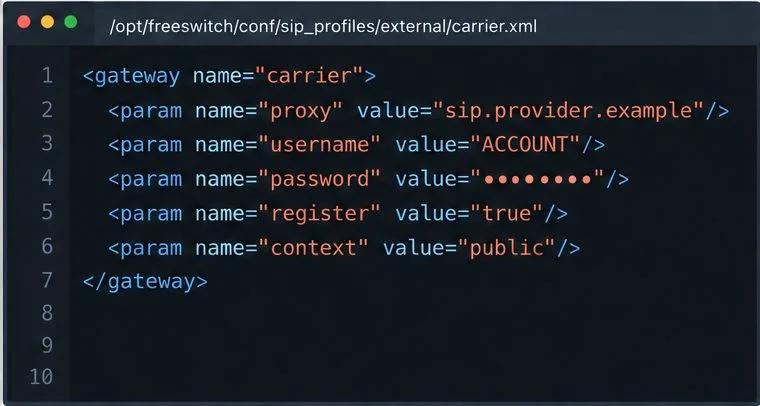
BigBlueButton’s current customization guide places provider gateway files under /opt/freeswitch/conf/sip_profiles/external/. Check that your provider file uses the exact server and account values the carrier supplied. A minimal registering gateway resembles this example:
<include>
  <gateway name="carrier">
    <param name="proxy" value="sip.provider.example"/>
    <param name="username" value="ACCOUNT"/>
    <param name="password" value="REPLACE_WITH_SECRET"/>
    <param name="register" value="true"/>
    <param name="context" value="public"/>
  </gateway>
</include>
This is a pattern, not a complete carrier profile. Preserve any required provider parameters, such as a separate authentication username, realm, registration proxy, or TCP/TLS transport. The proxy is the SIP server FreeSWITCH contacts; when registration uses a different host, FreeSWITCH supports a separate register-proxy. For an IP-authenticated service, the provider may require register=false instead; follow its instructions rather than forcing account registration.
After correcting the file, reload FreeSWITCH’s XML and rescan the external profile, then request a fresh registration:
sudo fs_cli -x "reloadxml"
sudo fs_cli -x "sofia profile external rescan"
sudo fs_cli -x "sofia profile external register carrier"
sudo fs_cli -x "sofia status gateway carrier"
The FreeSWITCH CLI reference documents profile rescan as a way to re-read XML without a full restart and preserve existing calls. If your gateway still does not register, compare the new trace with the old one. An outbound request with no reply remains a network or provider-path issue. A response with an error code is evidence to check provider credentials, realm, authorization, account status, or trunk policy with the carrier.
FreeSWITCH documents timeout-seconds as the wait before declaring REGISTER timed out, with a default of 60 seconds; it documents retry-seconds as the delay before retrying, default 30 seconds. Increasing either value only changes when FreeSWITCH reports or retries the failure. It cannot restore a dropped response. Adjust them only if the provider confirms delayed responses and gives you a reason to change the timing.
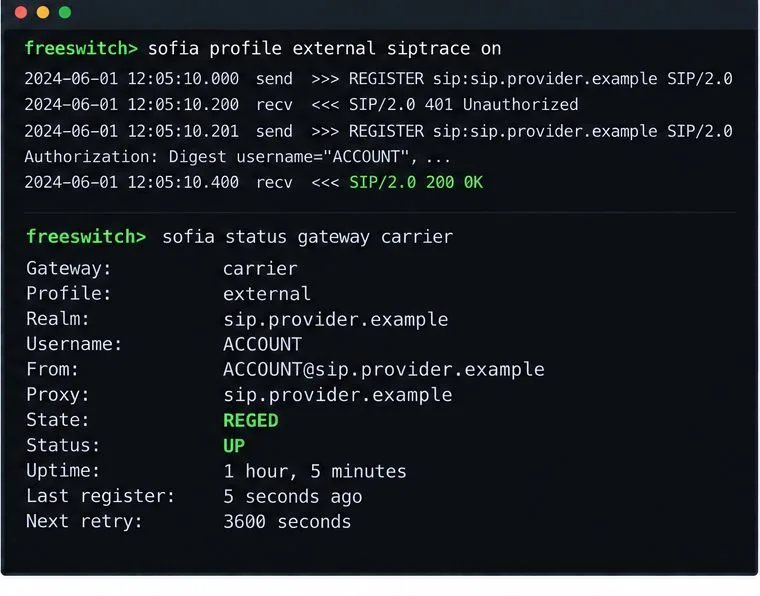
sofia status gateway carrier shows REGED for a registering trunk, or the expected healthy state for an IP-authenticated trunk.If the gateway is healthy but calls still fail, registration is no longer the issue. Check the BigBlueButton dialplan and provider routing separately. For version-specific paths and settings, consult the official BigBlueButton telephone gateway guide, the FreeSWITCH gateway reference, and the FreeSWITCH call setup troubleshooting guide.
Trace FreeSWITCH REGISTER requests, correct gateway or network settings, and confirm that your BigBlueButton SIP trunk registers successfully.
Enable a Jitsi Meet background, troubleshoot missing controls, and reduce video lag on slower laptops without risky configuration changes.
Trace M_FORBIDDEN to room power levels, membership, or Synapse server-admin access, then restore only the permission the blocked action needs.
Configure Synapse discovery, HTTPS, and proxy routing so other Matrix homeservers can find and contact your server.
Configure a Keycloak OIDC client and Synapse provider so Element Web users can sign in through your identity server without exposing client secrets.
Save a recovery key, verify your Element sessions, and check that encrypted message keys can be restored without confusing backup with your account password.
Diagnose Synapse out-of-memory failures during sync, adjust caching safely, identify request backlogs, and verify stable memory use.
Trace Matrix federation certificate failures to the correct server, repair the TLS chain or CA trust, and verify the fix without disabling security checks.
Route Matrix clients and federation through Cloudflare on HTTPS 443, preserve Synapse discovery, and avoid caching API traffic or breaking media uploads.
Back up Synapse with pg_dump, protect its signing key and media, and restore into a clean PostgreSQL database without reusing stale one-time keys.