Resolve Matrix Room Admin Permission Errors by Action
Trace M_FORBIDDEN to room power levels, membership, or Synapse server-admin access, then restore only the permission the blocked action needs.
To use a virtual background in Jitsi Meet on an older PC, open a meeting, find Select background in the meeting controls, and try a built-in background or blur effect. Keep the effect only if your camera remains smooth and the computer stays responsive; turning it off is the reliable fallback when the processor cannot keep up.
You do not need to install a separate background app or change server files for a normal Jitsi meeting. The important part is choosing an effect your computer can handle, then checking actual performance rather than assuming any particular background style is faster.
A virtual background replaces or softens the area behind you in your camera image. Jitsi has to distinguish you from the room around you, a process called segmentation. That extra video processing may matter on a low-end PC, especially during a call with several visible participants.
Use an up-to-date desktop browser and a working webcam. Open a Jitsi room you are authorized to use, then grant the browser access to the camera and microphone if prompted. If your browser or company policy blocks the camera, fix that first; the background picker cannot replace a missing video feed.
For a cleaner test, close unused video tabs, games, screen recorders, and other demanding applications. Put a light in front of your face and avoid a busy background. Even lighting helps the effect distinguish your outline, although it does not guarantee lower processor use. You can try the public Jitsi Meet service, or your organization's Jitsi deployment; the exact controls can differ by version and administrator configuration.
Jitsi documented its built-in background chooser and image uploads in its virtual backgrounds announcement. That announcement dates to 2021, so treat it as confirmation of the feature, not a guarantee that every current deployment displays the same buttons.
Start with changes that are easy to reverse. They do not make segmentation free, but they can leave more system resources available for the meeting.
If all effects make the call unreliable, use the real room as your background. Face a plain wall or tidy area and use good lighting. This is usually more useful than installing another real-time video effects application, which would also require processing.
First confirm that the camera works and reload the meeting once. Next, check the three-dot menu and camera-related controls. Try a current browser without extensions that modify video or block scripts. If this is an employer- or school-hosted meeting, ask its administrator whether backgrounds are enabled. Jitsi exposes configuration options such as disableVirtualBackground, and its documented disableAddingBackgroundImages setting can prevent custom image uploads. These are administrator-side settings, not buttons ordinary participants can safely override.
Make one change at a time: improve lighting, switch to another built-in effect, stop unnecessary applications, or remove the effect. If the camera video itself freezes with every effect disabled, investigate camera permissions, browser stability, and device load before blaming the background feature. Avoid arbitrary browser flags, unofficial patches, or changes to server configuration copied from unrelated versions.
Jitsi's official source repository is the authoritative place to inspect the implementation for a particular release. There is no verified CPU percentage or minimum processor model that guarantees smooth virtual backgrounds on every low-end computer. The best result depends on the machine, graphics support, browser, Jitsi version, and how demanding the meeting is.
Run a short comparison in the same room: first with no background, then with your chosen effect. Check that the background is visible, your face stays reasonably well defined, microphone audio remains clear, and the controls respond promptly. Note any sustained CPU spikes, fan noise, dropped frames, or freezes. If quality drops after enabling the effect, turn it off and compare again. That final off-versus-on check tells you whether the virtual background is practical on this particular PC.
Trace M_FORBIDDEN to room power levels, membership, or Synapse server-admin access, then restore only the permission the blocked action needs.
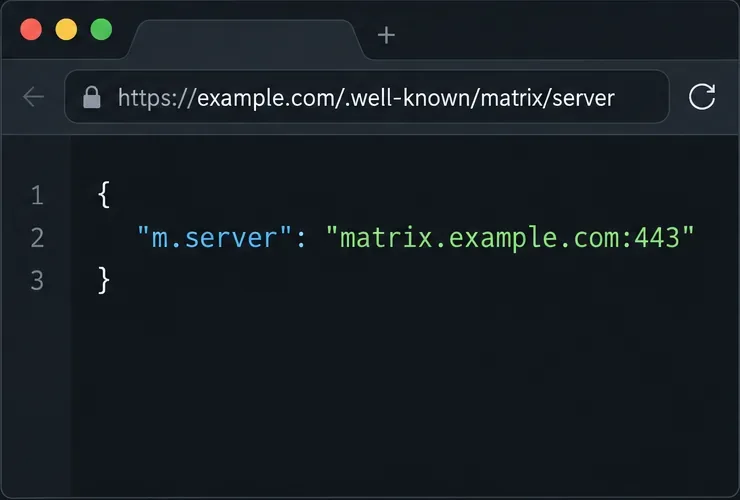
Configure Synapse discovery, HTTPS, and proxy routing so other Matrix homeservers can find and contact your server.
Configure a Keycloak OIDC client and Synapse provider so Element Web users can sign in through your identity server without exposing client secrets.
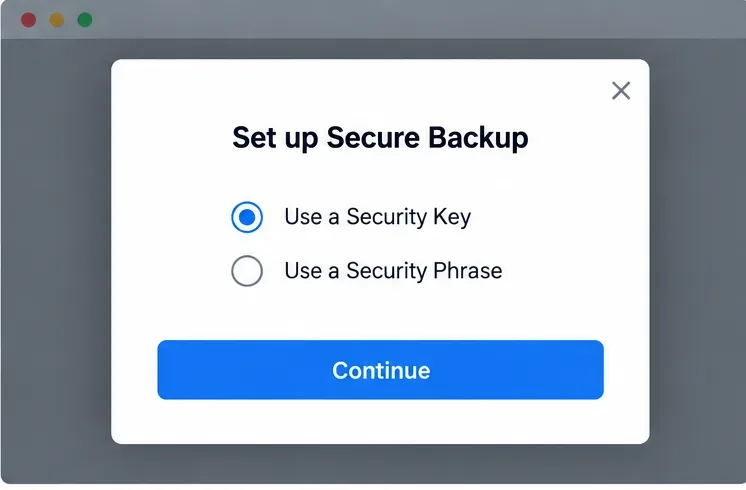
Save a recovery key, verify your Element sessions, and check that encrypted message keys can be restored without confusing backup with your account password.
Diagnose Synapse out-of-memory failures during sync, adjust caching safely, identify request backlogs, and verify stable memory use.
Trace Matrix federation certificate failures to the correct server, repair the TLS chain or CA trust, and verify the fix without disabling security checks.
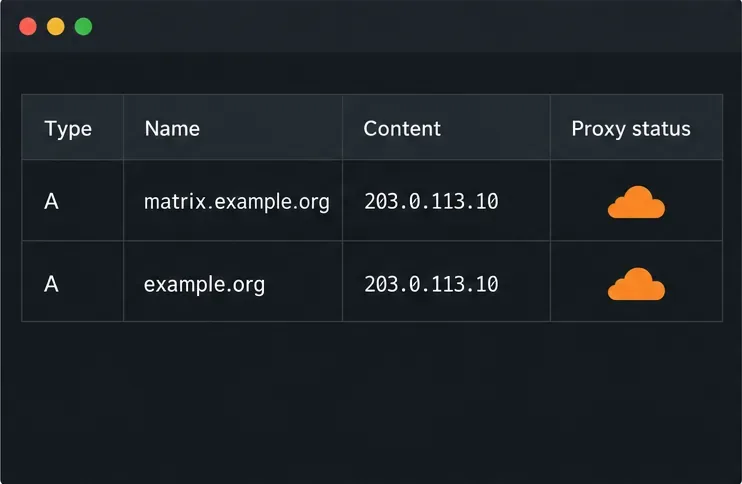
Route Matrix clients and federation through Cloudflare on HTTPS 443, preserve Synapse discovery, and avoid caching API traffic or breaking media uploads.
Back up Synapse with pg_dump, protect its signing key and media, and restore into a clean PostgreSQL database without reusing stale one-time keys.
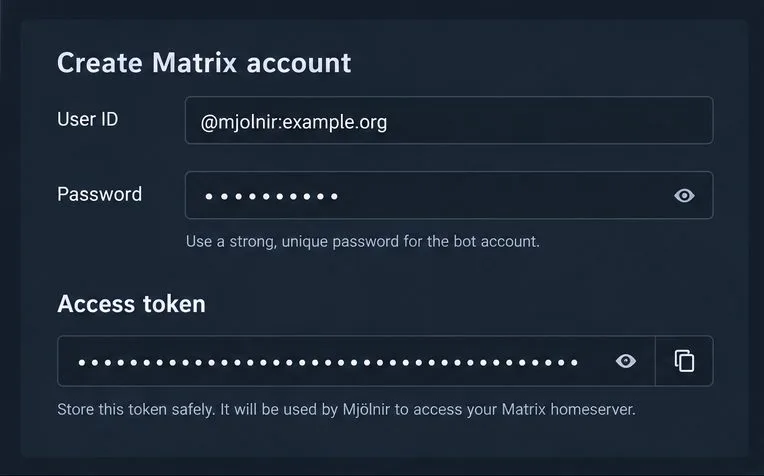
Set up Mjölnir with a dedicated Matrix account, encrypted management room, Docker Compose, policy list, and permission checks.
Skip the retired proxy and configure Synapse’s built-in Sliding Sync. Check client discovery, then measure room-list loading and reconnect behavior on a compatible phone.