Require Jitsi Hosts to Sign In and Protect Rooms with Passwords
Set up local host accounts on a self-hosted Jitsi Docker server, then add a separate password to meetings that need tighter guest access.
Illustrative example: A small nonprofit runs a self-hosted Jitsi Meet server at meet.example.com. Its coordinator wants only approved staff to start new rooms, while invited guests can join without an account; some meetings also need a room password. On the official Jitsi Docker deployment, enable internal authentication and guest access, create Prosody accounts, then set a password inside each meeting when needed. These are separate controls: host authentication gates room creation, and a room password gates entry to a particular room.
This walkthrough is for the official docker-jitsi-meet setup. Jitsi’s current Docker handbook documents ENABLE_AUTH, ENABLE_GUESTS, and AUTH_TYPE=internal. If your server uses Debian packages, Kubernetes, a managed Jitsi service, or a customized compose file, use the matching deployment guide; paths and authentication providers differ. The handbook’s older “Secure Domain” recipe is marked deprecated for new installations, so this article does not ask package users to apply that legacy configuration.
Sign in to the server that runs the Jitsi Compose project. Find its .env file and the directory containing docker-compose.yml or compose.yml. The example below assumes the standard official Docker deployment and its default internal XMPP domain, meet.jitsi. If your administrator changed XMPP_DOMAIN, substitute that exact configured value in the account command later.
Before editing, save a copy of the current environment file somewhere readable only by administrators. It can contain secrets such as passwords and authentication keys. Do not paste it into a ticket or publish it. Confirm that HTTPS already works at the public Jitsi hostname; the Jitsi self-hosting overview explains why a trusted certificate is important for WebRTC media and browser access.
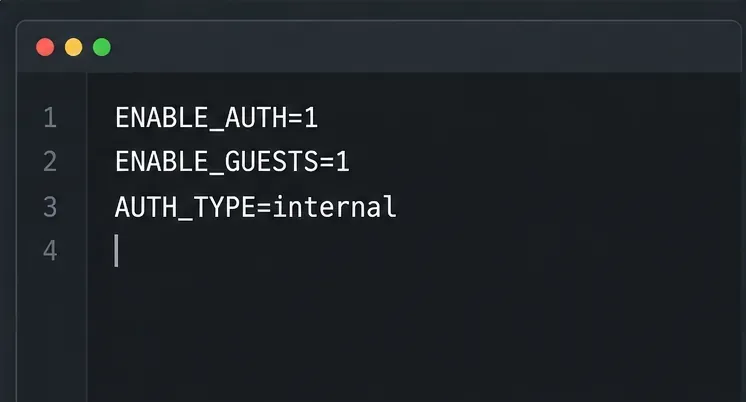
Open the project’s .env file. Set these variables, adding them if absent or changing their existing values:
ENABLE_AUTH=1
ENABLE_GUESTS=1
AUTH_TYPE=internal
ENABLE_AUTH=1 requires an authenticated account to create a conference. ENABLE_GUESTS=1 allows participants who are not signed in to join a conference after an authenticated host has created it. AUTH_TYPE=internal selects the local Prosody user database. Keep the three values together for this use case; turning off guest access changes the intended workflow because every participant may need credentials.
Save the file and apply the environment through the project’s normal Compose procedure from the directory containing the Compose file:
docker compose up -dCompose reconciles the services with the changed environment. Watch the output for configuration or container errors, and check service status with docker compose ps. Avoid editing generated files under mounted configuration directories to achieve the same result: the Docker entrypoint manages much of that configuration from environment variables.
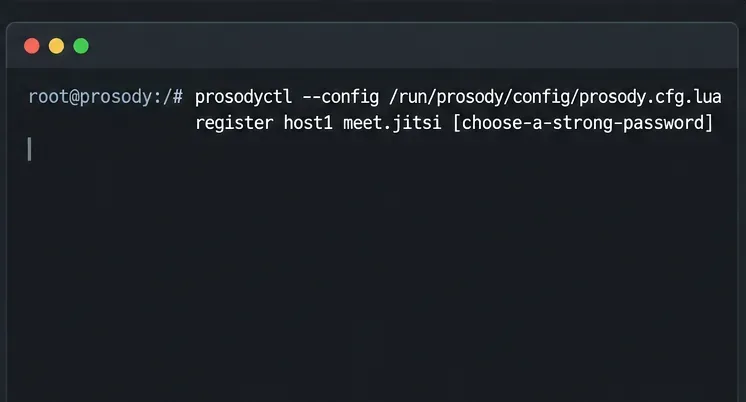
The official Docker guide creates internal users with prosodyctl inside the prosody container. Open a shell there:
docker compose exec prosody /bin/bashThen register an account, replacing host1 with a unique username and replacing the final value with a strong password. The square brackets below are explanatory placeholders; do not type them literally.
prosodyctl --config /run/prosody/config/prosody.cfg.lua register host1 meet.jitsi ChooseAUniqueStrongPasswordThe handbook notes that this command may complete without printing a success message. If the account fails to authenticate, check the exit status and logs, then verify the configured XMPP domain. Type the password directly at the terminal only when you are comfortable with its exposure in shell history or process listings; use an operationally approved method for secrets management if your environment requires it.
Repeat for each person who should be able to start rooms. Share credentials privately and avoid a single shared account: individual accounts make it possible to revoke access for one host. To remove an account later, the documented command inside the Prosody container is prosodyctl --config /run/prosody/config/prosody.cfg.lua unregister host1 meet.jitsi. Protect access to the server itself, since an administrator with container access can manage these accounts.
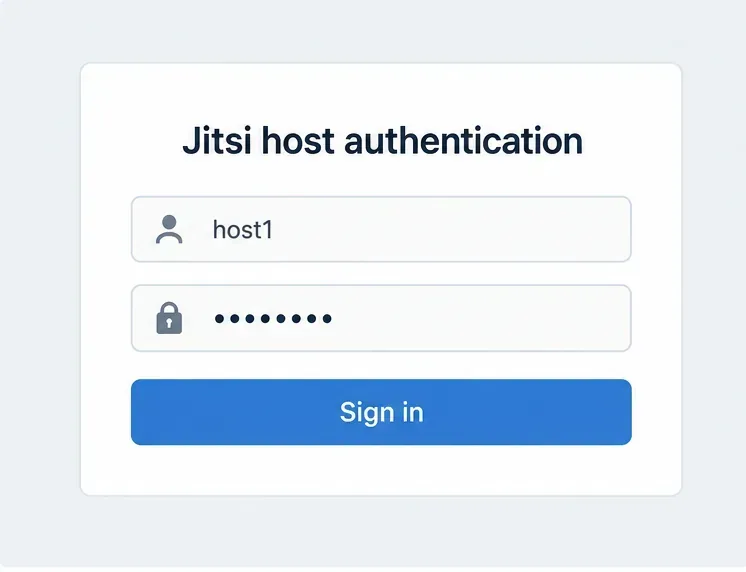
Sign in using the account you created and start a meeting at the self-hosted hostname. A person without an account should not be able to create a fresh conference; they can join a room after its authenticated host has created it. Send guests the exact meeting link, and tell them whether a room password is required.
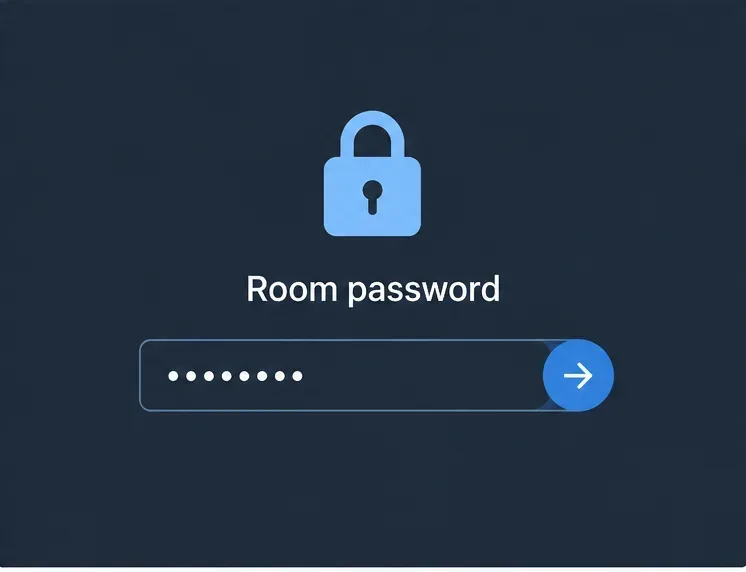
For a second, room-specific control, open the meeting’s security or more-actions controls and choose the room password option if it is available in your deployed client. Enter and confirm the password, then share it with invitees through a separate trusted channel where practical. Jitsi’s self-hosting guide distinguishes this per-room password from server access control. User interface labels can vary by client version, so do not assume a missing control means the host authentication setting failed.
A room password is not a substitute for host accounts: it protects one meeting but does not prevent an unauthenticated visitor from creating another room on an otherwise open server. Conversely, requiring an authenticated host does not automatically put a password on every room. Use both when your policy requires approved room creators and an additional barrier for a particular meeting.
If any check fails, confirm that the three environment variables are in the active project’s .env, that Compose applied the changes, and that the user was registered under the configured XMPP domain. Review docker compose logs prosody jicofo web for startup or authentication errors. Do not expose logs publicly; they may include operational details.
Sources: Jitsi Meet Docker self-hosting guide; Jitsi Meet authentication guide; Jitsi Meet self-hosting overview; Jitsi Meet user guide: starting a meeting.
Set up local host accounts on a self-hosted Jitsi Docker server, then add a separate password to meetings that need tighter guest access.
Disable optional Jitsi analytics and rtcstats, then set a separate retention policy for Docker logs so privacy controls do not erase troubleshooting evidence.
Allow only approved accounts to start Jitsi Meet rooms using Keycloak and token authentication, while keeping guest joining available when needed.
Learn why December is America's most stressful yet magical month and follow 5 clear steps to manage holiday fatigue and reclaim seasonal joy.
Troubleshoot Jitsi Meet connection drops, isolate browser and network issues, and check the UDP and NAT settings that commonly affect self-hosted calls.
Configure Jibri, expose Jitsi’s live-stream control, and test a YouTube broadcast using a protected stream key.
Separate a participant’s device issue from a WebRTC or audio-bridge problem, then use the right checks to restore breakout-room audio.
Use this 5-step guide to assess weather, visitors, events, and downtown design—and understand why some U.S. cities feel lively in December.
Trace ugly Christmas sweaters from midcentury knitwear to U.S. party staple and specialty retail. Five milestones explain the trend and its sales claims.
Trace a BigBlueButton Greenlight 500 error through application logs, PostgreSQL, Redis, environment settings, and Nginx without risking room data.