Let Approved Users Create Jitsi Rooms With Keycloak Sign-In
Allow only approved accounts to start Jitsi Meet rooms using Keycloak and token authentication, while keeping guest joining available when needed.
To reduce Jitsi Meet telemetry, disable third-party requests and analytics in the web client, turn off optional rtcstats uploads, and avoid sending participant names or email addresses to analytics. Those settings do not erase service logs: if you self-host, manage Docker or system log retention separately. If you use meet.jit.si or another hosted service, you can change only client-side options; the service operator controls server analytics and logs.
“Telemetry” may mean product analytics, call-quality statistics, browser debug logs, or server operations logs. They have different privacy effects and costs, so choose the narrowest settings that meet your need.
| Option | What it changes | Tradeoff | Best fit |
|---|---|---|---|
| Disable third-party requests | Stops optional external requests from the web client where the setting is honored. | Gravatars and integrations that rely on outside services may stop working. Jitsi still needs its own signaling and media services. | Most users who want fewer outside connections. |
| Disable analytics and rtcstats | Stops optional analytics events and call-quality reports sent to configured analytics services. | Operators lose a source of call-quality diagnostics. | Privacy-first rooms or deployments that do not use analytics dashboards. |
| Disable audio-level and local stats collection | Reduces local polling or display data used for diagnostics and audio activity indicators. | Less troubleshooting detail; some audio-level indicators may be reduced. | Low-overhead setups where those indicators are not needed. |
| Limit server log retention | Keeps operational logs for a defined period or size instead of removing them entirely. | Older troubleshooting evidence expires. | Most self-hosted administrators. |
For most deployments, disable analytics and third-party calls, but keep short, access-controlled server logs. Enable rtcstats only for a specific troubleshooting window.
If you join a hosted room, the service owner controls the server. The current Jitsi advanced options allow some client configuration through the room URL, but they do not grant control over server-side retention. As a best-effort client preference on a web room, append a fragment such as:
#config.disableThirdPartyRequests=true&config.analytics.disabled=true&config.analytics.rtcstatsEnabled=false&config.enableDisplayNameInStats=false&config.enableEmailInStats=falsePlace the fragment after the room name in the URL. A hosted server may restrict or override settings, and the fragment only changes supported client options. Do not treat this as a promise that the operator stops collecting service logs.
For a self-hosted server, place the settings in the persistent web configuration. In the Docker deployment, Jitsi’s current guide says generated config.js files are rebuilt at container startup; put overrides in ${CONFIG}/web/custom-config.js. Debian or Ubuntu package installs use the host’s per-domain config file, typically under /etc/jitsi/meet/.
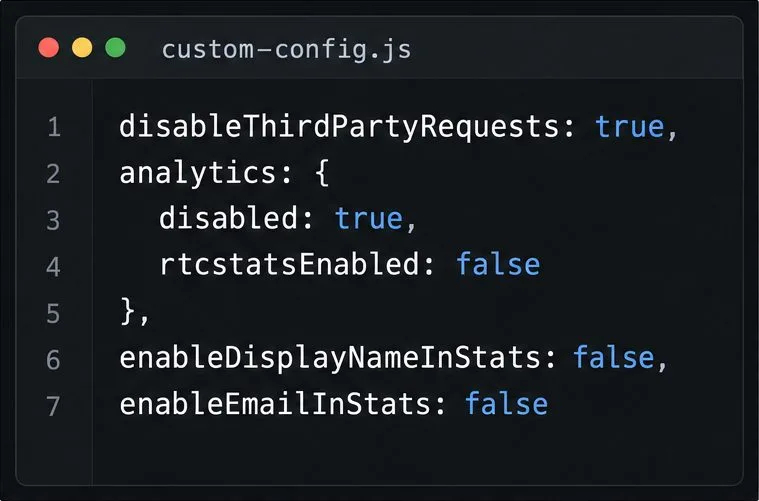
Add the following assignments to custom-config.js:
config.disableThirdPartyRequests = true;
config.analytics = config.analytics || {};
config.analytics.disabled = true;
config.analytics.rtcstatsEnabled = false;
config.enableDisplayNameInStats = false;
config.enableEmailInStats = false;
These options serve different purposes. disableThirdPartyRequests reduces optional outside calls and can replace remote avatars with local ones. analytics.disabled disables client analytics; rtcstatsEnabled controls rtcstats reporting. The name and email settings keep those fields out of analytics if another integration is enabled. Jitsi still contacts its own server and may use configured STUN or TURN infrastructure.
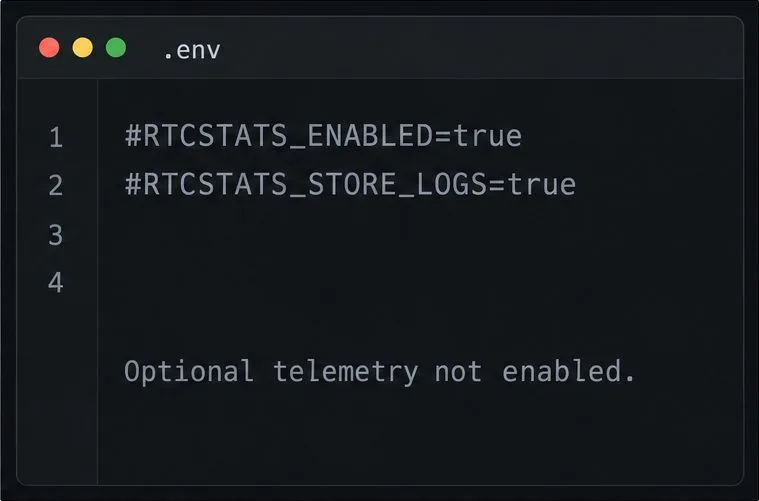
In the Docker .env file, check whether rtcstats options were explicitly enabled. The official sample environment file describes RTCSTATS_ENABLED as optional and shows RTCSTATS_STORE_LOGS as the setting that sends console logs to rtcstats. Remove or comment out these lines if you do not want that reporting:
#RTCSTATS_ENABLED=true
#RTCSTATS_STORE_LOGS=true
#RTCSTATS_SEND_SDP=true
If you manage config.js directly, keep analytics.rtcstatsEnabled set to false. Restart the web service after changes so generated client config is updated. Remove any separately configured analytics IDs or script URLs too; turning off rtcstats alone does not disable those integrations.
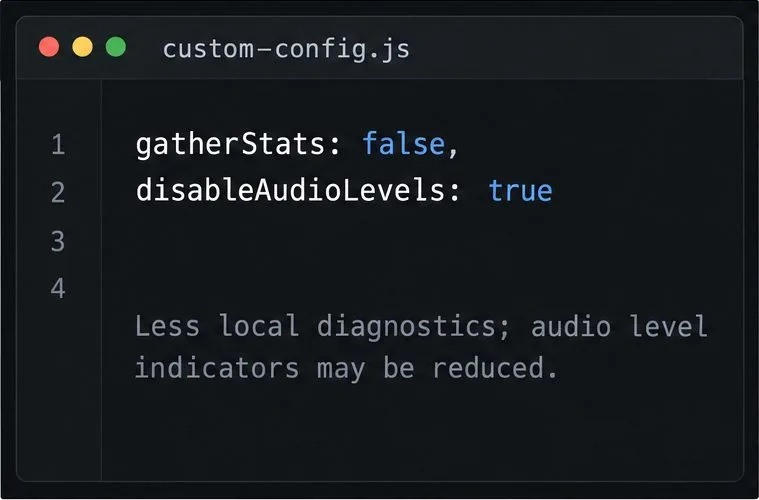
For an additional reduction in local collection, you can add:
config.gatherStats = false;
config.disableAudioLevels = true;
config.enableSaveLogs = false;
gatherStats controls statistics collection in Jitsi’s traceable peer connection, a setting documented for debugging and test analysis. disableAudioLevels stops measuring audio levels; the Docker deployment also exposes DISABLE_AUDIO_LEVELS=1. This can reduce audio activity indicators, so leave it off if hosts rely on those cues. enableSaveLogs controls whether the client shows a “Save Logs” link for call diagnostics; the current sample config leaves it disabled by default. Hiding that export control does not delete logs already collected by the browser or server.
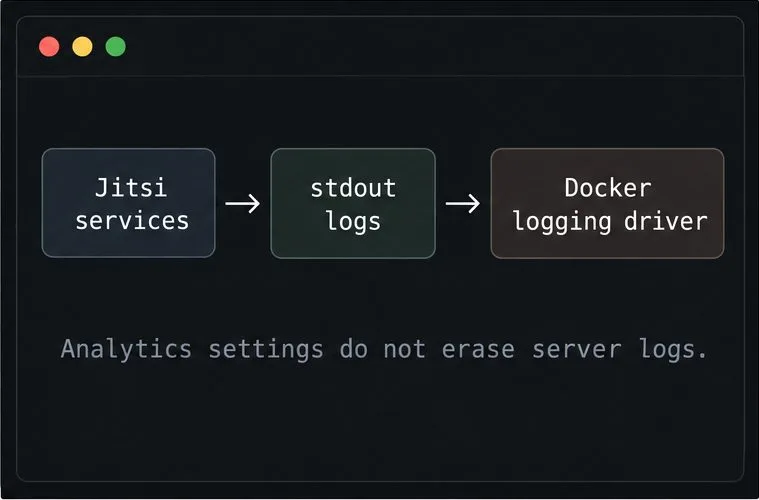
Analytics settings do not stop the Jitsi services from writing operational logs. The Jitsi Docker guide says containers log to standard output by default and Docker keeps those logs unless configured otherwise. Those records help diagnose authentication, signaling, and media failures. For most teams, rotation and restricted access are a better balance than discarding all logs.
With Docker’s json-file driver, for example, set a size and file-count limit on each service in your Compose configuration:
logging:
  driver: "json-file"
  options:
    max-size: "10m"
    max-file: "3"
Apply the block to each service whose logs you want to bound, then recreate those containers. Use equivalent retention controls for centralized logging. Jitsi’s LOG_LEVEL controls Prosody and associated modules, not web, Jicofo, or JVB logs. Silencing every component removes useful incident evidence.
Reload the web app, then review the Network panel during a test meeting. Confirm optional analytics and rtcstats endpoints are no longer contacted; distinguish them from Jitsi and any required STUN or TURN servers. Check avatars, audio, video, and joining.
On the server, confirm Docker’s logging configuration and rotation. A clean browser Network panel does not prove server logs are disabled, and short container logs do not prove no third-party request occurred.
Use the official Jitsi advanced options, configuration reference, and Docker self-hosting guide. For log rotation syntax, consult Docker’s json-file logging documentation.
Allow only approved accounts to start Jitsi Meet rooms using Keycloak and token authentication, while keeping guest joining available when needed.
Learn why December is America's most stressful yet magical month and follow 5 clear steps to manage holiday fatigue and reclaim seasonal joy.
Troubleshoot Jitsi Meet connection drops, isolate browser and network issues, and check the UDP and NAT settings that commonly affect self-hosted calls.
Configure Jibri, expose Jitsi’s live-stream control, and test a YouTube broadcast using a protected stream key.
Separate a participant’s device issue from a WebRTC or audio-bridge problem, then use the right checks to restore breakout-room audio.
Use this 5-step guide to assess weather, visitors, events, and downtown design—and understand why some U.S. cities feel lively in December.
Trace ugly Christmas sweaters from midcentury knitwear to U.S. party staple and specialty retail. Five milestones explain the trend and its sales claims.
Trace a BigBlueButton Greenlight 500 error through application logs, PostgreSQL, Redis, environment settings, and Nginx without risking room data.
Preview which published recordings exceed your retention period, then schedule BigBlueButton cleanup with a logged daily script and a dry-run safeguard.
Trace FreeSWITCH REGISTER requests, correct gateway or network settings, and confirm that your BigBlueButton SIP trunk registers successfully.