Keep Kurento Stable Under BigBlueButton Load
Trace KMS crashes to resource pressure, verify your BigBlueButton media path, and apply the supported fixes without guessing at capacity.
If BigBlueButton meetings lose audio or webcams as attendance rises, confirm that Kurento handles the affected media and correlate KMS restarts with host resource limits. On a Kurento-based installation, a supported way to isolate repeated media setup failures is to split listening, webcam, and screen-share work across three KMS processes—but first rule out out-of-memory kills, CPU saturation, and exhausted process limits.
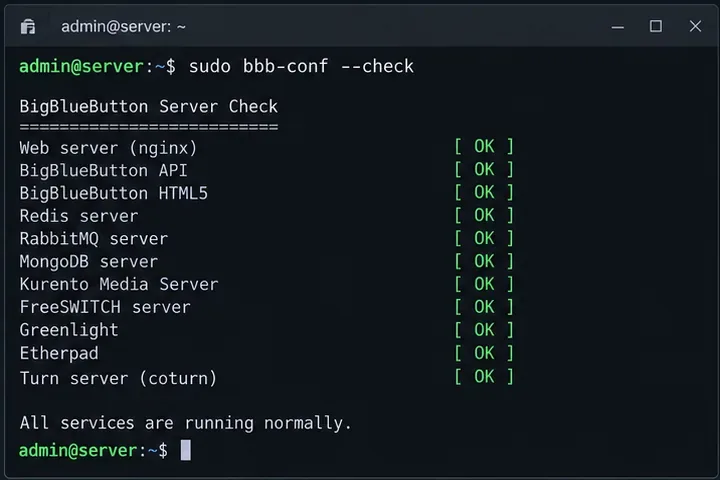
Kurento is not the default webcam and screen-share media server on every BigBlueButton release. BigBlueButton 2.5 switched the default WebRTC media server for those streams from Kurento to mediasoup, while Kurento remained installed and continued to support parts of media recording. A 2.5-or-later server may still use Kurento in a customized or legacy path, so do not assume a KMS crash explains a webcam problem until the service logs or your configuration confirm it. Check the release and current health first:
sudo bbb-conf --check
sudo bbb-conf --status
systemctl status kurento-media-server --no-pager
Run these during or immediately after a reproducible incident. If your server runs multiple KMS instances, inspect their units as well, such as kurento-media-server-8888.service, -8889.service, and -8890.service. BigBlueButton’s current troubleshooting guide remains a useful reference for general server checks, but its Kurento-specific sections cover older configurations. See BigBlueButton 2.5 release notes and the BigBlueButton troubleshooting guide.
A service that restarts under load can be failing because the kernel killed it, because the process ran out of threads or file descriptors, or because media processing overloaded the CPU. Check the service’s recent messages and the kernel log around the same timestamp:
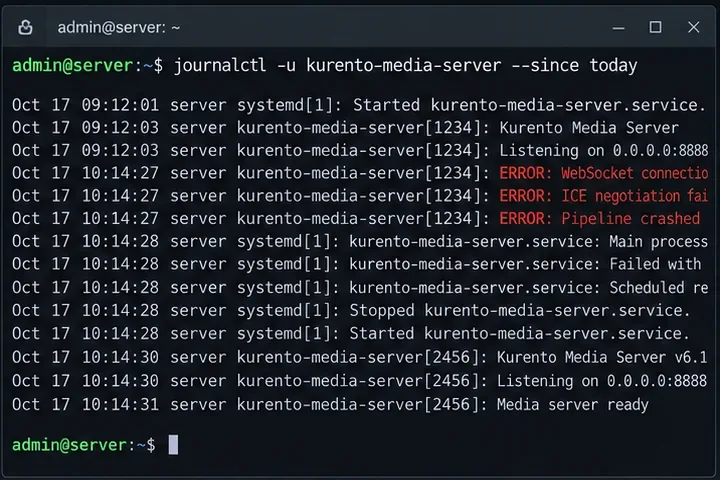
sudo journalctl -u kurento-media-server --since "1 hour ago" --no-pager
sudo journalctl -k --since "1 hour ago" --no-pager | grep -Ei 'oom|out of memory|killed process'
free -h
df -h
systemctl show kurento-media-server -p LimitNOFILE -p TasksMax
systemctl status kurento-media-server | grep Tasks
For three-process installations, also inspect each instance’s journal and the files in /var/log/kurento-media-server/; BigBlueButton documents separate KMS logs by process. An OOM-killer entry points to memory pressure; a thread count near TasksMax or file use near LimitNOFILE points to a process limit. Low disk can disrupt logging and other services, but does not prove it caused the KMS crash. If a limit is reached, adjust the relevant daemon or systemd setting for your installed package and restart during maintenance. Do not copy another host’s limit: capacity depends on the OS, package, meeting mix, and other services.
Kurento’s troubleshooting guide lists CPU spikes, transcoding, codec incompatibility, TURN load, and exhausted threads or file descriptors as possible causes. Check whether the crash follows high-resolution streams, recording, mixed codecs, or heavy TURN use. The guide notes Kurento has worked well with video up to 720p at 30 fps and about 2 Mbps, but does not establish higher settings as a tested capacity limit. Review Kurento’s troubleshooting notes before changing stream settings.
If the server is an applicable Kurento-based BigBlueButton installation and the failure is tied to concurrent media setup or teardown, BigBlueButton documents a supported option to run three KMS processes: one each for listen-only audio, webcams, and screen sharing. The documentation says this spreads start/stop load and allows one process to restart without taking down the other two. This is isolation and load distribution, not extra CPU or memory; ensure the machine has headroom before enabling it.
/etc/bigbluebutton/bbb-conf/apply-config.sh and open it with an editor.enableMultipleKurentos to the configuration script, following the file’s existing format.sudo bbb-conf --restart./var/log/kurento-media-server/.The option is documented as available since BigBlueButton 2.2.24. Do not add it to a current mediasoup-based deployment as a generic cure for webcam failures: verify that the affected path is actually routed through Kurento and check the release-specific configuration first. The exact file and restart procedure are shown in BigBlueButton’s Kurento customization documentation.
If CPU or memory keeps climbing, reduce work per meeting before adding concurrency. Test lower webcam resolution or frame rate, fewer simultaneous cameras, or a meeting without screen sharing or recording. Change one variable at a time and keep meeting size and network conditions similar. Use only media limits documented for your installed release; a cap may prevent users from starting additional streams.
If memory grows steadily after sessions end, review Kurento’s memory-fragmentation guidance. It discusses Jemalloc as a possible mitigation, while noting fragmentation cannot be eliminated. Treat allocator changes as a controlled package-specific test. Recycle a KMS process only after it stops accepting sessions and active sessions drain; an abrupt restart interrupts that process’s media. See Kurento’s memory-fragmentation guidance.
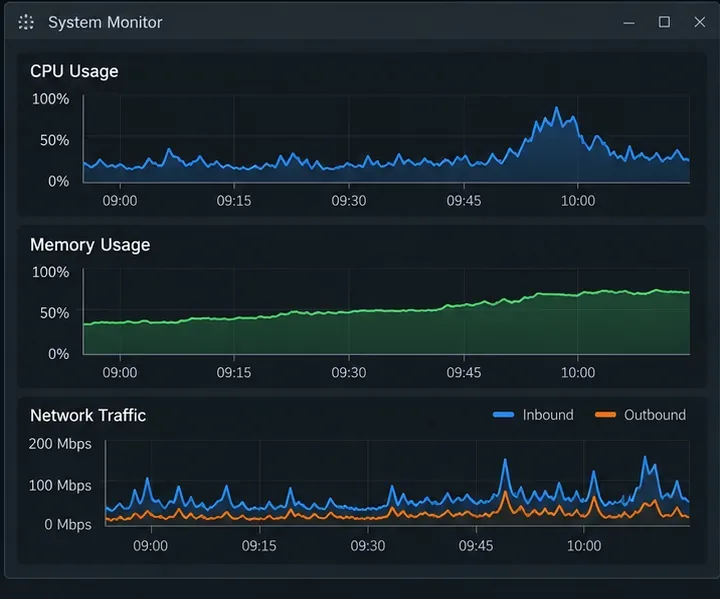
After the change, run a staged test that resembles the workload that triggered the fault: join audio, enable a representative number of cameras, start and stop screen sharing, and include recording only if it is part of normal use. Monitor CPU, resident memory, network, thread count, and KMS logs during the test. Confirm that a busy meeting does not trigger a new KMS restart, that media setup continues to work, and that sudo bbb-conf --check reports no new configuration problems. Repeat at the same load after any tuning so you can distinguish an improvement from a quieter test.
If KMS still crashes without an OOM event or clear limit being reached, preserve the journal and per-process log files and check for an Ubuntu Apport report at /var/crash/_usr_bin_kurento-media-server.*.crash. Kurento documents that report as useful for debugger analysis; redact secrets and participant information before sharing diagnostic files. At that point, the crash may require a version-specific bug report or a core-dump analysis rather than another capacity guess.
Trace KMS crashes to resource pressure, verify your BigBlueButton media path, and apply the supported fixes without guessing at capacity.
Set up local host accounts on a self-hosted Jitsi Docker server, then add a separate password to meetings that need tighter guest access.
Disable optional Jitsi analytics and rtcstats, then set a separate retention policy for Docker logs so privacy controls do not erase troubleshooting evidence.
Allow only approved accounts to start Jitsi Meet rooms using Keycloak and token authentication, while keeping guest joining available when needed.
Learn why December is America's most stressful yet magical month and follow 5 clear steps to manage holiday fatigue and reclaim seasonal joy.
Troubleshoot Jitsi Meet connection drops, isolate browser and network issues, and check the UDP and NAT settings that commonly affect self-hosted calls.
Configure Jibri, expose Jitsi’s live-stream control, and test a YouTube broadcast using a protected stream key.
Separate a participant’s device issue from a WebRTC or audio-bridge problem, then use the right checks to restore breakout-room audio.
Use this 5-step guide to assess weather, visitors, events, and downtown design—and understand why some U.S. cities feel lively in December.
Trace ugly Christmas sweaters from midcentury knitwear to U.S. party staple and specialty retail. Five milestones explain the trend and its sales claims.