Keep Kurento Stable Under BigBlueButton Load
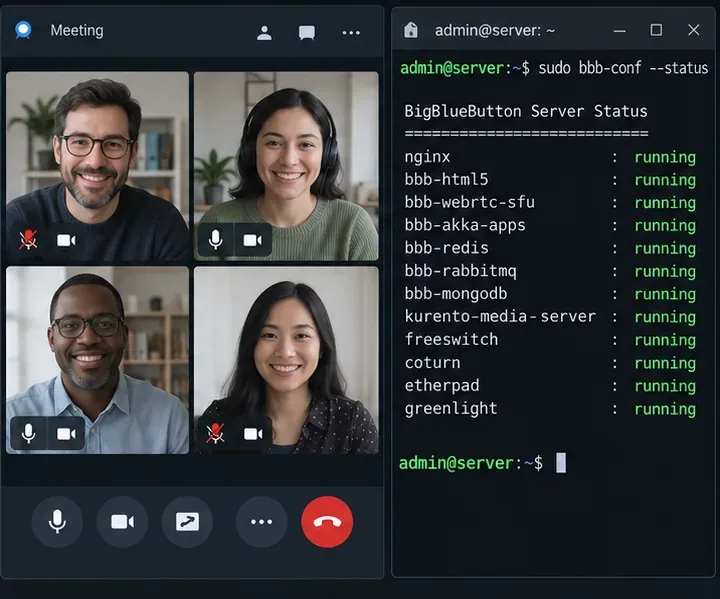
Trace KMS crashes to resource pressure, verify your BigBlueButton media path, and apply the supported fixes without guessing at capacity.
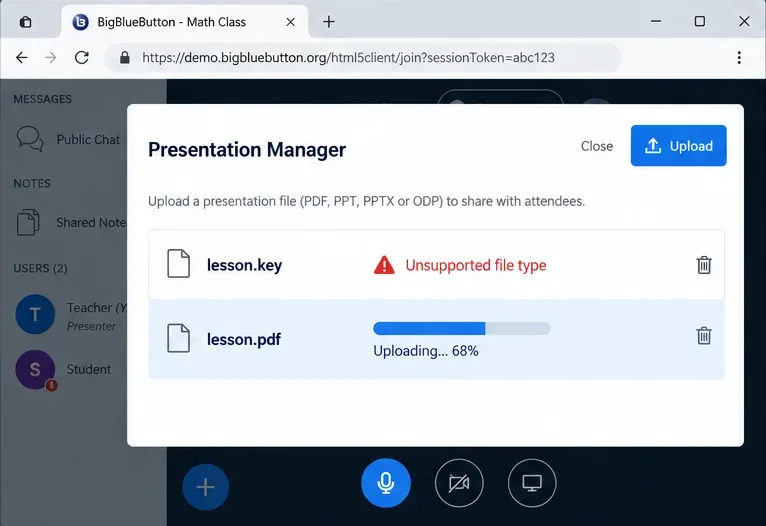
If BigBlueButton reports “Unsupported File Type” while you upload a presentation, first export the original file as a standard PDF and try again. PDF avoids the extra Office-to-PDF conversion step and is the most practical workaround for a class that needs to start now. If even a simple PDF is rejected, investigate file identification or the server instead of repeatedly renaming the extension.
The error can describe different failures: a format the installation does not accept, a mismatch between a filename and its contents, or a problem in the upload pipeline. BigBlueButton advertises uploads of PowerPoint, Word, PDF, and image documents, but the exact permitted formats and behavior can depend on the deployed version and administrator settings. Its Office files are normally converted to PDF before slides are rendered for the client.
| Your situation | Best first choice | Tradeoff |
|---|---|---|
| Keynote, a specialized editor, or a file not listed by your host | Export a fresh PDF | Animations and editable elements do not survive as interactive content |
| PowerPoint file rejected, but a PDF uploads | Use the PDF for the session | Requires re-exporting after edits |
| PowerPoint animation or embedded media is essential | Screen-share the application | Less convenient for BigBlueButton slide navigation and whiteboard annotation |
| All PDFs fail, including a small known-good file | Ask the host to examine version and server logs | Requires administrator access rather than another local conversion |
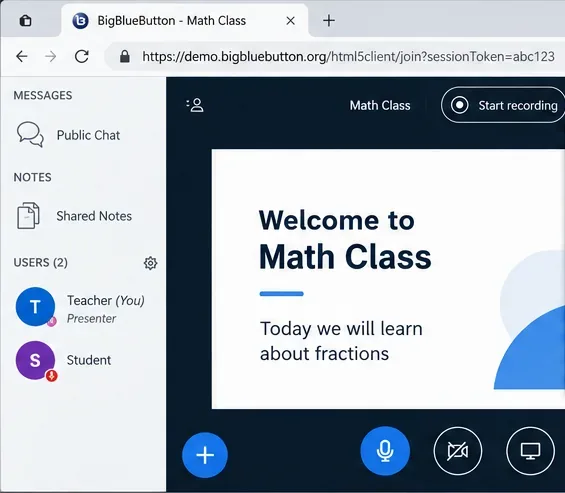
Use the presenter actions (+) menu to access Manage presentations; moderators may need to take or assign presenter status. The official upload test describes both drag-and-drop and file-picker methods. BigBlueButton’s presentation upload test procedures document this path, although the linked 4.0 documentation is marked as in development and labels may vary on older installations.
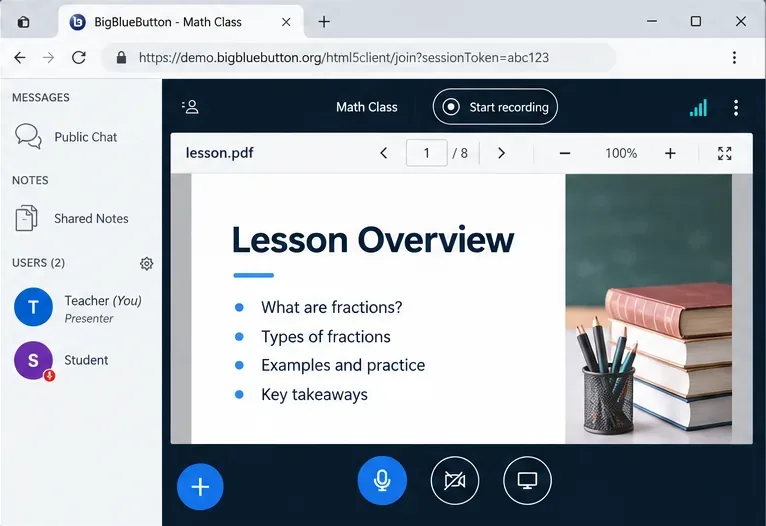
PDF is the default for decks that need consistent rendering. BigBlueButton’s official presentation FAQ recommends PDF and explains that uploading an Office file adds a LibreOffice conversion stage. A local export lets you inspect fonts and layout before class.
Do not merely change lesson.key, lesson.pptx, or another extension to lesson.pdf. An extension is just a filename label; it does not convert the underlying document. Password-protected PDFs can also introduce parsing difficulties, so use a non-encrypted teaching copy when the material may be shared.
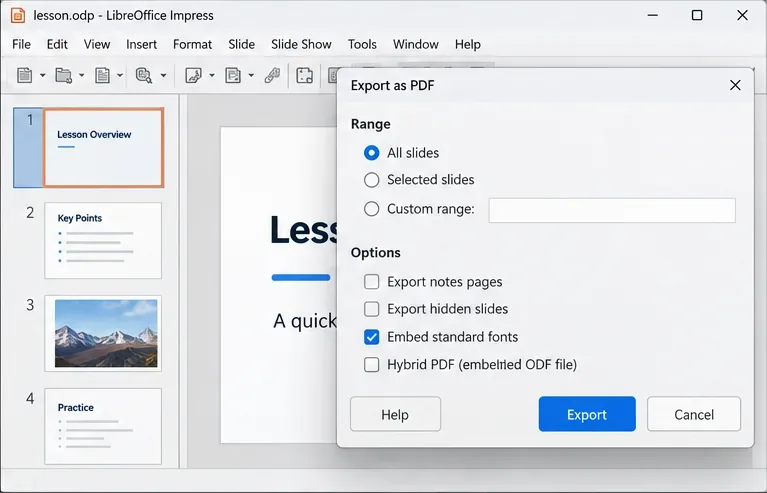
PDFs are static. Transitions, object animations, and embedded audio or video do not become interactive slide elements after conversion. If those effects matter, screen-share the source deck. Screen sharing avoids slide conversion but loses uploaded-slide navigation and whiteboard conveniences.
For click-to-reveal content, export successive static slides.
If editing the source presentation immediately before the meeting matters more than predictable rendering, try the original .pptx file on the host’s supported deployment. That saves a local export step, but it delegates format conversion, fonts, and embedded-document compatibility to the server. It is not necessarily more reliable.
Before trying again, open the PowerPoint file on your own computer and save a new copy in the application's native format. If a one-slide deck uploads but the original fails, inspect its contents.
There is also a version-specific reason not to assume PPTX is always accepted. In January 2026, maintainers recorded a PPTX upload regression reported against BigBlueButton 3.1.0-beta.2. The report described a client-side rejection recommending PDF. That report does not establish which other builds are affected. If PDF works and PPTX does not, report the exact server version to the administrator before requesting configuration changes.
When a normal PDF fails, determine whether the failure follows one file or the entire BigBlueButton service. The PDF may be damaged, encrypted, or misidentified. Re-export it, then test with a separate one-page PDF.
If the one-page PDF also fails, ask a self-hosted deployment administrator to check the actual BigBlueButton release and run sudo bbb-conf --check. This requires server access. The administrator can inspect upload-related entries in /var/log/bigbluebutton/bbb-web.log around the failed attempt. See BigBlueButton’s troubleshooting guide.
A particularly useful log clue is MIME type—the detected type of a file’s content or upload metadata. A reported issue on BigBlueButton 3.0.16 in November 2025 showed PDFs being rejected with “Wrong content type” and server messages about an undetected MIME type even though the uploaded filename ended in .pdf. That original issue report is evidence of a possible failure mode, not proof that it caused your error or that it persists in every release.
For hosted BigBlueButton, send support the exact message, file extension, approximate file size, time of the attempt, and whether a small PDF succeeds. Change server configuration only when the logs justify it.
BigBlueButton’s server customization documentation lists a default presentation upload cap of 30 MB and a default 200-page limit. If a deck exceeds the limits, reduce oversized images, remove unnecessary pages, or divide the presentation. Administrators can adjust the documented thresholds, but raising limits also increases processing work and is not a remedy for a true unsupported MIME type.
Consider server changes or upgrades only after verifying the file is valid.
If PDF works, keep the editable original separately. If both a fresh one-page PDF and the original fail, the next useful action is a server-side diagnosis—not another extension change.
Trace KMS crashes to resource pressure, verify your BigBlueButton media path, and apply the supported fixes without guessing at capacity.
Set up local host accounts on a self-hosted Jitsi Docker server, then add a separate password to meetings that need tighter guest access.
Disable optional Jitsi analytics and rtcstats, then set a separate retention policy for Docker logs so privacy controls do not erase troubleshooting evidence.
Allow only approved accounts to start Jitsi Meet rooms using Keycloak and token authentication, while keeping guest joining available when needed.
Learn why December is America's most stressful yet magical month and follow 5 clear steps to manage holiday fatigue and reclaim seasonal joy.
Troubleshoot Jitsi Meet connection drops, isolate browser and network issues, and check the UDP and NAT settings that commonly affect self-hosted calls.
Configure Jibri, expose Jitsi’s live-stream control, and test a YouTube broadcast using a protected stream key.
Separate a participant’s device issue from a WebRTC or audio-bridge problem, then use the right checks to restore breakout-room audio.
Use this 5-step guide to assess weather, visitors, events, and downtown design—and understand why some U.S. cities feel lively in December.
Trace ugly Christmas sweaters from midcentury knitwear to U.S. party staple and specialty retail. Five milestones explain the trend and its sales claims.