Brand BigBlueButton Meetings with Your Logo and Client Name
Set a meeting title, enable the logo area, and choose a default or per-meeting logo on a self-hosted BigBlueButton server.
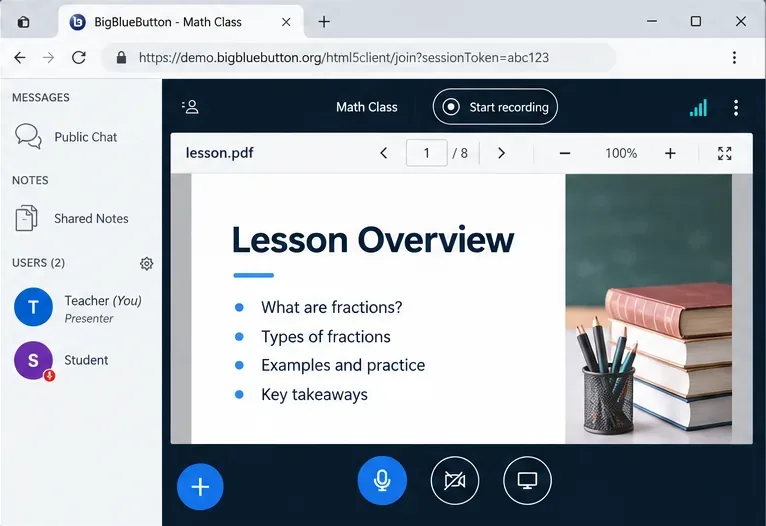
To add your organization’s name and logo to BigBlueButton meetings, decide first whether the logo should appear in every meeting or only selected rooms. On a self-managed server, set the HTML5 client title in the supported override file, enable the branding area, and either set a server-wide default logo or pass a logo URL when creating an individual meeting. These steps brand the meeting client; they do not fully re-skin the surrounding portal.
BigBlueButton (BBB) is the conferencing server and web meeting client. A “brand area” is the place in the meeting interface reserved for a logo. “Greenlight” is a separate web application commonly used as a portal to create and join meetings. Changing the meeting client logo does not necessarily change Greenlight, your own website, or every page a visitor sees.
For example, a training provider called Example Learning might want its name and logo in all meetings, with partner logos in selected rooms. The global logo is simplest; per-meeting branding requires an integration that sends the proper API parameter.
The official BigBlueButton server customization documentation describes the current 4.0 documentation set, which is marked as in development. File paths and details can differ for older installs, managed hosting, or a custom deployment. Before editing, identify your BBB version and confirm that you have shell access and permission to change server configuration. If a hosting company manages the server, ask which branding options it supports.
Choose a clear logo with good contrast. For a per-meeting logo, host it at a browser-accessible URL, preferably HTTPS. A local server path such as /home/admin/logo.png will not work as a browser URL. Test the URL from another device; a login wall or expired link can leave the branding area empty.
Choose one approach:
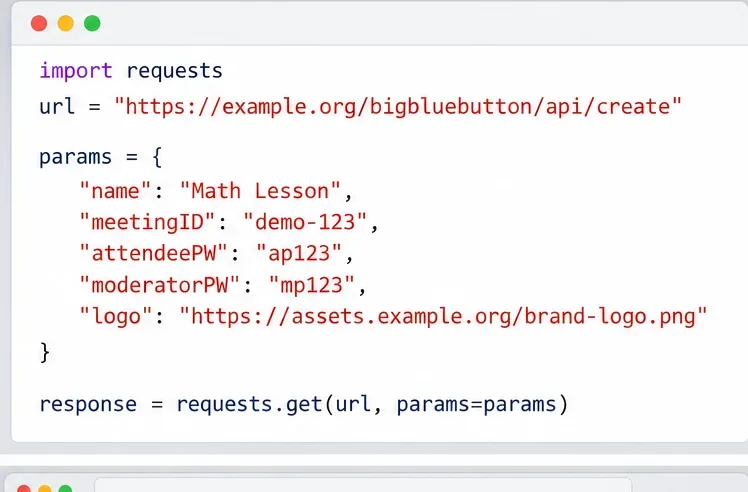
/var/www/bigbluebutton-default/assets/images/logo.png. This is a server file change and package updates can overwrite it, so retain the original and record the change.logo URL in the meeting’s /create API request. BBB documents this as a meeting parameter. The branding area must be enabled for the logo to appear. This requires an integration or a tool that creates meetings through the API; typing a URL into the meeting name does not set it.The official customization guide documents both the default logo location and the per-meeting logo parameter. Replace the example URL with one you control. Keep API credentials private and out of shared command history.
On a packaged self-managed server, use an override under /etc/bigbluebutton instead of editing the packaged client settings under /usr/share/bigbluebutton/html5-client/private/config/. Package updates can overwrite direct edits.
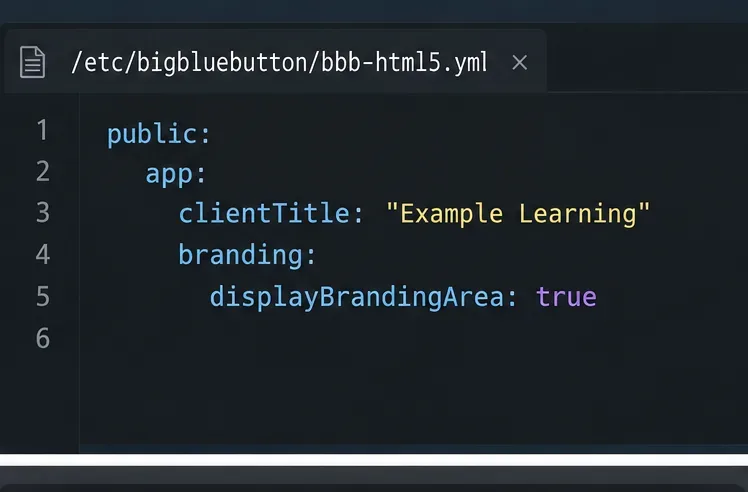
/etc/bigbluebutton/bbb-html5.yml already exists, copy it to a dated backup before editing. Preserve any existing settings rather than replacing the whole file./etc/bigbluebutton/bbb-html5.yml, set the public client title and branding-area setting using the nesting below. YAML indentation matters; use spaces, not tabs.public:
app:
clientTitle: "Example Learning"
branding:
displayBrandingArea: trueUse your organization’s preferred title. Confirm the nesting against your version’s official documentation before using the example. The guide identifies public.app.clientTitle, the bbb-html5.yml override, and the displayBrandingArea setting.
sudo bbb-conf --restart from the server after saving. Restart during a maintenance window because active meetings may be interrupted.Do not change the packaged HTML5 settings.yml just because it is easy to find: a package update may replace it. The supported override is easier to maintain. The official server customization guide explains the override approach and restart command.
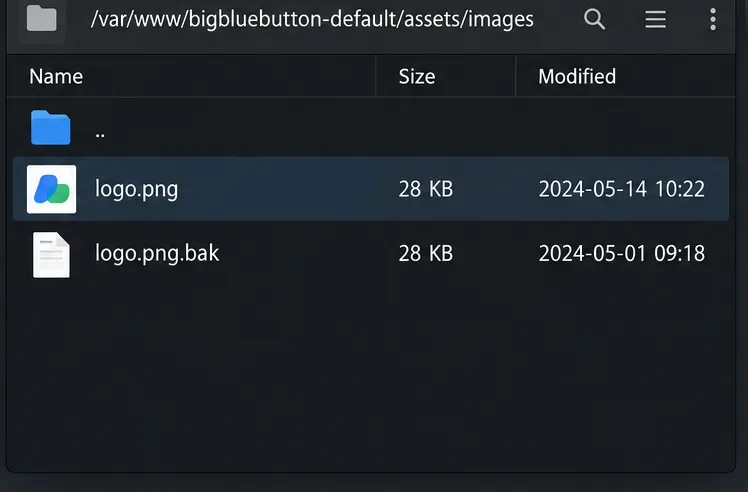
On a self-managed server, copy your prepared PNG to the documented default path, keeping the expected filename logo.png. First save a copy of the existing file outside the package asset directory or under a clearly named backup such as logo.png.bak. Then install the replacement with appropriate read permissions so the web server can serve it. For example, if the new image is already on the server at /tmp/example-logo.png, an administrator can use:
sudo cp /var/www/bigbluebutton-default/assets/images/logo.png /var/www/bigbluebutton-default/assets/images/logo.png.bak
sudo install -m 0644 /tmp/example-logo.png /var/www/bigbluebutton-default/assets/images/logo.png
These commands replace only the logo asset. Verify the path and substitute your uploaded image’s actual location.
If an application creates the meeting, include a logo URL in that meeting’s API create request. Keep the URL available throughout the meeting. This is useful when a single partner course needs a distinct mark; it does not change all meetings. The API’s Create meeting documentation describes meeting parameters; the customization guide explains the branding-area prerequisite.
A logo change is not a full interface redesign. The logo parameter targets the meeting branding area, and the client title changes the meeting client title; neither promises to change all navigation, colors, email, or a separate Greenlight portal. For a deeper HTML5 client rebrand, BBB’s official FAQ points to setting up the development environment and creating a customized client. Greenlight has its own version-specific customization path; consult its official customization documentation if the portal is what you need to brand.
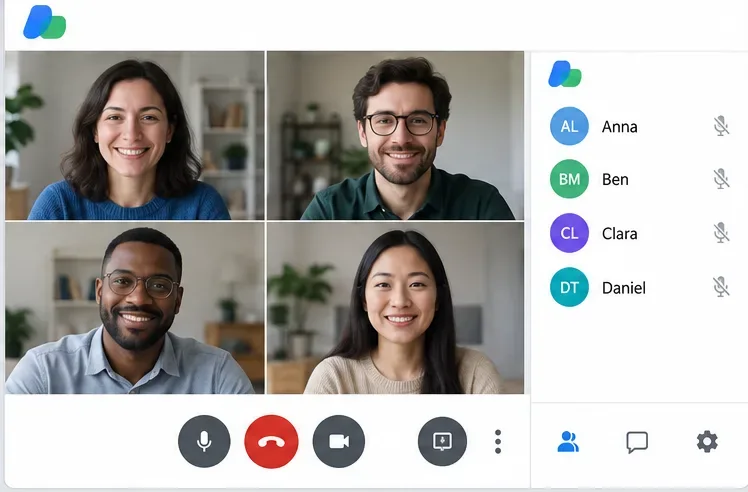
To verify the changes, create a new test meeting through the same method your users will use. Confirm the new client title, check that the logo area is visible, and verify the correct logo appears above the participant list. For a per-meeting logo, create a second test room without the parameter to confirm the special logo is limited to the intended room. If the title or logo is missing, check YAML indentation and key nesting, confirm that you restarted BBB, open the image URL directly from a participant’s browser, and inspect the server’s logs for configuration errors. If the default logo disappears after an upgrade, restore or reapply the documented asset change from your backup.
Set a meeting title, enable the logo area, and choose a default or per-meeting logo on a self-hosted BigBlueButton server.
Use this 4-step guide to compare AI shopping help with holiday sales, verify prices, and choose gifts with confidence this December.
Set up the Moodle activity, add the matching BigBlueButton endpoint and shared secret, then verify teacher, student, and media access.
Master U.S. holiday etiquette in 5 clear steps, avoiding conversation faux pas, tipping mistakes, and host blunders for a smooth, festive trip.
Point a Jitsi Meet Docker hostname to your server, configure PUBLIC_URL and HTTPS, then verify browser access and media.
Trace the failing Jitsi service from Compose status to its logs, then fix missing secrets, unwritable mounts, or resource failures safely.
Resolve unsupported presentation uploads in BigBlueButton by choosing the right format, checking the real file type, and identifying server-side failures.
Trace KMS crashes to resource pressure, verify your BigBlueButton media path, and apply the supported fixes without guessing at capacity.
Set up local host accounts on a self-hosted Jitsi Docker server, then add a separate password to meetings that need tighter guest access.
Disable optional Jitsi analytics and rtcstats, then set a separate retention policy for Docker logs so privacy controls do not erase troubleshooting evidence.