Set Up External TURN for Jitsi Behind NAT
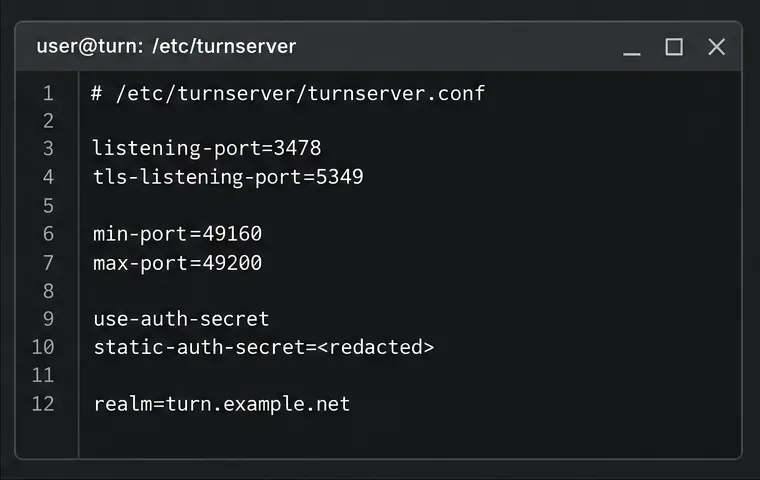
Configure coturn, NAT port forwarding, and Prosody so Jitsi can relay calls when direct media connections fail.
If you hear a brief playback of your own voice during BigBlueButton’s microphone check, that is the echo test working as intended. If the echo continues after you confirm the test, use a headset, select its microphone and speakers in the audio dialog, and make sure no nearby second device is playing the meeting into an open microphone. For audio that arrives late, first compare the same meeting on another network or device; if several participants are affected, the host should check the server’s WebRTC network path.
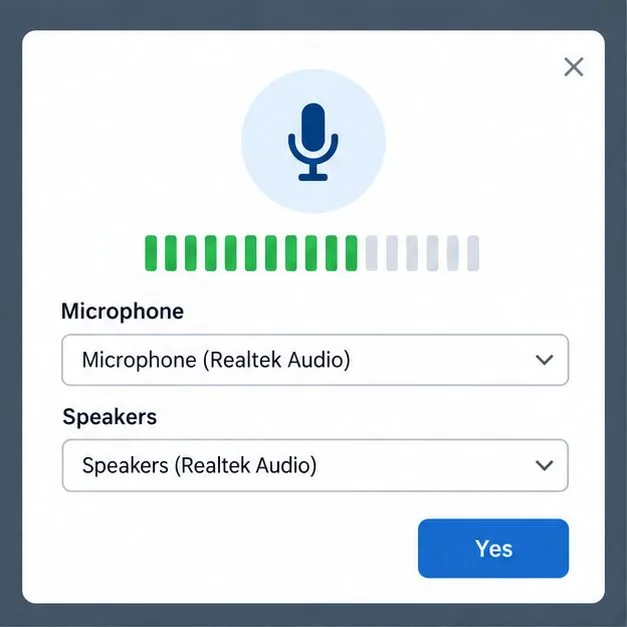
When you join with a microphone, BigBlueButton asks you to speak and listen to the test playback. Hearing your voice there confirms that the selected input and output are connected. Click Yes only after you can hear it clearly. A feedback loop that continues in the meeting is a different problem.
Try the check in this order:
BigBlueButton’s release testing documentation checks the echo test, audio feedback control, and microphone and speaker selection. The exact controls can vary by client version and device. See the BigBlueButton audio test checklist.
The most reliable fix is a headset with a microphone. It keeps meeting audio out of the mic. In the audio setup, choose the headset as both the input and output device. Lower the speaker volume if sound still leaks into the mic, and turn off speakers on any second laptop or phone that has joined the same room nearby.
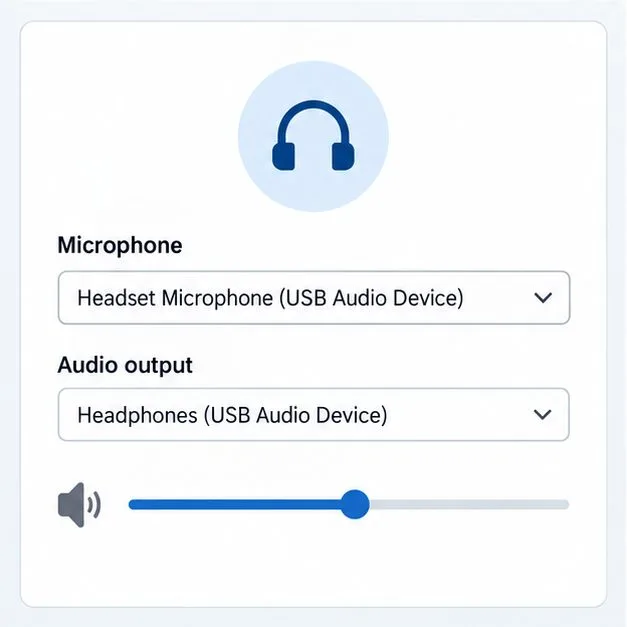
Two open laptops sitting next to each other can create echo even when each laptop’s acoustic echo cancellation is working: one device’s speakers can reach the other device’s microphone. BigBlueButton recommends headsets for this reason. If one person is causing echo, a moderator can mute that participant while they switch to a headset. The official BigBlueButton FAQ on voice echo describes this multi-device case.
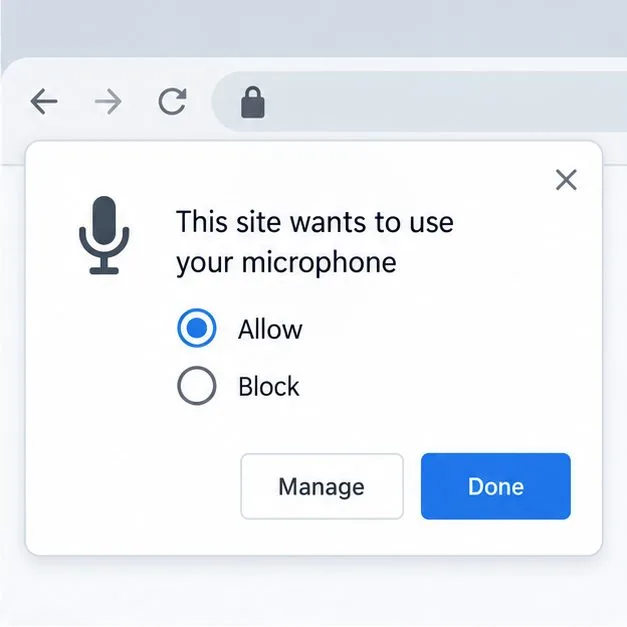
If the microphone is missing or silent, check permission at both the browser and operating-system levels. In Chrome, open Settings → Privacy and security → Site settings → Microphone, allow the meeting site, and choose the correct default device. Then confirm that the operating system has also granted Chrome microphone access. Google’s Chrome microphone help lists these checks. A permission problem usually causes no input, rather than a delayed echo, but it can make troubleshooting confusing.
Determine whether the delay affects only your computer or everyone. Ask one participant on a different connection to listen. If only you hear late or broken audio, close bandwidth-heavy downloads and video streams, move closer to the Wi-Fi access point, or test a wired connection. Pause and resume audio once; if the problem remains, leave the audio connection and rejoin. A wired headset is also a useful comparison if a Bluetooth headset introduces delay.
Update your browser and check that its version is supported by the BigBlueButton server you use. The project maintains a version-specific browser list in its troubleshooting documentation; do not assume an old browser has the same WebRTC behavior as a supported one. If the same person has trouble in every meeting, check the microphone and playback in the operating system and another trusted calling app. If only one BigBlueButton server has the issue, share that comparison with its host.
For a rough isolation test, join the official BigBlueButton demo from the same device and network. If audio is clear there but delayed on your organization’s server, the local headset is less likely to be the cause. This comparison is diagnostic, not proof: the rooms can have different participant loads and network routes.
If several participants report delayed, choppy, or disconnected audio at the same time, check the server and network before asking everyone to change headsets. For a self-hosted BigBlueButton 3.0 server, start with:
sudo bbb-conf --check
sudo bbb-conf --status
The first command checks configuration and common problems; the second shows service status. Review warnings alongside the affected meeting time, server load, and whether reports come from one network or many. BigBlueButton’s 3.0 troubleshooting guide calls out WebRTC connectivity, restrictive UDP networks, and TURN as areas to investigate.
Verify the firewall and NAT configuration against the installation’s actual setup. BigBlueButton documents incoming UDP ports 16384–32768 for media and explains that mediasoup must announce the correct external address when the server sits behind NAT. A blocked UDP path or incorrect announced address can prevent a browser from establishing a reliable media path; those are administrator changes, not participant settings. Follow the official firewall and NAT configuration for the deployed version. If a restrictive client network blocks UDP, the troubleshooting guide recommends investigating TURN rather than making arbitrary audio configuration changes.
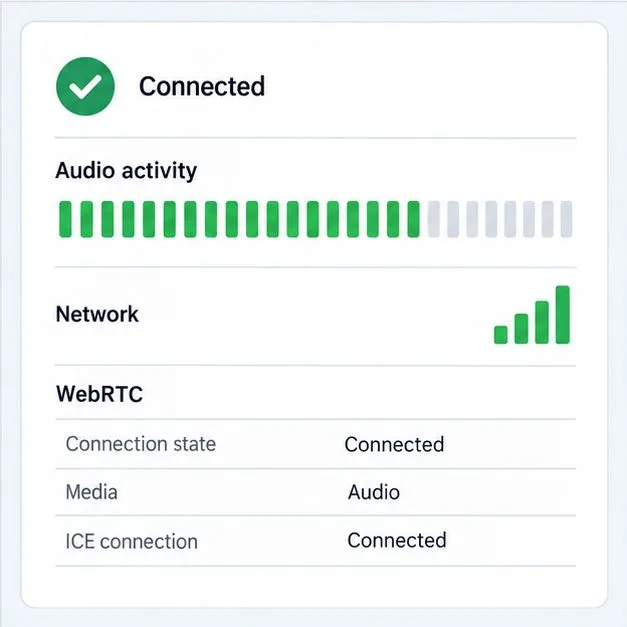
Rejoin audio and repeat the microphone check. The input meter should respond to speech, playback should be clear, and after you confirm, your voice should not feed back from room speakers. Ask another participant to confirm that your voice arrives without a repeating echo or noticeable lag. If the problem persists, report whether it affects one person or the whole room, the browser and operating system, whether a headset was used, and the meeting time. Those details help the host distinguish a device problem from a server or network issue.
Configure coturn, NAT port forwarding, and Prosody so Jitsi can relay calls when direct media connections fail.
Master a 5-step guide to understand holiday inflation spending, balance family traditions with budget realities, and safeguard your finances.
Install Jitsi Meet from its official Ubuntu packages, obtain a Let’s Encrypt certificate, open the right ports, and verify secure meetings.
Discover what happens behind the scenes of Giving Tuesday donations across 6 detailed steps, from payment gateways to matching fund delivery.
Reduce browser CPU spikes in Jitsi Meet by limiting incoming video, tuning camera use, checking hardware acceleration, and testing the result.
Set a meeting title, enable the logo area, and choose a default or per-meeting logo on a self-hosted BigBlueButton server.
Use this 4-step guide to compare AI shopping help with holiday sales, verify prices, and choose gifts with confidence this December.
Set up the Moodle activity, add the matching BigBlueButton endpoint and shared secret, then verify teacher, student, and media access.
Master U.S. holiday etiquette in 5 clear steps, avoiding conversation faux pas, tipping mistakes, and host blunders for a smooth, festive trip.
Point a Jitsi Meet Docker hostname to your server, configure PUBLIC_URL and HTTPS, then verify browser access and media.