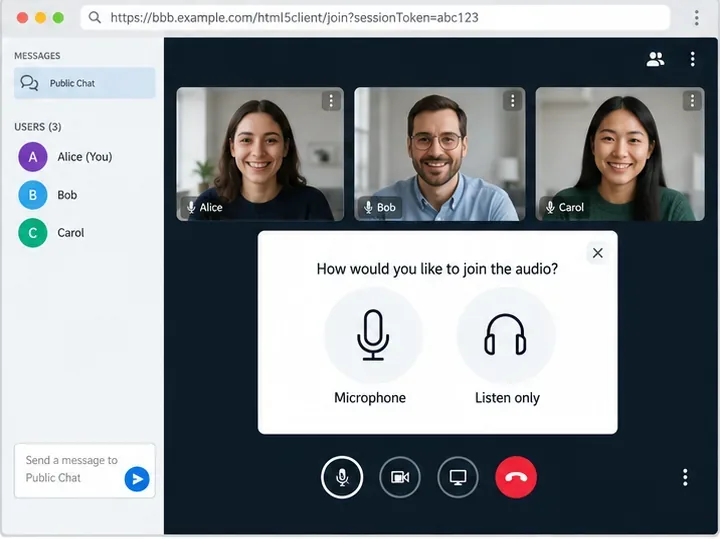
Stop BigBlueButton Echo and Audio Delay With These Checks
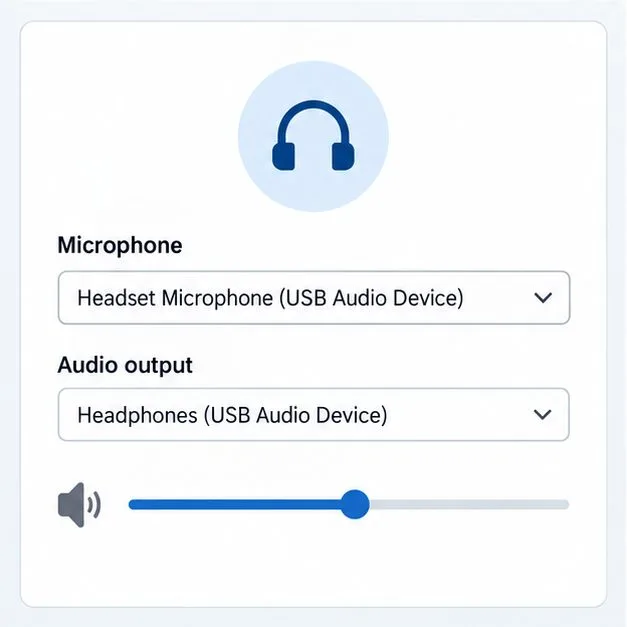
Use BigBlueButton’s echo test, headset, and browser audio settings to stop microphone feedback, then isolate network or server causes of audio lag.
A recent version change determines whether Etherpad can be enabled at all: the BigBlueButton 4.0 documentation, currently marked in development, says Etherpad has been removed, BlockNote is the shared-notes editor, and the old Etherpad selection setting is ignored. On BigBlueButton 3.0, you can still use Etherpad by confirming the matching packages are installed and setting sharedNotesEditor=etherpad globally or in an individual meeting’s API /create request.
Etherpad is a real-time collaborative text editor. In BigBlueButton, it can provide the Shared Notes panel so participants can edit a common document during a meeting. The steps below apply to a packaged, self-managed BigBlueButton 3.0 server. Managed hosting may limit server access, and the configuration differs on 4.0.
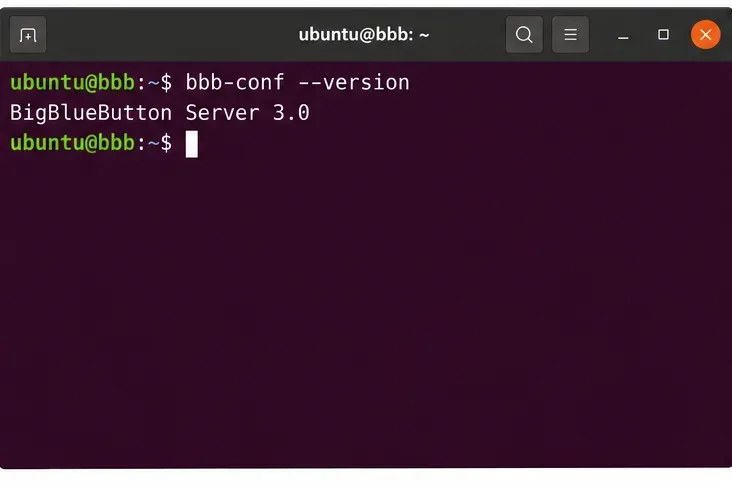
Before changing anything, connect to the BigBlueButton server over SSH and check its installed version:
bbb-conf --versionBigBlueButton’s official bbb-conf reference confirms that --version reports the installed server and component versions. Also inspect whether the Etherpad packages are installed:
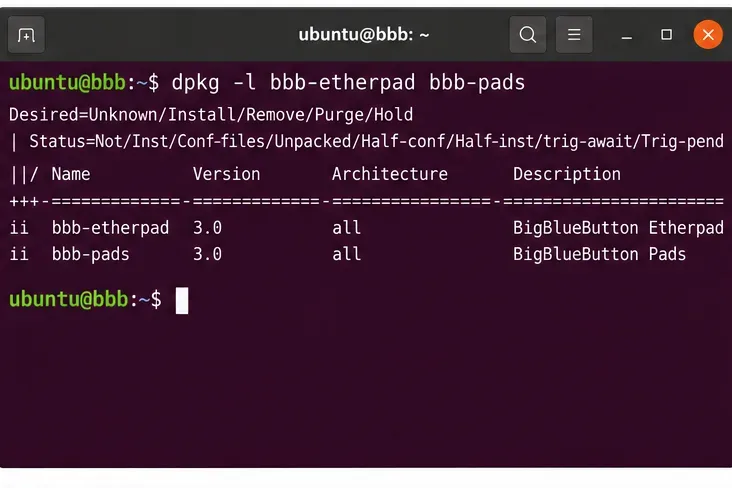
dpkg -l bbb-etherpad bbb-padsThe ii status at the start of a package row means it is installed. If you are on 4.0, stop here: do not try to enable Etherpad with a legacy flag. The current BigBlueButton 4.0 release documentation says that Etherpad support was removed during the 4.0 lifecycle, the bbb-etherpad and bbb-pads packages are no longer published, and shared notes always use BlockNote. It also warns that Etherpad pads from affected 4.0 pre-release upgrades are not migrated. Export or otherwise preserve notes before an upgrade where that warning applies.
On BBB 3.0, the relevant integration uses the bbb-etherpad and bbb-pads packages. The first provides the Etherpad component and the second connects pads to BigBlueButton. They may be absent from a server where the optional feature was not installed.
Check their status with dpkg -l. If both rows show ii, continue to configuration. If either package is missing, check that the server uses the official package repository for its existing BBB release and that APT can see a candidate version:
apt-cache policy bbb-etherpad bbb-padsInstall only the packages offered for that same BBB 3.0 installation:
sudo apt install bbb-etherpad bbb-padsIf APT reports that no candidate is available, do not add a repository from another BigBlueButton version or force-install a package from an unrelated release. Resolve the repository or ask your hosting provider first. Do not run this installation command on BBB 4.0; those packages are no longer part of that version’s supported setup.
BigBlueButton recommends storing persistent settings in /etc/bigbluebutton override files rather than editing files installed by a package. The BBB 3.0 configuration-file reference identifies /etc/bigbluebutton/bbb-web.properties as the override for the web/API properties.
Open the existing file with a text editor that preserves its contents, such as sudo nano /etc/bigbluebutton/bbb-web.properties. Add this property on its own line:
sharedNotesEditor=etherpadDo not delete the other settings in the file. The property sets the default editor for meetings created through the server. The BigBlueButton 3.0 customization reference lists sharedNotesEditor as accepting etherpad or blockNote on versions that support both.
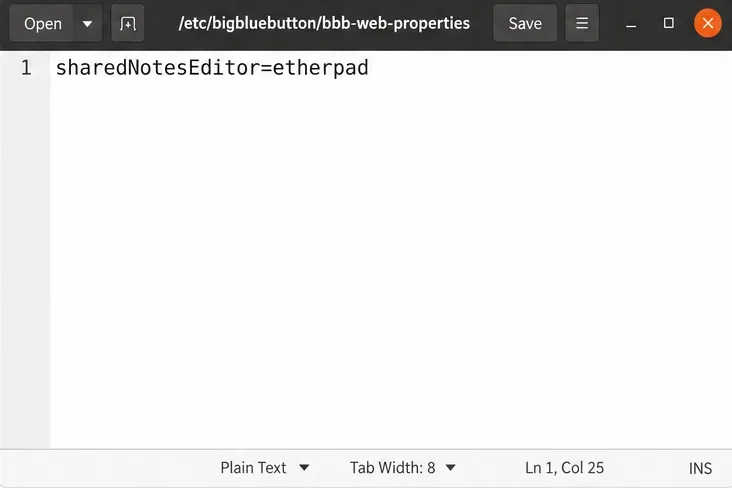
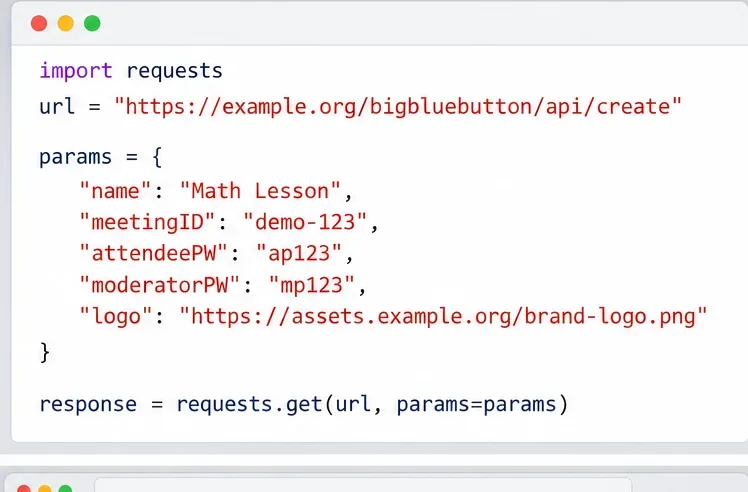
If your learning platform or custom frontend creates meetings through the BigBlueButton API, pass sharedNotesEditor=etherpad in that meeting’s /create request. This keeps the server-wide default unchanged while allowing a specific course or session to use Etherpad. The official BigBlueButton API reference documents the parameter for the 3.0 API.
Have your integration generate the request checksum after including the parameter. BigBlueButton signs API parameters, so manually appending a value to an already signed URL can cause a checksum error. If you do not control the frontend’s API code, ask its maintainer whether it supports setting the shared-notes editor per meeting.
After changing the server-wide property, restart BigBlueButton during a maintenance window:
sudo bbb-conf --restartA restart briefly interrupts the service, so avoid doing this while important meetings are active. If you only changed a per-meeting API parameter, you do not need to change the server-wide default; create a fresh meeting using that API request to test the override.
Join a new test meeting as a moderator and participant, open Shared Notes, and confirm that both can edit the same text. Test a second meeting without the API parameter if you configured Etherpad for only one room. This verifies the scope of the change instead of relying on an existing meeting, which may have been created before the setting changed.
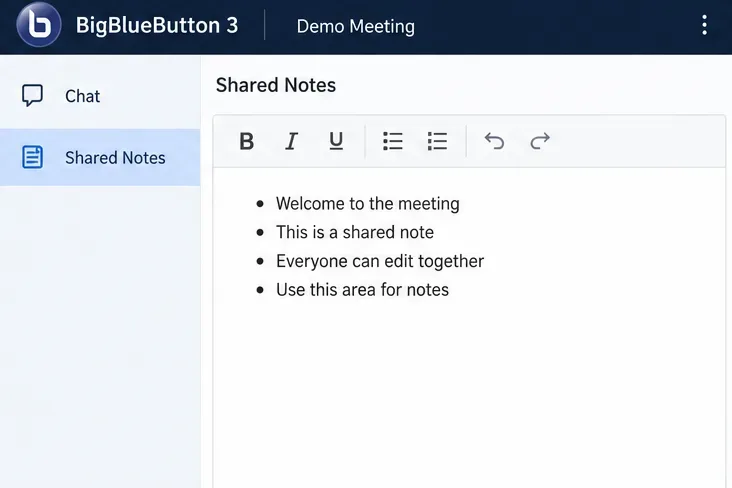
/etc/bigbluebutton/bbb-web.properties.If the panel is missing or unavailable, confirm the server version, package status, and selected editor; then run sudo bbb-conf --check and review the reported configuration problems. If you are on BBB 4.0, switch to BlockNote rather than troubleshooting an Etherpad setting that the version no longer uses.
Use BigBlueButton’s echo test, headset, and browser audio settings to stop microphone feedback, then isolate network or server causes of audio lag.
Configure coturn, NAT port forwarding, and Prosody so Jitsi can relay calls when direct media connections fail.
Master a 5-step guide to understand holiday inflation spending, balance family traditions with budget realities, and safeguard your finances.
Install Jitsi Meet from its official Ubuntu packages, obtain a Let’s Encrypt certificate, open the right ports, and verify secure meetings.
Discover what happens behind the scenes of Giving Tuesday donations across 6 detailed steps, from payment gateways to matching fund delivery.
Reduce browser CPU spikes in Jitsi Meet by limiting incoming video, tuning camera use, checking hardware acceleration, and testing the result.
Set a meeting title, enable the logo area, and choose a default or per-meeting logo on a self-hosted BigBlueButton server.
Use this 4-step guide to compare AI shopping help with holiday sales, verify prices, and choose gifts with confidence this December.
Set up the Moodle activity, add the matching BigBlueButton endpoint and shared secret, then verify teacher, student, and media access.
Master U.S. holiday etiquette in 5 clear steps, avoiding conversation faux pas, tipping mistakes, and host blunders for a smooth, festive trip.